
Fmod_event64.dll Is Missing on Windows 10
Fmod_event64.dll is a 64-bit dynamic link library (DLL) file that is associated with the FMOD event system. FMOD is an audio engine developed by Firelight Technologies and is widely used in games and multimedia applications to provide real-time sound effects, music playback, and dynamic audio events.
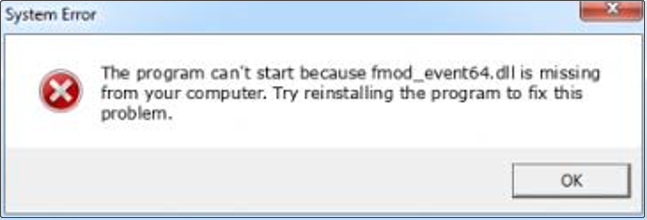
If fmod_event64.dll is missing or damaged, it may cause the application to fail to start or give errors such as “The program can’t start because fmod_event64.dll is missing from your computer”. When your system prompts that the file is missing, it may be caused by the following reasons:
- Corrupted or missing file: The DLL file may be damaged or missing due to accidental deletion, disk errors, or software conflicts.
- False positives from antivirus software: Some antivirus software may mistakenly identify the DLL as a threat and quarantine or delete it.
- Missing or outdated Visual C++ Redistributables: Some applications rely on Visual C++ runtime libraries, and if the versions do not match, it may cause DLL-related errors.
- Incomplete game or application installation: If the DLL is provided by a game or application, problems during the installation process may cause the file to be missing.
How to Fix Fmod_event64.dll Is Missing
Fix 1: Add or Replace the DLL File
To fix a program error or restore a missing DLL, you can first try adding or replacing the fmod_event64.dll file. The following are the specific steps.
Step 1: Download the fmod_event64.dll file based on your system type (32-bit or 64-bit).
Step 2: Unzip the downloaded ZIP file and copy the fmod_event64.dll file.
Step 3: Find the game’s installation directory and paste the DLL file into it.
Restart your computer, then launch the game or application to check if the error is resolved.
Fix 2: Verify Integrity of Game Files
Many gaming platforms (e.g., Steam, Epic Games) offer a “Verify Game File Integrity” feature that scans and repairs corrupted or missing game files, including fmod_event64.dll. Here I will take Steam as an example.
Step 1: Open Steam and go to the Library section.
Step 2: Find and right-click the affected game to choose Properties.
Step 3: Switch to the Installed Files and click Verify integrity of game files.
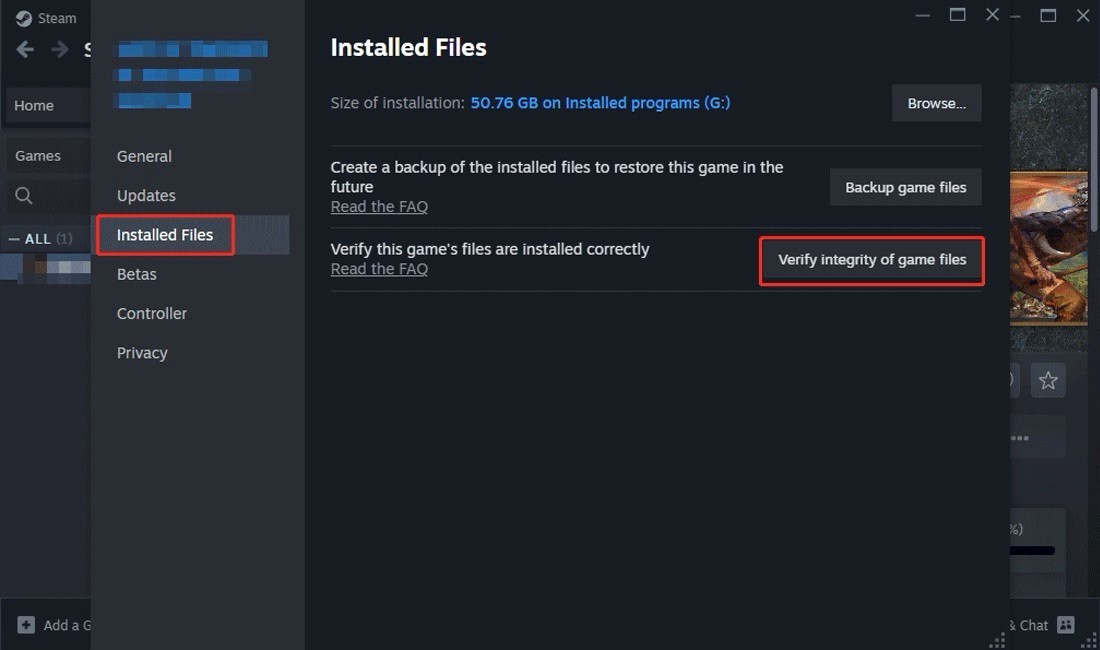
Wait for the process to complete, and then go to check if this error is fixed.
Fix 3: Reinstall the Affected Game or Application
If the game or application files are damaged or missing, you can also choose to reinstall it, which can restore the complete data. Here are the steps.
Step 1: Open Control Panel and change the view to Large icons.
Step 2: Select Programs and Features from the list.
Step 3: Find and right-click the affected game or app, and choose Uninstall.
Step 4: Restart your computer. Then, install the game or app to see if this error persists.
Fix 4: Reinstall Visual C++ Redistributables
Some applications rely on Visual C++ Redistributables to run. If these files are damaged or missing, the program may not start properly. Reinstalling Visual C++ Redistributables can repair damaged library files. Here is how you can do it.
Step 1: Visit the Microsoft Visual C++ Redistributables page.
Step 2: Click the links to download both the vc_redist.x64.exe and vc_redist.x86.exe versions.
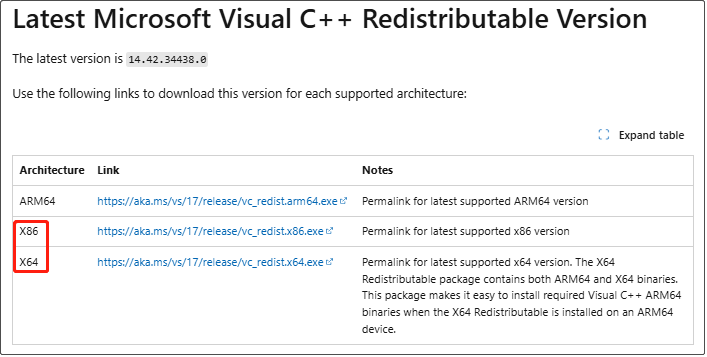
Step 3: After the downloading process ends, run the installer and click Install.
Fix 5: Check and Repair Corrupted System Files
If there are corrupted files on your computer, you can usually use Windows’ built-in System File Checker (SFC) or the DISM command to scan and repair the corrupted files. Follow the steps below to complete this process.
Step 1: Type cmd in the Windows search box, right-click Command Prompt, and choose Run as administrator.
Step 2: When prompted by UAC, click Yes to continue.
Step 3: Type sfc /scannow in the window and press Enter.
Step 4: This process may take some time. Wait for it to complete.
Step 5: After that, type the following commands and press Enter:
- DISM /Online /Cleanup-Image /CheckHealth
- DISM /Online /Cleanup-Image /ScanHealth
- DISM /Online /Cleanup-Image /RestoreHealth
Step 6: When this process ends, close the window and check if the file is restored.
MiniTool Power Data Recovery FreeClick to Download100%Clean & Safe
Bottom Line
It’s not difficult to fix the problem of fmod_event64.dll not found as long as you use the methods listed above. Hope they can help you.
User Comments :