
Grammarly is one of the best spelling and grammar-checking programs. If you have installed the Grammarly plugin but find it disappears from Microsoft Word, you can look through this post on MiniTool Website for effective solutions.
Why Is Grammarly Missing from Word?
Grammarly is a very convenient tool to detect grammatical errors when you need to write some content in English. Grammarly also provides you with a plug-in in Microsoft Office, which will help you check grammatical errors in Word, Excel, PowerPoint, and more.
However, sometimes you might find the Grammarly plugin disappears from Microsoft Office suddenly. How to fix this issue? Don’t worry, this post will provide you with 5 useful solutions to you! Scroll down to see more details now.
MiniTool ShadowMaker TrialClick to Download100%Clean & Safe
How to Fix Grammarly Missing from Word on Windows 10/11?
Fix 1: Enable the Grammarly Plugin
Sometimes, Grammarly might be inactive so you need to re-enable the Grammarly add-in. Here’s how to do it:
Step 1. Type word in the search bar to locate Microsoft Word and hit it.
Step 2. Click on Options and go to the Add-ins tab.
Step 3. Press the Go button beside Manage.
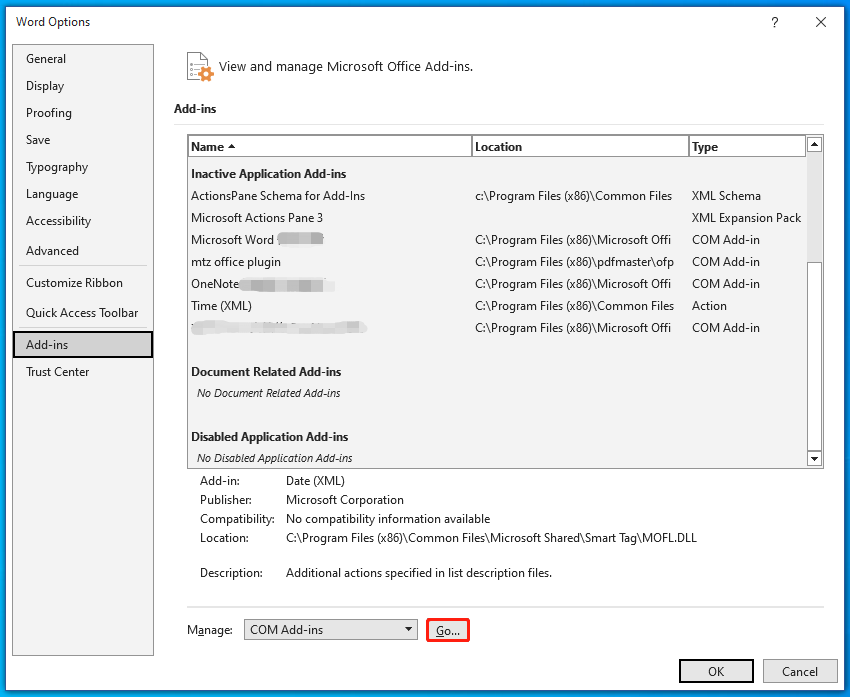
Step 4. Tick Grammarly and hit OK.
Step 5. In the Trust Center tab, click on Trust Center Settings.
Step 6. In the Add-ins tab, untick Disable all Application Add-ins.
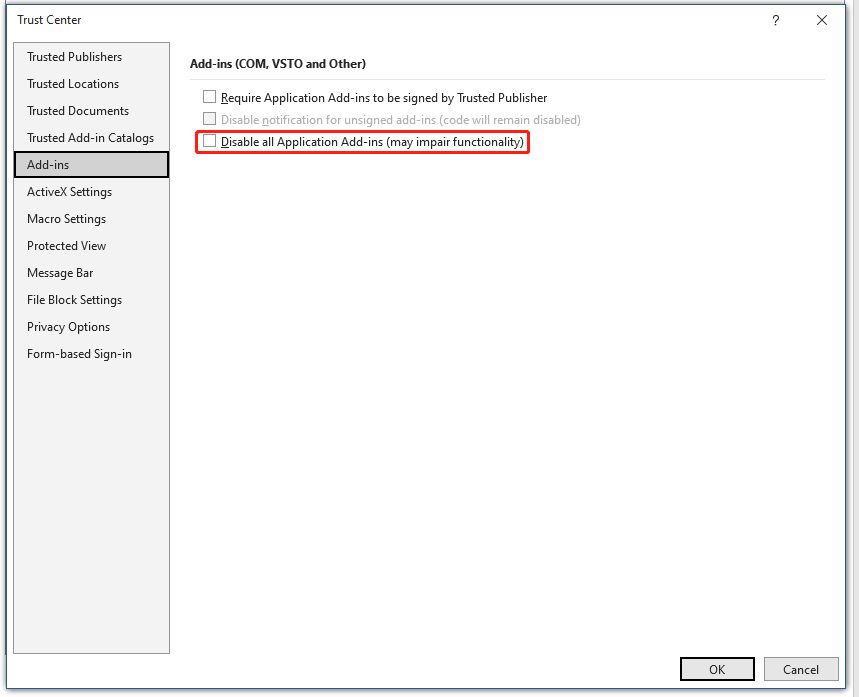
Step 7. Save the changes and relaunch Word to see if Grammarly missing from Word is gone.
Fix 2: Update Microsoft Office
Outdated Microsoft Office can also be the culprit of Grammarly missing from Word. Therefore, you need to update your Microsoft Office in time. The update for Microsoft Office is managed in the Windows update, so you can update your Windows so as to update Office.
Step 1. Press Win + I to open Windows Settings.
Step 2. Go to Update & Security > Windows Update > Check for updates.
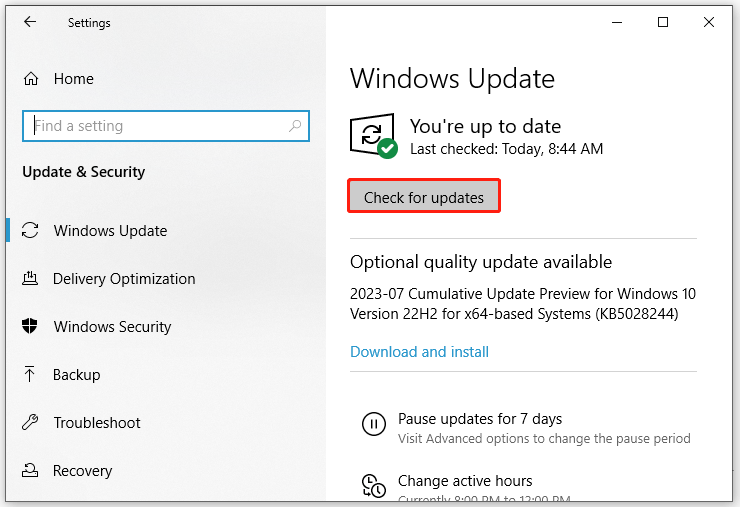
Step 3. After updating your Windows, you can launch Microsoft Word again to see if Grammarly not showing in Word is gone.
Fix 3: Check Blocked Apps
You might block some apps to access Grammarly due to privacy concerns. Therefore, you can check if you add Microsoft Word in the block list by accident. Here’s how to do it:
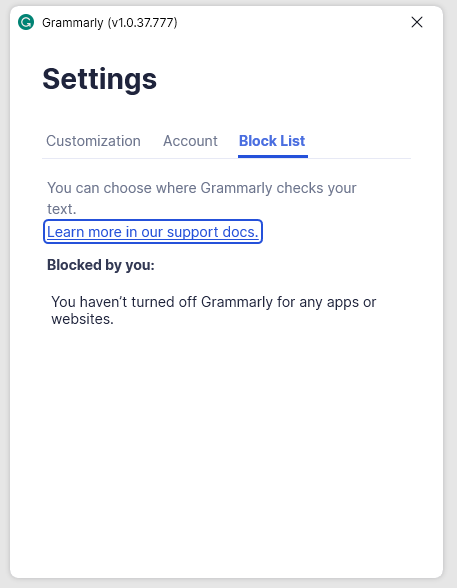
Step 1. Right-click the Grammarly icon in the system bar and select Settings.
Step 2. Under the Blocked Apps tab, check if Microsoft Word is in the list. If yes, remove it from the list and relaunch Microsoft Word to see if Grammarly can work properly now.
Fix 4: Disable Other Plug-ins
Some plugins installed on Microsoft might be conflicted with Grammarly. Therefore, you will encounter Grammarly missing from Word. To address this issue, you can disable other plug-ins. Follow these steps:
Step 1. Launch Microsoft Word and go to Options.
Step 2. Under the Add-ins tab, hit the Go button beside Manage.
Step 3. Tick all add-ins except for the Grammarly plugin and hit Remove.
Fix 4: Reinstall Grammarly for Microsoft Office
If you don’t install Grammarly for all users, your Grammarly might also disappear from Office. Meanwhile, you might get such an error message: Grammarly add-in has failed to load. In this case, you can try reinstalling Grammarly. To do so:
Step 1. Press Win + I to open Windows Settings and go to Apps.
Step 2. In Apps & features, find Grammarly for Windows, hit it, and then hit Uninstall.
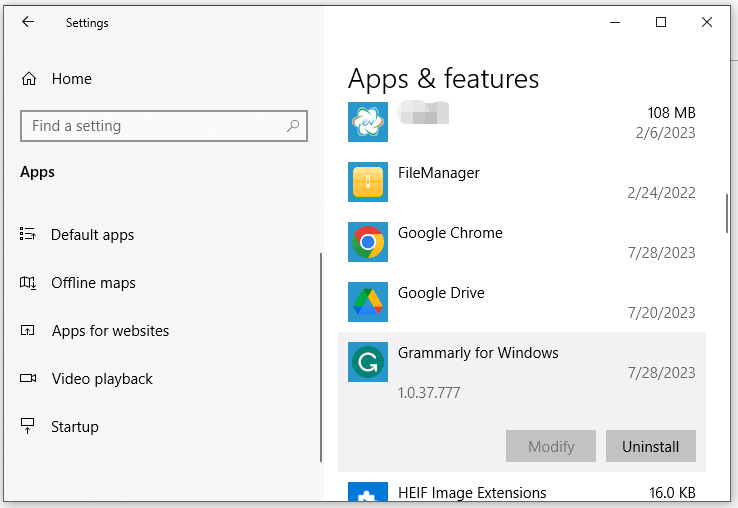
Step 3. After removing Grammarly from your computer, go to the official Grammarly website to download & install Grammarly for Windows again.
User Comments :