
Group Policy Keeps Reverting
“I want to set the Local Security Policy settings for Audit Policy. I am using an Administrator account to make changes to the Audit policies. They appear to change on the screen, but when I reboot the laptop, the settings revert to the default setting (No Auditing) and do not save my setting changes.”learn.microsoft.com
As the user experienced, many users reported that they encountered the “Group Policy changes revert after rebooting” issue. According to user experience, this issue is usually associated with a corrupted user profile, incorrect group policy configuration, insufficient user permissions, etc.
In the following part, we have collected several methods that have been proven to be effective in resolving this issue. You can try them one by one until the issue has been resolved.

How to Fix if Group Policy Settings Keep Coming Back
Fix 1. Make Sure the Group Policy Client Service Is Running
The Group Policy Client service is responsible for applying settings configured by administrators for computers through the Group Policy component. If there is a problem with the running status of this service, the settings will not be applied to the computer, and applications and components will not be manageable through Group Policy.
So, facing the “Group Policy keeps reverting” issue, you need to make sure that the Group Policy Client service is running.
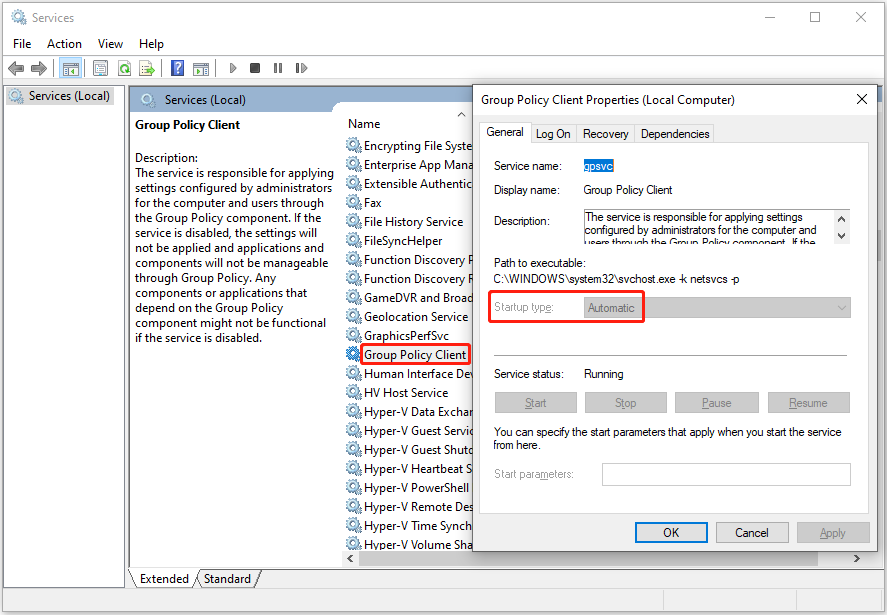
Step 1. In the Windows search box, type services and click Services from the best match result to open it.
Step 2. In the services window, scroll down to find and double-click Group Policy Client.
Step 3. In the pop-up window, make sure the Startup type of this service is set to Automatic.
Fix 2. Start Windows in Clean Boot State
Sometimes third-party applications or services conflict with Windows, preventing you from successfully changing policies. To eliminate this factor, you can start Windows in the clean boot state to boot the computer with minimal drivers and applications.
Step 1. Press the Windows + R key combination, type msconfig in the input box, and then press Enter.
Step 2. Under the Services tab, check the option of Hide all Microsoft services, then click the Disable all button.
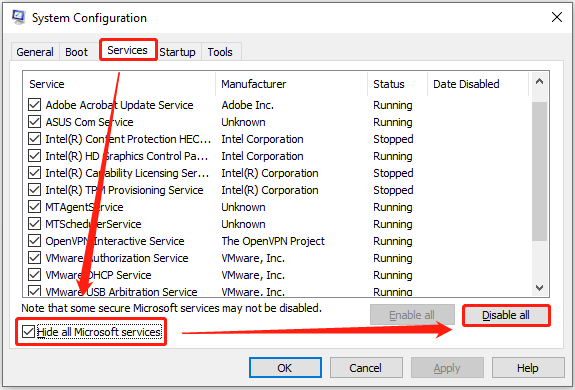
Step 3. Switch to the Startup tab, then click the Open Task Manager button.
Step 4. In Task Manager, select a program that may interfere with Group Policy and click Disable. Duplicate these steps to disable all unnecessary programs.
Step 5. Restart your computer. After that, you can try to make changes to the group policies and check if you can do it successfully.
Fix 3. Create a New User Account
Corrupted user profiles or incorrectly configured settings may also result in unsuccessful Group Policy configuration modifications. The solution to this problem is to create a new user account, then try to modify the Group Policy values and check if the problem still exists. If the problem disappears in the new account, it indicates that it is caused by an account problem.
- How to Add or Remove a User/Microsoft Account on Windows 11
- How to Create an Administrator Account in Windows 10
Fix 4. Reset Group Policy Settings
Misconfigured policy settings may trigger the “Group Policy changes revert after rebooting” issue as well. If all methods listed above are not practical for you, you may consider resetting group policy settings.
You can do this by using Command Prompt.
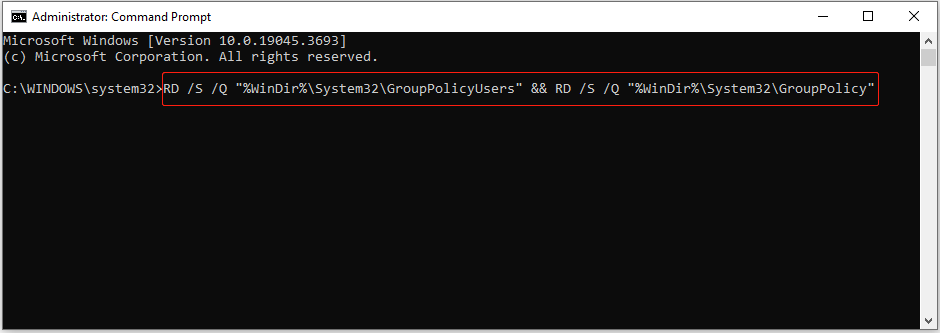
Step 1. In the Windows search box, type cmd and click Run as administrator from the right panel.
Step 2. In the new window, type the following command lines. you need to press Enter after each command line.
- RD /S /Q “%WinDir%\System32\GroupPolicyUsers” && RD /S /Q “%WinDir%\System32\GroupPolicy”
- gpupdate /force
Step 3. Restart the PC and check if the issue has been resolved.
MiniTool Power Data Recovery FreeClick to Download100%Clean & Safe
Bottom Line
In a word, to resolve the “Group Policy keeps reverting” problem, you need to ensure that the Group Policy Client service is running, start Windows in a clean boot mode, create a new user account, and reset Group Policy settings.
To recover deleted files, you can choose the professional hard drive data recovery service, MiniTool Power Data Recovery. Should you encounter any issues when using MiniTool software, feel free to let us know by sending an email to [email protected].
About The Author

Position: Columnist
Shirley holds a bachelor’s degree in English and has been an editor at the MiniTool Team for many years. She specializes in IT-related content, with a focus on data recovery, file backup, disk management, and other technical topics. She is committed to delivering clear, accurate, and practical solutions to help users resolve common computer issues.
User Comments :