
The HAL initialization failed BSoD error is often seen when Windows 10 wakes up from the sleep status. How do you fix the HAL error? Take it easy now and you can get some solutions from this post from MiniTool to easily get rid of the trouble.
Initialization Failed Windows 10
When using your computer, BSoD (blue screen of death) errors always happen and make you annoyed. If your system wakes up from sleep, you may suddenly get a blue screen error like HAL initialization failed. The error is also known as 0x0000005C.
Usually, this problem happens on some older computers due to malware infection, damaged system files, corrupted hard disk, driver conflict, old, corrupted or incorrectly configured drivers, etc. Fortunately, it is possible to fix although it is frustrating.
In the following part, you can see some methods to fix the HAL problem and you should try them one by one until you fix your issue.
Fixes for Hal Initialization Failed
Sometimes you can boot the PC to the desktop but you still need to fix the issue by trying these methods below since the issue appears from time to time. If you fail to start up the system, go to Safe Mode and perform the troubleshooting. This post – How to Start Windows 10 in Safe Mode (While Booting) [6 Ways] is helpful for you.
Set UsePlatformClock to True
This is the first way you can have a try. As mentioned above, this problem happens during returning from the sleep stage. In this case, this method works fairly well.
Now, let’s see the guide:
Step 1: Launch Command Prompt with admin privileges.
Step 2: Type bcdedit /set useplatformclock true and press Enter.
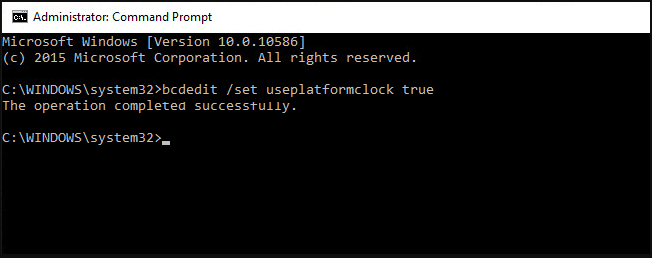
To verify that useplatformclock has been set to True, you can use the command line – bcdedit /enum. If you see useplatformclock is Yes, the process has been done and you can restart your PC to see if HAL_INITIALIZATION_FAILED is resolved.
Clean Junk Files
You should make sure the system drive has enough free space since the blue screen error like HAL initialization failed may happen due to low system drive space.
It is recommended to clean junk files to free up some space from the system drive. You can do this work using Disk Cleanup.
Step 1: Right-click C drive and choose Properties.
Step 2: Under the General tab, click Disk Cleanup.
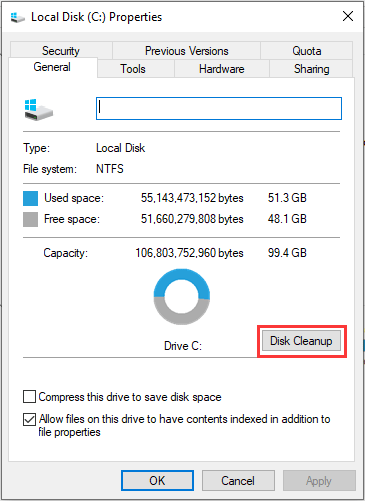
Step 3: Check the box of the items that you want to delete, click OK and Delete Files.
Check If Your Hard Disk Is Damaged
Sometimes hard disk corruption can cause startup problems like the BSoD error HAL initialization failed. So, you should also check the disk.
Step 1: Run Command Prompt as administrator.
Step 2: Type chkdsk /f /r and press Enter.
Step 3: If a restart is required, type Y and press Enter.
Then, restart your computer and then perform the disk check.
Update Your Drivers
A range of blue screen errors are caused by hardware and software incompatibility. If you are bothered by HAL initialization failed, you need to make sure the old, corrupted or incorrect drivers are updated to the latest versions.
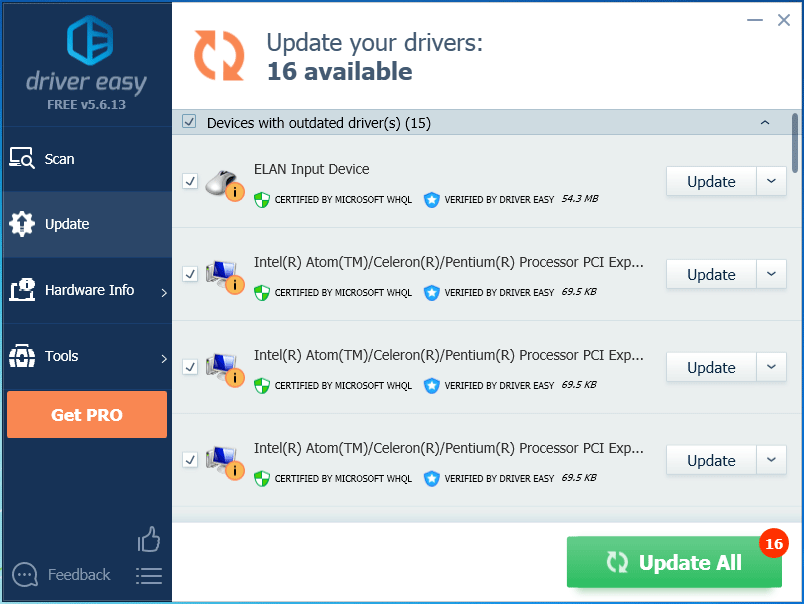
You can go to the manufacturers’ website to look for drivers and install them on your computer one by one. But to save time, we recommend using a professional driver update tool like Driver Easy to help you. This tool can automatically scan your computer and install the up-to-date drivers for you
Perform a Clean Boot
There is another method to help you get rid of HAL_INITIALIZATION_FAILED and it is to perform a clean boot. This allows you to boot Windows without running non-Microsoft services so that you can determine if any app is causing the issue that you have. If the PC can work well without the BSoD error, perhaps third-party services go wrong.
How to perform a clean boot? Get the way from this post – How to Clean Boot Windows 10 and Why You Need to Do So.
Final Words
Have you encountered the BSoD stop code HAL initialization failed in Windows 10? Here are almost the possible solutions and you should try them one by one now to get rid of the blue error.
About The Author

Position: Columnist
Vera has been working at the MiniTool Team for over 10 years as a technical editor and content writer. She mainly focuses on disk and partition management, data recovery, Windows backup and restore, and PC troubleshooting. Through in-depth software testing and hands-on experience, she has helped users solve a wide range of computer problems and better protect their data on Windows devices.
User Comments :