
MiniTool offers a guide to simply compare HDD vs SSD for data storage, helping you choose the right device to store important files. Additionally, this post explains some prevention strategies to avoid data loss in a hard drive.
Solid-state drives (SSDs) and hard disk drives (HDDs) are primary storage solutions in a computer. When storing important files, choosing the right option requires understanding their differences.
The following is a simple comparison, helping determine which is better for data storage: SSD or HDD.
HDD vs SSD for Data Storage: Which Is Better
Choosing between an SSD and an HDD for important files depends on several factors, mainly balancing the need for speed, capacity, cost, and long-term storage.
SSDs are generally used for active daily use due to their extreme speed, while HDDs remain superior for high-capacity, low-cost, long-term archival storage.
Here is a breakdown.
Use an HDD for Long-Term Archiving and Capacity
In some specific use cases, HDDs are the superior choice.
- Mass storage: If you need to store terabytes of raw video footage, movies, and massive backups, the cost of using SSDs is extremely high. An HDD offers a lower cost per GB, also making it the most economical choice for large-scaleRAID setups that prioritize capacity over speed.
- Long-term archiving: HDDs are best used for cold storage, particularly for archiving data that is rarely accessed. This is because magnetic platters can hold data safely while disconnected for long periods. Conversely, SSDs’ flash memory can leak charge over time without power, causing data loss.
Choose an SSD for Performance and Everyday Use
SSDs provide significantly superior performance over HDDs, as they use flash memory instead of spinning magnetic platters. Some NVMe drives can offer read/write speeds exceeding 14,000 MB/s, whereas HDDs are typically limited to 80–160 MB/s.
The ultra-fast speed contributes to near-instantaneous load times, rapid file access, and fast data transfers.
What’s more, due to a lack of moving parts, the drive is more resistant to shocks, drops, and general wear and tear. Additionally, SSDs can operate silently and generate less heat.
With the consideration of these, choose an SSD in the following cases:
- Use an SSD to store frequently accessed files or photos you edit frequently. This speeds up workflow and file access.
- An SSD is an ideal choice for on-the-go computing because of its durability.
- To achieve a fast Windows boot time (within 10 seconds or less) and improve overall system responsiveness, it is recommended to use an SSD as the primary boot drive.
Data Corruption/Loss and Recovery in an HDD or SSD
Whether you use an HDD or SSD for data storage, drive failure is inevitable, triggering data loss or corruption. All drives have a lifespan, but they fail in different ways due to their underlying technologies.
HDD
#1. Mechanical Wear
HDDs utilize spinning magnetic platters to store data, with a mechanical actuator arm and a read/write head to access data. Typically, a drive failure is related to these moving parts. HDDs can degrade over time due to mechanical wear and are prone to damage from physical shocks.
#2. Warning Signs
Before an HDD fails, common indicators of HDD failure include clicking or grinding sounds, slowing performance, increasing file corruption, and other warning signs.
#3. Data Recovery
In many cases, it is possible to perform a successful data recovery from an HDD, as data remains on the platters.
SSD
#1. Electronic & Write Wear
SSDs store files using NAND flash memory, allowing for high-speed performance but bringing a finite, measurable lifespan driven by the program/erase (P/E) cycles.
Each memory cell has a finite number of write cycles. Once hitting the limit, SSDs wear out and no longer store new data. Usually, manufacturers specify the write endurance in terabytes written (TBW).
For video editors who work with raw 4K or 8K footage or users who need to constantly rewrite large files, the limited TBW of an SSD can be a concern. This is why we choose an HDD rather than an SSD for mass data storage.
#2. Sudden Failure
SSDs can fail silently, without any audible or obvious warning, due to controller malfunctions, firmware bugs, or abrupt power loss. The drive may become a brick, completely unresponsive.
#3. Data Recovery
The SSD TRIM command can permanently erase data once a file is deleted to maintain performance. For an enabled-TRIM SSD, it is extremely difficult to restore data.
Prevention Strategies to Avoid Data Loss
Regardless of the drive you use for storage, keeping important files secure is a critical step. The following are some key practices.
Follow the 3-2-1 Backup Rule
Backup is an effective method to protect data. The best strategy is the 3-2-1 rule. This refers to keeping 3 copies of data on 2 different media types, with 1 copy stored offsite.
For details, refer to the 3-2-1 backup strategy guide.
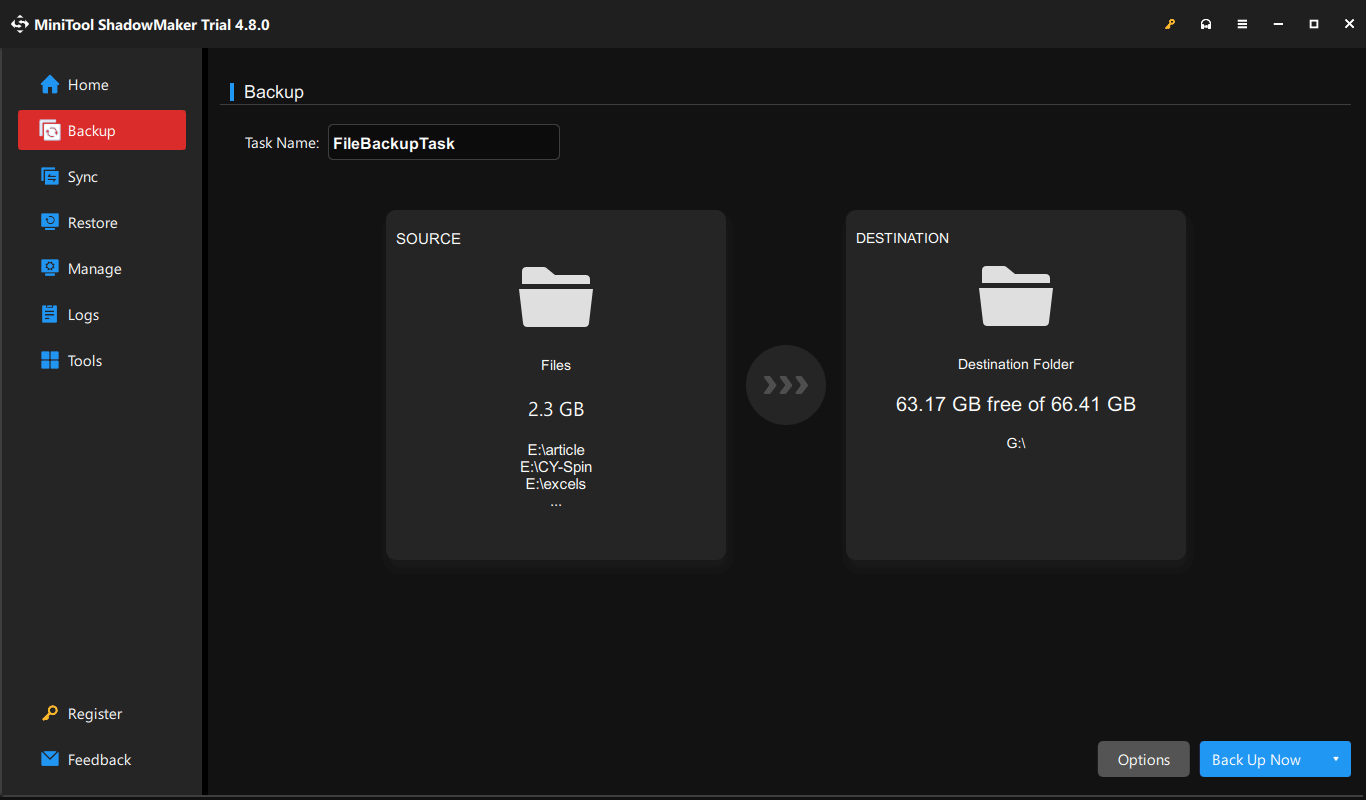
To back up files to an external hard drive, MiniTool ShadowMaker is recommended. It supports system and data backup, protecting the PC data and minimizing downtime.
Step 1: Connect an external drive to the PC, and download, install, and launch this backup software.
MiniTool ShadowMaker TrialClick to Download100%Clean & Safe
Step 2: In Backup, click SOURCE and DESTINATION to choose the backup source and target.
Step 3: Click Back Up Now.
Monitor S.M.A.R.T. Status
It is crucial to monitor the SMART status with software such as CrystalDiskInfo to proactively detect impending hard drive or SSD failure.
By tracking performance indicators like bad sectors or temperature, you can back up data and replace the drive before it totally fails.
Perform Drive-Specific Care
For external SSDs, it is necessary to plug them in the computer periodically to refresh the charge in NAND flash cells. Electrical charges can leak over time if left unpowered for months.
For HDDs, regular defragmentation is recommended to reduce mechanical strain and improve system performance.
Use a UPS
A UPS (Uninterruptible Power Supply) provides emergency battery backup and surge protection. When power outages occur, the UPS can effectively prevent data loss or hardware damage.
Avoid Overheating
Overheating is a serious problem for hard drives since it can trigger premature failure and data corruption/loss.
Ensure proper airflow by keeping vents clean, using compressed air to clean dust, and keeping the PC in a cool environment.
Bottom Line
This post explains when to choose an HDD or SSD for data storage. In conclusion, use an SSD for performance and day-to-day use, while considering an HDD for large amounts of data and long-term offline archives.
To prevent data loss from drive failures, back up important files, monitor the SMART information, use a UPS, and keep the PC cool.
As for issues with MiniTool software, contact us at [email protected].
HDD vs SSD for Data Storage FAQ
About The Author

Position: Columnist
Vera has been working at the MiniTool Team for over 10 years as a technical editor and content writer. She mainly focuses on disk and partition management, data recovery, Windows backup and restore, and PC troubleshooting. Through in-depth software testing and hands-on experience, she has helped users solve a wide range of computer problems and better protect their data on Windows devices.
User Comments :