
Some of you might encounter an unexpected shutdown when playing Hell Let Loose on Windows 11/10 due to the low level fatal error. This guide from MiniTool will walk you through how to solve Hell Let Loose low level fatal error with detailed instructions.
Hell Let Loose Low Level Fatal Error
As one of the best WWII shooters, Hell Let Loose is greatly appreciated among players because of immersive gameplay, detailed weapon mechanics, historical accuracy, distinct roles and classes. However, some errors might disrupt your gameplay and even lead to a sudden crash. Hell Let Loose low level fatal error is one of the errors you might suffer from in the middle of the game. The complete error message reads:
The UE4-HLL Game has crashed and will close:
LowLevelFatalError
Unreal Engine is exiting due to D3D device being lost. (Error: 0x887A0006-Hung)
Unlike other minor glitches or bugs, Hell Let Loose LowLevelFatalError cannot be ignored or bypassed. Swift intervention is required if you are on the same boat. Now, let’s get started!

MiniTool ShadowMaker TrialClick to Download100%Clean & Safe
Solution 1: Change DirectX Mode
Different DirectX versions have different levels of compatibility with hardware and varying ability to handle graphics processing. As a result, switching to a different launch option might better suit your system and fix most games issues.
Step 1. Launch Epic Games Launcher as an administrator.
Step 2. Go to Library and find Hell Let Loose from the right pane.
Step 3. Click on the three-dot icon next to the game and select Manage from the context menu.
Step 4. Turn on Launch Options and type -dx12.
Solution 2: Run the Game on a Dedicated Graphics Card
When you are running Hell Let Loose on an integrated graphics card, it might trigger choppy gameplay and Hell Let Loose fatal error. Therefore, it’s a good option to run the game on a dedicated graphics card for better performance and more dedicated video memory. Follow these steps:
Move 1: Locate the Executable Path of Hell Let Loose
First, you need to locate the installation folder of the game. By default, the shipping.exe file is located in C:\Program Files\Epic Games\HellLetLooseG0WU4. Here’s how to locate the executable file via the game launcher:
Step 1. Launch Epic Games Launcher and find Hell Let Loose in Library.
Step 2. Click on three-dot icon beside the game and select Manage.
Step 3. Tap on the Folder icon (also called Open Install Location) beside Uninstall to open the installation folder of this game.
Step 4. Go to HLL > Binaries > Win64 to locate the HLLEpicGamesStore-Win64-Shipping.exe file. Note down its path.
Move 2: Run the Game on a Dedicated Graphics Card
Step 1. Type graphics settings in Windows Search and hit Enter.
Step 2. Click on Browse to open File Explorer.
Step 3. In the navigation bar, copy and paste the path of shipping.exe file and hit Enter. The default path is:
C:\Program Files\Epic Games\HellLetLooseG0WU4\HLL\Binaries\Win64
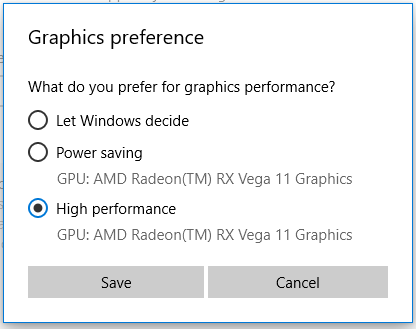
Step 4. Select the exe file > hit Add > click on Options > tick High performance > hit Save to set GPU performance to High Performance.
Solution 3: Disable Overlays
If you are running the game on a lower-end computer, running too many in-game overlays might consume system resources, leading to performance loss and game issues like Hell Let Loose low level fatal error. By disabling them, you can free up more processing power and run the game smoothly again. To do so:
#On Discord
Step 1. Open Discord and open its settings menu.
Step 2. In the Game Overlay section, disable Enable in-game overlay.
#On Steam
Step 1. Launch Steam > hit Steam in the top left corner > select Settings.
Step 2. Go to the In-Game tab and toggle off Enable the Steam Overlay while in game.

Solution 4: Repair Corrupted Game Files
To run the game smoothly and function as intended, please make sure your game files are not damaged or corrupted. Epic Games Launcher and Steam both come with an option to help you check the integrity of game files and repair them if necessary. Follow these steps:
#On Epic Games Launcher
Step 1. Open Epic Games Launcher and find Hell Let Loose from Library.
Step 2. Click on the three-dot icon on the right side of the game > select Manage > hit the Verify button.
#On Steam
Step 1. Launch Steam and locate Hell Let Loose in the game library.
Step 2. Right-click on the game and select Properties.
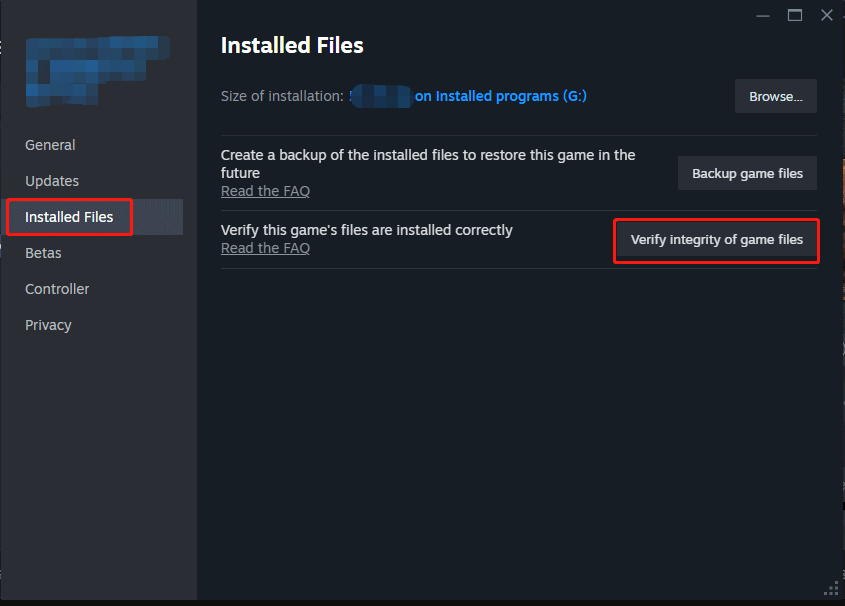
Step 3. In the Installed Files section, tap on Verify integrity of game files.
Final Words
That’s everything about Hell Let Loose UE4 game has crashed low level fatal error. With the help of these solutions, you can enjoy an uninterrupted and immersive fighting experience in this game.
User Comments :