
Which is the best free data recovery software for Windows?
MiniTool Power Data Recovery is professional data recovery software that can help you recover lost and deleted files in different situations. It has a free edition, and you can use the freeware to scan your drive for files and recover up to 1 GB of data for free.
MiniTool Power Data Recovery FreeClick to Download100%Clean & Safe
How Much Storage Will Starfield Take Up on a PC?
Starfield is an action role-playing game that has been formally announced in 2018, but until recently, its release date has been confirmed: September 6, 2023. Users can play it on Windows and Xbox Series X/S.
How much space will Starfield occupy on a PC?
On Reddit, users have already started discussions about the Starfield size by Starfield:
How much space will Starfield occupy on the console and pc?
I’m guessing anywhere between 150-250 gigs of space, maybe even more. But at least 110 and that’s a very conservative estimate.
The discussion on this issue is now concluded. Starfield system requirements for PC have been announced on its Steam Store page before its launch. Of course, the system requirements contain the amount of available disk space: users need to make sure the available space on the PC is at least 125 GB.
Starfield system requirements are much higher relatively: SSD is not suggested, it is required.
Starfield system requirements
To better understand if you can play Starfield on your computer, we will list both the Starfield minimum system requirements and the commended system requirements.
Starfield Minimum Requirements
- OS: Windows 10 version 21H1 (10.0.19043)
- Processor: AMD Ryzen 5 2600X, Intel Core i7-6800K
- Memory: 16 GB RAM
- Graphics: AMD Radeon RX 5700, NVIDIA GeForce 1070 Ti
- DirectX: DirectX Version 12
- Storage: 125 GB available space
- Additional Notes: SSD required
Starfield Recommended Requirements
- OS: Windows 10/11 with the latest updates
- Processor: AMD Ryzen 5 3600X, Intel i5-10600K
- Memory: 16 GB RAM
- Graphics: AMD Radeon RX 6800 XT, NVIDIA GeForce RTX 2080
- DirectX: DirectX Version 12
- Network: Broadband Internet connection
- Storage: 125 GB available space
- Additional Notes: SSD required
What to Do to Make Your Computer Eligible?
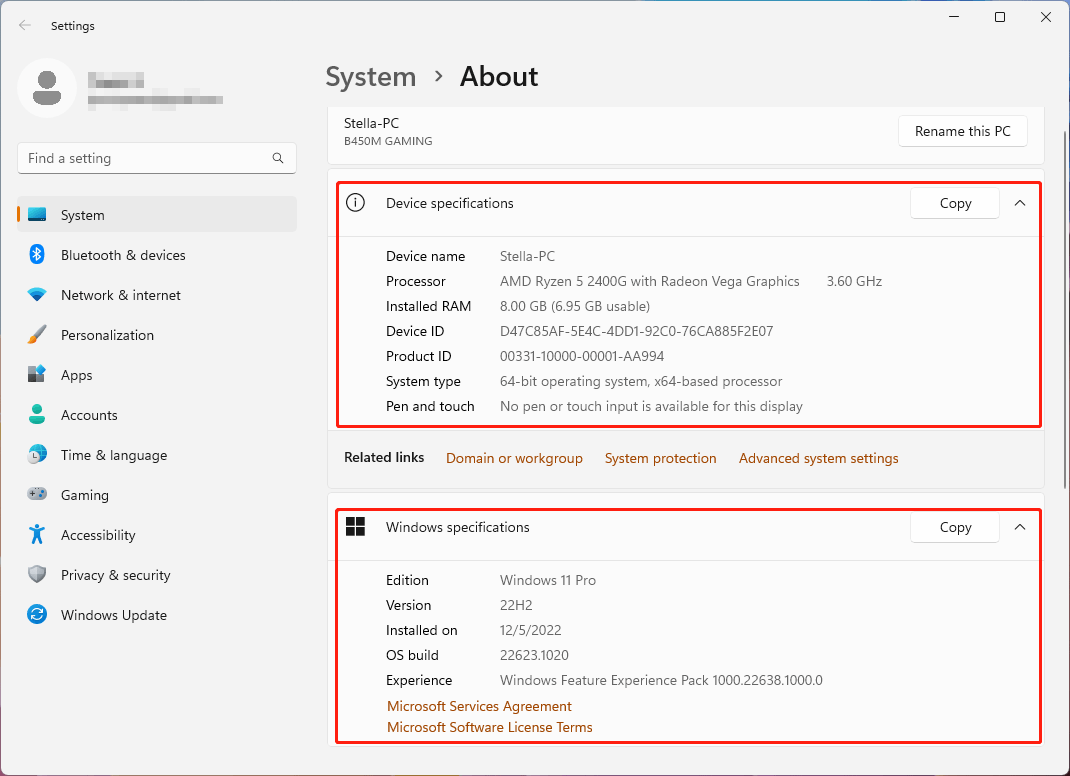
Move 1: Check your computer’s specs
You can go to Start > Settings > System > About, then check the device specifications and Windows specifications, and see if they meet the basic (minimum) system requirements.
Move 2: Check the DirectX version
You still need to check which DirectX version you are using:
Step 1: Right-click Start, and then click Run.
Step 2: Type dxdiag into the Run dialog, and then click OK.
Step 3: On the System tab, check the version of DirectX that is displayed on the DirectX Version line.
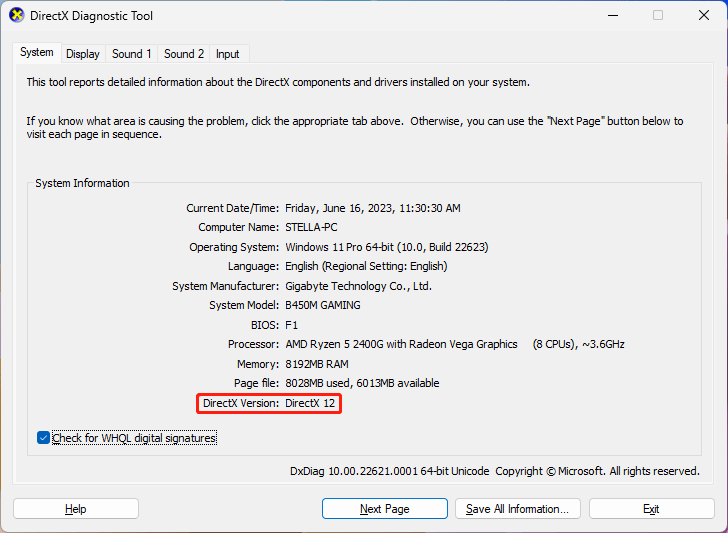
Step 4: Click Exit to close the window.
Move 3: Update Windows 10/11 to the latest version
To get the best gaming experience, you’d better update your system to the latest version by checking for updates in Windows Update.
On Windows 10
Go to Start > Settings > Update & security > Windows Update, then click the Check for updates button to get the latest updates if available.
On Windows 11
Go to Start > Settings > Windows Update, then click the Check for updates button to get the latest updates if available.
![Updated ISOs for Windows 11 and 10 Users [DOWNLOAD]](https://images.minitool.com/minitool.com/images/uploads/2023/05/latest-windows-11-10-isos-thumbnail.png)
Move 4: Check the available space on your PC
You can go to File Explorer to check if there is at least 125 GB of disk space on your C drive. If not, you can free up space on C: drive by deleting unnecessary files or using a professional partition manager like MiniTool Partition Wizard to extend the C: drive.
Besides, you can also replace your old hard drive with an SSD that has enough disk space. You can use the Migrate OS to SSD/HD feature in MiniTool Partition Wizard to do this job.
MiniTool Partition Wizard FreeClick to Download100%Clean & Safe
Step 1: Download and install MiniTool Partition Wizard on your computer.
Step 2: Launch the software, then click the key icon on the top and follow the instruction to get a full edition.
Step 3: Click Migrate OS to SSD/HD from the left menu to continue.
Step 4: Choose I would like to replace my system disk with another hard disk if you want to replace the old HD. You can select I would like to move my operating system to another hard disk. And keep the original hard disk in my computer if you only need to clone the system to the SSD.
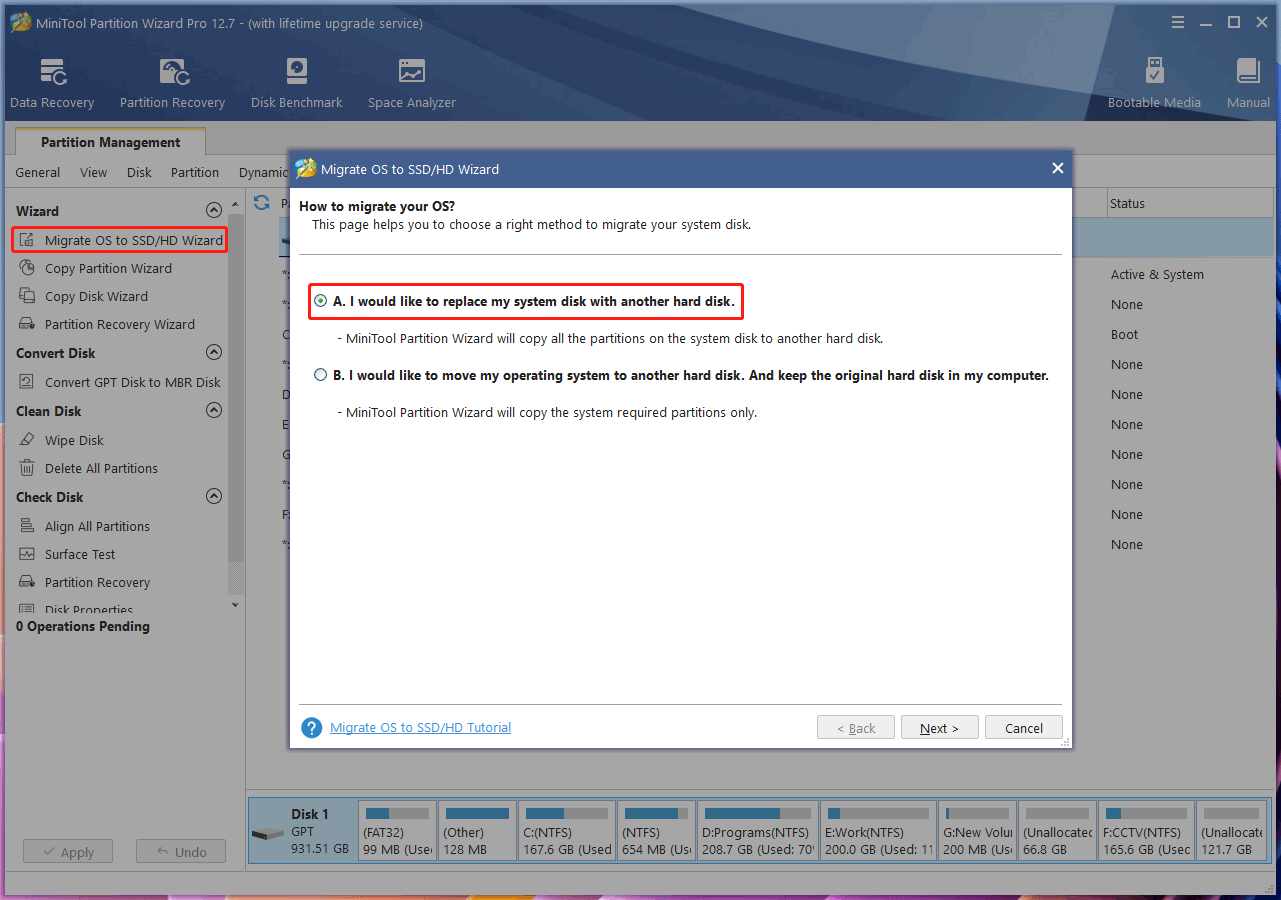
Step 5: Choose the source disk and the destination disk.
Step 6: Follow the wizards to complete the task.
If you think it is not worthwhile to upgrade to a new SSD, you can buy a new computer that meets the basic system requirements.
Move 5: Guarantee your network speed
It is said that an Internet speed of above 20 Mbps is usually ideal for gaming, especially for multiplayer or competitive gaming. If the internet speed is lower than 20 Mbps, you may fall into the lag zone. So, the faster the internet, the better the gaming experience you will get.
Bottom Line
How much storage will Starfield take up on a PC? After reading this post, you should know the answer. You can also know what to do if your computer doesn’t meet the basic Starfield system requirements.
About The Author

Position: Columnist
Stella has been working in MiniTool Software as an English Editor for more than 8 years. Her articles mainly cover the fields of data recovery including storage media data recovery, phone data recovery, and photo recovery, videos download, partition management, and video & audio format conversions.
User Comments :