
Quick Answer:
In Windows 11, Disk Management and DiskPart can only extend a partition when unallocated space is directly adjacent to the target partition.
If the unallocated space is non-adjacent or separated by a Recovery partition, use MiniTool Partition Wizard to extend the partition without deleting existing volumes.
Why Is Extend Volume Greyed Out in Windows 11
The Extend Volume option may be greyed out in Windows 11 when Windows cannot use the available disk space to expand the target partition.
Common causes include:
1. No adjacent unallocated space
Disk Management can only extend a partition when unallocated space is directly next to the target partition on the right side.
2. Unsupported file system
Extend Volume only supports NTFS and RAW partitions. FAT32 and exFAT partitions cannot be extended in Disk Management.
3. No unallocated space on the disk
Windows cannot extend a partition if there is no free unallocated space available.
4. Recovery partition blocks the extension
A Recovery partition between the target partition and unallocated space can prevent Disk Management from extending the volume.
Partition Extension Methods in Windows 11:
| Method | Adjacent unallocated space | Non-adjacent unallocated space | Take free space from existing partition | Difficulty | Pricing |
| Disk Management | Yes | No | No | Easy | Free |
| DiskPart | Yes | No | No | Medium | Free |
| MiniTool Partition Wizard | Yes | Yes | Yes | Easy | Free |
Which Method Should You Choose to Extend a Partition?
- Use Disk Management if adjacent unallocated space already exists behind the target partition.
- Use DiskPart if you prefer command-line partition management.
- Use MiniTool Partition Wizard if the unallocated space is non-adjacent or if you want to take free space from another partition.
Now, extend your data or system partition according to the actual situation.

Case 1. Extend a Partition Without Adjacent Unallocated Space
When the Extend Volume option is grayed out in Disk Management, use the free partition manager, MiniTool Partition Wizard, to extend the volume.
When Is MiniTool Partition Wizard Necessary?
MiniTool Partition Wizard is useful when:
- Extend Volume is greyed out
- Unallocated space is not adjacent
- The Recovery partition blocks free space
- You do not want to delete partitions
- You want to redistribute free space safely
How to Extend a Partition Using MiniTool Partition Wizard?
Step 1. Download, install, and launch MiniTool Partition Wizard.
MiniTool Partition Wizard FreeClick to Download100%Clean & Safe
Step 2. Select the target partition and click Extend Partition.
Step 3. Choose the unallocated space or available free space from the “Take Free Space from” menu. Then drag the slider to specify the volume size and confirm it.
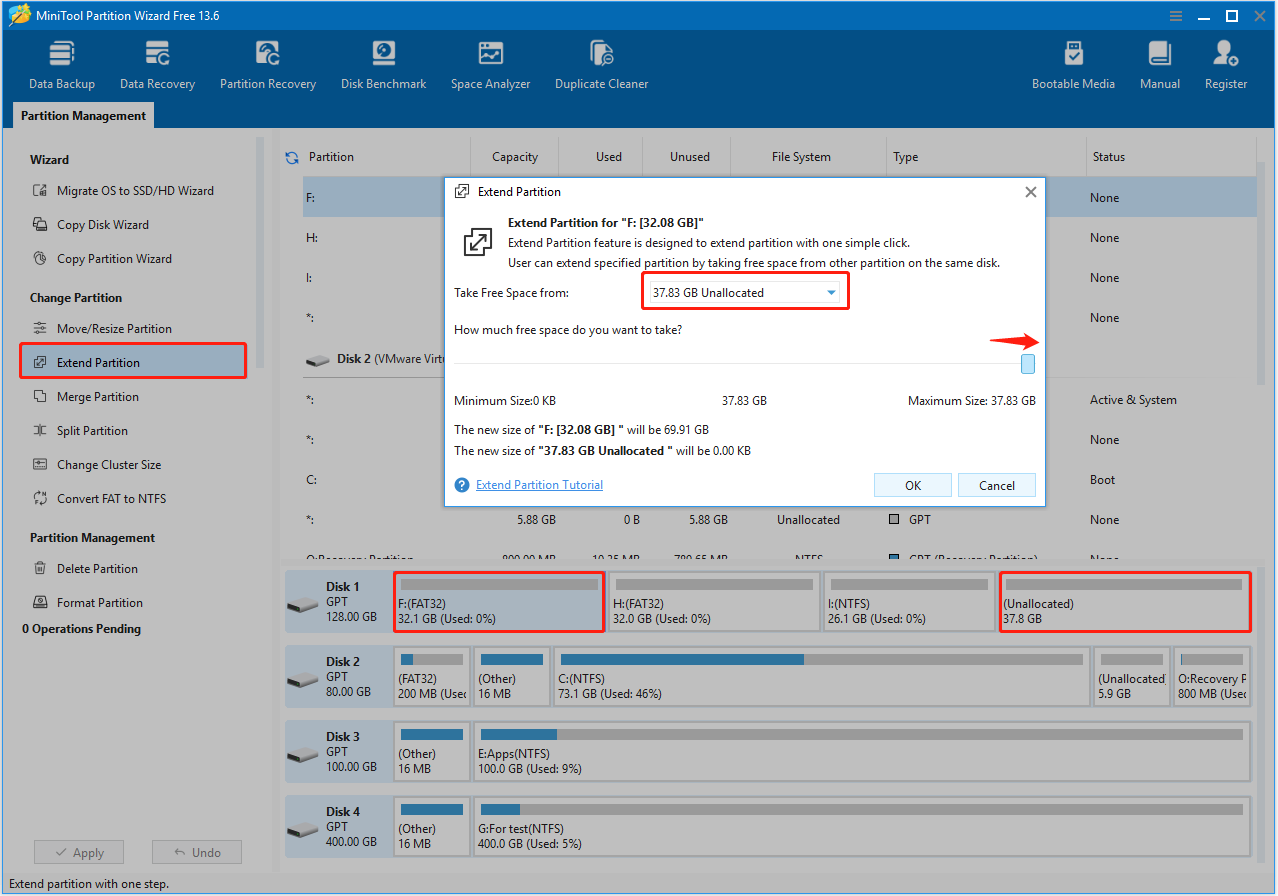
Step 4. Click Apply to apply this change.
The F: drive after extension:

Case 2. Extend a Partition With Adjacent Unallocated Space
If there is unallocated space directly behind the target partition, you can extend the partition using Windows built-in tools.
In this case, both Disk Management and DiskPart can help you extend volume in Windows 11 without third-party software.
Method 1. Use Disk Management
When the unallocated space is directly adjacent to the target partition, extend the volume using Disk Management.
How to Extend Volume in Windows 11 via Disk Management?
Step 1. Press the Windows + X keys and select Disk Management.
Step 2. Right-click the target partition and select Extend Volume.
Step 3. In the Extend Volume Wizard, click Next.
Step 4. Specify the amount of space and click Next.
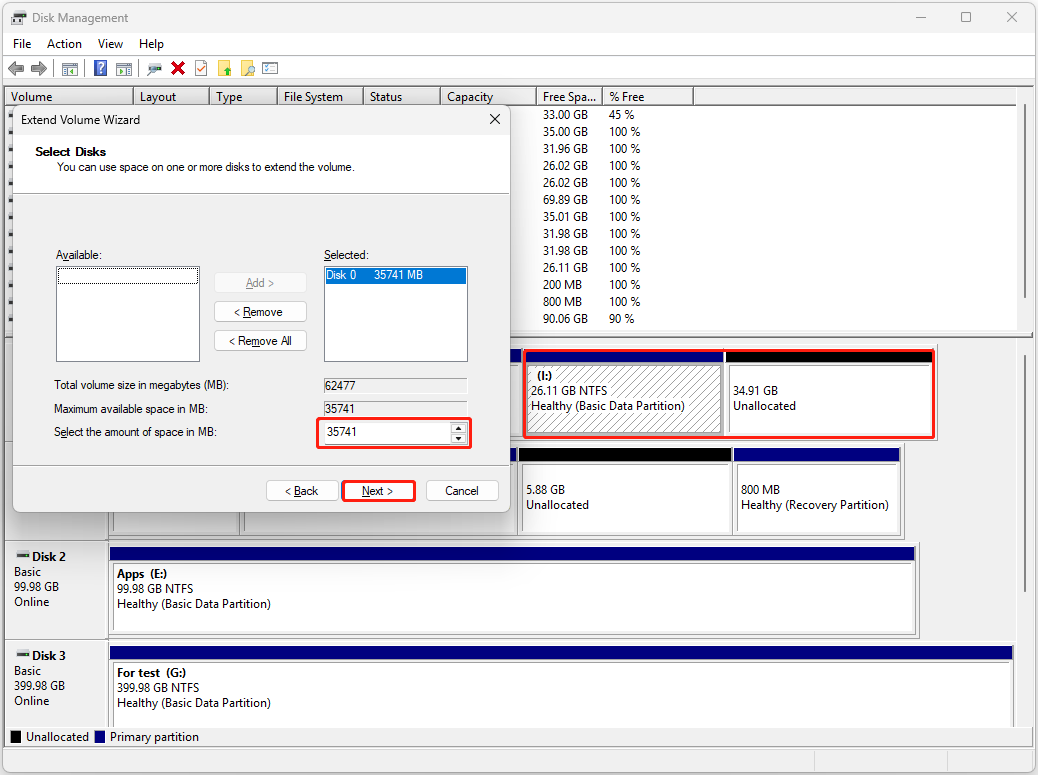
Step 5. Click Finish.
Pros and Cons of Disk Management:
Pros:
- Simple graphical interface
- No software download required
Cons:
- Cannot extend a partition without adjacent unallocated space
- Cannot extend a partition when the unallocated space is located on the left side of the target partition
Method 2. Use DiskPart
If you prefer to extend a partition using command lines, use DiskPart.
How to Extend a Partition in Windows 11 Using DiskPart?
Step 1. Run Command Prompt as an administrator.
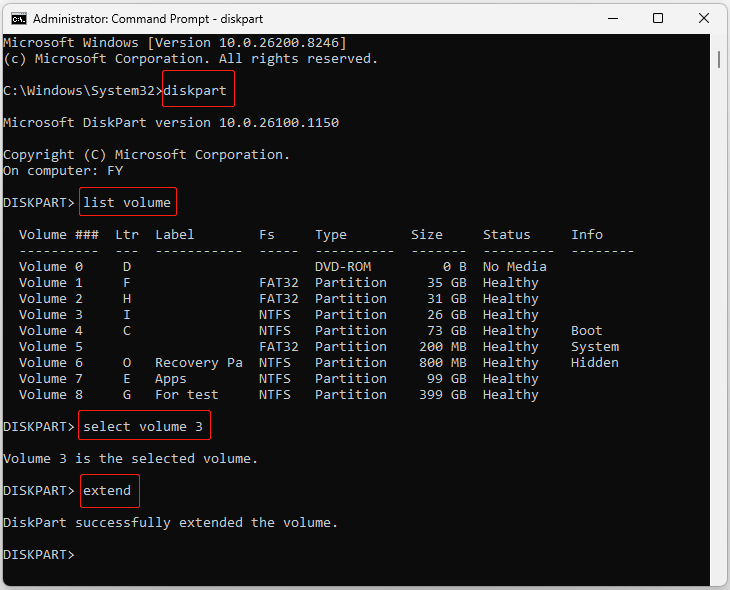
Step 2. Type the following commands and press Enter after each:
- diskpart
- list volume
- select volume 3 (replace 3 with the actual number of the target drive)
- extend
To use a specific amount of unallocated space, run the extend size=xx command, where xx represents the size in MB. For example, extend size=10240 extends the partition by 10 GB.
Pros and Cons of DiskPart:
Pros:
- No third-party software required
- Free command-line utility
Cons:
- Requires command-line knowledge
- Incorrect commands may cause data loss
- Cannot extend partitions without adjacent unallocated space
- No visual partition layout
Bottom Line
This post introduced three methods to extend partition on Windows 11.
If adjacent unallocated space exists behind the target partition, you can use Disk Management or DiskPart to extend the partition for free.
If Extend Volume is greyed out, MiniTool Partition Wizard provides a more flexible solution.
If you have any questions or encounter any issues when using MiniTool products, please send an email to the support team at [email protected].
Extend Partition Windows 11 FAQ
About The Author

Position: Columnist
Shirley holds a bachelor’s degree in English and has been an editor at the MiniTool Team for many years. She specializes in IT-related content, with a focus on data recovery, file backup, disk management, and other technical topics. She is committed to delivering clear, accurate, and practical solutions to help users resolve common computer issues.
User Comments :