
On your Windows 11 computer, the apps you don’t use frequently can be archived automatically to save storage space and internet bandwidth. In this post, MiniTool Software will show you how to use archive apps, including how to enable or disable archive apps on Windows 11.
You should install many apps on your computer. Some of them are frequently used, while others are not. The apps that are not frequently used occupy disk space, causing a waste of disk space and internet bandwidth. But you don’t want to delete these programs because you may need them at some point.
Archive apps is a feature on Windows 11. If this feature is enabled, Windows 11 apps that are not frequently used can be automatically archived. Your files and other data can be kept. When you want to use the app again, it will connect to the internet and restore the full version if it is still available.
You may don’t know how to enable or disable this feature on your Windows 11 computer. Don’t worry. You can find the guides from this post.

How to Enable Archive Apps on Windows 11?
The archive apps feature is enabled by default on your Windows 11 computer. But it may be turned off unexpectedly and you don’t know it. You can use the following steps to check its status and enable it if it is disabled.
1. Go to Start > Settings > Apps.
2. Click Apps & features (it is the first option on the right panel).
3. Click More settings on the next page.
4. Click Archive apps from the expanded menu.
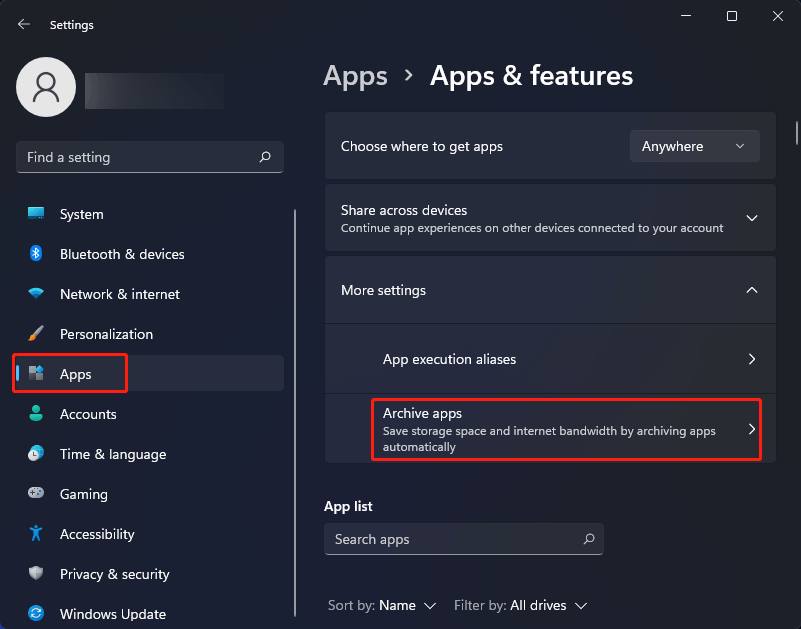
5. On the next page, turn on the button under Archive apps.
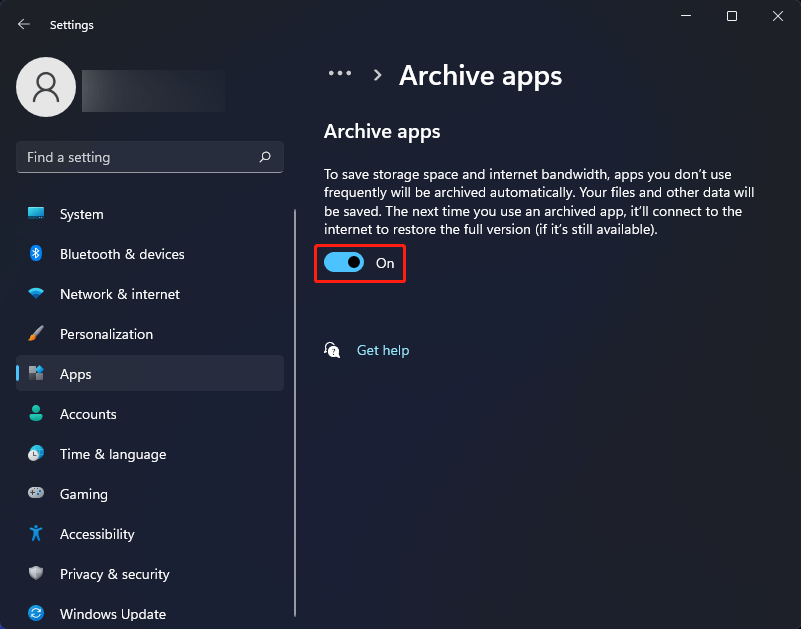
After these steps, the archive apps feature on your Windows 11 computer is turned on.
How to Disable Archive Apps on Windows 11?
If you don’t want to use this feature, you can turn it off using this guide:
- Go to Start > Settings > Apps.
- Click Apps & features.
- Click More settings on the next page.
- Click Archive apps from the expanded menu.
- Turn off the button under Archive apps.
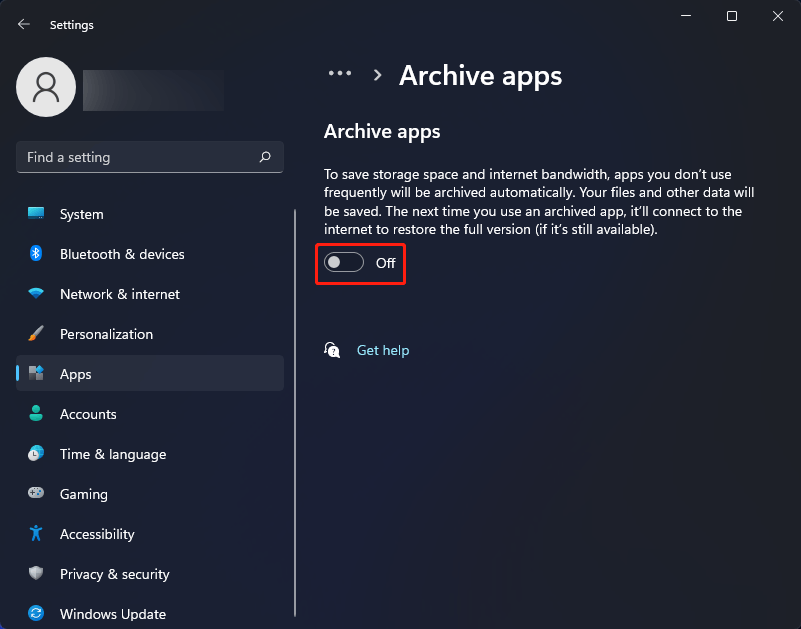
If you turn off archive apps, more space will be occupied on your computer. If you want to free up disk space on your Windows 11 computer, you can uninstall the apps you no longer use from your device.
Some MiniTool Software You Can Try
On your Windows computer, you’d better install some necessary software. For example, you can install a professional Windows data backup software like MiniTool ShadowMaker to back up your files to protect them.
MiniTool ShadowMaker TrialClick to Download100%Clean & Safe
While some of your files are deleted or lost accidentally, you may need a file recovery tool. You can try MiniTool Power Data Recovery. This software can rescue your files from internal hard drives, external hard drives, memory cards, SD cards, and other types of data storage devices.
MiniTool Power Data Recovery TrialClick to Download100%Clean & Safe
![How to Recover Lost and Deleted Files in Windows 11? [6 Ways]](https://images.minitool.com/minitool.com/images/uploads/2021/08/how-to-recover-deleted-files-windows-11-thumbnail.jpg)
MiniTool Partition Wizard is a popular partition manager for Windows. You can use it to resize partitions, delete partitions, create partitions, migrate OS to another drive, etc. For example, you encounter a low disk space warning, you can use this tool to extend the disk space to remove this warning.
MiniTool Partition Wizard FreeClick to Download100%Clean & Safe
About The Author

Position: Columnist
Stella has been working in MiniTool Software as an English Editor for more than 8 years. Her articles mainly cover the fields of data recovery including storage media data recovery, phone data recovery, and photo recovery, videos download, partition management, and video & audio format conversions.
User Comments :