
You are expected to search and find files very quickly in Windows 10 since the Cortana search works very effectively. Yet, some files in the system are encrypted by BitLocker, and they will not be shown to you in the Cortana search result by default. If you need to index encrypted files in Windows 10, you should read the following content carefully.
Purpose of Indexing Encrypted Files in Windows 10
Cortana makes it a pretty easy task to locate a file in Window 10 by providing you the search result within just a second. Yet, it fails to help you find files you need if those files are encrypted by BitLocker. In this case, you have 2 choices:
- Decrypt the encrypted files.
- Seek for other workarounds to index encrypted files in Windows 10.
Actually, the best way to show encrypted files in Windows 10 seems to be adding encrypted files to index by modifying some settings.
What Is Index
Indexing on a file in Windows refers to the action of listing files in a special table; in this way, the access of the files with index can be faster than before. Thus, the purpose of indexing encrypted files in Windows 10 is to locate the encrypted files easily and quickly.
How to Index Encrypted Files on Windows 10
In this part, I’ll mainly focus on telling you 3 effective methods for finding encrypted files on Windows 10 search result:
- Using Indexing Options
- Through Registry Editor
- Making use of Group Policy Editor
Since you’ll need to make some changes to the system settings, it is highly recommend that you backup system or create a system restore point before trying to show encrypted files in Windows 10.
Besides, you must make sure that the Windows BitLocker or a non-Microsoft encryption program has already been enabled on your system drive. Otherwise, you may receive a yellow security warning saying that it Cannot verify data security.
Add Encrypted Files Using Indexing Options
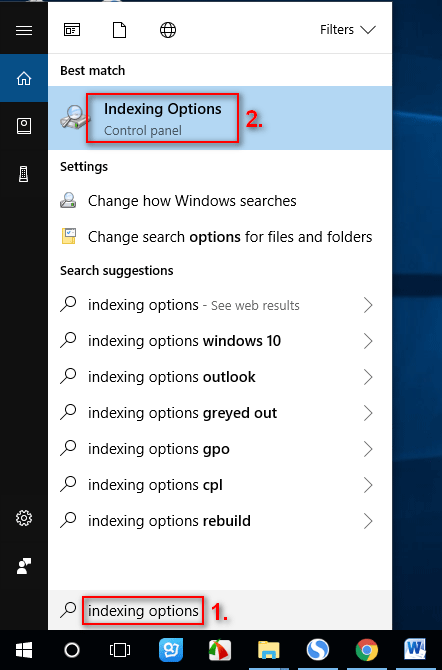
Step 1: to access Indexing Options quickly, you are advised to type it into the Cortana Search box and click it from the search result.
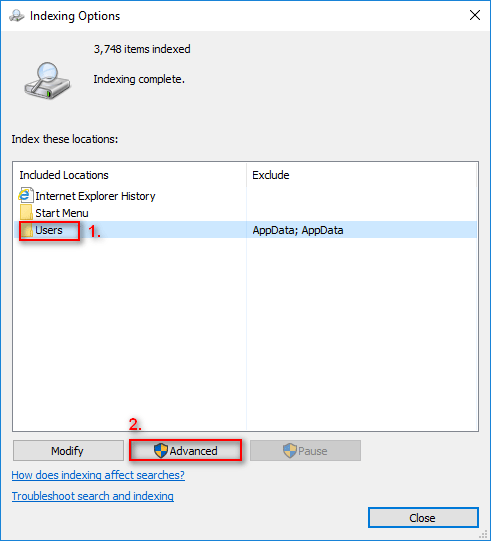
Step 2: then, you should select the appropriate listing (for instance, Users folder). After that, please click on the Advanced button below.
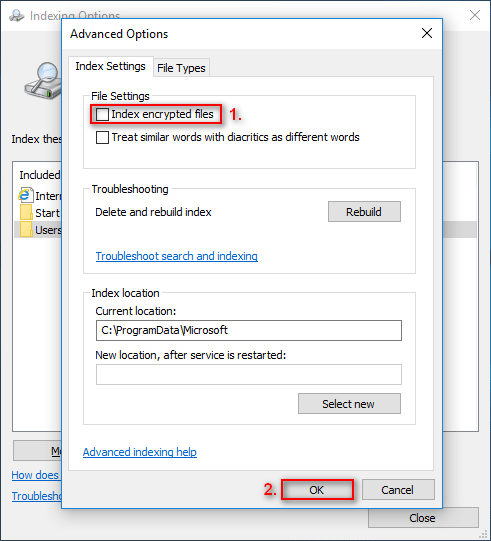
Step 3: now, you’ll enter the Advanced Options window, in which you should stay under the Index Settings tab. Next, please check Index encrypted files option under the File settings area. At last, click on the OK button to confirm your selection.
Show Encrypted Files through Registry Editor
Step 1: call the Run utility by pressing Win+R or by other ways you prefer. Type regedit and press Enter. Click on Yes button in the pop-up window to allow access.
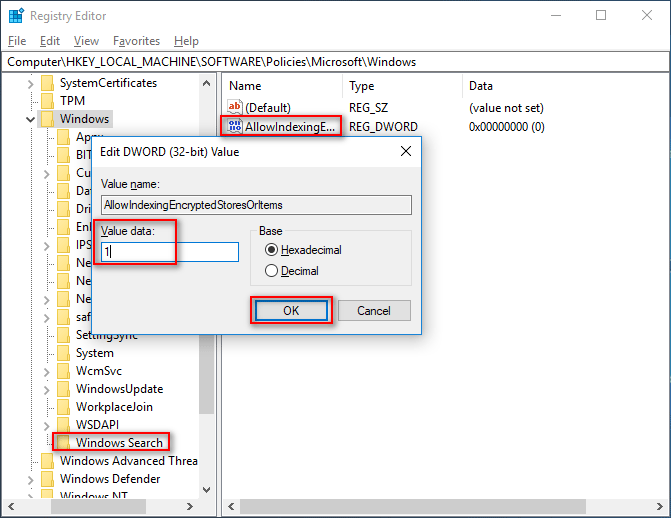
Step 2: open HKEY_LOCAL_MACHINE, Software, Policies, Microsoft, and Windows one by one to select Windows Search.
Sometimes, you may fail to find the Windows Search folder. In this case, you may right click on the Windows folder to choose New from the context menu and choose Key from the sub menu. Then, rename it as Windows Search.
Step 3: now, select the Windows Search folder and right click on the blank area from the right pane. Then, choose New and DWORD (32-bit) Value in order. Rename the value as AllowIndexingEncryptedStoresOrItems and right click on it to change the value to be 1. After that, click on the OK button to enable indexing encrypted files. (You can also set it to be 0 to disable it)
Now, please close the Registry Editor properly and reboot your computer to make the changes take effect.
Find Encrypted Files by Making Use of Group Policy Editor
Step 1: also, you need to call the Run utility by the way you like. Then, type gpedit.msc and press Enter to open Group Policy Editor.
Step 2: open Local Computer Policy, Computer Configuration, Administrative Templates, and Windows Components in order to select Search.
Step 3: double click on the Allow indexing of encrypted files option from the right pane to open the configuration page. Now, you should check the Enabled option and click on the OK button to add encrypted files to index.
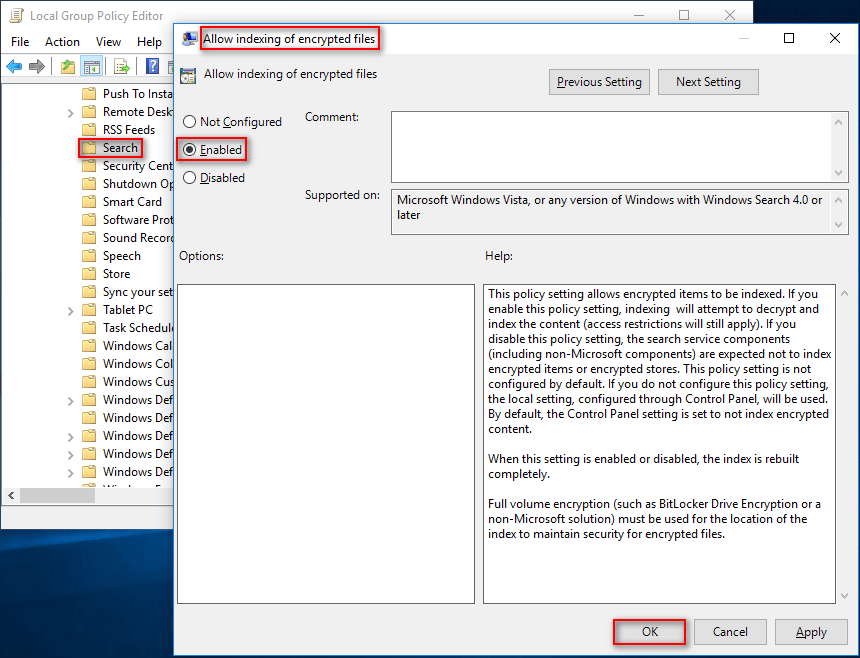
Also, if you need to remove the encrypted files, you should select Disable.
Now, exit the Group Policy Editor and restart your computer to make the changes take effect.
User Comments :