
After installing Windows 11 KB5012592 or Windows 10 KB5012599, many issues are exposed. MiniTool Software shows you the known issue in these two updates. If you want the issues to get fixed, you can also try the methods mentioned in this post.
Windows 11 KB5012592 and Windows 10 KB5012599 are two cumulative updates for Windows 11 and Windows 10 separately. They are also part of the April 2022 cumulative updates. These two updates are mandatory so that they will be automatically installed on your device.
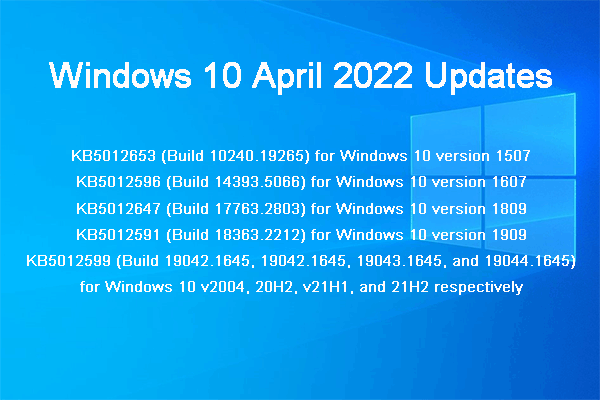
Windows 11 KB5012592 and Windows 10 KB5012599 contain the same bug fixes and improvements because Windows 11 is built based on Windows 10. Windows 10/11 users expect these updates to bring them a new experience. But it turns out that there are a lot of issues with these cumulative updates.
In this article, we’ll list some common issues in Windows 11 KB5012592 and Windows 10 KB5012599 and tell you how to fix them to get everything back to normal.
Issues in Windows 11 KB5012592
Issue 1: The Recovery Disks Issue
The official release notes show that the recovery disks created by Backup and Restore (Windows 7) in Control Panel are likely to fail to start in the last patch. The good news is that this bug does not influence the modern recovery options built into the operating system. Third-party backup software or recovery apps are also not affected.
So, you can use third-party Windows backup software like MiniTool ShadowMaker to back up and restore files. This tool supports automatic backup, differential & incremental images. You can also schedule the backup task according to your requirements.
It has a trial edition, which allows you to try its features free within 30 days.
MiniTool ShadowMaker TrialClick to Download100%Clean & Safe
Here is how to use this software to back up and restore files and systems on Windows 11: How to Back up Windows 11 (Focuses on Files & System)?
Issue 2: Windows 11 KB5012592 Fails to Install
Some users reported a Windows 11 KB5012592 installation failed issue on Feedback Hub and Reddit. This issue always comes with an error code like 0x800f081f, 0xc1900101 and 0x800f0988. The error codes don’t release some useful information. But Microsoft has warned that some configurations are not “patch-compliant” due to various reasons.
In addition, the company also warned that the computer should have a stable internet connection at least 2 hours before the update and 6 hours after the update. This gives the computer enough time to successfully deliver the update. This method is also applied to Windows 10.
How to Fix Windows 11 KB5012592 Installation Issues?
Fix 1: Restart Your Computer
If Windows 11 KB5012592 fails to install on your device, you can just restart your computer and install the update again to see if the installation is successful. Many users solve the installation issue using this simple method. You can also have a try.
Fix 2: Shift + Shutdown
You can also hold the Shift key when you click the Shutdown button to power off your device. This can force the system to close all apps and sign out all the users. This also bypasses hybrid shutdown or hibernation, which is useful to solve a Windows update installation issue.
Fix 3: Run Windows Update Troubleshooter
Windows Update troubleshooter is a Windows built-in tool that can be used to solve some Windows update issues. You can run it and see if it can solve the issue.
It is very easy to do this. You can go to Start > Settings > System > Troubleshoot > Other troubleshooters, and click the Run button next to Windows Update to run this tool and fix the found issues.
Fix 4: Reset Windows Update
Some users solve the Windows 11 KB5012592 installation failure issue by resetting Windows Update Components. This method might work for you.
Fix 5: Download an Offline Installer for Use
Microsoft also offers direct download links for Windows 11 KB5012592 via Microsoft Update Catalog. If Windows 11 KB5012592 is not installing via Windows Update, you can go to Microsoft Update Catalog to search for this update and download a .msu package for installation.
Other Issues in Windows 11 April 2022 Update
This update also has some other issues like:
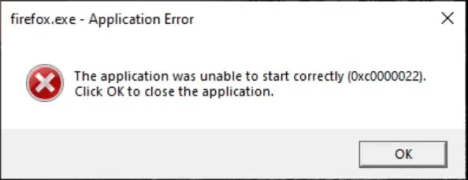
1. Apps like Microsoft Edge and Firefox fail to start with an error code 0xc0000022. This issue has been solved using a server-side update.
2. This update might cause some performance issues and there is also a bug where the cursor could skip certain spots on the screen. However, this issue has been fixed in a newer preview build.
Issues in Windows 10 KB5012599
The issues in Windows 10 KB5012599 are similar to the ones in Windows 11 KB5012592. For example, some users are bothered by Windows 10 KB5012599 not installing with an error code 0x800f0831. This cumulative update might be downloaded successfully. But the installation might be stuck at 20% or 100% with the same error code 0x800f0831.
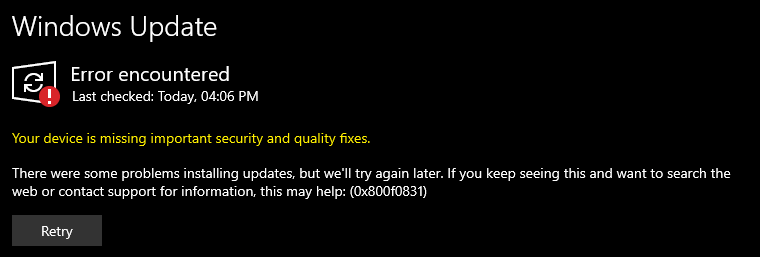
You can first try the fixes in the above part and see if they can help you solve the issue. If not, you can uninstall Windows 10 KB5012599.
Step 1: Go to Start > Settings > Update & Security > Windows Update > View update history.
Step 2: Click Uninstall updates on the next page and select Windows 10 KB5012599 to uninstall.
Bottom Line
These are the known issues in Windows 11 KB5012592 and Windows 10 KB5012599. Some of the issues have been fixed, while some are not. If the issues you are facing are not fixed, you can try the fixes in this post to help you out. Should you have any other related issues, you can let us know in the comments.
About The Author

Position: Columnist
Stella has been working in MiniTool Software as an English Editor for more than 8 years. Her articles mainly cover the fields of data recovery including storage media data recovery, phone data recovery, and photo recovery, videos download, partition management, and video & audio format conversions.
User Comments :