
What’s new in KB5054980? What to do if you fail to download and install this update? Fear not! In this guide from MiniTool, we will walk you through how to handle KB5054980 not installing on Windows 11 22H2 or 23H2.
KB5054980 Not Installing
On March 25, 2025, Microsoft releases KB5054980 for Windows 11 version 22H2 and 23H2. Although there are no security improvements in this update, it contains all previously released security improvements. KB5054980 resolves a problem with using System.IO APIs to work with UNC share files and directories. There’s a slim chance that KB5054980 not installing will occur on your computer, but it’s better to master the possible solutions in case anything goes wrong unexpectedly.
MiniTool ShadowMaker TrialClick to Download100%Clean & Safe
Solution 1: Redownload the Update
When confronted KB5054980 not installing, the first solution that comes to your mind might be to perform a fresh install and download. Follow these steps:
Step 1. Press Win + I to open Windows Settings.
Step 2. In the left pane, select Windows Update.
Step 3. In the right section, click on Advanced options and then scroll down to locate Optional updates.
Step 4. Find KB5054980 and then download and install it from scratch.
Solution 2: Download and Install .NET Framework 3.5 or 4.8.1
According to Microsoft, you must have .NET Framework 3.5 or 4.8.1 installed to apply this update. Without meeting this prerequisite, your KB5054980 might fail to install. After installation, follow these steps to turn them on:
Step 1. Open Control Panel and then click on Programs.
Step 2. Under Programs and Features, tap on Turn Windows features on or off.
Step 3. Tick the boxes beside .NET Framework 3.5 (includes .NET 2.0 and 3.0) and .NET Framework 4.8 Advanced Services.
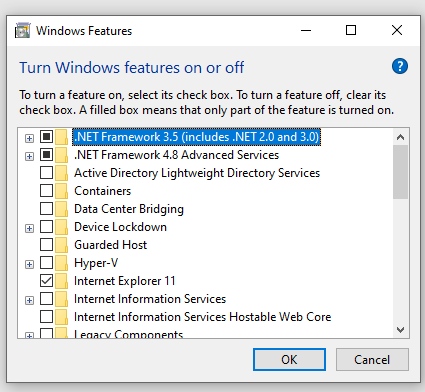
Step 4. Click on OK to save the changes.
Solution 3: Exit All .NET Framework-Based Applications
To avoid any possible conflicts, make sure to exit all .NET Framework-based applications before applying KB5054980.
Solution 4: Restart Related Services
To download and install Windows updates without any errors, some services (including core service and supporting services) are of necessity. If they are not running properly, there’s no wonder that KB5054980 installation failure crops up.
Step 1. Press Win + R to open the Run box.
Step 2. Type services.msc and hit Enter.
Step 3. In the service list, scroll down to locate the services below:
- Windows Update
- Background Intelligent Transfer Service
- Cryptographic Services
- Windows Management Instrumentation
Step 4. Right-click on them one by one to select Properties, set the Startup type to Automatic, hit Start and save the changes.
Other Potential Solutions
- Switch to a stable internet connection.
- Flush DNS caches.
- Perform SFC & DISM scans.
- Reset Windows Update components.
- Run Windows Update Troubleshooter.
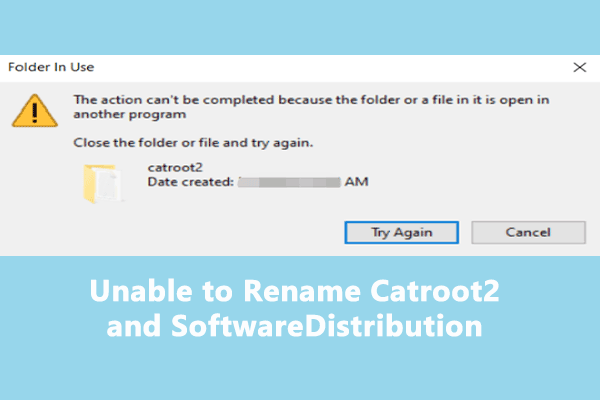
- Rename the Catroot2 and SoftwareDistribution folders.
Final Words
By now, you might be bothered by KB5054980 not installing anymore. We sincerely hope that you can always keep your Windows up-to-date for more improvements in security, stability, and performance!
User Comments :