
Windows 11 24H2 KB5060829 New Features & Download
KB5060829 is a big preview update for Windows 11 24H2, which was released on June 26, 2025. It mainly brings you the following features and improvements.
- If you are using a Copilot+ PC, you will be able to right-click a file and send it to Microsoft 365 Copilot for analysis or other actions.
- A new PC-to-PC migration feature is starting to roll out, allowing you to transfer files and settings from one computer to another by using the PC name and a one-time code. This feature will be released in the future.
- You can adjust taskbar behaviors to resize taskbar icons to fit more apps when space is limited.
- This update improves File Explorer performance, making it easier to copy and paste large numbers of archive files.
- This update improves display-related experiences by reducing screen flashing and preventing unnecessary display resets.
- This update fixes various issues with display, input, printing, scripting, and windowing, improving system stability and responsiveness in many scenarios.
- …
If you want to test or enjoy the new improvements and features immediately, you can go to Settings > Windows Update to download and install KB5060829.
However, many users have reported that they experienced the KB5060829 install error 0x80073712, 0x800f0831, and other error codes. If you are one of them, try the following solutions.
How to Fix KB5060829 Not Installing
Fix 1. Run Windows Update Troubleshooter
Windows offers you a built-in troubleshooter to detect and resolve update-related issues. So, when KB5060829 fails to install, you can run the troubleshooter.
Right-click the Windows logo button and select Settings > System > Troubleshoot > Other troubleshooters. Next, under Most frequent, select Windows Update > Run.
Once the process is finished, restart your computer and try downloading and installing KB5060829 again.
Fix 2. Download KB5060829 From the Microsoft Update Catalog
KB5060829 is provided on both Windows Update and Microsoft Update Catalog. So, if KB5060829 is not installing from Windows Update, you can get it downloaded from the Catalog.
Visit the download page for KB5060829.
Click the Download button next to the package that matches your system version.
In the new window, click the blue links to download the two .msu files.
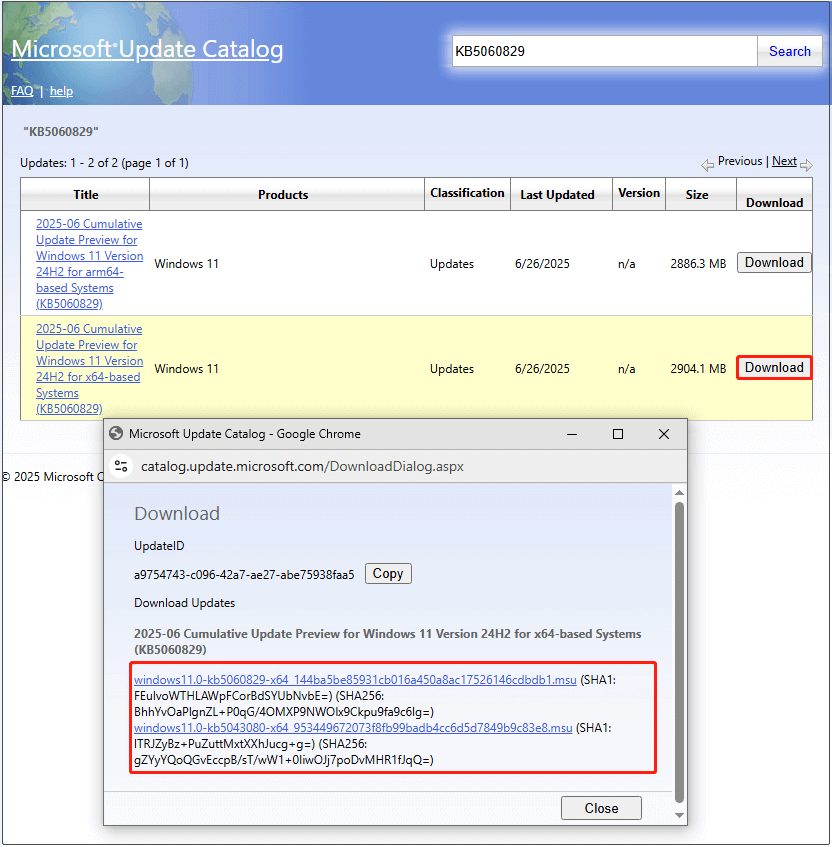
Once complete, install the MSU files in order: first KB5043080, then KB5060829.
Fix 3. Run DISM and SFC
If there are corrupted or missing critical system files, the problem of “KB5060829 not installing” may also occur. In this case, running the DISM and SFC scans can help fix it.
Type cmd in the Windows search box, and click Run as administrator under Command Prompt.
When the User Account Control window shows up, click Yes to continue.
Next, type this command and press Enter: DISM.exe /Online /Cleanup-image /Restorehealth.
After that, run this command line: sfc /scannow.
Fix 4. Reinstall Windows
If all of the methods above fail to get KB5060829 downloaded and installed, you can try to do an in-place upgrade.
During the process, you will have the option to keep your files and apps, but it is also recommended to make a complete file and system backup before proceeding. MiniTool ShadowMaker can help you back up files/folders, partitions/disks, and systems for free within 30 days.
MiniTool ShadowMaker TrialClick to Download100%Clean & Safe
Steps to do an in-place upgrade:
Step 1. Go to the official Windows 11 download page.
Step 2. Under Create Windows 11 Installation Media, click Download now.
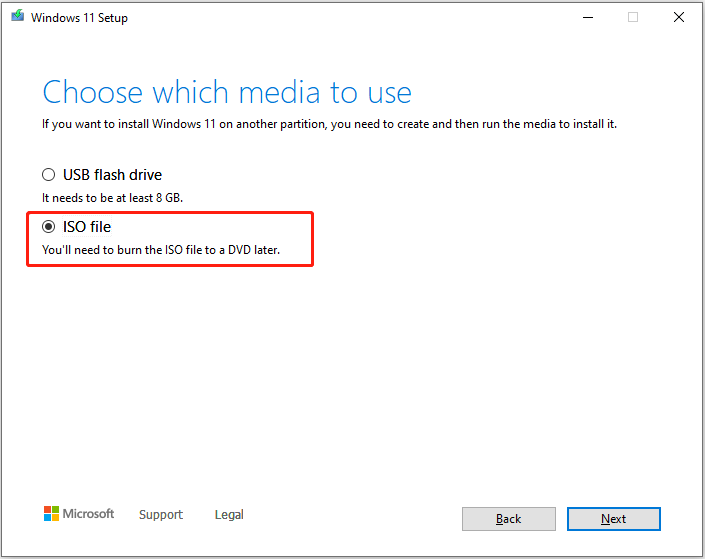
Step 3. Launch the media creation tool and follow the on-screen prompts to download the ISO file.
Step 4. Right-click the downloaded ISO file and choose Mount. Then run the setup.exe file to install Windows. During the process, you need to make sure the Keep personal files and apps option is checked.

How to Fix Reported KB5060829 Issues
Many users have reported issues after installing KB5060829. Common problems include:
- Mouse lag after using Alt + Tab
- mouse cursor offset after alt-tabbing
- Windows Firewall With Advanced Security Error ID 2042
- Nvlddmkm Event ID 153 error
If you are experiencing any of them, you can uninstall KB5060829 to fix it.
Go to Settings > Windows Update > Update history > Uninstall updates. Next, select KB5060829 from the update list and choose Uninstall.
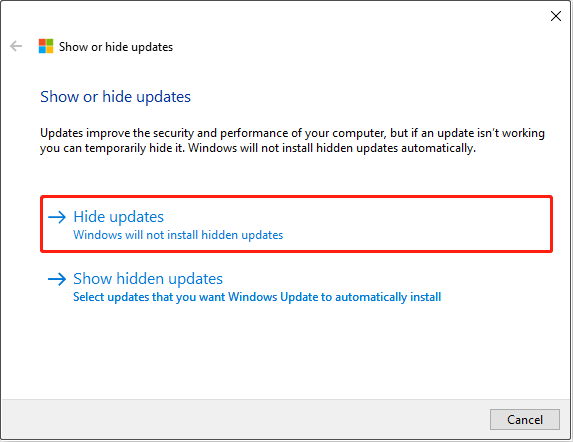
Some users found that after uninstalling this update, it reappears after restarting the computer. If that happens to you, download and use the Show or hide updates tool to hide KB5060829.
Go to the following website to download the tool:
https://download.microsoft.com/download/f/2/2/f22d5fdb-59cd-4275-8c95-1be17bf70b21/wushowhide.diagcab
Bottom Line
To sum up, this guide focuses on the Windows 11 24H2 update KB5060829 download and install, as well as how to fix “KB5060829 not installing”. Hope you can enjoy the new features in this update quickly and easily.
About The Author

Position: Columnist
Shirley holds a bachelor’s degree in English and has been an editor at the MiniTool Team for many years. She specializes in IT-related content, with a focus on data recovery, file backup, disk management, and other technical topics. She is committed to delivering clear, accurate, and practical solutions to help users resolve common computer issues.
User Comments :