
Error – Ubisoft Connect Installer Integrity Check Has Failed
Ubisoft Connect is a popular gaming platform used to play various games. However, some users reported that they are unable to install the app due to an NSIS error stating that the installer integrity check has failed. Here is a true example:
Whenever I try to install Ubisoft Connect, I get the same NSIS error message. I tried the Ubisoft support, but it’s been days and I have no response. I have even fully reset my computer due to another issue, and it still won’t install.reddit.com
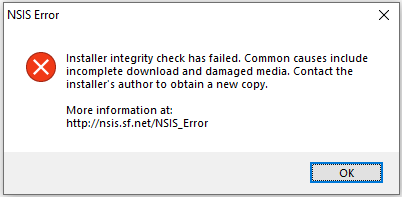
If you are encountering this annoying issue, use the following methods to get the app installed.

How to Fix NSIS Error Ubisoft Connect on Windows
Fix 1. Skip Integrity Check With the /ncrc Command
As the error message indicates, the Ubisoft Connect NSIS error occurs because the installer integrity check has failed. So, you can try skipping the check process by using the /ncrc command-line parameter. This is a quick and effective way to resolve the error, but you should ensure that the installation file is safe and trustworthy to avoid potential risks.
Step 1. Type cmd in the Windows search box and click Command Prompt from the best match result to open it.
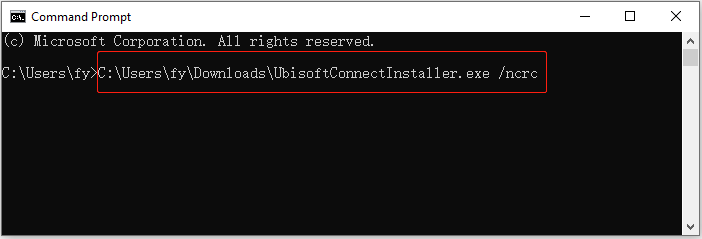
Step 2. Drag the downloaded installer file into Command Prompt.
Step 3. In the Command Prompt window, press the space bar on your keyboard to add a space after the installer path, then type /ncrc and press Enter to run the installer with the integrity check skipped. Next, you can follow the on-screen instructions to complete the installation.
Fix 2. Download Ubisoft Connect From the Microsoft Store
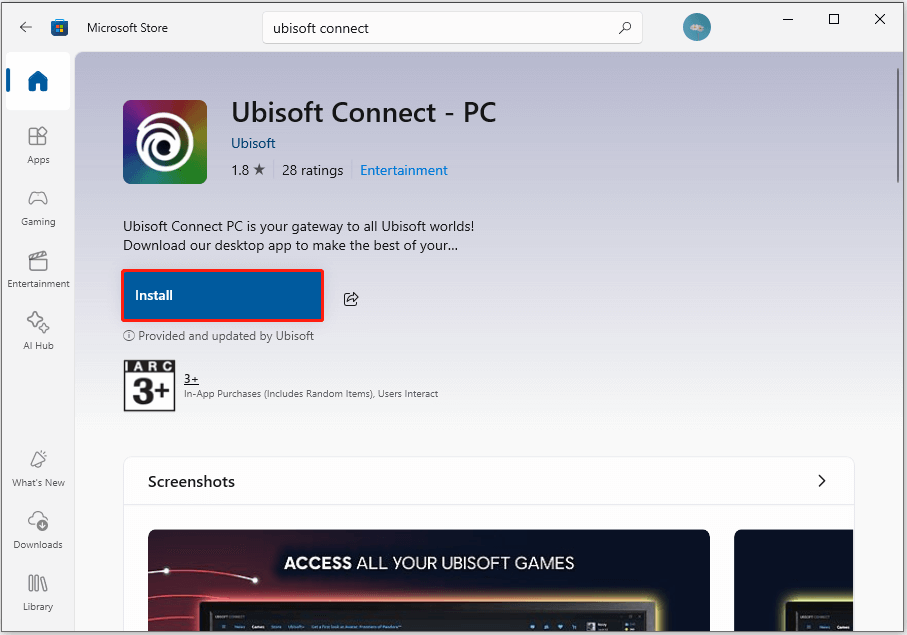
If you encounter the installer integrity check failed error when installing Ubisoft Connect using the installer from the Ubisoft website, try downloading it from the Microsoft Store instead. Many users reported that this resolves the issue.
Open the Microsoft Store by using the Windows search box. Then search for Ubisoft Connect and click Install to get it.
Fix 3. Download an Older Version of Ubisoft Connect
According to user experience, downloading an older version of Ubisoft Connect can also resolve the NSIS error. Visit this website and choose an older version to download and install:
https://uplay.en.uptodown.com/windows/versions

Fix 4. Check Your Hard Drive for Errors
In most cases, the Ubisoft Connect installer integrity check failed issue is not related to your hard drive, as it usually occurs before the installation process starts. However, in rare situations, disk issues, such as bad sectors or file system issues, especially on the drive where the installer is stored, can also cause the integrity check to fail. So, it is worth checking the disk for errors.
You can check the drive for file system issues from File Explorer or by using MiniTool Partition Wizard, a professional and free partition management tool.
From File Explorer:
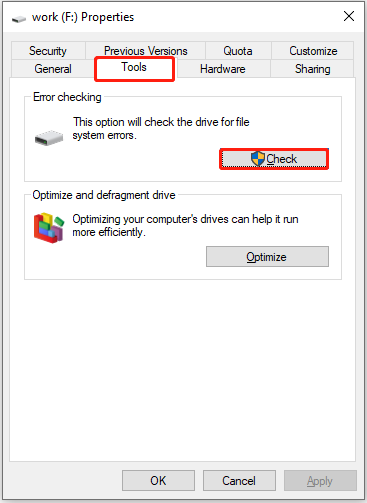
Right-click your hard drive partition and choose Properties.
Go to the Tools tab and click Check.
Use MiniTool Partition Wizard:
Download and install the free edition of MiniTool Partition Wizard.
MiniTool Partition Wizard FreeClick to Download100%Clean & Safe
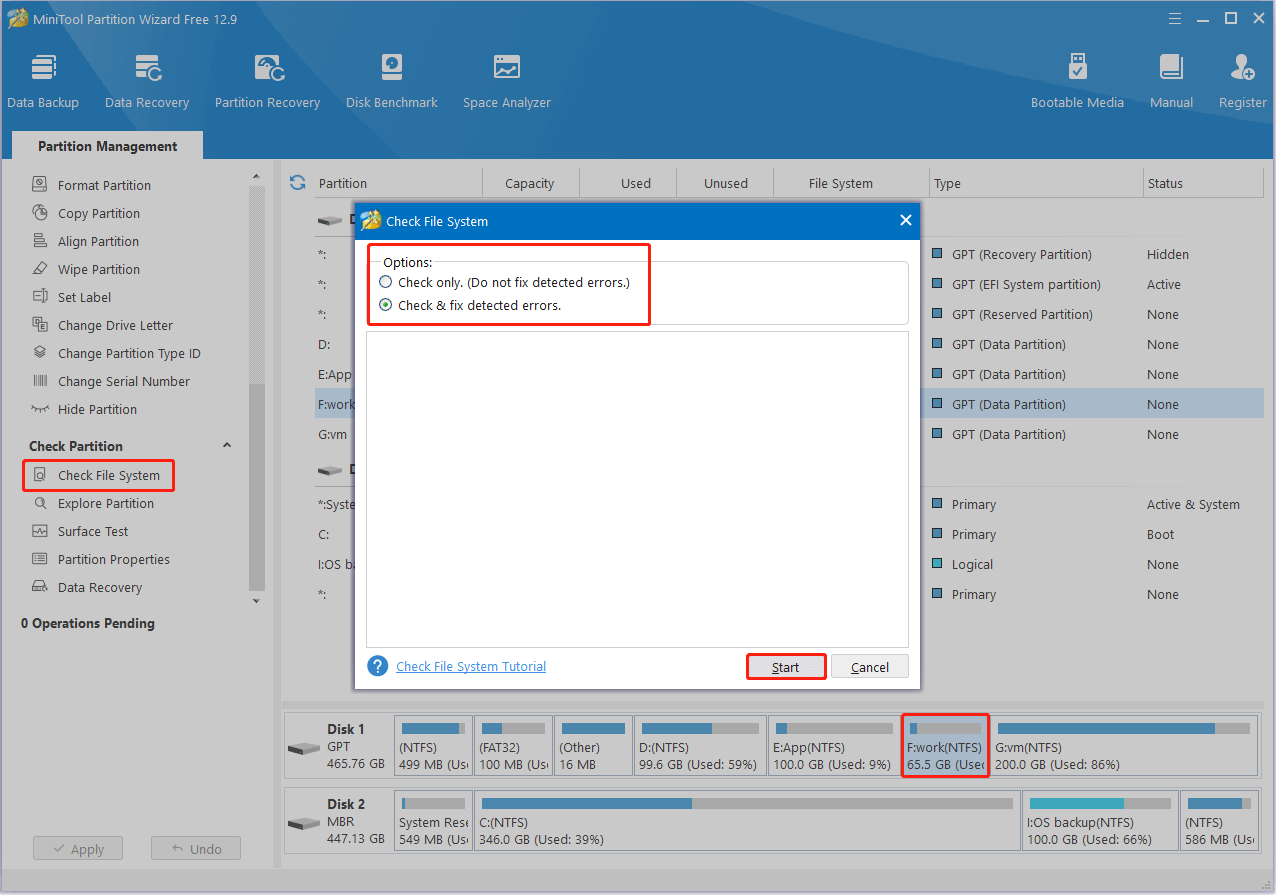
On the main interface of this tool, select the target partition in the right panel. Then, scroll down the left menu and choose Check File System. In the new window, select Check & fix detected errors and click Start.

Bottom Line
Now you should know how to fix the Ubisoft Connect installer integrity check failed error on Windows. One of the solutions above should match your case, so go ahead and try them out. With a bit of patience, you will get the app installed successfully.
About The Author

Position: Columnist
Shirley holds a bachelor’s degree in English and has been an editor at the MiniTool Team for many years. She specializes in IT-related content, with a focus on data recovery, file backup, disk management, and other technical topics. She is committed to delivering clear, accurate, and practical solutions to help users resolve common computer issues.
User Comments :