
The Kingston Dual Portable SSD with USB-A and USB-C connectors provides a cable-free solution to file transfers across various devices. This MiniTool’s pro guide covers the key features of this drive and the steps to transfer files with it.
For those who are tired of managing cables during file transfers, the Kingston Dual Portable SSD is practical. This solid-state drive looks like a USB flash drive.
It features USB-A and USB-C ports, fast transfer speed, a durable metal casing, various capacities, and wide compatibility. To transfer files between laptops, desktops, and mobile devices, this SSD can be a reliable and portable solution.
Here is a breakdown.
Kingston Dual Portable SSD Key Features
#1. Dual-Connector Design
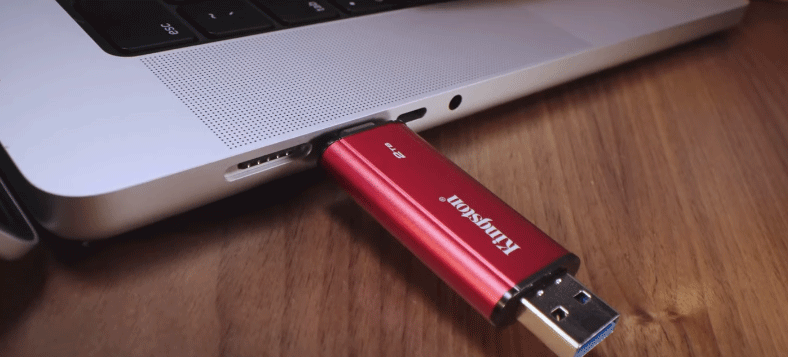
The Dual Portable SSD ships with two interfaces, including USB Type-A (USB-A) and USB Type-C (USB-C).
USB-A is the most common and widely recognized USB connector. Usually, it is used on gaming consoles, USB hubs, and computers for connecting peripherals like printers, mice, and keyboards. Additionally, it applies to data transfer and charging.
USB-C, a reversible 24-pin connector, can be plugged in either way. For many modern devices like tablets, laptops, and phones, it has become a near-universal standard.
To learn the differences between USB-A and USB-C, refer to the USB-A vs USB-C guide.
Dual connectors of this portable SSD eliminate the need for adapters or cables in file transfers. Users can frequently switch between a wide range of devices, such as desktops, laptops, and mobile phones.

(Image from Kingston Technology)
#2. High Performance
The SSD utilizes the USB 3.2 Gen 2 standard and 3D NAND technology, offering read speeds of up to 1,050MB/s and write speeds of up to 950MB/s.
Its high performance makes it ideal for creative professionals and users who transfer large files, such as 4K videos across various devices.
USB 3.2 Gen 2 is a USB standard that supports a data transfer speed of up to 10Gbps. This is double the speed of USB 3.2 Gen 1 (formerly USB 3.0 or 3.1 Gen 1). If needed, learn different USB speeds.
#3. Portability
The Kingston Dual Portable SSD is shaped like a traditional flash drive with dimensions of 71.85mm x 21.1mm x 8.6mm and a weight of 13g.
As a result, the compact and sleek SSD easily fits into a pocket, purse, or small bag.
#4. Durability
This portable SSD is designed to operate in temperatures from 0°C to 60°C and can be stored in temperatures from -20°C to 85°C.
Moreover, it has a metal and plastic casing. For normal use, it feels sturdy.
However, this drive is not as rugged as other solid-state drives, as it lacks water, dust, or shock resistance.
#5. Large Capacity
The Dual Portable SSD has 3 storage capacities, including 512GB, 1TB, and 2TB. This makes it suitable for storing large media files such as high-resolution photos and 4K videos. Users can choose the model that best fits their needs.
(Image from Kingston Technology)
#6. Broad OS Compatibility
Kingston Dual Portable SSD 2TB/1TB/512GB offers broad compatibility. It functions well in a wide range of operating systems, including:
- Windows 11
- macOS (version 13.7.6 and later)
- Linux (version 4.4x and above)
- Chrome OS
- Android
- iOS/iPadOS (version 13 and newer)
#7. Warranty
This portable SSD has a limited five-year warranty with free technical support.
How to Get the Dual Portable SSD Kingston
After learning key features of this portable SSD, if you want to try it, purchase it from authorized online retailers.
On the official website, Kingston lists its resellers and online stores, like Amazon.
At the time of writing, the prices on Amazon are as follows:
- 512GB: $121.56
- 1TB: $148.41
- 2TB: $241.90
How to Transfer Files Using Dual Portable SSD
This SSD provides a high-speed and cable-free storage solution to easily transfer files across various devices.
How do you use the drive for data migration across computers?
There are 2 methods you can use.
Option 1: Copy & Paste
If you only need to transfer a small number of files, follow these steps:
Step 1: Connect the Kingston Dual Portable SSD to the first PC.
Step 2: Select and press Ctrl + C to copy the files you want to transfer.
Step 3: Open this drive and press Ctrl + V to paste the files.
Step 4: Safely eject this portable SSD and connect it to the second PC.
Step 5: Drag and drop the copied files from this SSD to that computer.
Option 2: Clone Data Disk
If you need to migrate all the disk data to this Kingston solid-state drive for use on another device, consider disk cloning. MiniTool ShadowMaker is worth recommending.
This utility features Clone Disk, enabling you to clone a hard drive/USB drive/SD card to another storage device. Everything on the source drive is copied.
Connect your SSD to a computer and follow the steps below to clone your disk.
Step 1: Download, install, and launch MiniTool ShadowMaker.
MiniTool ShadowMaker TrialClick to Download100%Clean & Safe
Step 2: Navigate to the Tools tab on the left side.
Step 3: Click Clone Disk to proceed.
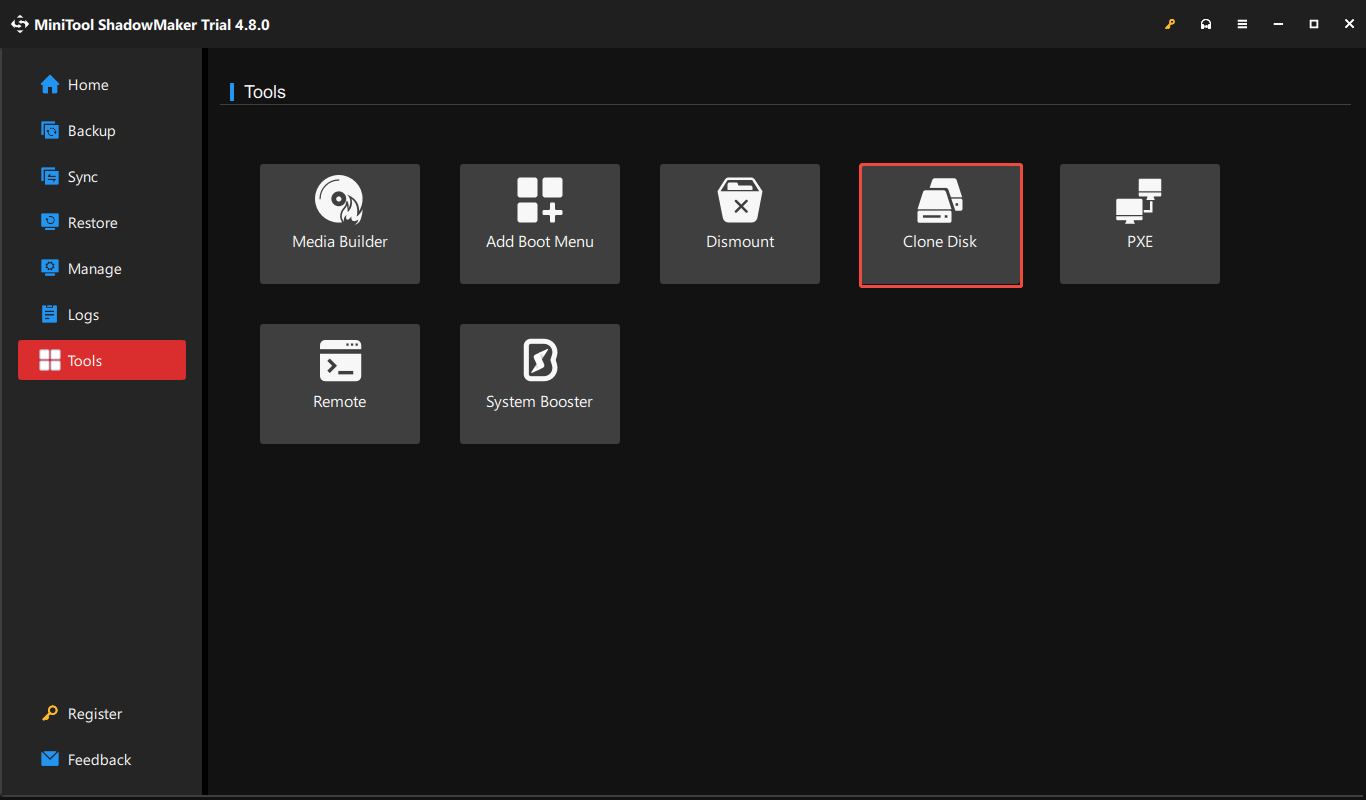
Step 4: Select your data disk as the source drive and Kingston Dual Portable SSD as the target drive. Then, click Start to begin cloning.
After cloning, connect the SSD to another device to access the disk data.
The End
In conclusion, the Kingston Dual Portable SSD offers a unique design, high capacity, and broad compatibility, making it an optimal choice for file transfers.
It is available on Amazon for those who wish to purchase it.
When experiencing issues with MiniTool software, send an email to [email protected].
Kingston Dual Portable SSD FAQ
Step 1: Right-click on the Windows icon and select Disk Management.
Step 2: Locate the new SSD, right-click it, and choose Initialize Disk.
Step 3: Select GPT or MBR and click OK.
About The Author

Position: Columnist
Vera has been working at the MiniTool Team for over 10 years as a technical editor and content writer. She mainly focuses on disk and partition management, data recovery, Windows backup and restore, and PC troubleshooting. Through in-depth software testing and hands-on experience, she has helped users solve a wide range of computer problems and better protect their data on Windows devices.
User Comments :