
Encountering something went wrong 657rx can be frustrated when you log in to Microsoft Teams or Outlook. In this article on MiniTool, we will explore how to fix the Outlook/Microsoft Teams error 657rx so you can get your workflow back on track.
Error 657rx in Microsoft Teams or Outlook
Microsoft Office error tag 657rx always makes you very frustrated. When you log into your Microsoft Teams or Outlook account or use these two apps, the error “Something went wrong. [657rx]” can appear on the computer screen. Usually, you encounter this situation after updating the BIOS, replacing the motherboard, or upgrading Windows 10 to 11.
The Microsoft Teams error 657rx or Outlook error 657rx often indicates an issue with account authentication or licensing. It may stem from outdated or corrupted login details, cached credentials, profile issues, problems with account synchronization, and more.
Regardless of the reasons, it is essential to look for solutions. First, make sure your computer is using a reliable and fast network. Then, we show you a step-by-step guide below to help you easily troubleshoot the error 657rx.
Fix 1: Clear Cached Credentials
Clearing old or corrupt cached credentials of Outlook/Microsoft Teams is crucial since they can confuse the app, causing the error 657rx.
Step 1: Type Credential Manager into Windows Search and press Enter.
Step 2: Under Windows Credentials, locate anything related to Outlook or Microsoft Teams, and click Remove.
Step 3: Restart that app and re-enter your login details.
Fix 2: Clear Cache Files
In addition to clearing cached credentials, make sure you also delete the cache files to solve Outlook/Microsoft Teams error 657rx.
Step 1: Open File Explorer via Win + E and show the hidden files & folders.
Step 2: To clear Teams cache, go to %appdata%\Microsoft\teams and remove all the files and folders.
To delete Outlook cache, access %localappdata%\Microsoft\Outlook, open the RoamCache folder, and delete all the files.
Fix 3: Reconnect Your Account
Something went wrong 657rx can happen due to your organization’s settings/policies. Try the following steps to solve this issue. This way helps many users out.
Step 1: Sign out your accounts from all Office apps and close them.
Step 2: In File Explorer, paste the following path and delete all folders and files:
%localappdata%\Packages\Microsoft.AAD.BrokerPlugin_cw5n1h2txyewy
Step 3: Go to Settings > Accounts > Access work or school.
Step 4: If you find any account there, disconnect it, then click Connect and log into the account again.
If you can’t see an account, directly add one by clicking Connect.
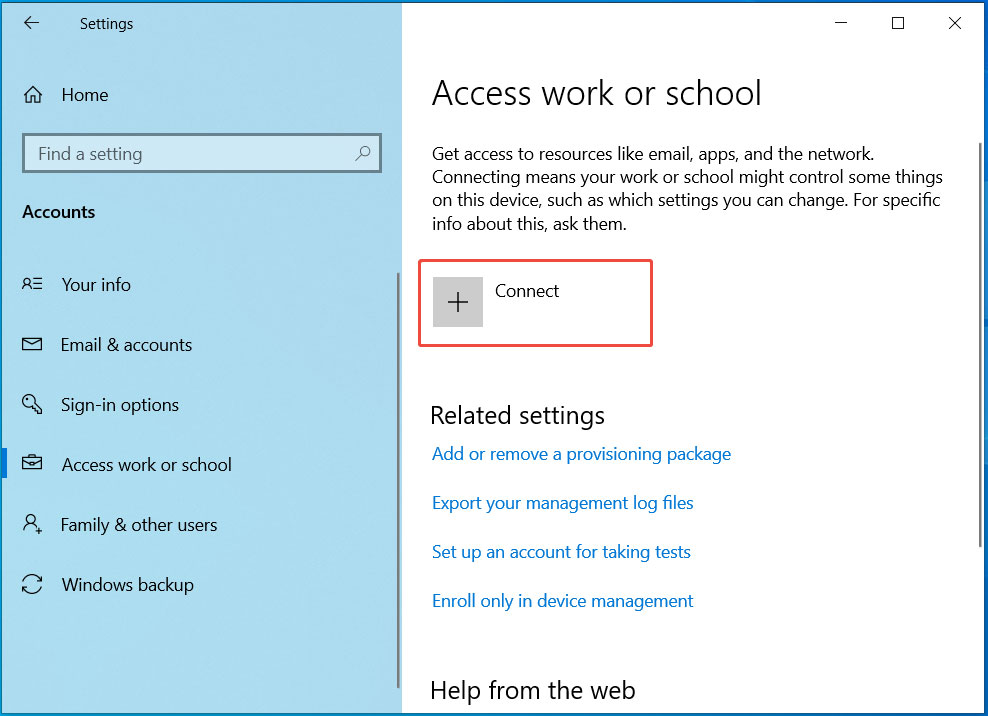
Step 5: Run Outlook or Microsoft Teams, sign in to your account, and check if the Microsoft Office error tag 657rx disappears.
Fix 4: Execute OLicenseCleanup.vbs
Some Reddit users fix the Microsoft Teams error 657rx by executing the OLicenseCleanup.vbs script. You can find this Microsoft link about Reset activation state for Microsoft 365 Apps for enterprise. Note that run this script using elevated permissions (admin rights).
Fix 5: Update Windows
An outdated system can conflict with Teams, triggering error 657rx in Microsoft Teams. Try to update Windows via these steps.
MiniTool ShadowMaker TrialClick to Download100%Clean & Safe
Step 1: Press Win + I to open Settings.
Step 2: In Windows Update, check for updates and install them.
Fix 6: Repair Microsoft Office
Outlook/Microsoft Teams error 657rx may be caused by corrupt installation files. In this case, repairing Microsoft Office may work.
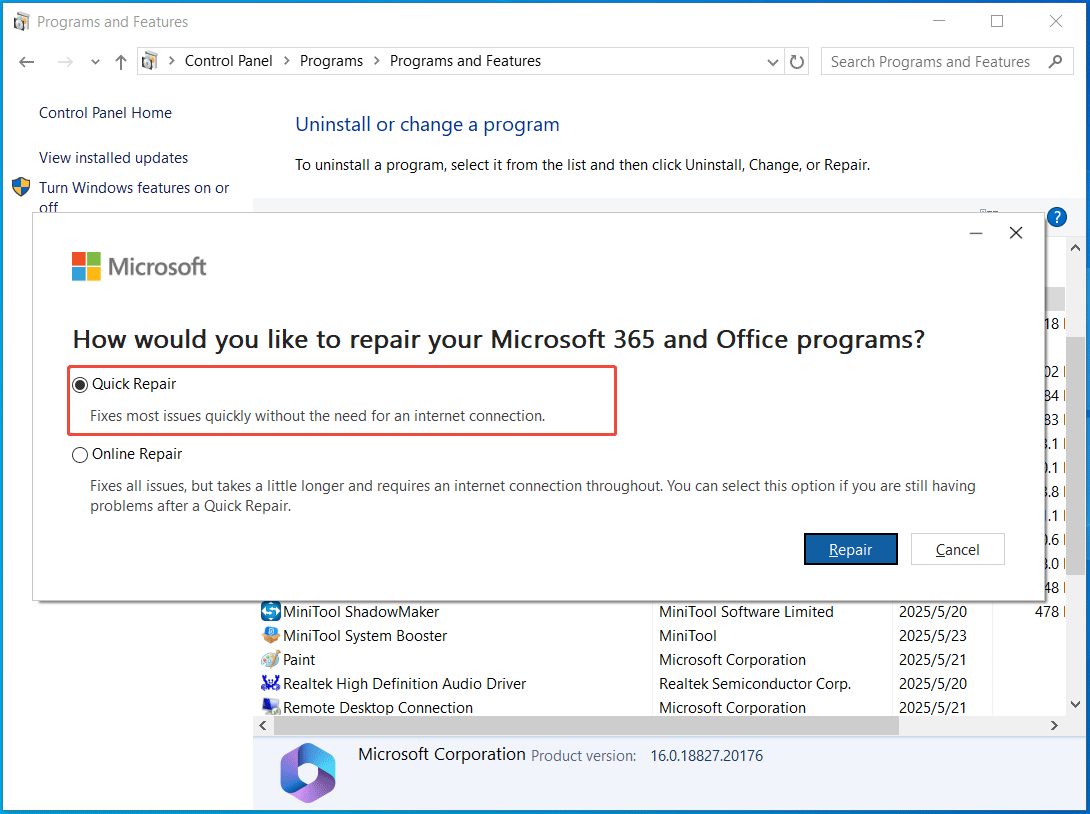
Step 1: Go to Control Panel > Programs > Programs and Features.
Step 2: Locate Microsoft Office or Office 365, right-click it, and choose Change.
Step 3: Tick Quick Repair and click Repair.

The End
It is not hard to fix the Microsoft Office error tag 657rx if you follow the comprehensive guide. If you are suffering from this error in Outlook or Microsoft Teams, don’t panic and try these methods.
About The Author

Position: Columnist
Vera has been working at the MiniTool Team for over 10 years as a technical editor and content writer. She mainly focuses on disk and partition management, data recovery, Windows backup and restore, and PC troubleshooting. Through in-depth software testing and hands-on experience, she has helped users solve a wide range of computer problems and better protect their data on Windows devices.
User Comments :