
Migration Assistant not working? This is an annoying issue hassling people a lot. You may encounter some other issues when using Migration Assistant and for that, MiniTool Website has issued troubleshooting methods for some common problems. To fix “Migration Assistant not working”, this post will be helpful.
What Is Windows Migration Assistant?
Windows Migration Assistant is designed to help transfer data between Windows and Mac devices or between Mac devices. You can use this tool to transfer files from PC to Mac; if you wonder about the detailed steps, you can refer to this article: Transfer Files from PC to Mac via Windows Migration Assistant.
What Causes “Migration Assistant Not Working”?
Many users reported that they encountered some Migration Assistant issues, such as Mac Migration Assistant stuck or frozen or Windows Migration Assistant not working.
To figure out why the Windows Migration Assistant not working issue keeps happening, we have concluded some possible reasons:
- Internet connection issues
- Software conflicts triggered by background software
- Hard disk errors
- Outdated operating system
How to Fix “Migration Assistant Not Working”?
There are some easy tips you should try first.
- Restart your computer and re-launch the program.
- Check the Internet connection. you can disable and re-enable the Internet to see if that can recover.
- Turn off the VPN and Proxy server.
- Keep Windows up to date.
Fix 1: Disable Startup and Background Apps
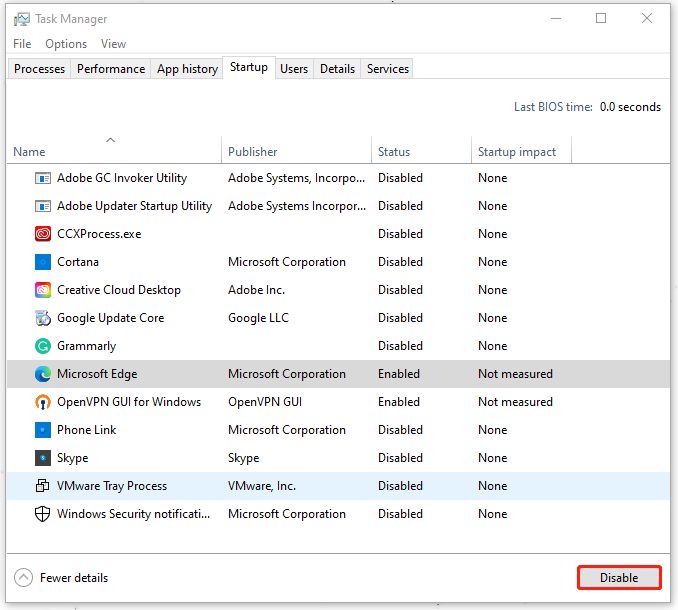
If you doubt that the Windows Migration Assistant not responding issue is triggered by some apps, you can disable startup and background programs to see if the error can disappear.
Step 1: Right-click on the Windows taskbar and choose Task Manager from the quick menu.
Step 2: In the Startup tab, locate all apps labeled Enabled and click Disable near the bottom-right corner.
Then you can try your Migration Assistant to check if the Migration Assistant not working issue has been fixed.
Fix 2: Turn off the Firewall
Software conflicts usually are caused by aggressive antivirus or firewall programs. So, if you have recently downloaded and installed that, you can uninstall the program; if not, you may try to turn off the Windows firewall.
But before you do that, you’d better back up your important files first since disabled Windows security will minimize the protection of the system, which makes your data easily get lost.
You can use MiniTool ShadowMaker – free backup software – to perform a data backup. It has an intuitive interface to help better finish the process and provide more useful features and functions to facilitate the backup experience.
MiniTool ShadowMaker TrialClick to Download100%Clean & Safe
To turn off Windows Firewall, you can do as follows.
Step 1: Type Windows Defender Firewall in Search and open it.
Step 2: Click Turn Windows Defender Firewall on or off from the left panel.
Step 3: Check the options of Turn off Windows Defender Firewall (not recommended) under both Private network settings and Public network settings.
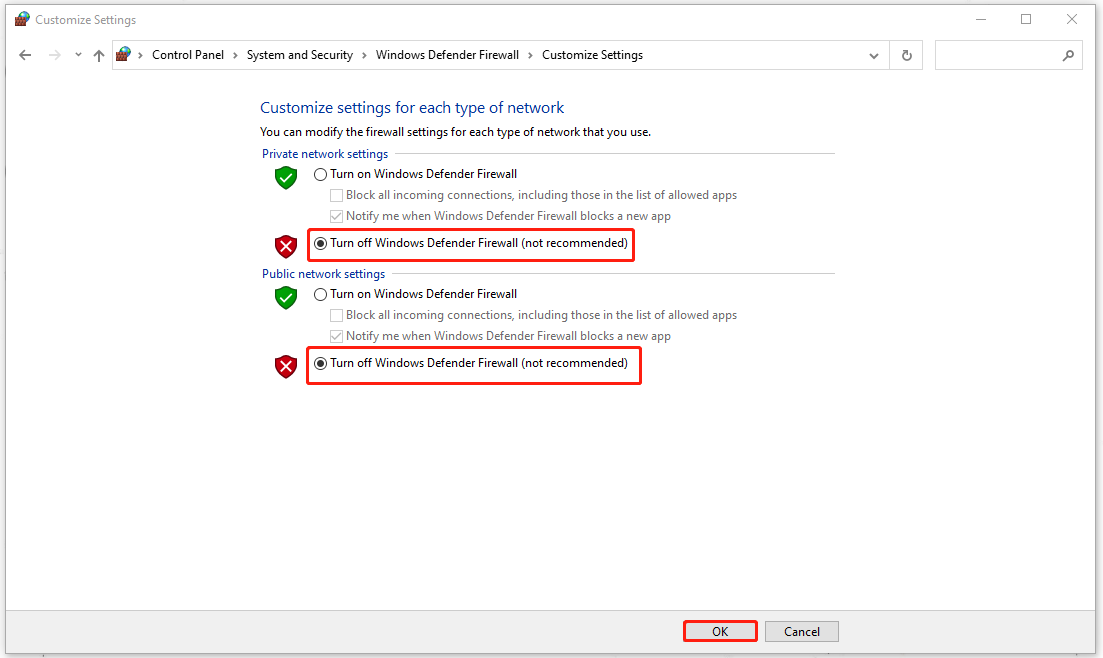
After that, click OK to save the changes and check if your Migration Assistant can work well.
Note: After you finish the tasks in Migration Assistant, please turn on Windows Defender Firewall to protect your system.
Fix 3: Check for the Disk
You can check errors for your disks and repair them when Migration Assistant can’t work.
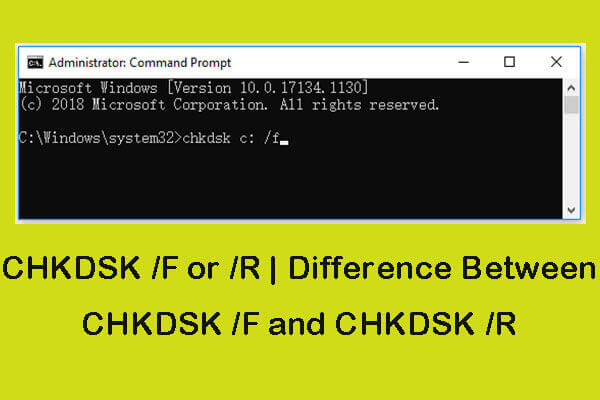
Step 1: Open Run by pressing Win + R, input cmd, and hit the Ctrl + Shift + Enter keys to run Command Prompt as an administrator.
Step 2: Then copy and paste this command – chkdsk /r and press Enter to execute the command.
When it starts running, you can follow the on-screen instruction to finish the work. Then restart the system to check if the error has been fixed.
Note: Hard disk errors and issues can make your data lost and never come back. It is highly recommended that you should back up your important data regularly with MiniTool ShadowMaker. With this tool, the backup can automatically start based on your configured schedule settings.
MiniTool ShadowMaker TrialClick to Download100%Clean & Safe
Fix 4: Run Migration Assistant in Compatibility Mode
If you still run into “Migration Assistant not working”, there is the last method – run Migration Assistant in compatibility mode.
Step 1: Right-click on Windows Migration Assistant and choose Properties from the list.
Step 2: In the Compatibility tab, check the option of Run this program in compatibility mode for and choose Windows 7 from the dropdown menu. Click Apply and OK to save the changes.
Wrapping It Up
This article has introduced a full guide to resolving the “Migration Assistant not working” issue. You can follow the above methods and some of them can be helpful for your issues. Thanks for your reading and hope this post is useful for you.
User Comments :