
Monster Hunter Wilds Keeps Compiling Shaders
Due to smooth transitions, immersive game experience, and new combat mechanics, Monster Hunter Wilds stands out from the previous titles. Like other new games, this game might also have some temporary bugs or glitches that might halt you from experiencing everything the game has to offer. For example, your Monster Hunter Wilds keeps compiling shaders forever and prompts with the following messages:
Optimizing Game Data:
Now compiling shaders to optimize PC performance. This is performed on initial launch, or after a shader update. Please wait until the operation is complete.
Usually, shader compilation refers to the process of converting a human-written shader programs into a format that can be understood or executed by GPUs. Monster Hunter Wilds stuck on compiling shaders screen occurs when the game is first run on a new device. If this issue still exists after waiting for a long time, please scroll down to get more solutions.

Solution 1: Run the Game in Compatibility Mode
Most players claimed that they managed to solve Monster Hunter Wilds stuck on optimizing game data after running this game in compatibility mode. Here’s how to do it:
Step 1. Launch Steam and find Monster Hunter Wilds in the game library.
Step 2. Right-click on it to select Manage > Browse local files to open the installation folder of this game.
Step 3. Scroll down to locate MonsterHunterWilds.exe and right-click on it to choose Properties.
Step 4. In the Compatibility mode, tick Run this program in compatibility mode for > select Windows 8 from the drop-down menu > tick Run this program as an administrator.
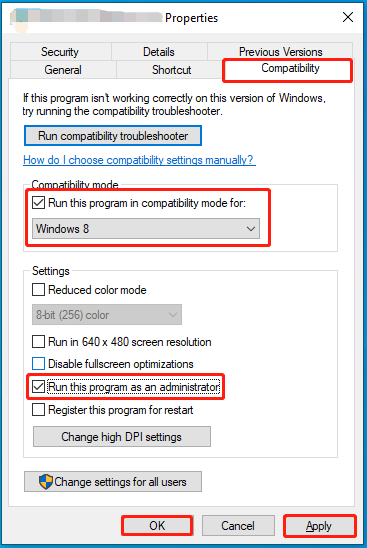
Step 5. Click on Apply & OK to make the changes effective.
Solution 2: Uninstall ReShade
Although ReShade can enhance the visuals, it can also contribute to performance issues like Monster Hunter Wilds stuck on optimizing game data. Consequently, you can try uninstalling this tool to see if it will make a difference. Follow these steps:
Step 1. Type reshade in the Windows search bar and select the best match.
Step 2. Choose Monster Hunter Wilds (MonsterHunterWilds.exe) and then hit Next.
Step 3. Check Microsoft DirectX 10/11/12 and tap on Next.
Step 4. Tick Uninstall ReShade and effects and hit Next. After completion, relaunch the game to see if Monster Hunter Wilds stuck on compiling shaders screen appears again.
Solution 3: Change Shader Cache
When Monster Hunter Wilds keeps compiling shaders, another solution is to change the shader cache size. The operation differs for NVIDIA and AMD drivers. Follow these steps:
On NVIDIA Graphics Cards:
Step 1. Open NVIDIA Control Panel.
Step 2. In the left-hand pane, expand Manage 3D settings.
Step 3. In the right pane, go to Shader Cache Size and set it to Driver Default.
Step 4. Set it to 5GB, 10GB, or 100GB and then save the change.
On AMD Graphics Cards:
Step 1. Launch AMD Radeon Settings.
Step 2. Move to the Gaming tab and click on Global Graphics.
Step 3. Switch on Shader Cache and set it to AMD Optimized.
Solution 4: Remove CrashReport.exe & CrashReportDll.dll
CrashReport.exe and CrashReportDll.dll are used to handle and generate crash reports within the game. In certain situations, they might be conflicted with other system processes, resulting in the occurrence of Monster Hunter Wilds crashing on compiling shaders screen. Uninstalling them might work for you. Follow these steps:
Step 1. Go to Steam > Library > Monster Hunter Wilds.
Step 2. Right-click on the game to select Manage > Browse local files.
Step 3. In the installation folder of this game, locate CrashReport.exe and CrashReportDll.dll and then back them up to another location with MiniTool ShadowMaker.
MiniTool ShadowMaker TrialClick to Download100%Clean & Safe
Step 4. After that, delete the 2 files and then launch Monster Hunter Wilds once more.
Solution 5: Verify Integrity of Game Files
Corrupted game files might also be blamed, so you can’t ignore verifying game file integrity in Steam. To do so:
Step 1. Run Steam and go to Library.
Step 2. Right-click on Monster Hunter Wilds and select Properties.
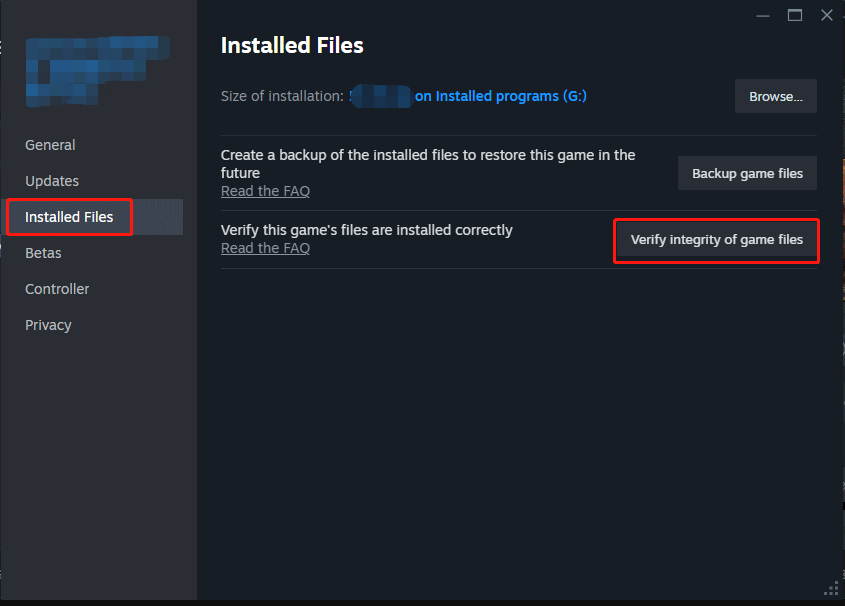
Step 3. In the Installed Files tab, tap on Verify integrity of game files to start the verification.
#Other Feasible Solutions for Monster Hunter Wilds Keeps Compiling Shaders
- Run the game on a dedicated graphics card.
- Move the game to an SSD.
- Lower in-game settings.
- Try -dx11 or –dx12 launch options.
- Underclock the CPU by 100MHZ.
- Turn off XMP/DOHCP.
- Update your graphics driver.
- Update BIOS.
MiniTool ShadowMaker TrialClick to Download100%Clean & Safe
Final Words
That’s all the information for Monster Hunter Wilds crashing during compiling shaders. By following these strategies, you might enjoy this game without interruption again.
User Comments :