
Monster Hunter Wilds Something Went Wrong
In recent, Monster Hunter Wilds just came out and is in full swing. However, a pesky error message always pops up to dismay you and prevent you from launching the game, which is primarily for Steam players.
The whole error message is “Sorry, something went wrong. For solutions please visit: followed by a link.” I think you’ve tried some common solutions to solve this error since you encountered it. If those methods don’t work, give a try to the following fixes you haven’t tried yet.
How to Fix Monster Hunter Wilds Something Went Wrong Error
Fix 1. Restart Steam
The first thing you should do is to restart your Steam client as sometimes it might fail to load authentication or cloud syncing which prevents the game from running properly and causes errors.
Restart your Steam and then try to launch Monster Hunter Wilds. If that doesn’t work, reboot your PC.
Fix 2. Run a Quick Reinstall of Steam
Corrupted Steam installation files can result in Monster Hunter Wilds something went wrong. In this way, performing a quick reinstall of Steam should work. Let’s see how to do it:
Step 1. Terminate the Steam app completely and press Win + E to open File Explorer.
Step 2. Go into your C:\Program (×86)\Steam folder and delete everything inside except your steam.exe, userdata, and steamapps folders.
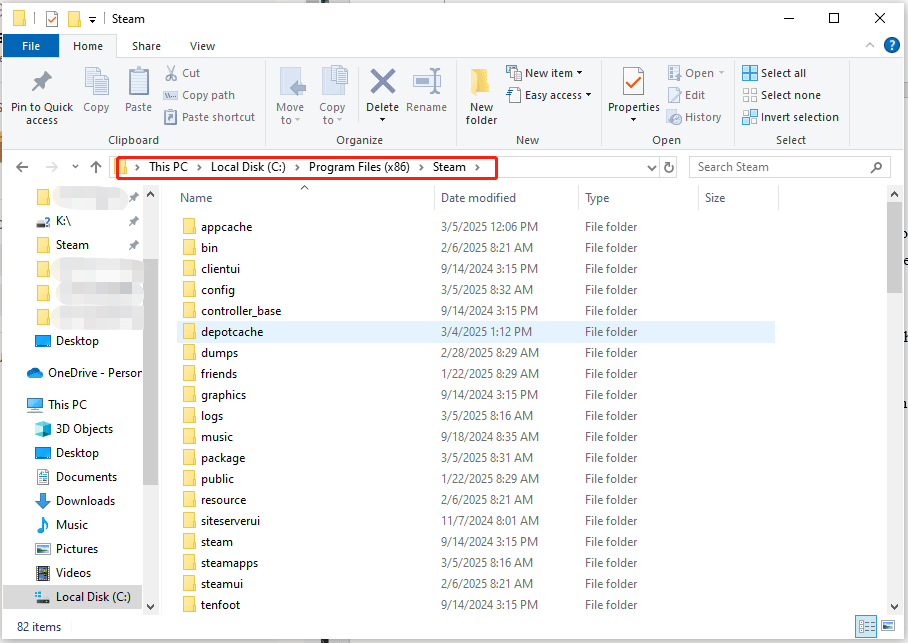
Step 3. After that, click on steam.exe to re-install Steam and log back in. Then the game should launch fine.
Fix 3. Enable DLC in Properties
Make sure the DLC is enabled because sometimes it won’t turn on automatically and messes with your game causing certain errors. Here’s how to enable it:
Step 1. Launch Steam and go to Library to find Monster Hunter Wilds.
Step 2. Then right-click on it to choose Properties from the shortcut menu.
Step 3. Select the DLC tab on the left panel and ensure the DLC is checked and installed.
Step 4. After that, relaunch the game and see if you still can’t launch Monster Hunter Wilds.
Fix 4. Delete Dxgi.dll File
According to some forums, this solution worked for many players. Therefore, if you installed ReShade, Reframework, or any other mods, try deleting the dxgi.dll file. To do that:
Step 1. Look for the Monster Hunter Wilds root folder on your PC.
Step 2. Find and delete the dxgi.dll file.
Finally, restart your PC and relaunch the game.
Related article: Monster Hunter Wilds Keeps Compiling Shaders? Here’re 5 Solutions!
Fix 5. Remove CrashReport.exe and CrashReportDll.dll File
Some players who encountered the same error solved the problem by deleting CrashReport.exe and CrashReportDll.dll files. Let’s check if it works:
Step 1. Go to Steam > Library > right-click on the game > choose Manage > Browse local files.
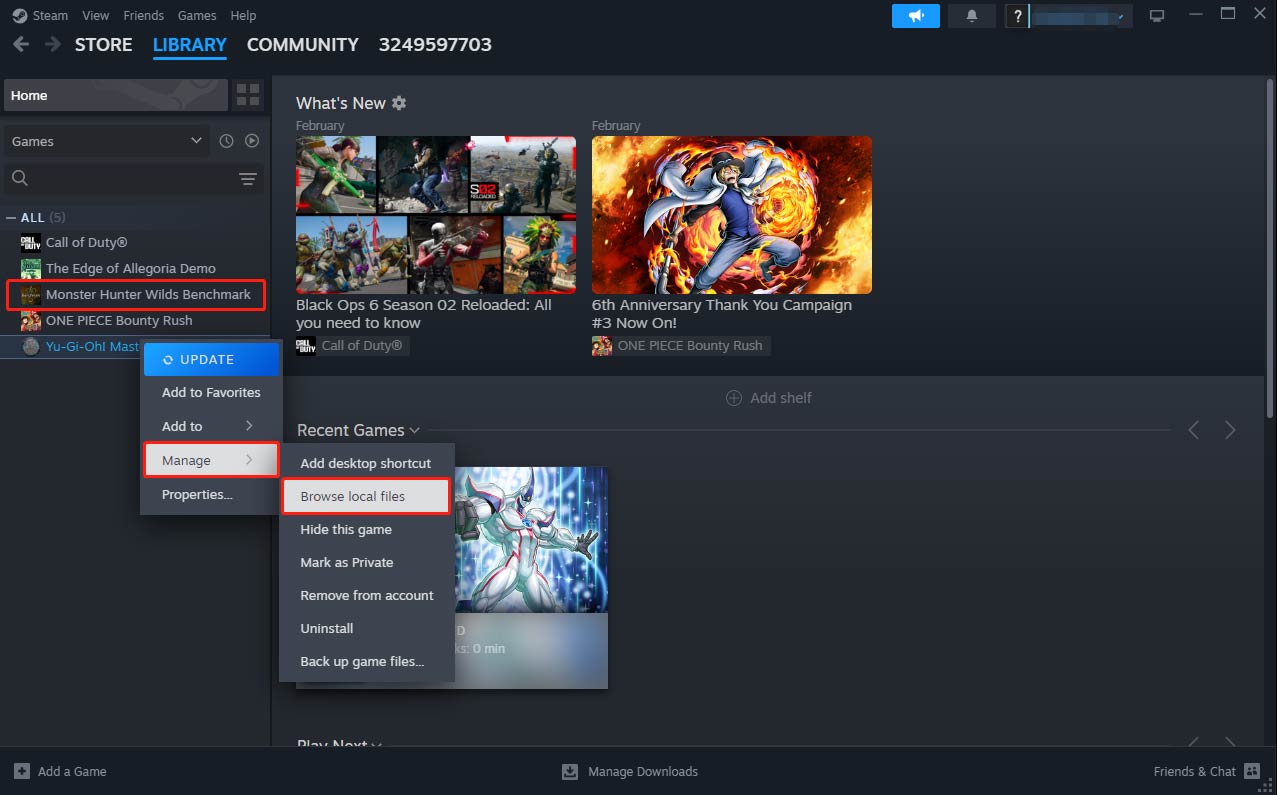
Step 2. Find the CrashReport.exe and CrashReportDll.dll files and remove them.
Upon the deletion, relaunch your game and check.
MiniTool ShadowMaker TrialClick to Download100%Clean & Safe
Fix 6. Disable Discord Overlay
Another solution you should try is to disable Discord Overlay. To do that:
Step 1. Launch Discord on your PC and click on the gear icon in the lower left corner.
Step 2. Go to Game Overlay on the left pane > toggle on the switch beside Enable In-Game Overlay.
Also, you can try to disable Overlay in all apps. After that, launch the game and check.
Final Words
Have you troubleshot this Monster Hunter Wilds something went wrong error yet after trying the fixes in this guide? Hope it can help you out and appreciate your support.
User Comments :