
Does your mouse disappear on Mac? How do you get your cursor back when it disappears? When encountering this frustrating problem, don’t worry and you can find some simple methods in this article. MiniTool introduces them in detail and you can easily fix it after performing some operations.
Mouse Disappears Mac
For most computer users, a mouse is an important tool and they always rely on a mouse cursor. You may be the one user among them. But when the mouse cursor or pointer disappears, it could be very vexing.
If you are using a Windows computer, you can look for some troubleshooting tips from our previous post – How to Fix Mouse Cursor Disappears on Windows/Surface/Chrome. If you are using a MacBook, proceed to this guide and we will focus on the issue of Mac mouse disappearing.
The mouse cursor can disappear or become invisible at random. And it may come back suddenly on your Mac. Instead of wondering why the mouse cursor disappears Mac, let’s go to see some solutions to this unusual problem.
What to Do If Mouse Disappears Mac?
Some Basic Fixes
When your Mac mouse disappears, you can try some quick tips to bring the cursor back.
- Press the Command + Tab keys to switch the active windows. This is quite helpful if the cursor disappears due to a bug in the app.
- According to users, pressing F3 can help to get back the disappeared mouse cursor.
- Use three fingers to swipe to the right on your Trackpad to open the Widgets menu. Wait 10-20 seconds and swipe to the left to get the Finder window.
- Shake your mouse quickly or scroll blindly to the Dock section (at the bottom of the screen) and then move up to the screen.
- If you open Siri on your Mac, ask Siri for help. You can use it to increase the cursor size to find the mouse cursor. Just say “Hey Siri, increase the size of the cursor” to your Mac.
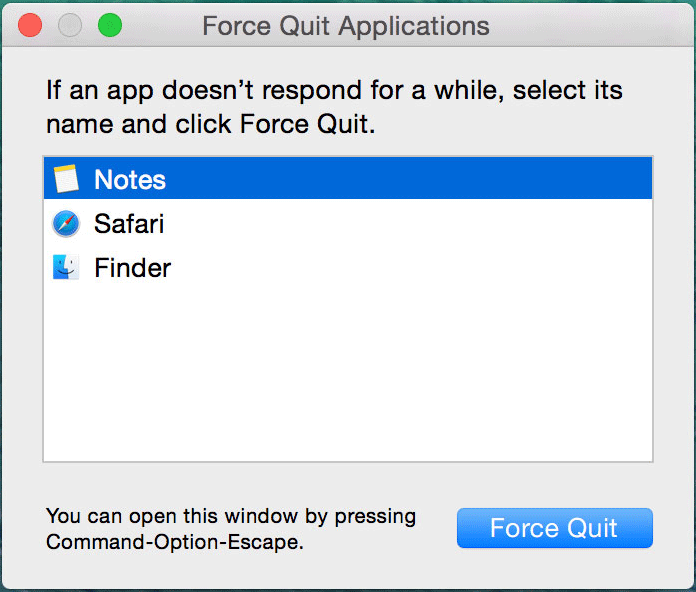
- Press and hold the Command + Option + Escape keys to force quit applications.
Use System Preferences
In addition to the above troubleshooting fixes, you can try some others. Adjusting System Preferences can help you if your mouse cursor disappears on Mac.
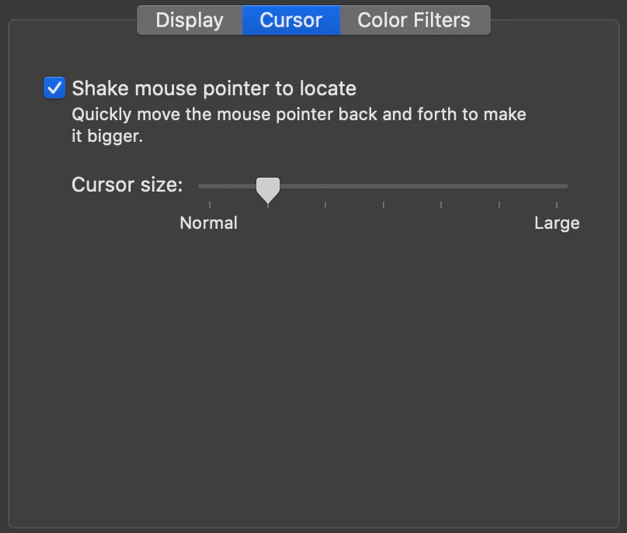
Go to the Apple menu, and choose System Preferences > Accessibility. Under the Display tab, you can adjust Cursor size to make your cursor larger. Besides, enable the option of Shake mouse pointer to locate. This can quickly move the mouse pointer back and forth to make it bigger.
Also, you can go to the Zoom tab, and choose More Options, then check Enable temporary zoom.
Reset NVRAM
If your Mac mouse disappears after trying all the ways, perhaps NVRAM is damaged. NVRAM, short for non-volatile random-access memory, can retain stored data even if Mac’s power is switched off.
When the mouse keeps disappearing on Mac, you can choose to reset NVRAM. To do this:
- Power off your Mac computer if it is turned on.
- Press the Power button to turn it on, and immediately press and hold the Option + Command + P + R keys after hearing a loading chime.
- Keep holding these keys for at least 20 seconds. After hearing the second chime, release these keys.
Bottom Line
Mouse disappears Mac? How can you stop the cursor from disappearing on your Mac? Many basic tips and some other fixes are introduced. Take action to easily get rid of the frustrating situation!
About The Author

Position: Columnist
Vera has been working at the MiniTool Team for over 10 years as a technical editor and content writer. She mainly focuses on disk and partition management, data recovery, Windows backup and restore, and PC troubleshooting. Through in-depth software testing and hands-on experience, she has helped users solve a wide range of computer problems and better protect their data on Windows devices.
User Comments :