
Night light is a very useful feature in Windows 10/11. Sometimes, for some reason, it cannot turn off normally. This article in MiniTool will show you what night light is and how to fix night light not turning off.
Night Light Not Turning Off
When you are using a computer, it may release a light called blue light which is similar to the light your eyes receive in the day. At night, the light will destroy your sleeping quality by disturbing your body clock and influencing the production of melatonin.
Windows considerately provides a feature named night light in the setting. It can reduce the amount of blue light at night and display warmer colors. By doing so, it relaxes your eyes from fatigue and then you can fall asleep more easily.
How to Enable Windows Night Light?
To enable this feature, you can go to Settings, click System, choose Display and switch the toggle to turn on night light under Color.
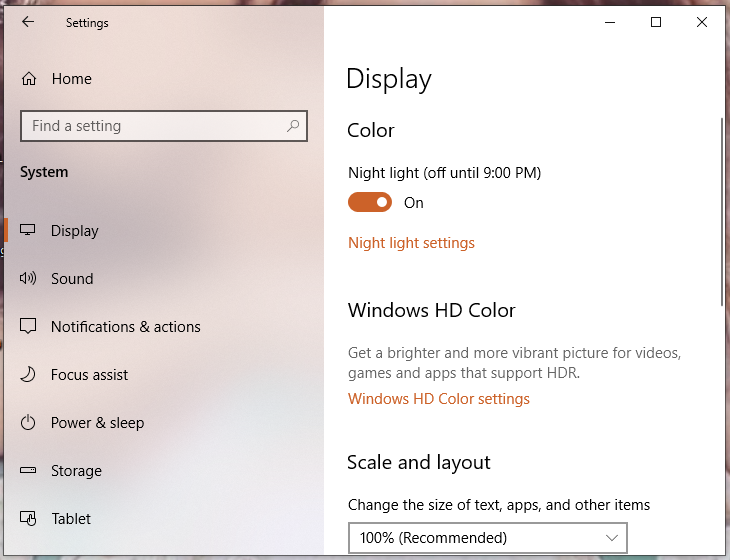
However, some of you might find that when you turn on the night light, the switch will always revert to the enabled state if you go back to check. When you return from hibernate, it also cannot be disabled and turns on automatically. What’s wrong with that?
How to Fix Night Light Not Turning Off in Windows 10/11?
As mentioned above, Windows night light is not turning off in Windows 10/11 even if you have set it. Some of you may ask, “how do I fix night light not turning off?” Don’t worry, this article will introduce you to how to fix night light not turning off step by step.
Way 1: Reinstall the Graphics Driver
Reinstalling the graphics driver may fix some system glitches or corrupted files from Windows 10/11. To do this:
Step 1. Type Device Manager in the research bar and choose the most matched one.
Step 2. Click Display adapters to check the graphics card.
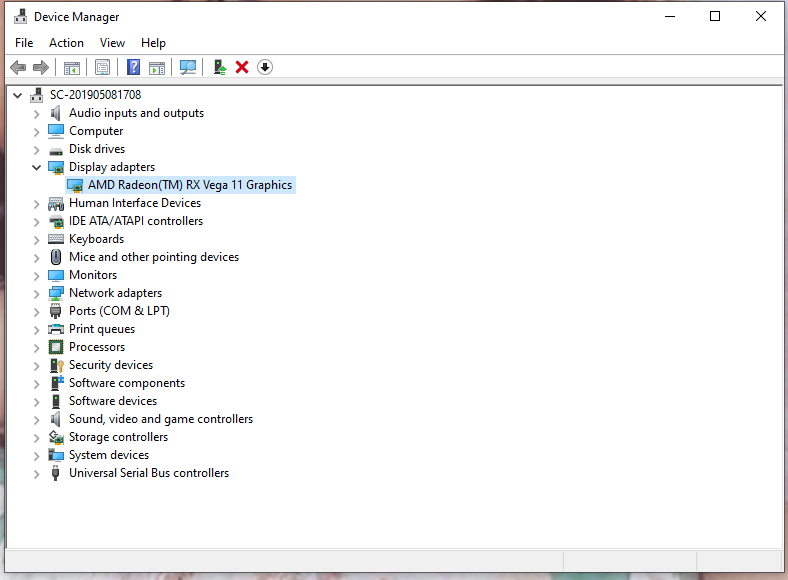
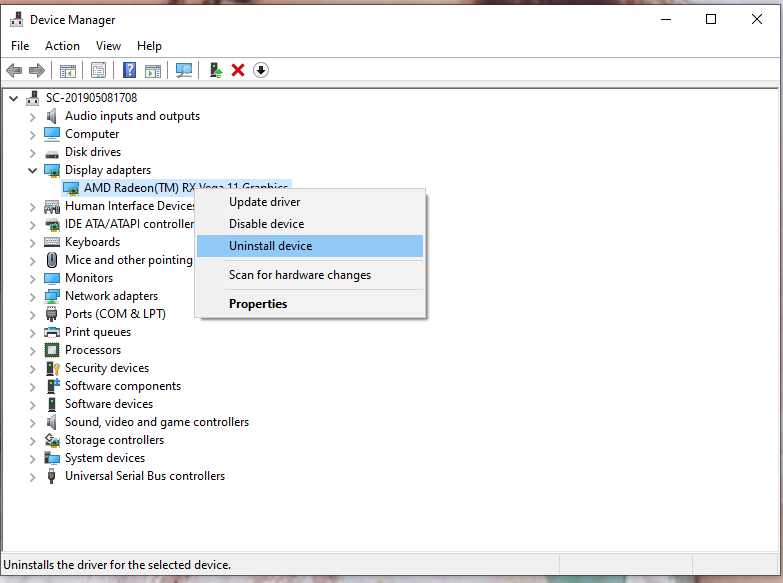
Step 3. Right-click the graphics card driver, and choose Uninstall device.
Step 5. Check Attempt to remove the driver for this device and finally click on Uninstall.
Step 6. After uninstalling the driver, restart your PC, and the operating system will install a brand-new driver for the graphics card. At last, check if the problem of night light not turning off is fixed.
Related Article – How to Reinstall the Graphics Driver on Windows 10?
Way 2: Update the Graphics Driver
Updating your graphics driver can both improve some graphics-related issues and fix substantial errors. If you don’t update yours in Windows 10/11 in time, make sure to update the GPU driver properly.
Step 1. The first two steps are the same as the steps in Way 1.
Step 2. Choose Update driver from the pop-up menu.
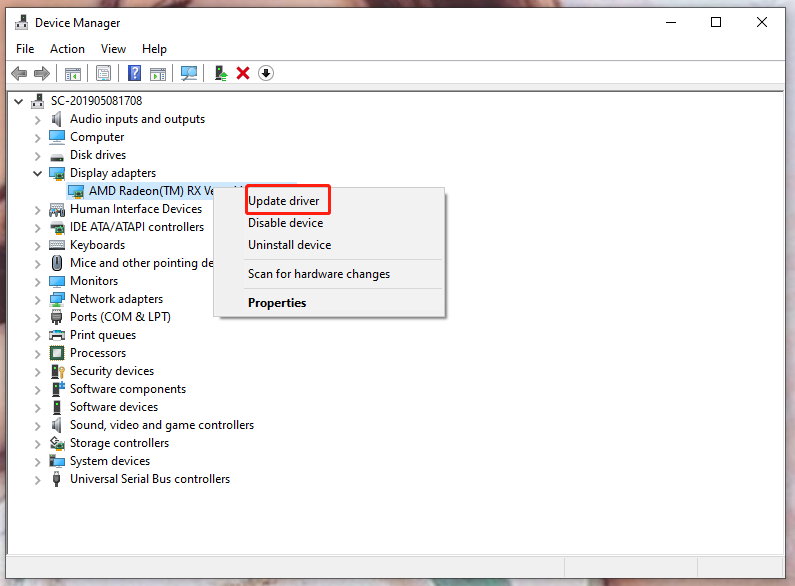
Step 3. Click Search automatically for drivers.
In addition, you can try to sign in or sign out of your account.
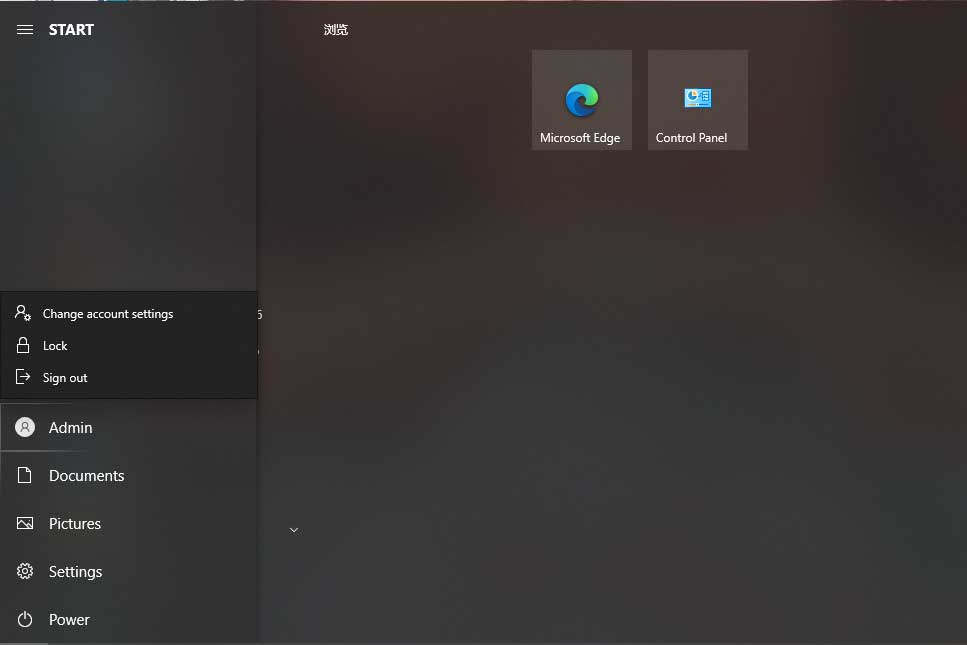
Step 1. Click the Start menu and then click the Profile or User Account icon.
Step 2. Choose Sign out. Don’t worry, you can sign in again.
Way 3: Change Clock Setting
Date & Time is so crucial that it may affect many functions including Night light in Windows. You’d better check and modify it in time.
Step 1. Enter the Setting interface, select Time & Language.
Step 2. Click Date & time, and if Set time automatically is off, click on Change. If not, turn it off and next click Change.
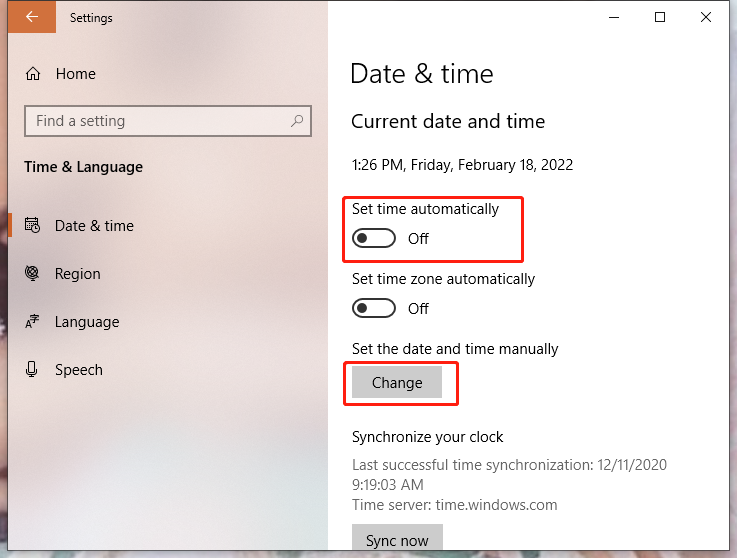
Step 3. After changing your time randomly for a while, you can revert to the correct time by turning on Set time automatically and then go to see whether night light keeps turning on Windows 10 or not.
Related article – [3 Ways] How to Change Date and Time & Sleep Time on Windows 11?
Way 4: Disable Location Device
Night light turns on/ off automatically to schedule the sunset and sunrise according to the inbuilt location service. Therefore, turning off the location service either from Action Center or Windows Setting Menu is a good option.
Step 1. Enter the Setting interface, choose Privacy.
Step 2. In this menu, click Location, and then click Change to disable “Location for this device.”
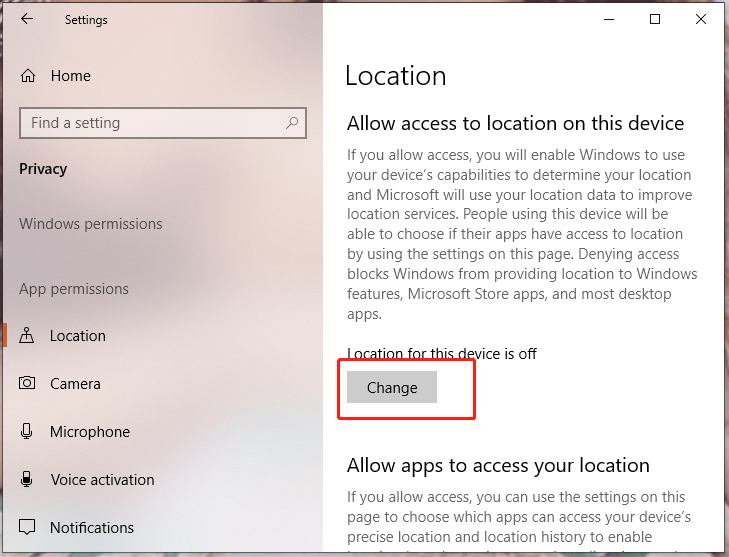
Step 3. Restart the computer and enable Location for this device.
Way 5: Modify the Registry
If you still cannot fix the issue, try manually resetting the feature by editing the Windows registry.
Step 1. Press Win + R to launch the Run box, type regedit and hit Enter to launch the Registry Editor.
Step 2. Click Yes on the User Account Control prompt.
Step 3. Paste the next path in the address bar and hit Enter.
HKEY_CURRENT_USER\Software\Microsoft\Windows\CurrentVersion\CloudStore\Store\DefaultAccount\Cloud
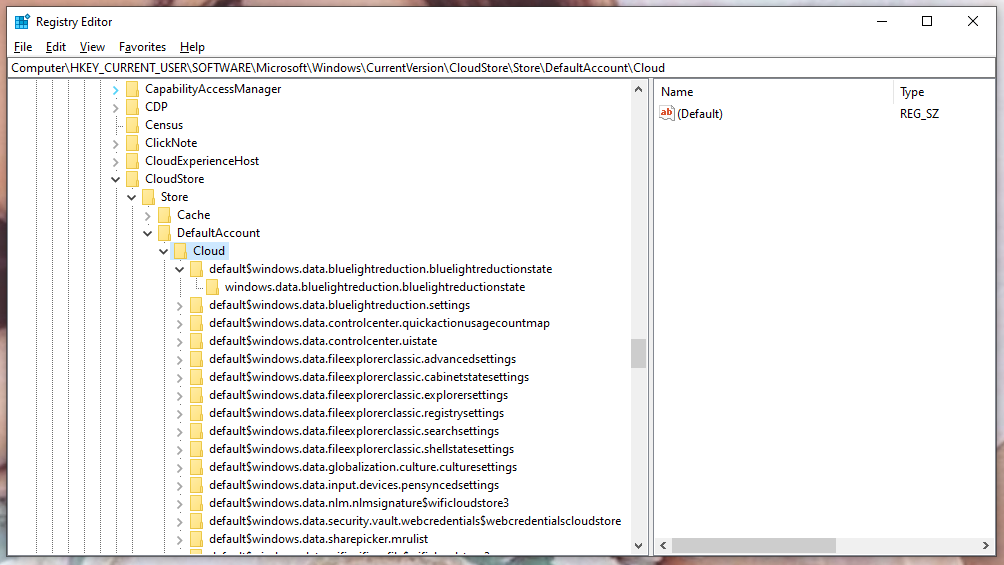
Step 4. Right-click the same key in the next picture and select Delete.
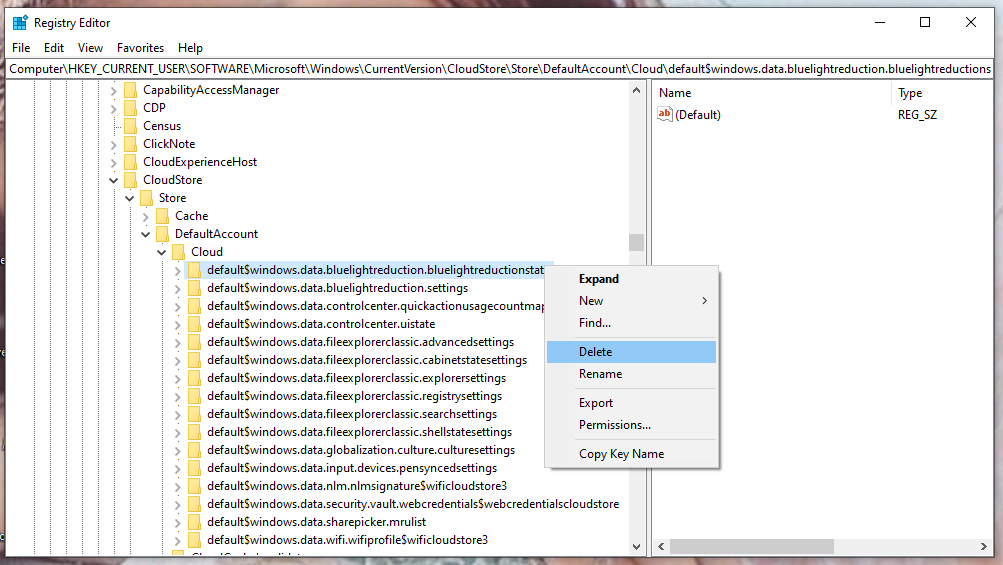
Step 5. Click Yes in the Confirm Key Delete box.
Step 6. Use the same way to delete the following key.
$$windows.data.bluelightreduction.settings
Step 7. Restart your computer to check if you can turn off night light.
By now, you must have mastered many ways to solve Windows 10 night light not turning off automatically. If you still have some questions about it, welcome to leave a comment below or send an e-mail at [email protected].
User Comments :