
It’s no wonder to encounter various errors in OneDrive. In this guide from MiniTool, we are going to figure out the causes of OneDrive error code 0x8004e4be and provide some workarounds for you.
OneDrive Error Code 0x8004e4be
OneDrive is a convenient file management program of Microsoft which allows you to store and sync files on devices. However, kinds of error codes like 0x8004e4be always appear on OneDrive, just like the shadow following the body.
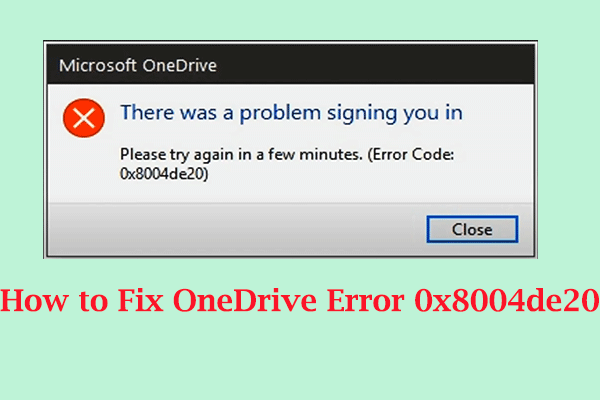
Usually, OneDrive login error 0x8004e4be often shows up when logging in or trying to sync. Then along comes different consequences such as failing to connect, getting unexpectedly signed out, not responding, or being unable to use the cloud service.
This error code can be attributed to the following factors:
- The OneDrive is outdated.
- Some components of OneDrive are damaged.
- Windows system files are corrupted.
- There are problems connecting to the OneDrive services.
According to the above information, we collect several effective methods to fix OneDrive error code 0x8004e4be.
Solution 1: Reset Your OneDrive
The method to fix OneDrive error code 0x8004e4be is resetting OneDrive, which is given by a Microsoft advisor. It’s worth a try since it can fix underlying sync or launch glitches without removing your files. Follow the steps:
Step 1. Press Win + R to evoke the Run dialog box.
Step 2. Type the following command and hit Enter.
%localappdata%\Microsoft\OneDrive\onedrive.exe /reset
Step 3. If you get an error saying Windows cannot find…, then you can use the second command and click on OK.
C:\Program Files\Microsoft OneDrive\onedrive.exe /reset
Solution 2: Clear OneDrive Cache
The root cause of OneDrive login error 0x8004e4be might be a corrupted OneDrive cache. So, it’s necessary to clear out the OneDrive cache. Here’s how to do it:
Step 1. Terminate OneDrive and all related processes.
Step 2. Press Win + E to bring up File Explorer and input the following path in the address bar to access the OneDrive cache. Hit Enter.
%userprofile%\AppData\Local\Microsoft\OneDrive
Step 3. Locate the logs folder and open it.
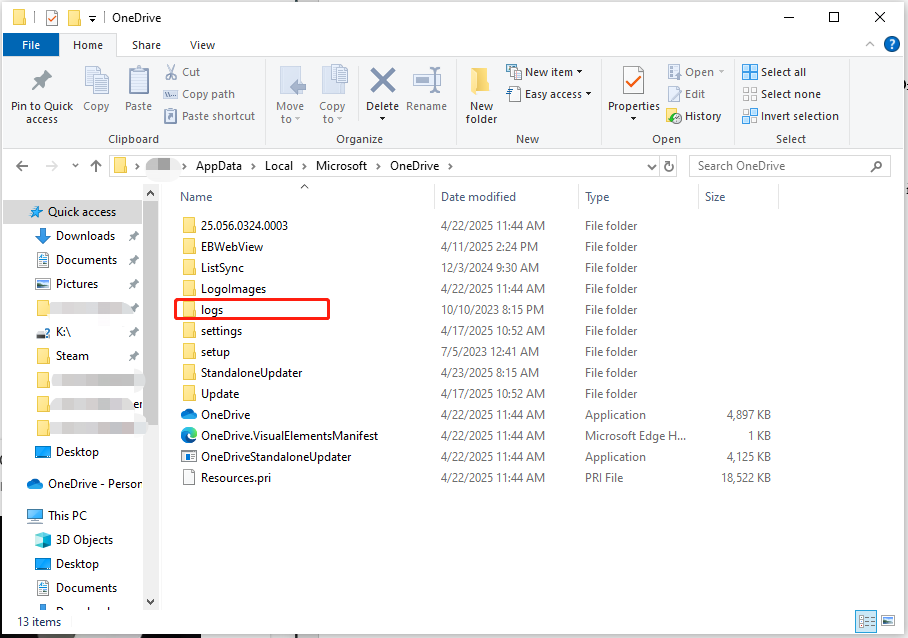
Step 4. Press Ctrl + A to choose all > right-click on them > choose Delete.
After the deletion, restart your OneDrive and see if it works fine.

Solution 3: Reset Microsoft Store
It’s said that some users solved the OneDrive error code 0x8004e4be error by resetting Microsoft Store. You can give it a shot. Here’s how to reset it:
Step 1. Fire up the Run window again.
Step 2. Type wsreset.exe and click on OK.
Microsoft Store will be reset and then you can try to open and sign into it again.
Solution 4: Reinstall OneDrive
The last resort to address OneDrive error code 0x8004e4be is to reinstall OneDrive. This job often fixes some minor issues with applications. Follow the steps:
Step 1. Click on the Windows icon and select Windows Settings.
Step 2. Choose Apps from the left pane and click Installed apps in the right pane.
Step 3. In the list of apps, find Microsoft OneDrive and click on the three dots to select Uninstall.
Step 4. Clear out any leftovers on your computer and then visit the official OneDrive download site to perform a fresh install.
Best Substitute for OneDrive
Now, you may be free from OneDrive login error 0x8004e4be. Perhaps, you’ve been sick of various OneDrive error codes that disrupt your workflow. It’s highly recommended you try a free PC backup software – MiniTool ShadowMaker.
This tool is designed to back up local data on your PC including crucial files, the operating system, partitions, and even the whole disk easily. Other than file backup, file sync, disk cloning, recovery, and more are also supported. Give it a try!
MiniTool ShadowMaker TrialClick to Download100%Clean & Safe
Final Words
That’s everything you should know about solving OneDrive login error 0x8004e4be. We sincerely hope that you can manage to overcome the obstacle.
User Comments :