
OneDrive Files On-Demand for Windows 11/10 lets users access all OneDrive files in File Explorer without downloading them, helping save local storage space. This MiniTool explains what the feature is, introduces three file status icons, and provides instructions for managing OneDrive files.
What Is OneDrive Files On-Demand Windows 11/10
OneDrive is integrated into Windows 11 and 10 for syncing, saving, and sharing files online. Files can be accessed from any device with a Microsoft account.
There is a feature in OneDrive, called Files On-Demand. It allows you to easily access all OneDrive files in File Explorer without having to download them to the computer.
Files that are in the cloud but not downloaded are considered online-only. They do not take up local storage space until they are downloaded to the device, significantly saving local disk space. An Internet connection is required to open and use online-only files.
How Files On-Demand in OneDrive Works
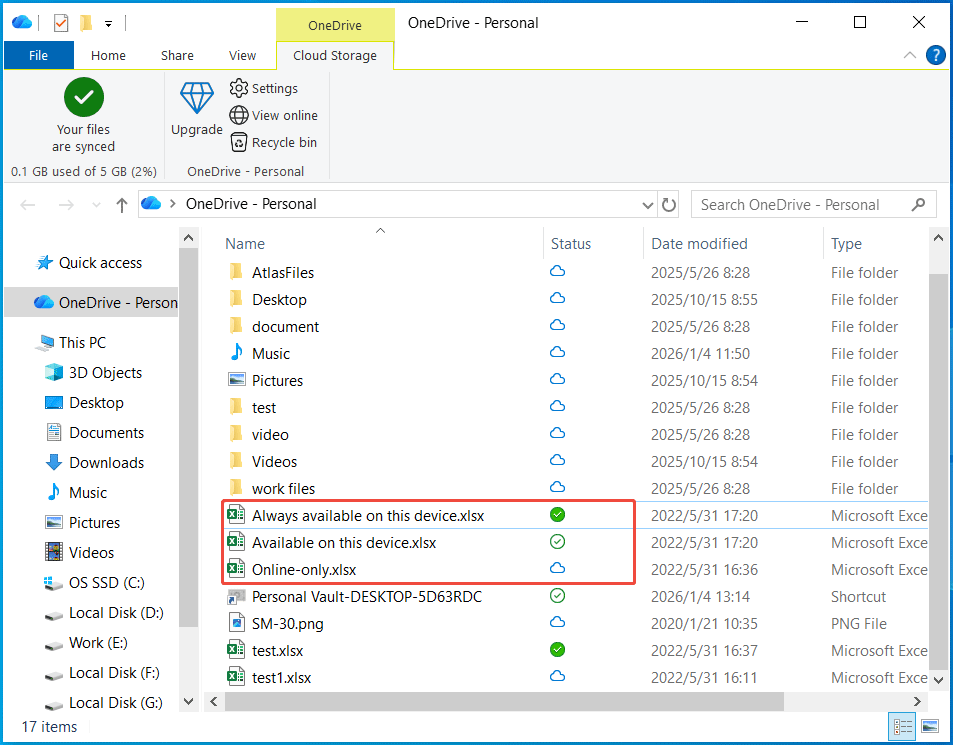
OneDrive Files On-Demand for Windows 11/10 uses different icons in File Explorer to indicate three file statuses: online-only, locally available, or always available offline.
Below is a breakdown of the file status icons.
- Blue cloud: The file is only available online and doesn’t use space on the computer. Files are downloaded when they are accessed and require an Internet connection. You are allowed to mark individual files if a folder is online-only.
- White Tick (Solid Green Circle): This means that files are marked as “Always available on this device”. These files are downloaded to the device and occupy storage space. Even if you are offline, files are always there.
- Green Tick (White Circle): This icon indicates files are locally available. These files can revert to the online-only state (blue cloud) to save space, depending on your storage settings.
How to Manage OneDrive Files On-Demand for Windows in File Explorer
The following are the instructions on how to manage OneDrive files in File Explorer using the Files On-Demand feature.
Make Files Always Available Locally
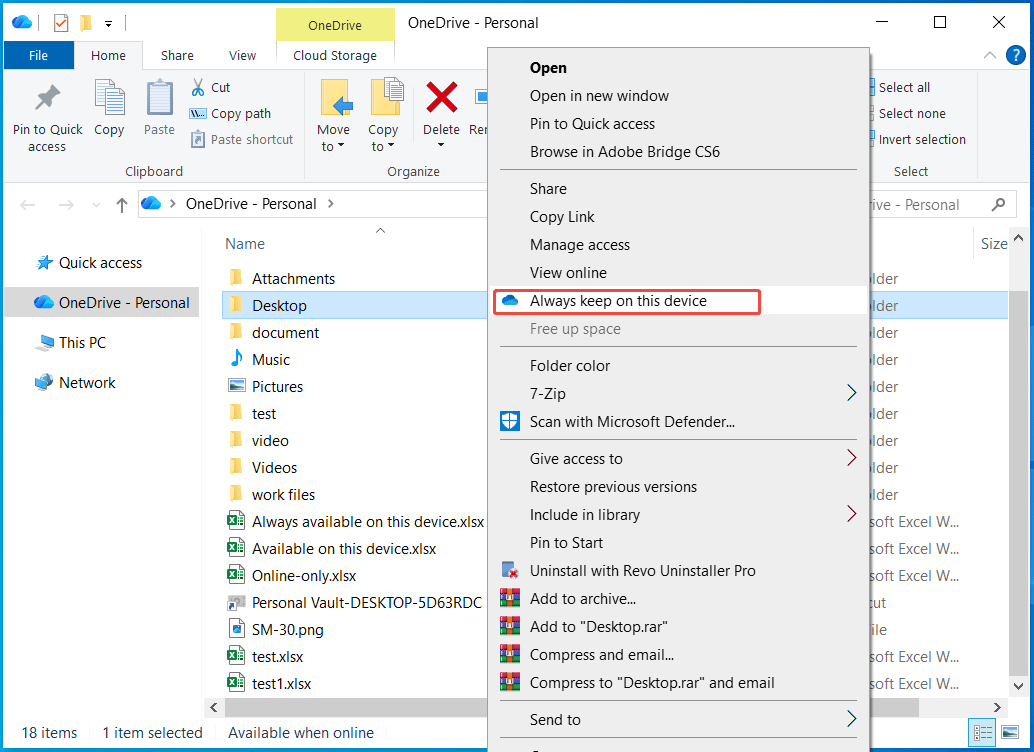
To keep certain files available offline at all times, use the Always keep on this device option. This action downloads the selected files to your device and marks them as always available locally.
Follow these steps:
Step 1: Locate the file or folder that you want to view locally at all times.
Step 2: Right-click it and choose Always keep on this device. Then, you will see a Solid Green Circle with a White Tick icon.
Make Files Online-Only
To free up storage space in File Explorer for the OneDrive folder, it is recommended to make some OneDrive files only available online.
Here is a tutorial:
Step 1: Locate the file you want to make online-only.
Step 2: Right-click it and choose Free up space.
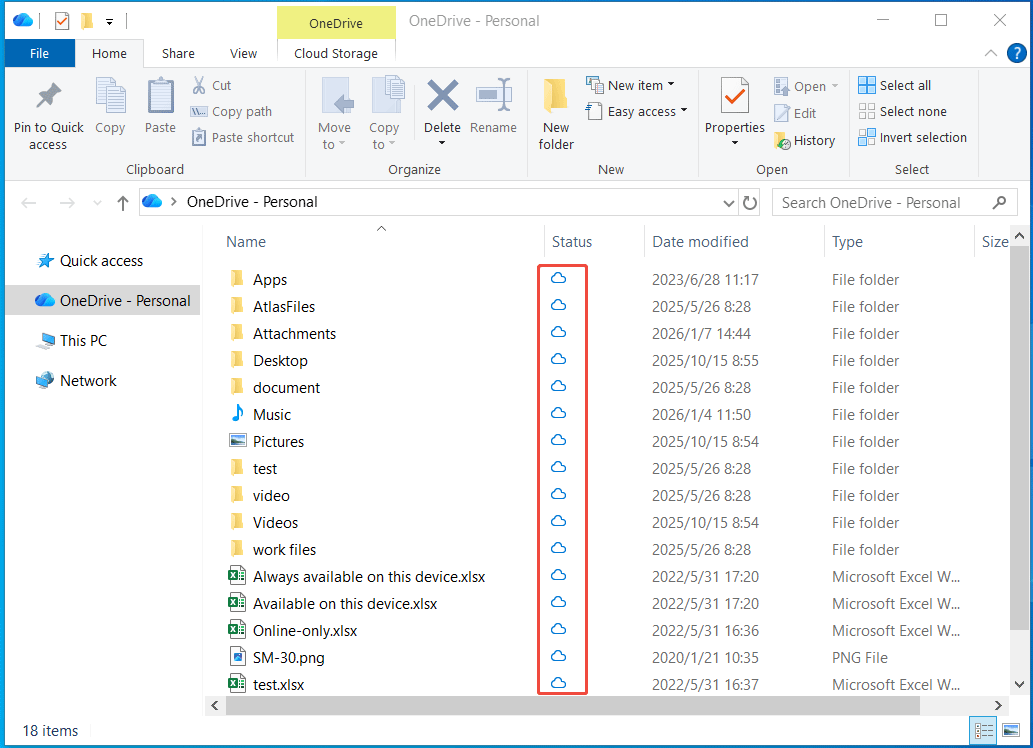
The target file will have a blue cloud icon.
How to Configure Files On-Demand in OneDrive Settings
Additionally, you can manage Files On-Demand settings directly in OneDrive.
To locate the feature:
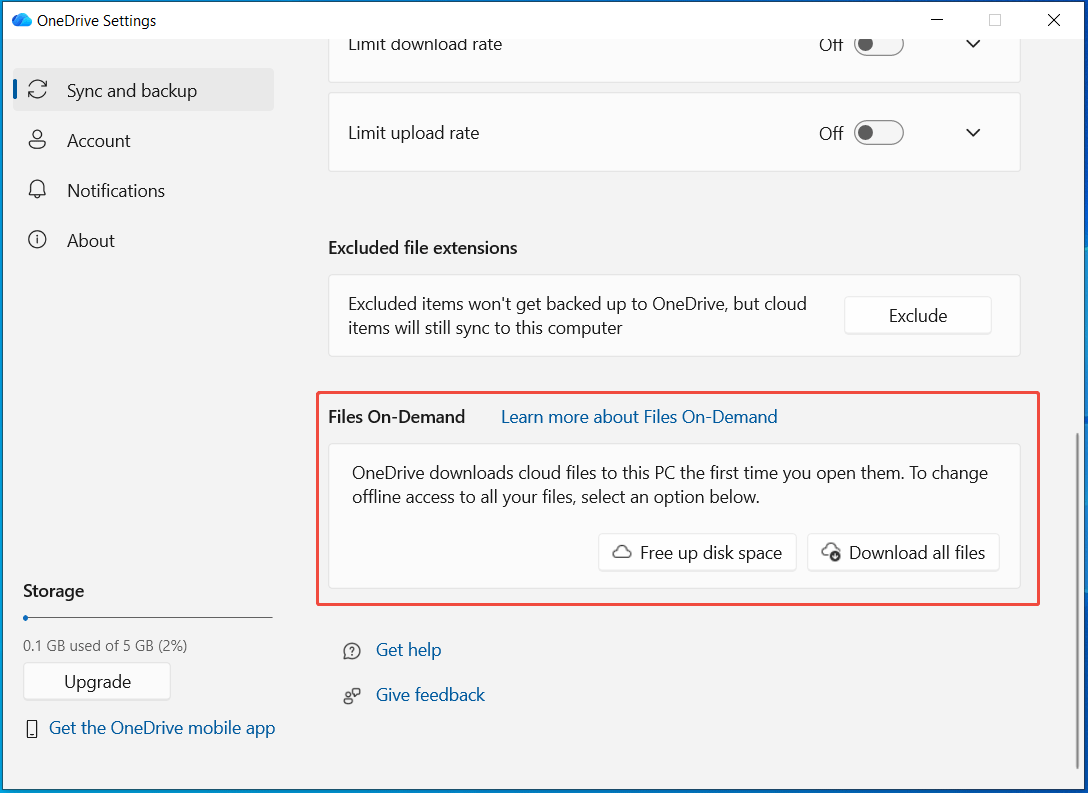
Step 1: Click the OneDrive icon in the system tray and choose Settings.
Step 2: Under the Sync and backup tab, scroll down and expand Advanced settings.
Step 3: In the Files On-Demand section, there are two options: Free up disk space and Download all files.
Free up Disk Space
This option sets all your files to online-only, including files currently set to “Always keep on this device”, to free up space.
After clicking Free up disk space and Continue, all the files in OneDrive are available on the device, allowing you to use them offline.
Download All Files
This will download all the online-only files to your PC and mark them always available, thereby using them offline. That way, Files On-Demand is disabled for all OneDrive files.
How to Fix OneDrive Files On-Demand Missing
Sometimes, OneDrive Files On-Demand for Windows is missing due to an outdated Windows version, an old OneDrive app, or conflicting software.
To resolve the issue, disable Windows Information Protection (WIP), update OneDrive & Windows, and reinstall OneDrive.
![How to Fix OneDrive Always Keep on This Device Missing? [3 Ways]](https://images.minitool.com/minitool.com/images/uploads/2023/04/onedrive-always-keep-on-this-device-missing-thumbnail.png)
#1. Disable WIP
Files On-Demand in OneDrive is not supported if WIP is enabled. Ensure you disable it.
Here is a document from Microsoft to show how to disable Windows Information Protection (WIP).
#2. Update Windows
If you use an old Windows version (older than Windows 10 1709), the Files On-Demand feature is missing. Update Windows with the following steps to address this issue.
Step 1: Go to Settings > Update & Security.
Step 2: In Windows Update, check for available updates.
Step 3: Follow the on-screen instructions to install them.
#3. Update OneDrive
The build 23.066 version or later is required for Files On-Demand. If you use an old version, update it:
Step 1: Open OneDrive Settings and go to the About tab.
Step 2: Click the version number link to open the OneDrive release notes page. Then, scroll down to download the latest version.
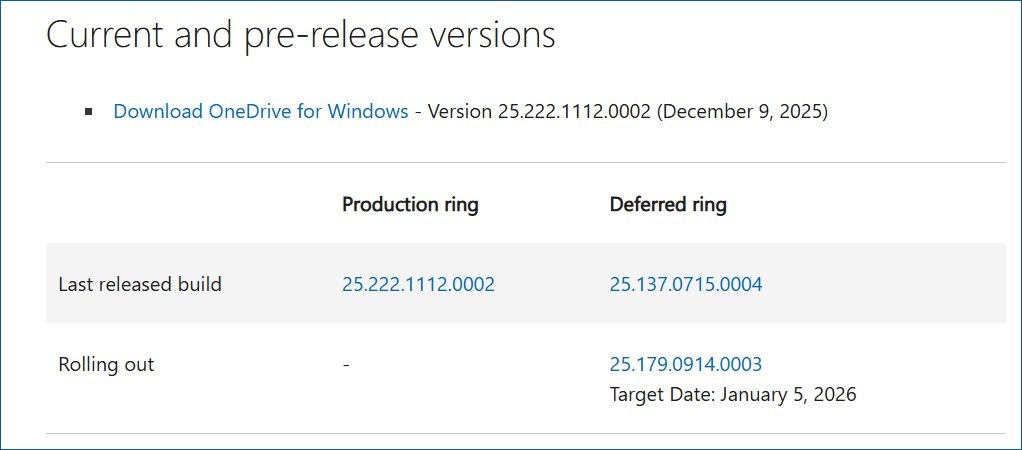
Step 3: Run the setup.exe file to complete the installation.
#4. Reinstall OneDrive
Uninstalling and reinstalling OneDrive can also address your issue.
Step 1: To uninstall this app, go to Settings > Apps, choose OneDrive, and click Uninstall.
Step 2: Download OneDrive and install it on your PC.
How to Back Up a Computer to an External Hard Drive
In addition to storing files in OneDrive, backing up your computer data to an external hard drive provides an extra layer of security.
In terms of local data backup, MiniTool ShadowMaker is recommended. It supports disk/partition/system/folder/file backup and recovery, offering robust data protection.
Execute the backup through these steps:
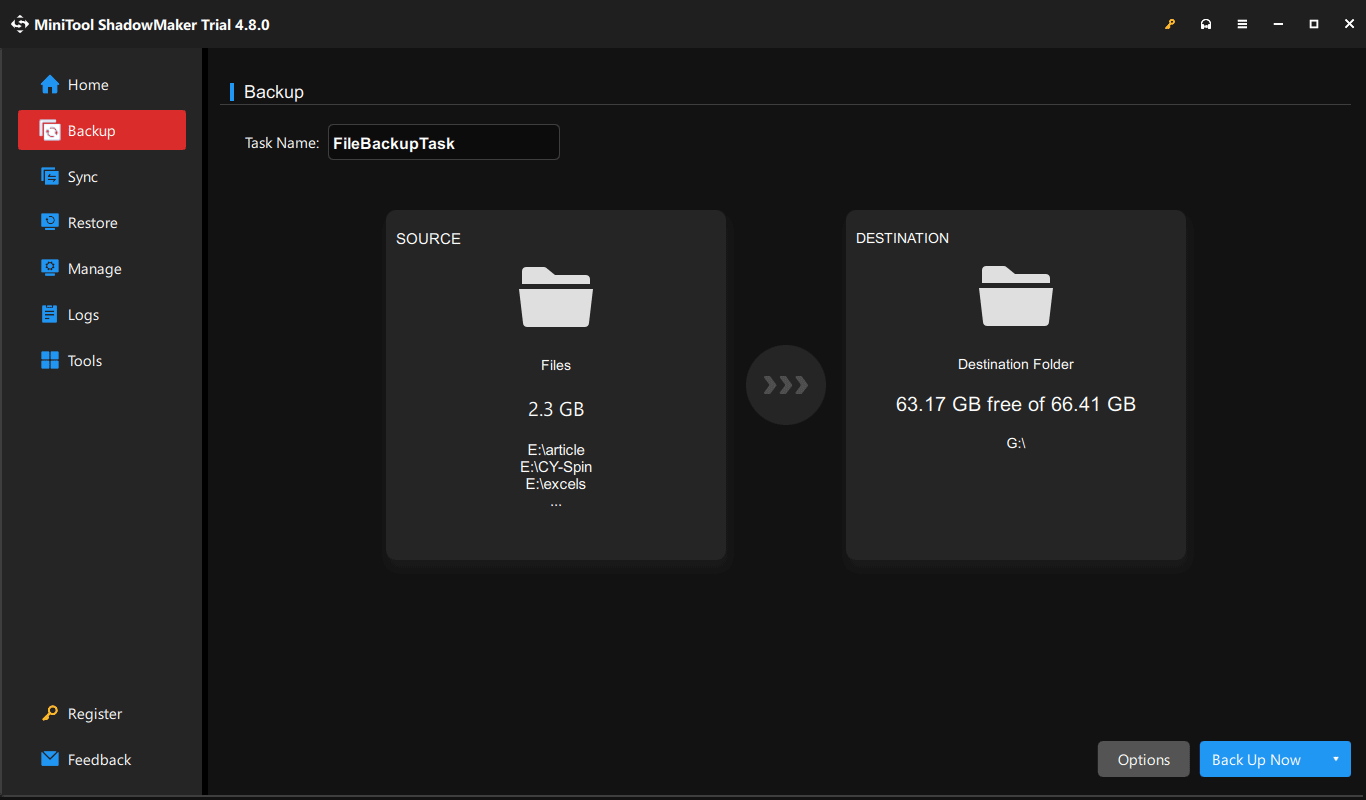
Step 1: Download, install, and open MiniTool ShadowMaker in Windows 10 or 11.
MiniTool ShadowMaker TrialClick to Download100%Clean & Safe
Step 2: Under Backup, go to SOURCE > Folders and Files, and browse your computer to choose files or folders.
Step 3: Click DESTINATION to select a drive to save backups.
Step 4: Choose Back Up Now to start the backup.
Bottom Line
OneDrive Files On-Demand is a useful feature to manage storage space in Windows 11/10. Follow the instructions above to keep files available on the PC or mark them online-only as needed.
As for the issues when using MiniTool ShadowMaker for local backups, contact us at [email protected].
OneDrive Files On-Demand for Windows FAQ
According to Microsoft, deleted files and folders can be kept in OneDrive Personal for up to 30 days, while stored in OneDrive for work or school or SharePoint in Microsoft for up to 93 days.
About The Author

Position: Columnist
Vera has been working at the MiniTool Team for over 10 years as a technical editor and content writer. She mainly focuses on disk and partition management, data recovery, Windows backup and restore, and PC troubleshooting. Through in-depth software testing and hands-on experience, she has helped users solve a wide range of computer problems and better protect their data on Windows devices.
User Comments :