
It is frustrating to run into this OneNote error 0xe0000002. Normally, you will encounter this error when launching OneNote and OneNote crashes unexpectedly after displaying this error message. So, how to resolve this issue? This post on the MiniTool Website will give you some clues.
OneNote Error 0xe0000002
The complete OneNote error 0xe0000002 shows:
The exception unknown software exception (0xe0000002) occurred in the application at location 0x00007FFA98994FFC.
This error can happen when you use OneNote at any time, for example, when you access the program. Sometimes, the error can pop up to prevent users from saving their work or even accessing their existing notes, which can cause some trouble for those who rely heavily on OneNote for note-taking and collaborative work.
Advice: Back up Your Data
Many users use OneNote in their working and studying lives. However, when this similar OneNote crashing – error 0xe0000002 happens, you may be stopped from the program and the data is at risk of loss. We highly recommend you nurture a habit of backup. Make sure your important data has a backup.
To do that, you can use MiniTool ShadowMaker – a free backup software. This software allows you to perform automatic backups and choose different types of backups, such as full, incremental, and differential backups. Apart from file backup, you can also backup system, partitions, and disks.
Besides, MiniTool can be used as a file-sharing tool. You can sync your files among drives, including NAS devices. Try this software and you can get a 30-day free trial version.
MiniTool ShadowMaker TrialClick to Download100%Clean & Safe
Fix: OneNote Error 0xe0000002
Fix 1: Disable Antivirus
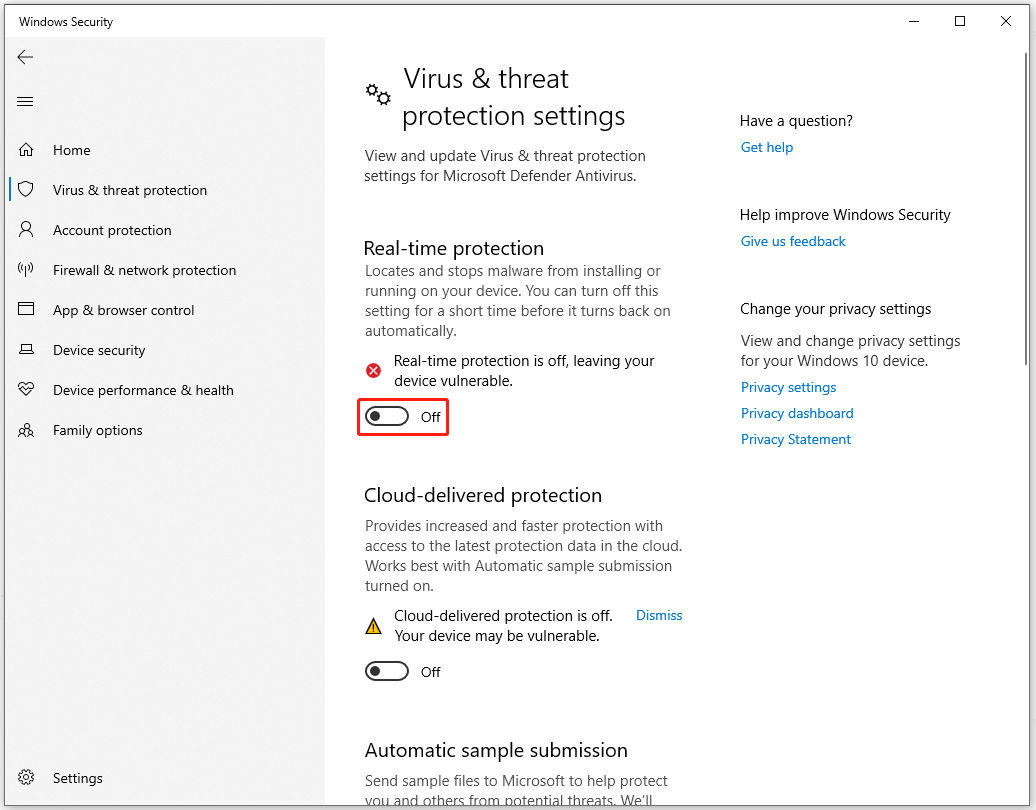
In case any software conflicts cause the OneNote error 0xe0000002, you can disable your antivirus if you have installed any from third-party sources. Alternatively, you can follow to temporarily disable the real protection from Windows Security.
Step 1: Open Settings by pressing Win + I and go to Update & Security > Windows Security > Virus & threat protection.
Step 2: Click Manage settings under Virus & threat protection settings and turn off the Real-time protection option.
Fix 2: Update OneNote
If your OneNote is outdated, please update the software to fix the bug causing the 0xe0000002 error in OneNote. To update OneNote, you need to check Office for updates.
Step 1: Launch OneDrive and open the File menu.
Step 2: Go to the Account tab and choose Update Options > Update Now to download and install the latest updates.
Fix 3: Clear the OneNote Cache
Corrupted cache files can cause the OneNote error 0xe0000002. To clear the OneNote cache, you can do as follows.
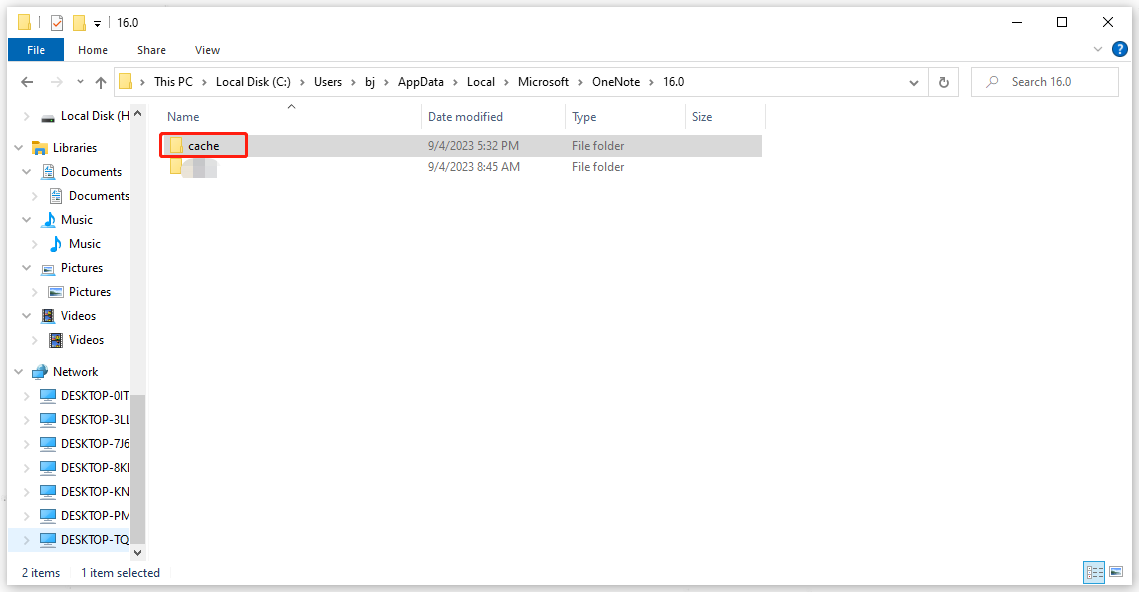
Step 1: Open your File Explorer and follow this location.
C:\Users\user\AppData\Local\Microsoft\OneNote\16.0
Step 2: Then locate and delete the cache folder in it.
Fix 4: Repair OneNote
To fix the OneNote bugs, you can repair Office to get rid of the OneNote error code 0xe0000002.
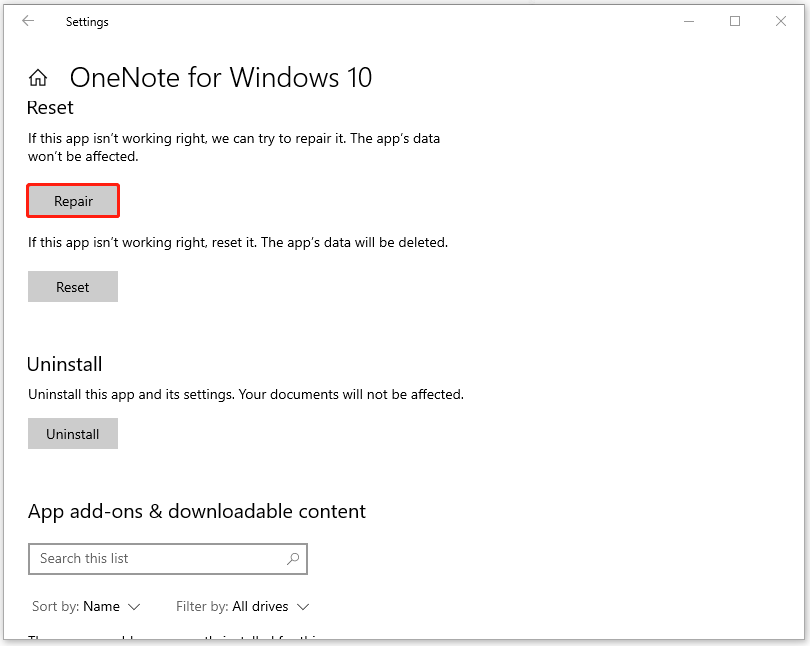
Step 1: Open Settings > Apps > Apps & features.
Step 2: Scroll down to locate your installed OneNote and click on it to choose Advanced options.
Step 3: Then scroll down to click Repair and follow the next instructions to finish the move.
Fix 5: Uninstall and Reinstall Microsoft Office
If all the above methods can’t resolve the OneNote error 0xe0000002, you can try to uninstall and then reinstall Microsoft Office.
Step 1: Still, open Apps & features and locate Office.
Step 2: Choose the Office app and click Uninstall > Uninstall.
After that, you can re-download and install the Office program again.
Bottom Line:
These five methods can help you resolve the OneNote error 0xe0000002. To better protect your data, we highly recommend you back up your important data with MiniTool ShadowMaker. Hope this post has resolved your issue.
User Comments :