
Some people may get trapped in the blue screen issues. This issue can bring many severe results and you should pay attention to that. Then, this article on MiniTool Website can give you some useful methods and related advice.
PDC.sys Blue Screen
Some people encountered the PDC.sys BSOD issue when they wake their computer from sleep or shutdown. In most cases, the BSOD issue can happen when users encountered some serious system issues.
PDC.sys is a Windows driver allowing your computer to communicate with hardware or connected devices, notably concerning sleep and wake-up cycles. That’s why many users will run into this error when their PCs wake up from sleep mode.
Besides, the PDC.sys and Ntoskrnl.exe BSOD errors can occur simultaneously to cause serious issues. It is possible that your system will go malfunction and never recover. So, in case the thing happens again and causes other issues, you’d better back up your system after applying he following methods.
Tip:
To back up your system, we would like to recommend this free backup software – MiniTool ShadowMaker. You can prepare an external hard drive to store the backup so that you can recover it when a system crash occurs. MiniTool ShadowMaker allows you to back up systems, files & folders, disks & partitions.
MiniTool ShadowMaker TrialClick to Download100%Clean & Safe
Fix: PDC.sys Blue Screen
First of all, restart your PC to see if the PDC.sys BSOD issue can disappear; if not, you can restart your computer into Safe Mode and then apply the following methods.
Fix 1: Run SFC and DISM
You can perform SFC and DISM scans to fix system file corruptions. Here is the way.
Step 1: Input Command Prompt in Search and run it as an administrator.
Step 2: When the window opens, type this command – sfc /scannow to enter.
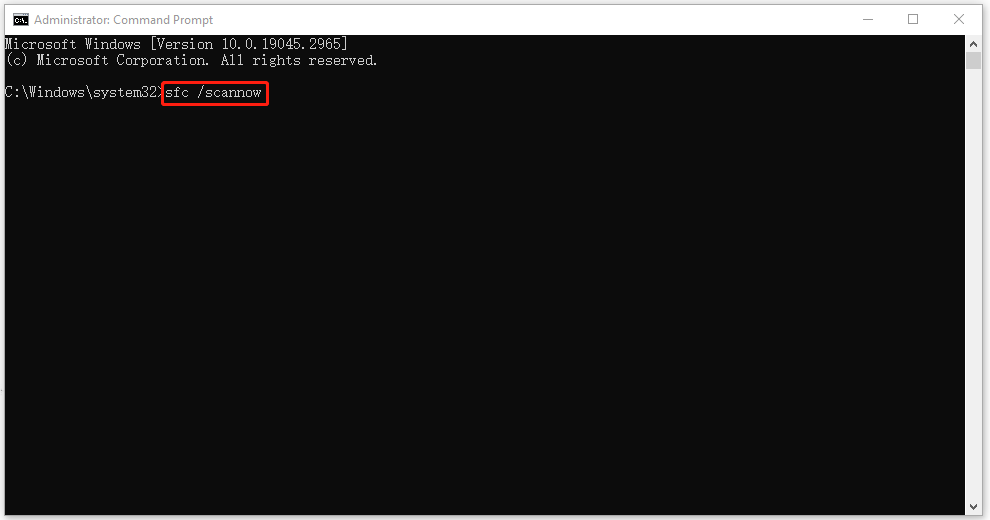
When the verification completes, you can execute the next commands for further troubleshooting.
Dism /Online /Cleanup-Image /RestoreHealth
Now, you can restart your computer to see if the PDC.sys BSOD error persists.
Fix 2: Check Your Disks for Errors
Bad sectors in your disk can lead to the PDC.sys blue screen error, so you can check if your disks work well.
Step 1: Open Command Prompt with admin rights and type this command to execute – chkdsk c: /f.
Step 2: After that, if you see a notification that asks you if check the next time the system restarts, please type Y and close the window to restart the device.
Fix 3: Update All Your Drivers
Outdated or corrupted drivers are another reason for the PDC.sys BSOD error. You can try to update all your drivers.
Steps 1: Go to Start > Settings > Update & Security > Windows Update.
Step 2: Click View optional updates from the right panel and expand Driver updates.
Step 3: Check the boxes next to all the pending updates and click Download and install.
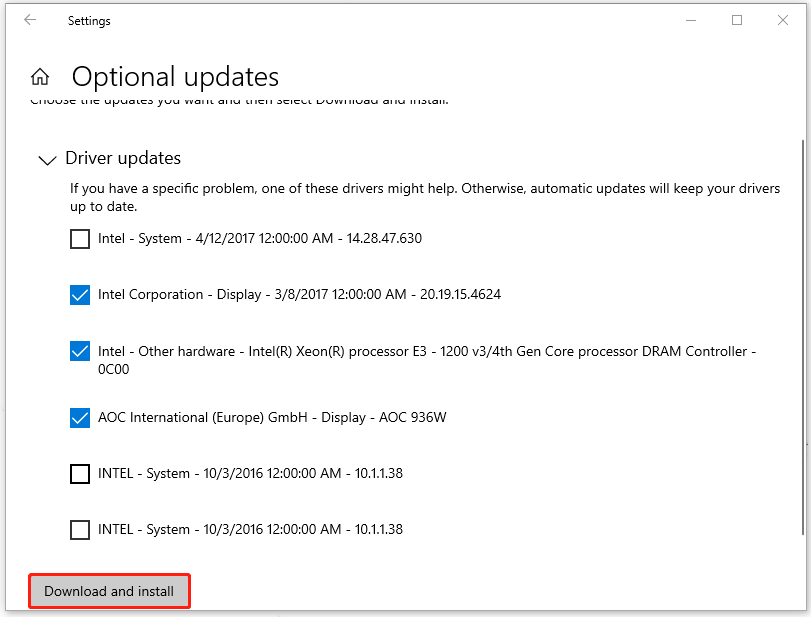
Step 4: Select Search automatically for drivers and then restart your PC when it ends.
Fix 4: Disable Fast Startup
If you have enabled the Fast Startup feature, you can choose to disable it because sometimes, it can lead to the PDC.sys blue screen error.
Step 1: Type Control Panel in Search and open it.
Step 2: Change View by: as Small icons and choose Power Options.
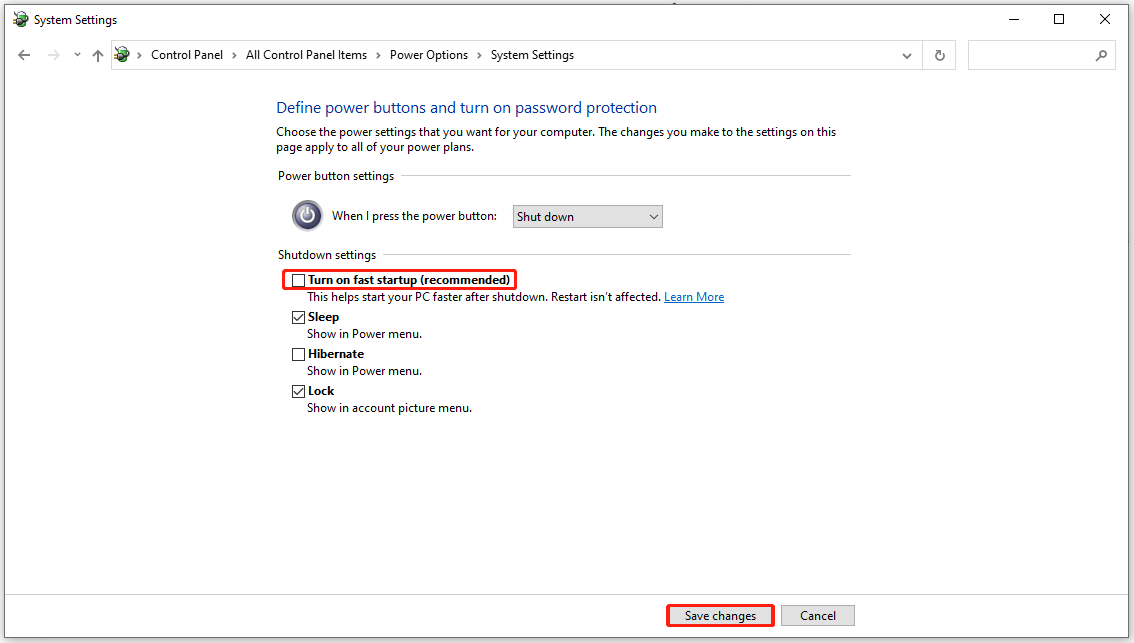
Step 3: Select Choose what the power buttons does from the left panel and click the link of Change settings that are currently unavailable.
Step 4: Uncheck the option of Turn on fast startup (recommended) and then click Save changes.
Related article: Pros and Cons of Windows 10 Fast Startup [Quick Guide]
Bottom Line:
This article has introduced the way of fixing the PDC.sys blue screen error. If you have some other questions, you can leave your messages.
User Comments :