
Blue screen is a troublesome issue that confuses people a lot and requires you to apply a package of troubleshooting methods. The PDC_WATCHDOG_TIMEOUT BSOD error is something hampering people to proceed in Windows. If you want to know how to fix it, you can read this post on MiniTool.
PDC_WATCHDOG_TIMEOUT Blue Screen
The PDC_WATCHDOG_TIMEOUT error is accompanied by a bug check value of 0x0000014F, indicating that a system component fails to respond within an allocated time.
This error can happen on many versions of Windows and in different computer brands. People complain that their computers, suddenly, go into a blue screen and are unable to recover in a short time. So, how can we resolve the PDC_WATCHDOG_TIMEOUT BSOD error?
First of all, if your computer is connected to other external devices, please make sure all of them has been unplugged because the various instruction from faulty driver installation can trigger the PDC_WATCHDOG_TIMEOUT error.
Then you can try to restart your computer to see if the error has been resolved. If it persists, you can get into Safe Mode and perform the troubleshooting methods in the next part.
Recommendation: Back Up Data Regularly
After you have finished those steps, you may have got rid of the PDC_WATCHDOG_TIMEOUT error. But this kind of blue screen issue often causes data loss or even system crashes. In case that happens again, you can back up your important data regularly to an external hard drive.
MiniTool ShadowMaker is a free backup software that allows you to back up systems, files & folders, and partitions & disks. Besides, backup schemes and schedules are also available. More features and functions waiting for you to explore.
MiniTool ShadowMaker TrialClick to Download100%Clean & Safe
Fix: PDC_WATCHDOG_TIMEOUT Error
Method 1: Update Your Drivers
The easiest way to fix the PDC_WATCHDOG_TIMEOUT blue screen is to update your drivers. Some corrupted or incompatible drivers can lead to blue screen issues.
Step 1: Right-click on the Start icon and choose Device Manager from the menu.
Step 2: Expand the IDE ATA/ATAPI controllers section and right-click on Standard SATA AHCI Controller to choose Update driver.
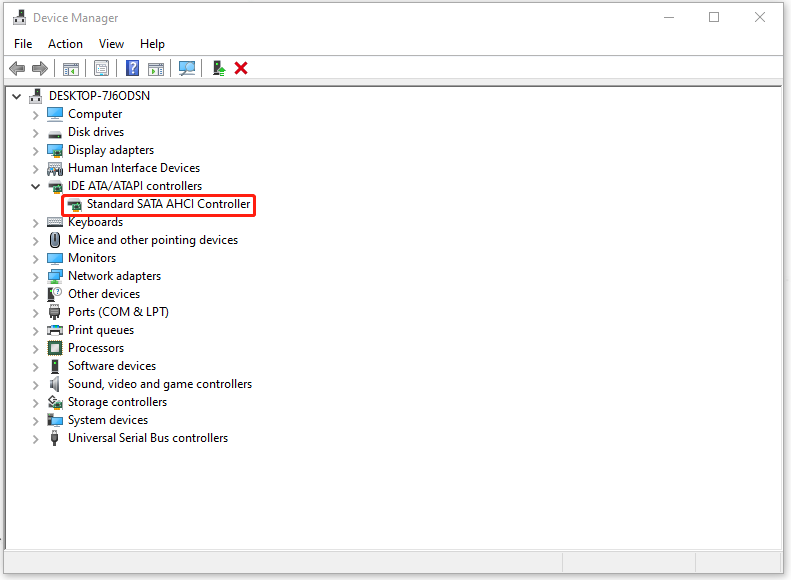
Step 3: In the next pop-up window, choose Search automatically for drivers and wait for a while until it finishes the update.
Method 2: Check Your Memory
You can check your memory to see if there is any broken hardware, such as a bad motherboard slot or the RAM stick. The steps are easy.
Step 1: Type memory in Search and open Windows Memory Diagnostic.
Step 2: When the window opens, choose Restart now and check for problems (recommended).
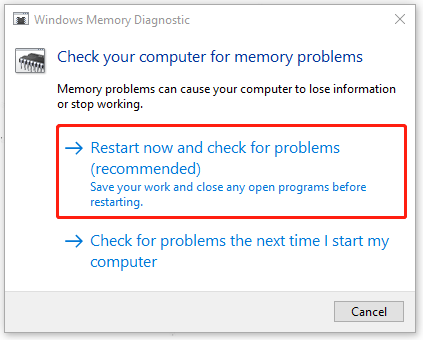
Then your computer will restart to initiate the check and the results will be reported shortly after.
Method 3: Check for Malware
You can go to scan your computer for malware and viruses. The possibility is that some important components are jeopardized by malware or virus infiltration.
Step 1: Go to Start > Settings > Update & Security > Windows Security > Virus & threat protection.
Step 2: Click Scan options and then Full scan.
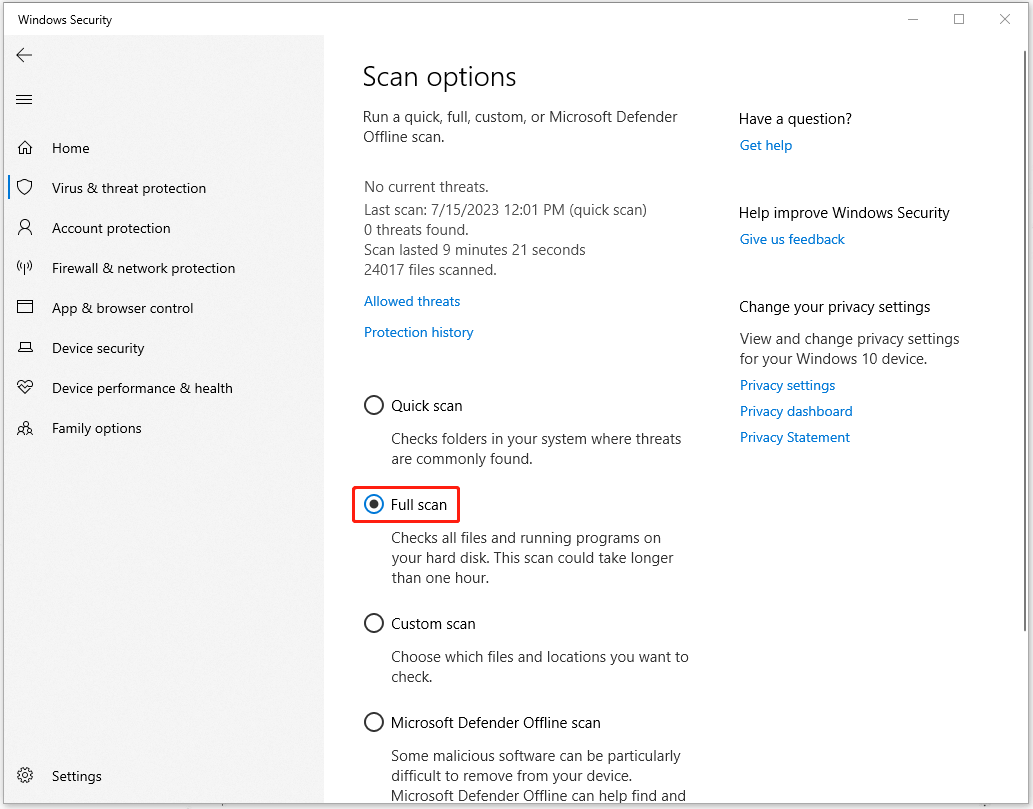
Then you can follow the instruction to finish the next work.
Method 4: Update the BIOS
The last method is to update the BIOS. But before you do that, you need to make sure all your system data is backed up. Updating BIOS is a risky task since it may cause your computer unable to boot or run abnormally.
- Check the BIOS version from system information.
- Check your computer’s model name.
- Find the latest BIOS update from the manufacturer’s website.
- Download and unzip the BIOS file.
- Copy the BIOS file to a USB flash drive.
- restart your computer to get into the BIOS screen.
- Back up your computer’s BIOS file.
- Update BIOS in Windows 10.
If you are still confused with these steps, you can refer to this post and it will give you a more detailed description: How to Update BIOS Windows 10 | How to Check BIOS Version.
Bottom Line:
When you run into the blue screen issue, stay calm and search for related troubleshooting methods to try. Then hope this article about PDC_WATCHDOG_TIMEOUT can resolve your concerns.
User Comments :