
If you are looking for free data recovery software, MiniTool gives you a choice, MiniTool Power Data Recovery. You can use this tool to recover data from external hard drives, USB flash drives, SD cards, and other data storage devices.
MiniTool Power Data Recovery FreeClick to Download100%Clean & Safe
About Power Management
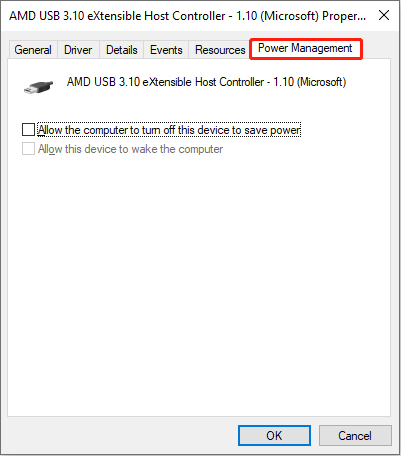
The Power Management in Device Manager can help you set which device can wake the computer and which devices to be turned off to save power. If you want to allow a mouse to wake your computer from sleep mode, you can check the choice Allow this device to wake up the computer on the Properties window of the mouse.
How to Find the Power Management Tab in Device Manager
Step 1: Press Win + X and select Device Manager from the WinX menu.
Step 2: Look for the device you want to configure and right-click on it.
Step 3: Choose Properties in the context menu.
Step 4: Switch to the Power Management tab, then you can select the choice based on your requirements.
How to Get Power Management Tab Back
But sometimes, when you open the Device Manager and turn to the Properties window, you may find there is no the Power Management tab. The Power Management tab missing might be caused by various reasons, such as configuration errors or device problems. You can keep reading to figure out how to get the Power Management tab back.
Method 1: Modify the Registry Editor
Registry Editor contains important information, entries, and keys of the computer. You can change the value data of subkeys to enable or disable functions of the computer. Although it is a sensitive tool, it is practicable for resolving computer issues. When you are going to change a registry, you are suggested to back up the registry key first.
When it comes to back up files, systems, and disks, MiniTool ShadowMaker deserves its place. This professional backup tool provides many features, including syncing files and folders, restoring an operating system to different hardware, making scheduled backups, etc.
MiniTool ShadowMaker TrialClick to Download100%Clean & Safe
Then, let’s see how to get the Power Management tab back with Registry Editor.
Step 1: Press Win + R to open the Run window.
Step 2: Type regedit in the text box and hit Enter to open the Registry Editor.
Step 3: Navigate to HKEY_LOCAL_MACHINE > SYSTEM > CurrentControlSet > Control > Power.
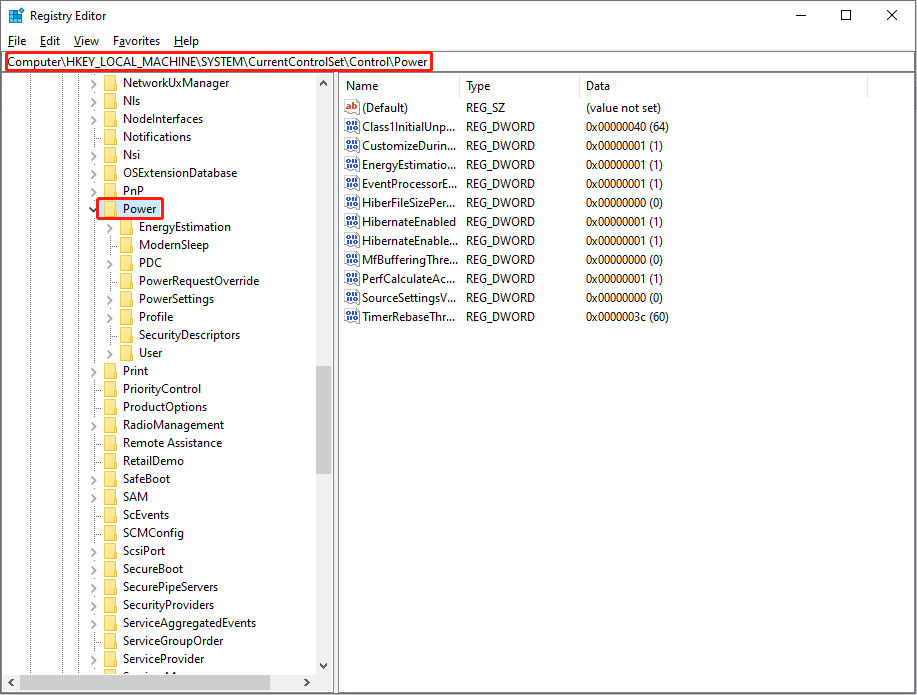
Step 4: Find and double-click on the CsEnabled key.
If you can’t find it, right-click on the blank space on the right panel, then choose New > DWORD (32-bit) Value and rename it as CsEnabled. After this, double-click to open it.
Step 5: In the popup window, change the Value data to 0 and click OK to save the change.
Step 6: Restart your computer to make the change fully applied.
Method 2: Update the Device Driver
Drivers play an important role in connecting an operating system and the device. If the driver is not suitable, an incompatible error may occur and lead to the Power Management tab missing. You can try to update the device driver to solve the problem.
Step 1: Press Win + X and choose Device Manager from the WinX menu.
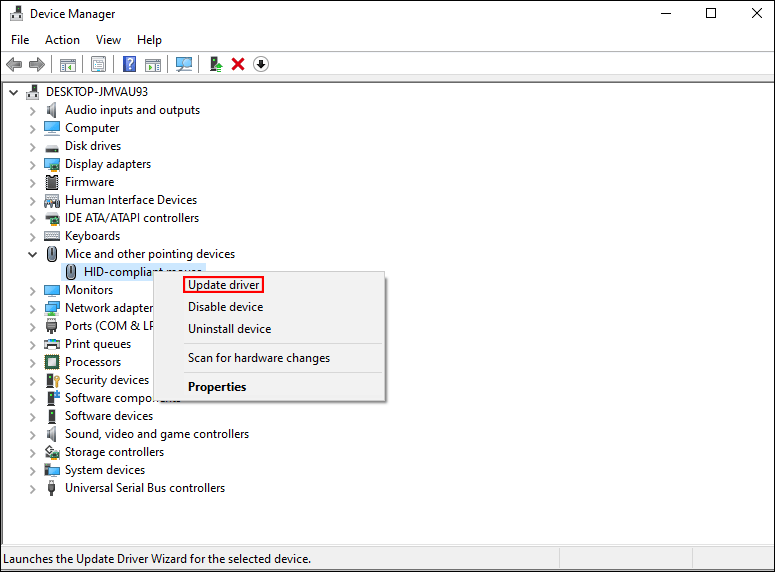
Step 2: Find the problematic device and right-click on it.
Step 3: Select Update driver.
Step 4: Choose Search automatically for drivers in the popup window. The computer will search for the best suit driver and install it.
Method 3: Perform System Restore
If the above methods don’t solve the problem, you can choose to perform a system restore. System Restore will make your computer back to the status corresponding to the system restore points you choose. It can undo your mistake operations and other unknown errors. But this method only makes sense when you have created system restore points before the accident happened.
Step 1: Press Win + S and type Control Panel in the search box.
Step 2: Hit Enter to open Control Panel.
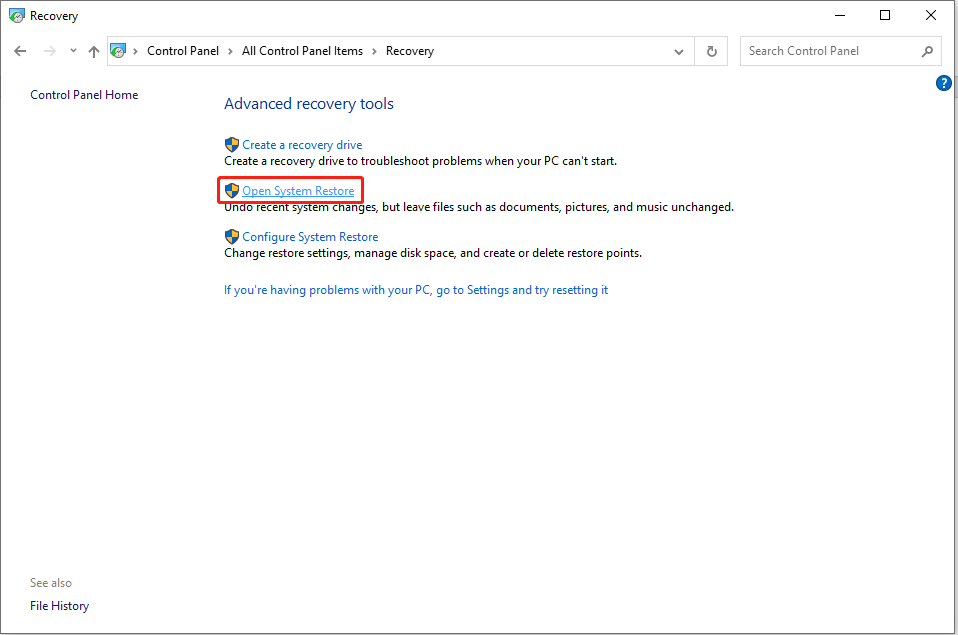
Step 3: Select Large icons in the drop-down menu of View by section and choose Recovery.
Step 4: Select Open System Restore, then click Next in the popup window.
Step 5: Choose a system restore point and click Next.
Step 6: Click Finish to confirm. When the system restore process starts, it can’t be interrupted. Please wait until the end of the process.
Bottom Line
There are three ways for you to get the Power Management tab back. You can try them one by one to find which one works well.
Additionally, you can try MiniTool Power Data Recovery to rescue your lost documents, photos, videos, and other types of files safely. Since this software fits all Windows systems, it should be the best choice for Windows users.
MiniTool Power Data Recovery FreeClick to Download100%Clean & Safe
User Comments :