
When booting your Windows PC with ThinkPad or ThinkCentre model, an error message saying “PWMTR64V.dll not found” may display. This error indicates that the Power Manager is either outdated or incompatible. If you’re using Windows 8 or 10, it needs to be uninstalled due to compatibility issues. In the case of Windows 7, it is possible to apply a patch.
Help: DLL error PWMTR64V.dll ... Specified module could not be found. Running Windows 10 and this error message just started popping up every time I boot up. I could not find another post in the community that addressed this. How can I fix this?answers.microsoft.com
You may receive this PWMTR64V.dll missing error message as below:
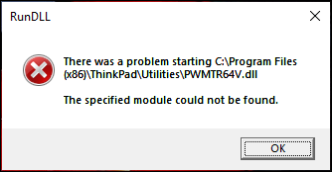
Other common PWMTR64V.dll error messages include:
- PWMTR64V.dll is missing
- PWMTR64V.dll was not found
- PWMTR64V.dll error loading
- PWMTR64V.dll could not be located
- PWMTR64V.dll crash
- PWMTR64V.dll Access Violation
- The procedure entry point PWMTR64V.dll error
- Cannot find PWMTR64V.dll
The Overview of PWMTR64V.dll
PWMTR64V.dll is a Dynamic Link Library file utilized by Lenovo’s Power Manager application specifically for 64-bit ThinkPads operating on Windows 7 and Vista. The Power Manager program activates at startup and shows the battery’s charge level through an icon in the system tray.
The PWMTR64V.dll file is located in “C:\Program Files (x86)\ThinkPad\Utilities,” and the only method for uninstalling it is through the Control Panel by removing Power Manager.
If the file is corrupted, missing, or cannot be located by Windows, a PWMTR64V.dll not found error will appear during startup. This issue arises from problems with the Lenovo Power Manager driver or the existence of conflicting applications on the computer.
How to Fix PWMTR64V.dll Not Found
Method 1. Download or Replace the PWMTR64V.dll File (If Possible)
The main strategy to deal with the PWMTR64V.dll not found error should be to download or replace the DLL file in the appropriate directory.
>> Download PWMTR64V.dll File:
- Go to the website to download the PWMTR64V.dll file and correctly choose your OS from the drop-down menu.
- Choose the correct download location of your system: C:\Program Files (x86)\Thinkpad\Utilities.
>> Replace PWMTR64V.dll File:
If you have another Windows PC and use Power Manager, consider copying it and replace to the computer that has the PWMTR64V.dll not found error.
- Go to another computer that operates on the same version of Windows and has the same architecture (either 32-bit or 64-bit), and transfer the PWMTR64V.dll file to a USB flash drive.
- Plug the USB drive into the affected computer and place the file in the same directory.
- Restart the PC to implement the changes.
- Alternatively, for some users, relocating the PWMTR64V.dll file from C:\Program Files\Lenovo\InstantOn to C:\Program Files (x86)\Thinkpad\Utilities on the same computer resolved the DLL-related issues.
If this approach does not resolve the issue and you receive messages such as “PWMTR64V.dll Missing” or “PWMTR64V.dll Not Found,” proceed to the next step.

Method 2. Recover PWMTR64V.dll File (Award-Winning Solution)
As you know the save location of the PWMTR64V.dll file and if the PWMTR64V.dll not found error is caused by the missing DLL file, you can recover it using a professional and robust DLL recovery tool. MiniTool Power Data Recovery is preferred.
As a secure data restore tool with advanced scanning technology, it can deeply analyze the storage device and retrieve lost files, including the DLL file. You don’t need to be concerned about the safety or cost, as this tool has been trusted by millions of users around the world for more than 20 years.
MiniTool Power Data Recovery FreeClick to Download100%Clean & Safe
Step 1. Launch MiniTool Power Data Recovery, go to the Recover From Specific Location section, move your cursor to Select Folder, and click the Browse button.
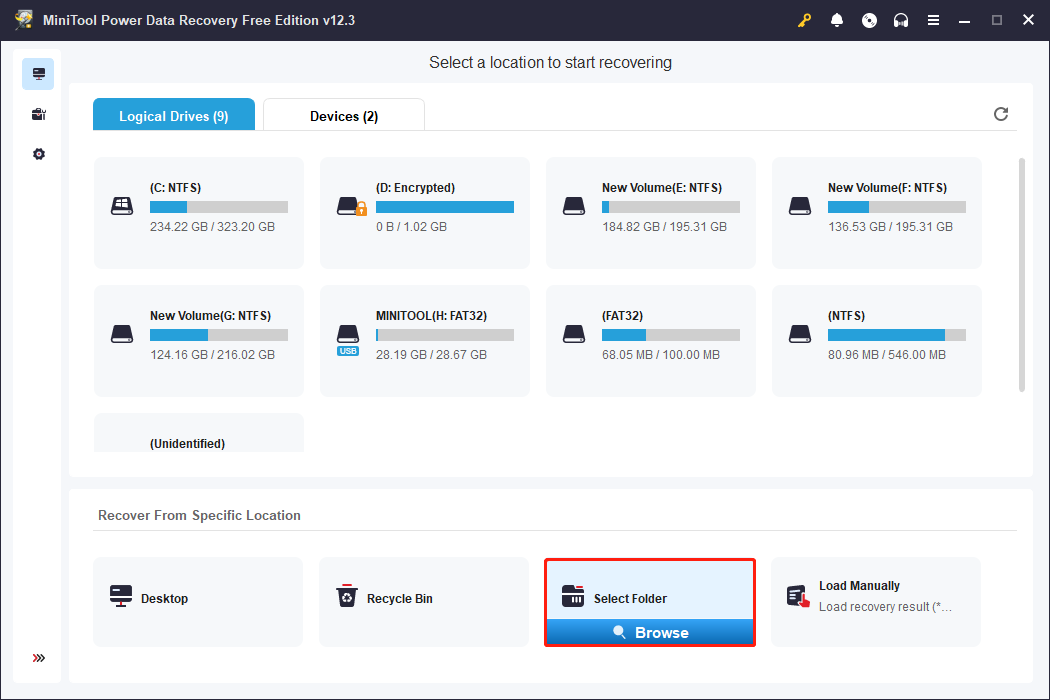
Step 2. Choose the PWMTR64V.dll file location and click Select Folder: C:\Program Files (x86)\Thinkpad\Utilities.
Step 3. After scanning, you can use the Search feature to locate this DLL file.
Step 4. Check the box of the PWMTR64V.dll file and click Save. In the pop-up window, choose an appropriate location to save it and click OK.
Method 3. Run SFC and DISM
If the PWMTR64V.dll not found error is due to the corrupted file, you can repair it by running the command. Here’s how to do it:
Step 1: Press Win + S together to open the Windows Search bar, type cmd in the search box, right-click the relevant result, and choose Run as administrator.
Step 2: Select the Yes button in the UAC prompt.
Step 3: Copy and paste the command and press Enter:
sfc/scannow
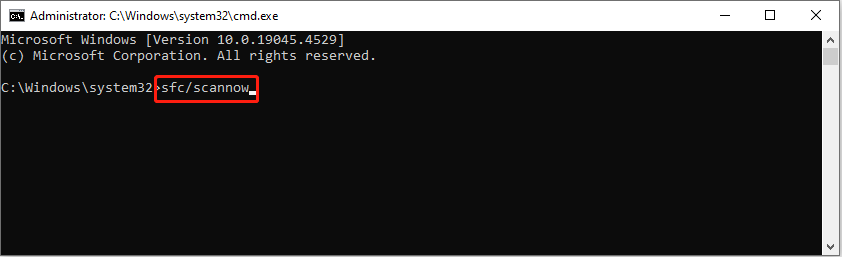
Step 4: After scanning, copy and paste the following commands in order and press Enter at the end of each command line.
Dism /Online /Cleanup-Image /CheckHealth
Dism /Online /Cleanup-Image /ScanHealth
Dism /Online /Cleanup-Image /RestoreHealth
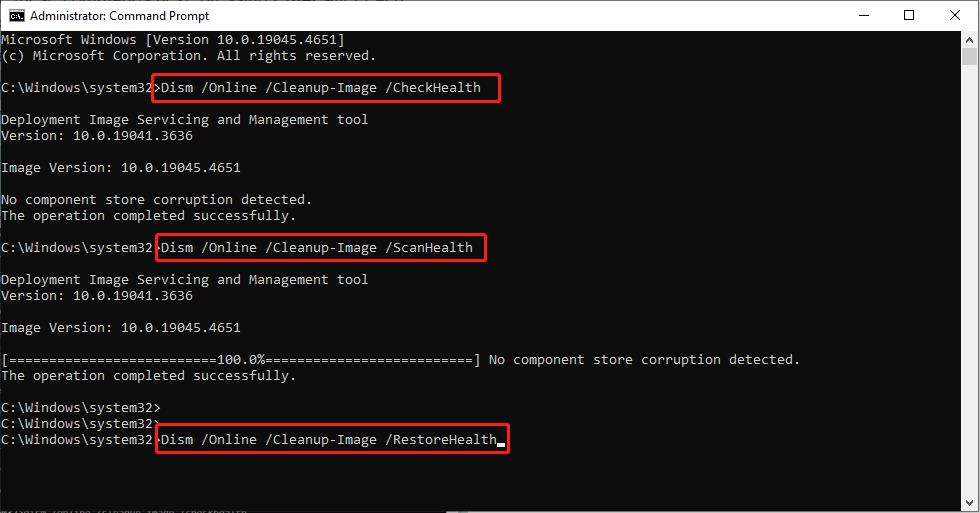
Restart your computer and check whether the error is gone.

Method 4. Reinstall Power Manager
As this error is according to the Power Manager application, therefore, you can try to install the app to fix this PWMTR64V.dll not found error.
Step 1. Press Win + X to access the Power User menu, then choose Device Manager from the list.
Step 2. Expand the System devices category, right-click Lenovo Power Manager, and click on Uninstall device.
Step 3. Check the box for Attempt to remove the driver for this device, if available, and select Uninstall.
Step 4. Finally, reboot the computer, and Windows will automatically install a new version of the driver.
Step 5. If a new driver isn’t installed, you can obtain the Lenovo Power Manager driver from the official website.
Additionally, you can also choose to update the Lenovo Power Manager device.
Bottom Line
This guide provides 4 methods to fix the PWMTR64V.dll not found error and a reliable data recovery tool to recover your lost DLL file. What’s more, you can also try to perform System Restore to fix it. Hope everything is useful for you.
User Comments :