
About CRM Files
Canon digital cameras are always the prior option for photographers because of their uncompressed photos. The Cinema RAW Light file format is one of the Canon RAW file formats. This file format comes with various advantages, such as accurate tone reproduction, natural color response, compact and lightweight format, etc. The CRM files can be edited, viewed, and graded without producing intermediary files.
Thus, it is not good news to find that CRM files are lost. Once files are lost, you should stop using the SD card to save any new data and start to recover Cinema RAW Light files as soon as possible. If you are searching for solutions, keep reading to get the answer!

How to Recover CRM Files
Typically, files lost from external data storage, such as SD cards, cannot be restored from the Recycle Bin. Therefore, when you need to recover CRM files, you should seek help from professional data recovery software, like MiniTool Power Data Recovery.
This free file recovery tool is able to recover various types of files, including diverse RAW photos, videos, documents, etc. You can get this tool by clicking the download button and recover files of no more than 1GB for free.
MiniTool Power Data Recovery FreeClick to Download100%Clean & Safe
Step 1. Download and install MiniTool Power Data Recovery. After that, connect your SD card to the computer and launch the software. On the main interface, select the SD card partition with the USB label and click Scan.
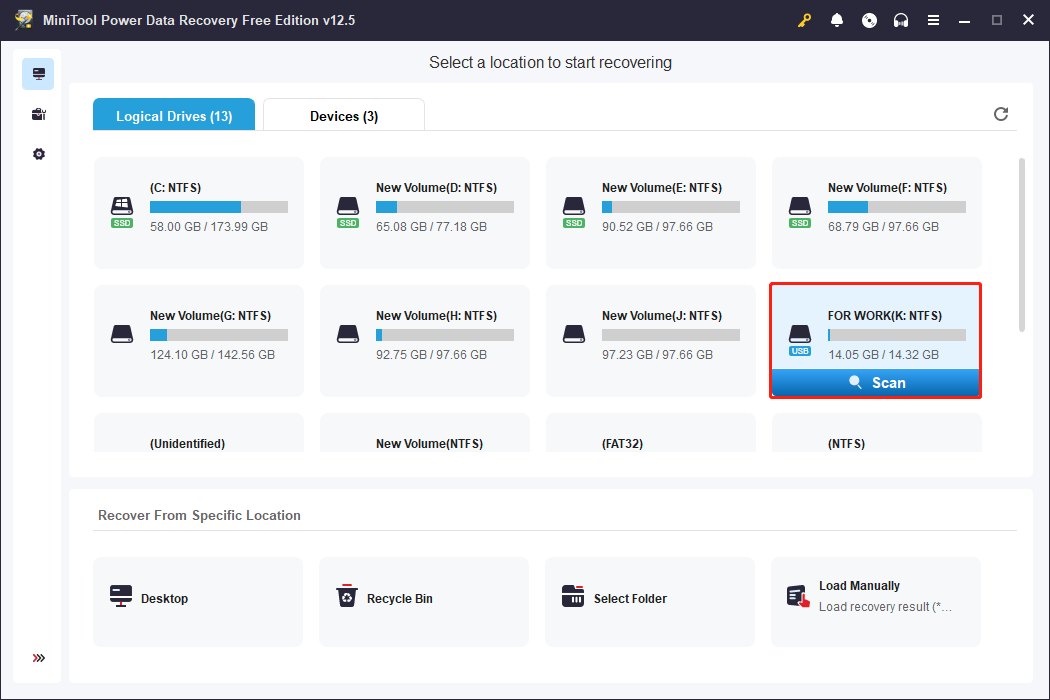
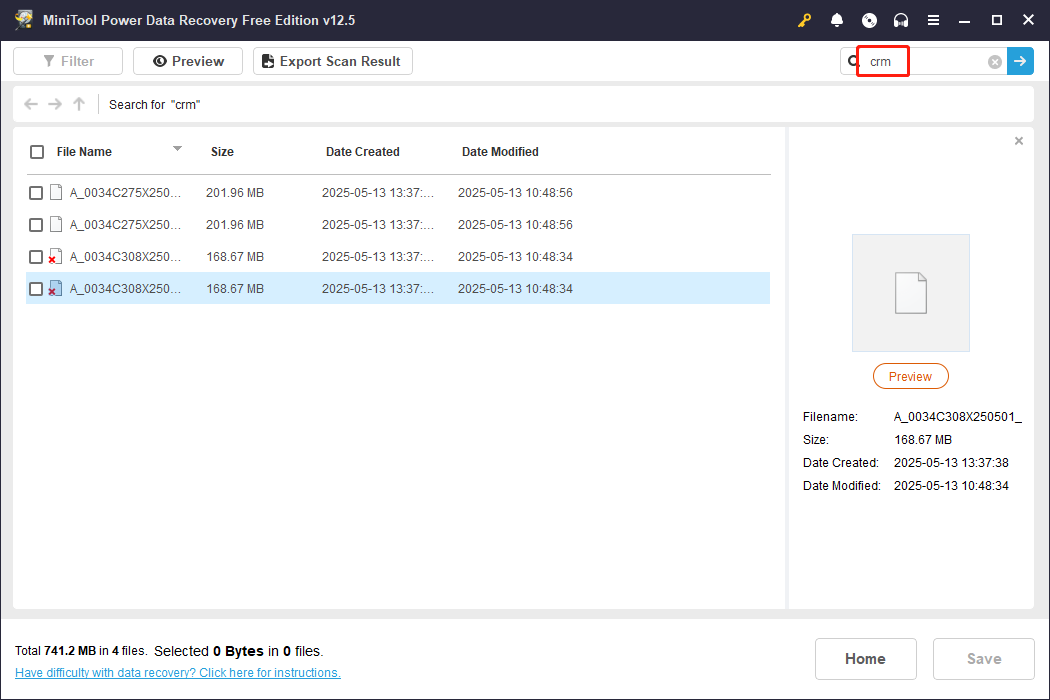
Step 2. When the scan process is complete, you can directly type the file name into the search bar at the top right corner and hit Enter to filter the matched items.
Step 3. Select the wanted file and click the Save button. In the prompt window, you shouldn’t save the recovered file to your SD card. Saving files to the original file path will cause data overwriting, leading to data recovery failure.
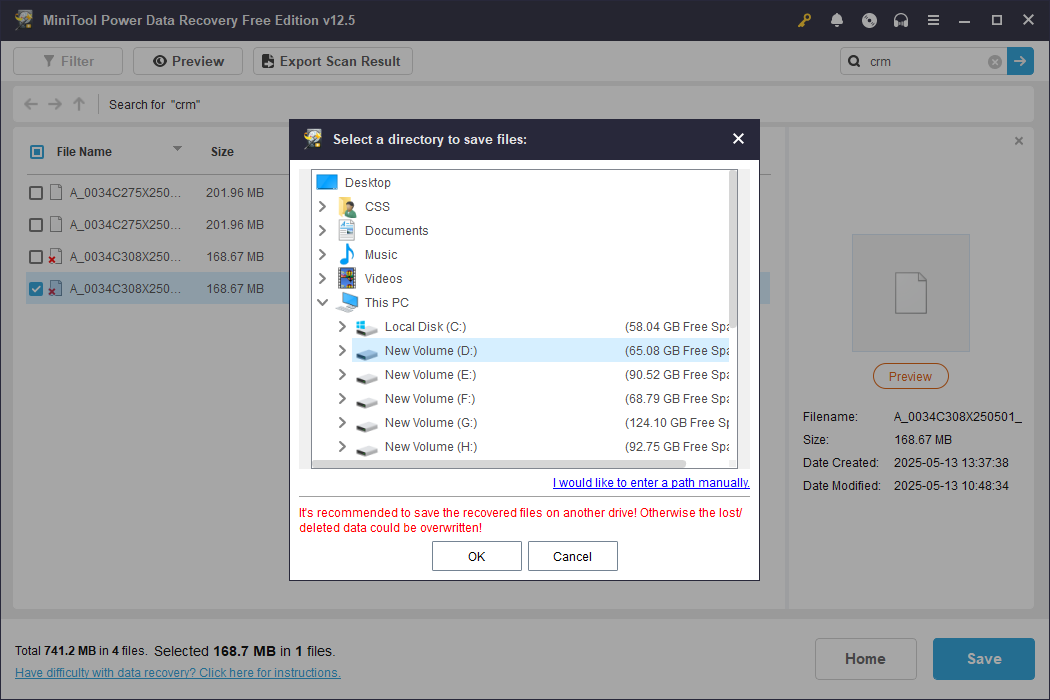
When you successfully recover deleted Canon RAW Movie files using MiniTool Power Data Recovery, just head to the destination you choose and move the recovered files to your preferred location.
Please note that the free edition of MiniTool Power Data Recovery can only restore 1GB of files for free. If you choose more than 1GB of files, you should upgrade to an advanced edition to complete the data recovery process.
For Mac users, Stellar Data Recovery for Mac works well. However, the free edition of this software only allows you to perform a deep scan and preview the found files. To recover files using Stellar Data Recovery for Mac, you should get a premium edition.
Data Recovery for MacClick to Download100%Clean & Safe

Bonus Tip: Back Up Crucial Files Before Losing
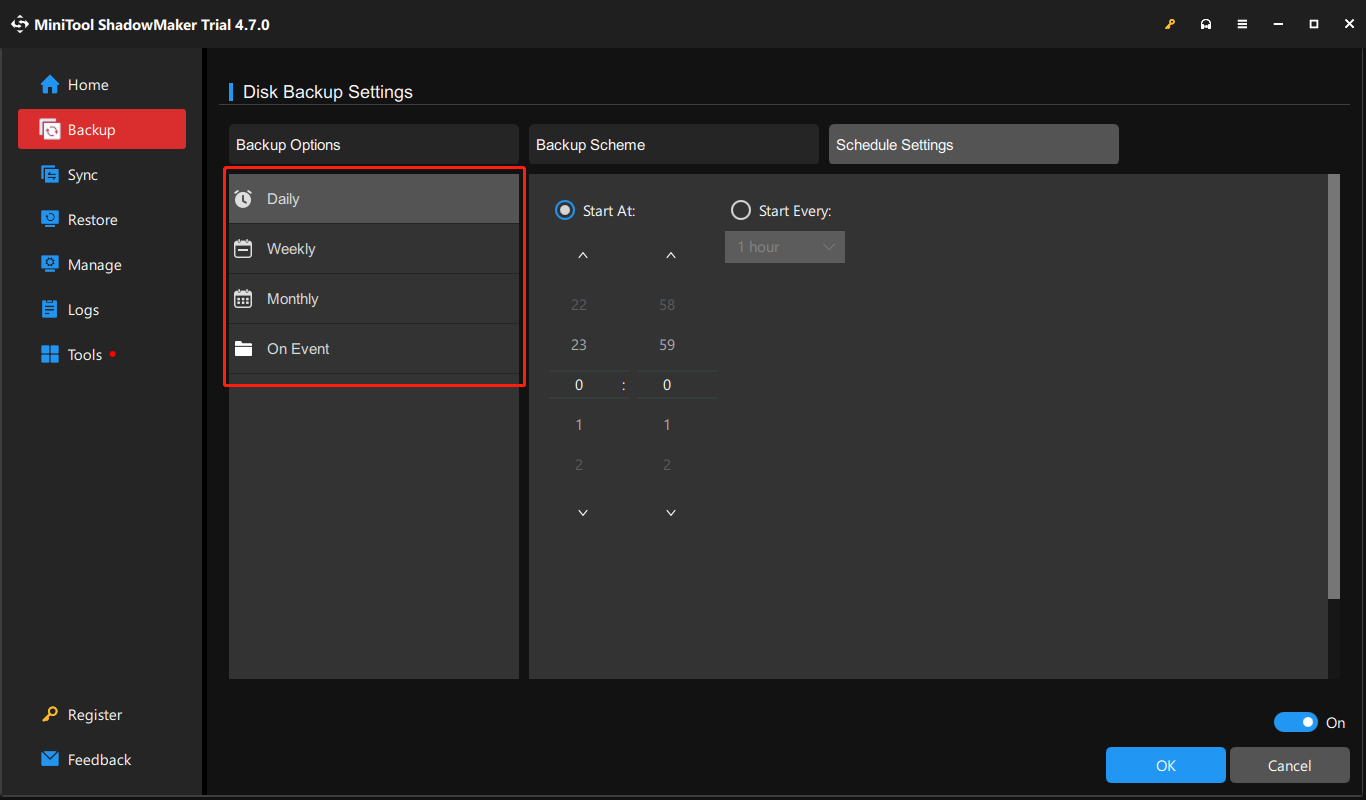
Compared to recovering files after they are lost, you are heartily advised to back up crucial files. Files saved on different data storage devices can also be a shortcut for lost data recovery. MiniTool ShadowMaker is a versatile backup utility that supports backing up files, folders, partitions, and disks.
Based on your requirements, you can set the automatic file backup intervals and choose different backup types, such as full backup, incremental backup, or differential backup. To start your file backup tasks, you can get this software and experience those backup features for free within 30 days.
MiniTool ShadowMaker TrialClick to Download100%Clean & Safe
Final Words
This is all about how to recover CRM files using MiniTool Power Data Recovery. If you have saved those files on your computer, you can also head to the Recycle Bin to get lost CRM files back. Hope this post gives you some useful information!
User Comments :