
Fatal Error: RuntimeClient_Win64_Shipping
Fatal error RuntimeClient_Win64_Shipping in REMATCH usually means that the game encountered a critical crash during startup or runtime and cannot continue. The following content introduces the main meaning:
- “RuntimeClient” refers to the runtime client module.
- “Win64” indicates that this is a build on a 64-bit Windows system.
- “Shipping” means that the game is in official release mode (non-debug, non-development version).
- “Fatal error” means that an unrecoverable crash has occurred.

Possible Causes for RuntimeClient_Win64_Shipping
The reason why REMATCH fatal error appears in REMATCH games can usually be attributed to the following technical problems. This type of error is a common prompt for Unreal Engine crashes when running key modules.
- Graphics driver problem. The graphics driver is too old or incompatible with the current game version; the wrong version of the driver is installed (such as an OEM modified version).
- Visual C++ runtime library is missing or damaged. REMATCH relies on Microsoft Visual C++ Redistributable to support operation. If it is missing or wrong in the system, it will trigger a runtime crash.
- Game files are damaged or incompletely installed. For example, download interruption, decompression failure, or file abnormalities caused by obtaining through third-party installation tools.
- System permissions or security tool interference. The game is run without administrator privileges; antivirus software or a Firewall mistakenly blocks game files or access behaviors.
- Incompatible DirectX version. Some game versions have strict requirements for DirectX12 or DirectX11, and incorrect API startup parameters may cause crashes.

Fix REMATCH Error Fatal Error RuntimeClient_Win64_Shipping on PC
Fix 1: Install Visual C++ Files
Many games and software are written in Visual C++ and require these libraries to run. If they are missing, many errors will occur and affect the running of the game. Here is a way to download and install it.
Step 1: Go to this site and find the Latest Microsoft Visual C++ Redistributable version section.
Step 2: Click the links for both X86 and X64 Visual C++ Files and install them.
Step 3: After the installation ends, restart your PC. Launch the game and see if the problem persists.
Fix 2: Rename/Delete Sl.pcl.dll File
Renaming or deleting the sl.pcl.dll file can resolve crashes, freezes, or inability to launch in some games or programs. This DLL file is usually related to NVIDIA’s Streamline framework, especially the modules used to integrate features such as DLSS (Deep Learning Super Sampling) and Reflex (Low Latency Technology).
Step 1: Open Steam and go to the Library section.
Step 2: Right-click the game and choose Manage > Browse local files.
Step 3: Find the following path:
Engine\Plugins\Marketplace\StreamlineCore\Binaries\ThirdParty\Win64
Step 4: Right-click it and Select Rename to change it to sl.pcl.dl.bak or other name.
Fix 3: Verify the Game Files
When the game runs abnormally (such as crashing, freezing, or flashing back), it may be caused by damaged or missing files. Verify the Game Files will compare the correctness of the files and re-download the incorrect parts to ensure that your game files are complete and not damaged.
Step 1: Open Steam and switch to the Library section.
Step 2: Right-click the game and choose Properties.
Step 3: Go to the Installed Files tab and click Verify integrity of game files.
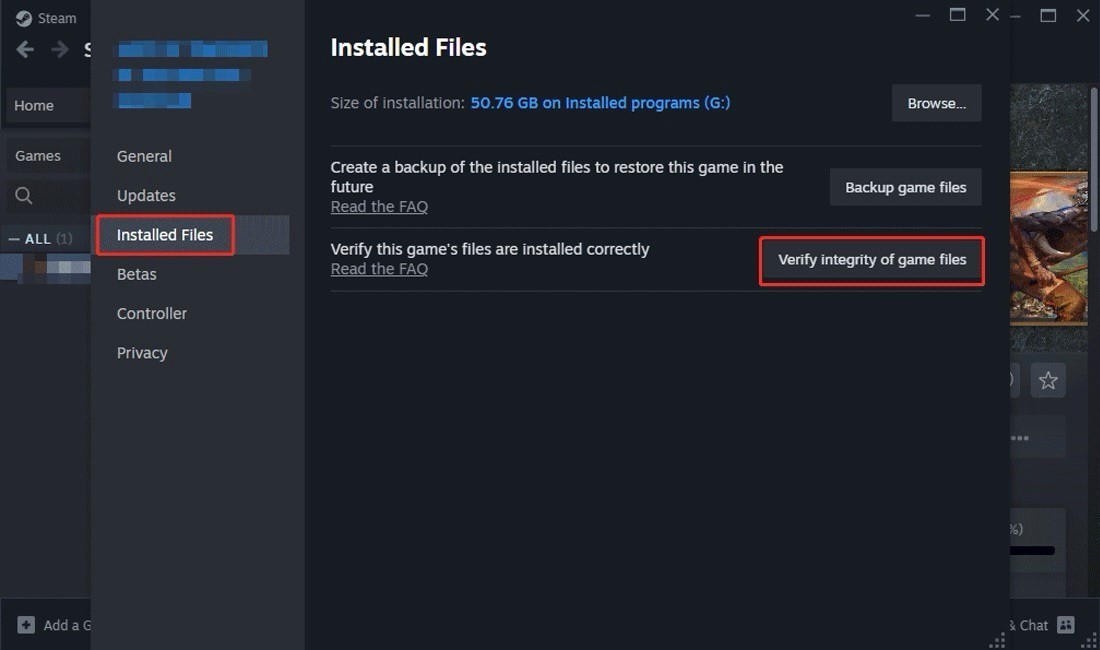
Wait patiently for the process to be completed.
Fix 4: Allow the Game exe File Through the Firewall
REMATCH error: fatal error in RuntimeClient_Win64_Shipping” This type of error may be related to the game being unable to connect to the remote server. “REMATCH” is likely part of an online system or matchmaking mechanism in the game, and if it is blocked by a firewall, it will not be able to complete some operations.
Step 1: Open Control Panel and change the view to Large icons or Small icons.
Step 2: Click Windows Defender Firewall > Allow an app or feature through Windows Defender Firewall.
Step 3: Click Change settings > Allow another app to add the game to the list.
Step 4: Find the game and make sure both the Private and Public boxes are ticked.
Step 5: Finally, click OK to make the change take effect.
Fix 5: Run the Game From the Game Installation Folder
Running the game folder as an administrator is also a good solution. Do as follows:
Step 1: Type REMATCH in the Windows search box, right-click it, and choose Open file location.
Step 2: Right-click the .exe file and select Properties.
Step 3: Switch to the Compatibility tab and check the box for Run this program as an administrator.
MiniTool Power Data Recovery FreeClick to Download100%Clean & Safe
Bottom Line
After successfully resolving REMATCH error fatal error RuntimeClient_Win64_Shipping, this game should be able to start smoothly and run stably.
User Comments :