
Windows Remote Desktop allows you to access the desktop from afar. It increases productivity and eliminates space constraints. Nevertheless, an error will block you from successfully connecting to the remote computer. Many people report an error that the remote desktop cannot verify the identity of the remote computer because there is a time and date difference between your computer and the remote computer. To tackle this problem and access the remote desktop, read and try the following workarounds.
MiniTool Power Data Recovery FreeClick to Download100%Clean & Safe
Method 1: Synchronize the Time and Date Settings
As the error message states, different time and date settings may lead to this failed remote desktop connection. You need to ensure the time and date are consistent on the local and remote computers. Go to Windows Settings to change time and date, then try to reconnect.
Method 2: Verify the DNS Settings
DNS, Domain Name System, is a system used to convert a domain name into an IP address, allowing you to visit websites more easily. When you try to visit websites or connect to a remote computer, the host computer will check DNS for the IP address. Hence, if the DNS server doesn’t work properly, the RDP error occurs. The following steps tell you how to check the DNS settings.
Step 1: Right-click on the Windows icon at the left corner and choose Windows PowerShell (Admin).
Step 2: Type nslookup server_name DNSServername and hit Enter to run this command. You need to change server_name and DNSServername to the proper credentials.
If the command gives no response, you should consider whether the DNS server functions properly or change the DNS server address.
Additionally, if you can physically access the remote computer, you should check whether the remote computer contains multiple network adapters. The error that the remote desktop cannot verify the identity might occur because of the faulty network adapters. You can clear the unnecessary adapters and connect the correct one to see if this error is addressed.
Method 3: Configure the Remote Desktop Security Layer
The security layer ensures secure communications between the host computer and the remote one. If you enable this policy, no authentication will be made to the host computer, which may help resolve this problem.
Step 1: Press Win + R to open the Run window.
Step 2: Type gpedit.msc and hit Enter to open Local Group Policy Editor.
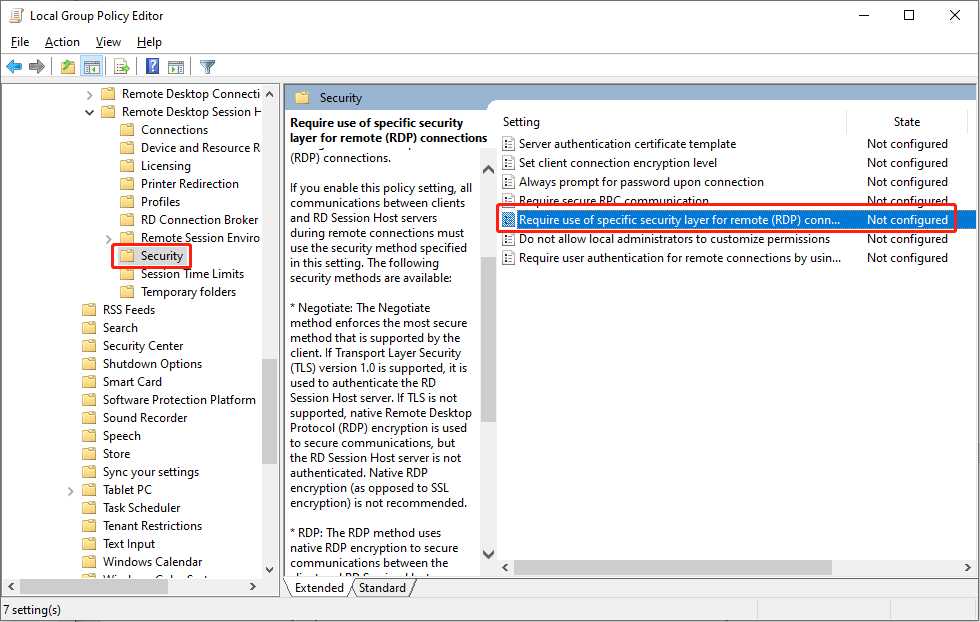
Step 3: Navigate to Computer Configuration > Administrative Templates > Windows Components > Remote Desktop Services > Remote Desktop Session Host > Security. On the right panel, find and double-click on the Require use of specific security layer for remote (RDP) connections policy.
Step 4: Choose Enabled and select RDP in the Security Layer section.
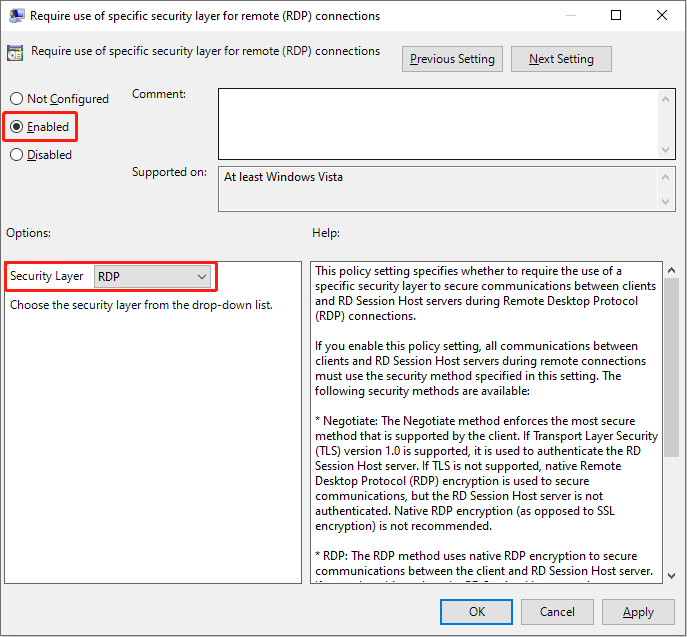
Step 5: Click Apply > OK in sequence.
Method 4: Check the Windows Latest Update
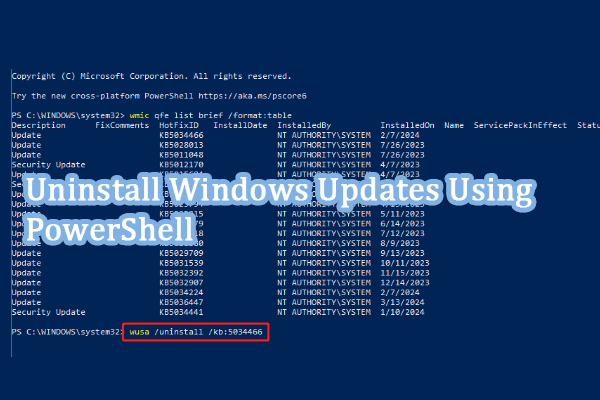
On some occasions, this RDP error happens due to Windows updates. If this error occurs after you update the Windows, you can try to uninstall the Windows update. Some updates are incompatible with current settings or modified settings, leading to various issues.
Bottom Line
This is all about how to fix the identity of the remote computer cannot be verified. Hope the above four methods can give you some inspiration.
User Comments :