
Res://aaResources.dll/104 is a network error that occurs on Internet Explorer 11. This error is also coming with the “page cannot be displayed” message. If you want to find some methods to get rid of the error, this post from MiniTool is what you need.
The “res://aaResources.dll/104” error can present itself in Internet Explorer 11 with the “page cannot be displayed” message. If you check Task Manager, you can also find that the “res://aaResources.dll/104” and some other unknown tasks in it. The error will automatically start again even you try to shut down your PC or end the task then.
The error was caused by Amazon’s plugin component for Internet Explorer 11. Now, let’s see how to fix the “res://aaResources.dll/104” error. Keep on your reading. Besides, maybe you are interested in this post – 10 Ways to Fix Internet Explorer 11 Keeps Crashing Windows 10.
Method 1: Run System File Checker
If there are some corrupted or missing system files, you may also receive the error message – res://aaResources.dll/104. Don’t worry, you can run Windows System File Checker (SFC), a built-in utility which enables you to scan and restore the problematic system files, to solve the problem.
Step 1: Click the Start menu. Then type cmd in the Search box. Right-click Command Prompt and choose Run as administrator.
Step 2: When you get into Command Prompt, input sfc /scannow and press Enter.
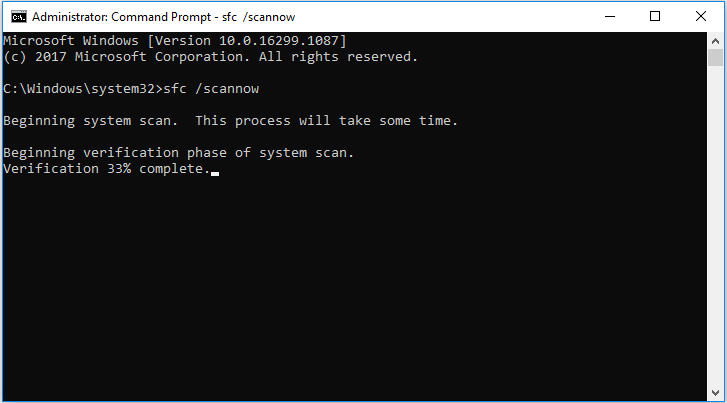
Step 3: Then Windows will scan for system file issues. You need to wait until the process is 100% completed.
Now exit Command Prompt and restart the computer. The “res://aaResources.dll/104” error should disappear.
Also see: Quickly Fix – SFC Scannow Not Working (Focus on 2 Cases)
Method 2: Disable/Uninstall Amazon Plugin
You can also try disabling Amazon plugin to fix the res://aaResources.dll/104 error. The instructions are as follows:
Step 1: Open Internet Explorer. Click the Settings icon, located in the top right corner of the main window.
Step 2: Then, click Manage add-ons. Click the Amazon plugin and disable it.
Now, check to see if the “res://aaResources.dll/104” error has been fixed. If it still appears, you can try uninstalling it.
Step 3: Type Control Panel in the Search menu, and choose the best match result to open it.
Step 4: Navigate to the Programs and Features part and click it. Then find the Amazon plugin and right-click it to choose Uninstall. Then, follow the steps on the screen to uninstall it.
Method 3: Perform a Clean Boot
If all of the methods are not working, it’s recommended to perform a clean boot. You can follow the steps below:
Step 1: Type msconfig in the Run box, and click OK.
Step 2: Then go to the Services tab. Check the Hide All Microsoft Services box.
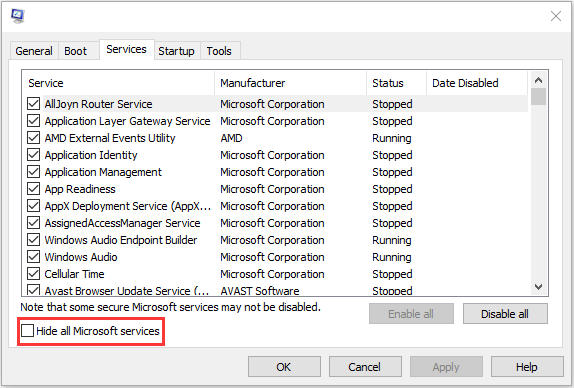
Step 3: Now, click the Disable all button, and click Apply to save the change.
Step 4: Navigate to the Startup tab and click Open Task Manager.
Step 5: In the Task Manager tab, select the first enabled application and click Disable. Here you need to disable all enabled applications one by one. After disabling all programs, close Task Manager and click OK.
Afterward, you can restart the computer to check to see if the error has been fixed.
Final Words
To sum up, this post has introduced 3 ways to get rid of the “res://aaResources.dll/104” error. If you come across the same issue, try these solutions. If you have any better ideas to fix this error, you can share it in the comment zone.
User Comments :