
Want to play RoadCraft but get stuck by the RoadCraft crashing issue on your device? As plenty of game players suffer from this annoying issue, this MiniTool post puts forward four useful methods to resolve it. Let’s go on together!
RoadCraft Crashing on Startup on PC
RoadCraft has attracted plenty of game players since its release. However, gamers are troubled by the RoadCraft crashing issue. The appearance of this error has largely affected the game experience.
Game crashes on Startup
The Game closes after Health Advices. I have a Widescreen and a powerful PC with RTX 4090 and i9 14900k (already fixed the problem with those newer CPUs in BIOS). I got no Logs for Errors. Damn I want to play this Game! :Csteamcommunity.com
If you are also searching for solutions for RoadCraft not launching, keep reading to find any methods work in your case.

#1. Disable Steam Input
Steam Input is a service that allows gamers to play controller-supported games with their own devices. Some gamers reflect that they handle the RoadCraft crashing on startup issue by disabling the Steam Input function. Here is how to do it.
Step 1. Launch Steam and find RoadCraft from the Library section.
Step 2. Right-click on the game and choose Properties.
Step 3. Change to the Controllers tab and choose Disable Steam Input from the dropdown list on the right pane.
#2. Disable Intel Graphics Card
If you have both an integrated and a dedicated graphics card on your device, you can try to disable the Intel graphics card to see if this helps to stop RoadCraft from crashing.
Step 1. Press Win + X and choose Device Manager from the WinX menu.
Step 2. Expand the Display adapters option and right-click on the Intel graphics card.
Step 3. Choose Disable device from the context menu and click Yes to confirm.

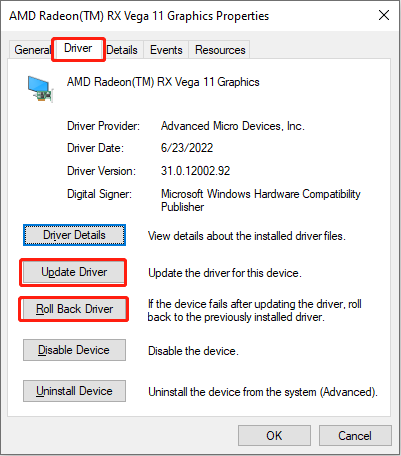
Optionally, you can try to upgrade or roll back the graphics driver to try to handle the game crashing issue. Sometimes, the game crashing issue happens because of an incompatible graphics driver. To do this, just right-click on the graphics driver and choose Properties. In the following window, change to the Driver tab to choose the option you need.

#3. Disable ASUS AURA Lighting Service
For ASUS motherboard users, this method may make sense. The AURA Lighting Service is used to control the RGB lighting of the computer. However, according to some game players, RoadCraft keeps crashing due to the enabled AURA Lighting Service. You can disable it to check if you can launch the game properly.
Step 1. Press Win + R to open the Run window.
Step 2. Type services.msc into the dialog and hit Enter to launch the Services window.
Step 3. Browse the services list to find the ASUS AURA Lighting Service or LightingService option. Right-click on the option and choose Properties.
Step 4. Choose Disabled from the dropdown menu of Startup type.
Step 5. Click Apply > OK to save your changes.
#4. Update the BIOS
The last method is to update the BIOS of your device. Several gamers have resolved the RoadCraft crashing issue after this operation. However, updating the BIOS should be done with care for most common computer users.
BIOS is a crucial component for a computer; thus, the improper operation of BIOS upgrading may result in a computer being unbootable. Before doing that, back up your computer to ensure data security.
MiniTool ShadowMaker can be an ideal assistant in helping you back up your computer. This versatile software can back up files, folders, partitions, and disks within a few clicks. You can click the download button below to get this software and use its backup features for free within 30 days.
MiniTool ShadowMaker TrialClick to Download100%Clean & Safe
Afterward, you can start to update the BIOS. Jump to this post to learn specific steps for updating the BIOS.
Final Words
This post explains four solutions in total to tackle the RoadCraft crashing error on PC. Due to the diverse causes of the game crashing issue, you are advised to try any possible methods. Hope this post gives you some useful information!
User Comments :