
RoboCop: Rogue City is not a newly released game but it enjoys a high popularity among game players. RoboCop: Rogue City is about to release a new expansion; thus, this game recently grabbed some new attention. Here I’d like to show you where the RoboCop: Rogue City save file location is and how to protect those files on your device.
Where Are RoboCop: Rogue City Save Files on PC
For whatever games, knowing where the save files and configuration files are saved is significantly important. Those files affect the game performance and save individual settings. To find out the RoboCop: Rogue City save file location, please read and follow the next steps.
Step 1. Press Win + E to open File Explorer on your computer.
Step 2. Head to the target folder in accordance with the following file path:
C:\Users\username\AppData\Local\RoboCop\Saved\SaveGames
Replace username with your actual account name.
Optionally, you can use the Run utility to jump to the target folder swiftly.
Step 1. Press Win + R to launch the Run window.
Step 2. Type %username%\AppData\Local\RoboCop\Saved\SaveGames into the box and press Enter. Change the username part to your account name.
The configuration files are saved in the following path:
C:\Users\username\AppData\Local\RoboCop\Saved\Config\Windows\
After figuring out the specific file path of the save game file location of RoboCop: Rogue City, you can keep reading to get general approaches to protect the game files.

How to Back Up and Recover RoboCop: Rogue City Game Files
The content is section generally divided into two parts, about how to back up game files and how to recover RoboCop: Rogue City game files. Let’s go on.
#1. Back Up RoboCop: Rogue City Game Files
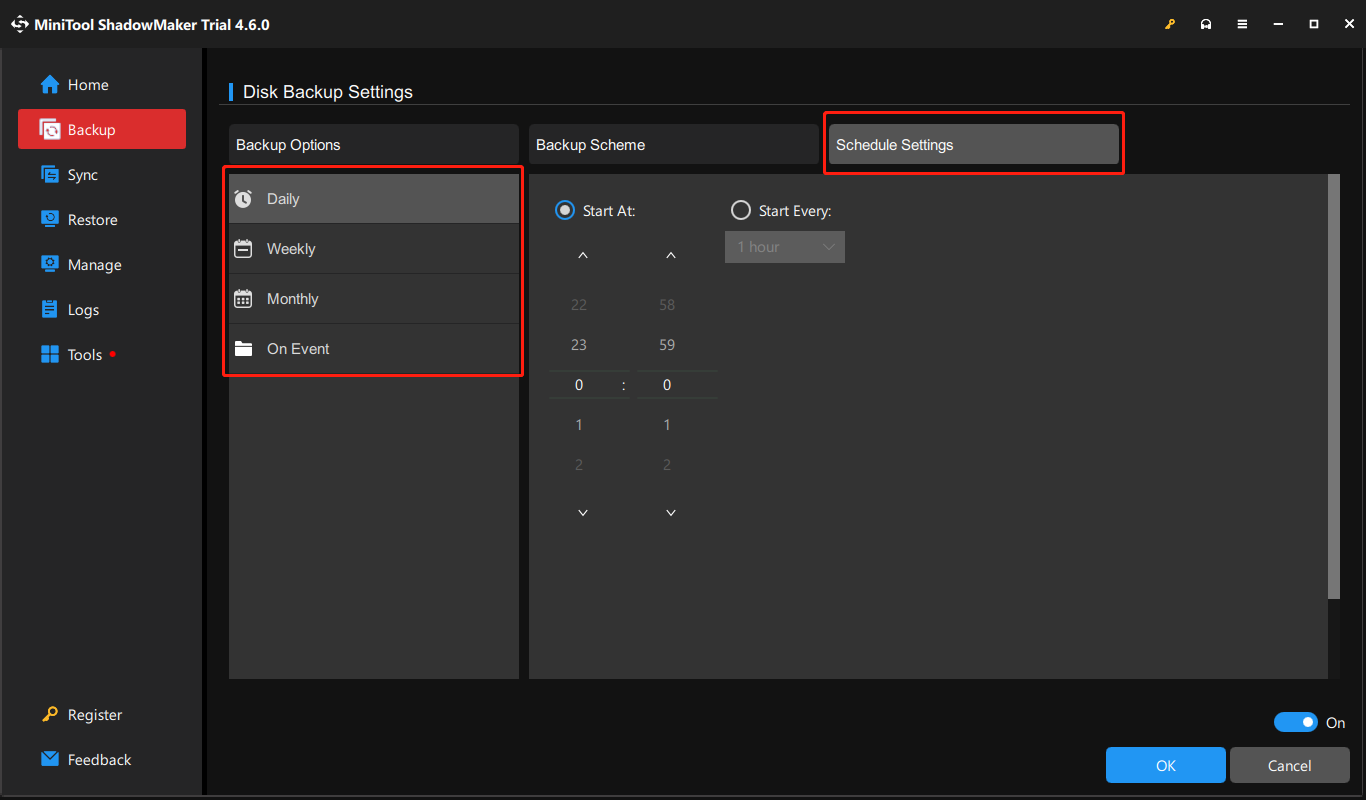
Backing up the game files is necessary as game file loss may cause personal configuration loss, game progress loss, and even game crashes. MiniTool ShadowMaker is an optimal choice. Basically, this software allows you to back up files, folders, partitions, and disks. Apart from this basic function, you can also utilize the automatic file backup feature to perform game file backup tasks on a daily, weekly, monthly, or event basis.
You can get this software by clicking the download button below and experience those features for free for 30 days.
MiniTool ShadowMaker TrialClick to Download100%Clean & Safe
Step 1. Launch the software and change to the Backup tab at the left sidebar.
Step 2. There are two sections:
- Click SOURCE. You should navigate to the RoboCop: Rogue City save file location on your computer to choose the target folder.
- Click DESTINATION: You should choose a file location to save your backup files.
Step 3. To set an automatic file backup cycle, click the Options button to configure settings according to your requirements.
Step 4. Click Back Up Now to start the backup process.

#2. Recover Lost RoboCop: Rogue City Game Files
If your local game files are lost, but you have no backup files, this section may help you in time. MiniTool Power Data Recovery is designed to recover files lost from internal hard drives, external hard drives, USB drives, and other data storage devices. It is able to detect and recover types of files; thus, you can try to scan the target disk or folder with this free file recovery software.
MiniTool Power Data Recovery FreeClick to Download100%Clean & Safe
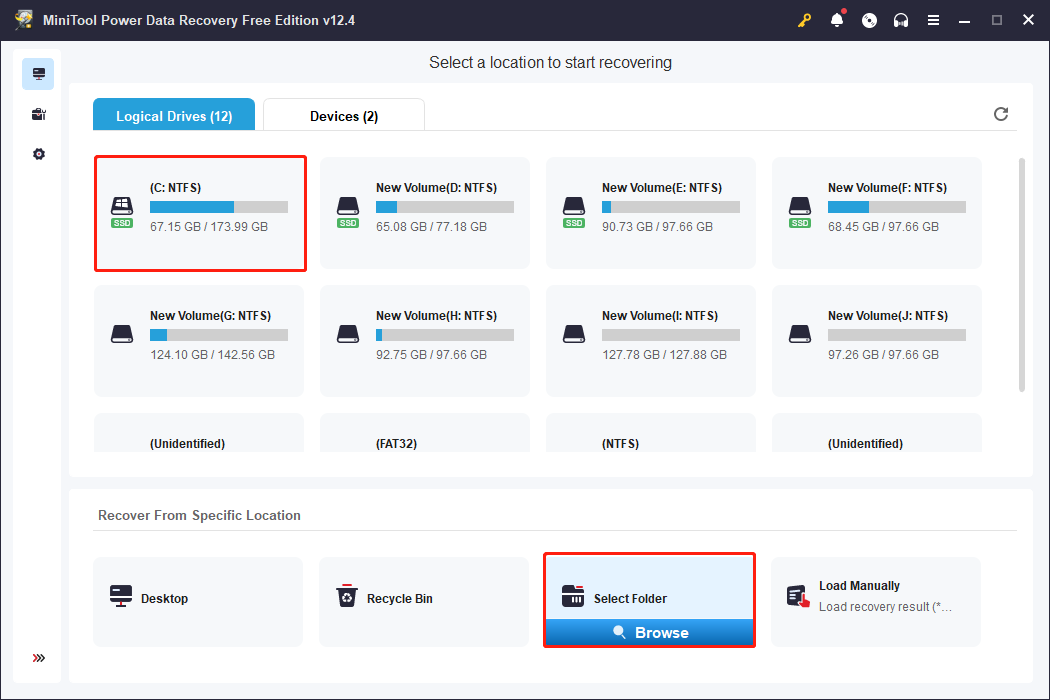
Step 1. Launch the software and enter the main interface. Select the partition, generally the C drive, to scan. Alternatively, you can click Select Folder at the bottom section, which enables you to scan a certain folder only. Just head to the RoboCop: Rogue City save file location and click Select Folder again to confirm.
Step 2. When the scan process is finished, you can use Filter, Type, Path, Search, and Preview features to locate the wanted items.
Step 3. Select them and click Save. Do not save to the original file path, which may cause data recovery to fail. When the data recovery process is completed, you can go to the chosen destination and manually move it to the correct file path.
Final Words
This post explains the RoboCop: Rogue City save file location and tells you how to protect game files. Hope you can get useful information from this post!
User Comments :