
The Rockstar Games Launcher Failed to Initialize
The Rockstar Games Launcher allows people to download and buy games, similar to other game platforms, like Steam. However, people recently encountered an error when launching it that the Rockstar Games Launcher failed to initialize.
Rockstar Games Launcher failed to initialize
So, because this game was on sale, I decided to buy it. I have already owned GTA 5 and had the dogwater Rockstar Games Launcher installed, however, now, whenever I open the Rockstar Games Launcher, it just tells me "Failed to initialize" (Without any error code, or even mention of this in the error log).steamcommunity.com
This annoying issue prevents people from accessing their desired games. Here are some useful methods that may work for you.
Way 1. Upgrade the Windows
Some people got rid of the Rockstar Games Launcher failed to initialize error by upgrading the Windows operating system, probably because an outdated Windows version is compatible with the Rockstar Games Launcher. Thus, if you haven’t accepted the cumulative upgrade of Windows, it is wise to try this method.
Step 1. Press Win + I to launch Windows Settings.
Step 2. Head to Upgrade and Security > Windows Update.
Step 3. On the right pane, click Check to detect any available updates. You should follow the on-screen instructions to complete the operations.
Afterward, launch the Rockstar Games Launcher to see if the error message is eliminated. If not, please move on to the following methods.
MiniTool Power Data Recovery FreeClick to Download100%Clean & Safe
Way 2. Exclude Rockstar Games Launcher from Windows Security
The interference of antivirus software can cause the Rockstar Games Launcher issue. The game launcher or game files might be blocked by the Windows Security or other anti-virus software. Adding it to the exception list of Windows Security helps to fix the Rockstar Launcher failed to initialize issue. Here’s how to do it in Windows Security.
Step 1. Type Windows Security into the Windows Search bar and press Enter to launch the window.
Step 2. Select Virus & threat protection and choose Manage settings under the Virus & threat protection settings in the following window.
Step 3. Scroll down to find and opt for the Add or remove exclusions under the Exclusions section.
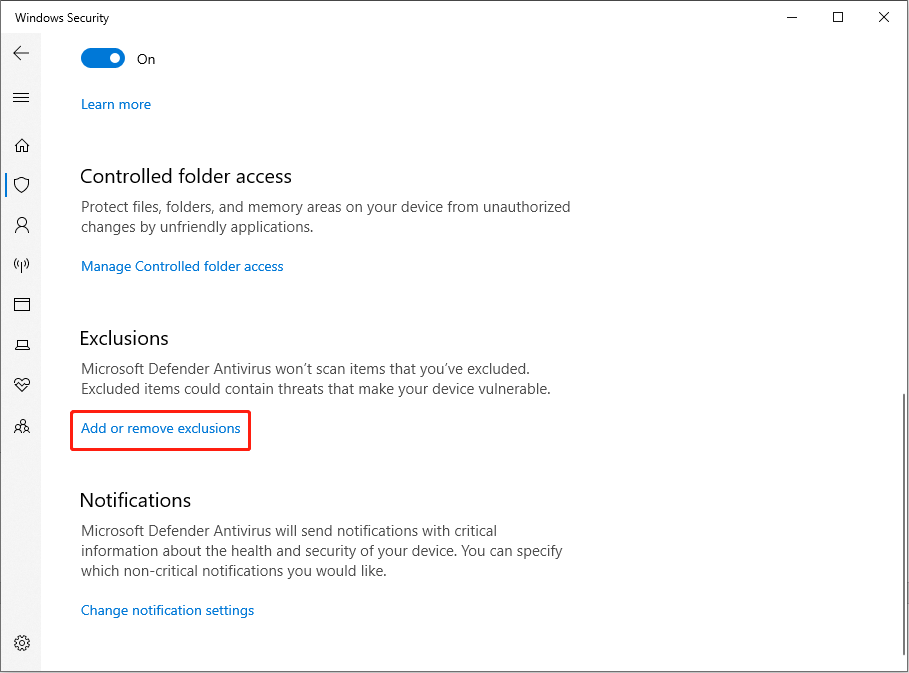
Step 4. Click Add an exclusion > Folder. Then, you should navigate to C:\Program Files (x86) to find the Rockstar Games folder.
Step 5. Select it and choose Select Folder to confirm.
Way 3. Rename the Installation Folder
The Rockstar Games Launcher failed to initialize error may occur when the cache files are corrupted. To fix such an error, you can rename the corresponding folder and then relaunch the program to let it load a new file path.
Step 1. Press Win + E to open File Explorer.
Step 2. Find the Rockstar Games folder via the file path: C:\Program Files (x86)\Rockstar Games. Right-click on the folder and choose Rename. You can add a horizontal line or other symbols.
After this, find the Rockstar Games Launcher icon and right-click on it to choose Run as administrator. The application will load a new file path and the initialization error should be resolved.
Way 4. Enable the Program Compatibility Assistance Service
The incompatibility is another possible cause for the Rockstar Launcher failing to initialize when launching GTA V. In this case, you can enable or modify the Program Compatibility Assistance Service configuration on your computer to resolve this problem. Here are the detailed steps.
Step 1. Type Computer Management into the Windows Search bar and press Enter to launch the window.
Step 2. Head to Services and Assistance > Services. On the right pane, you should scroll down to locate the Program Compatibility Assistance Service option.
Step 3. Right-click on it and choose Properties. In the Properties window, choose Automatic from the dropdown menu of the Startup type menu.

Step 4. Click Apply > OK to save the change. Alternatively, you can restart your computer to fully apply the configuration.
Final Words
This is the complete guide to fixing the Rockstar Games Launcher failed to initialize issue. You can try those methods in sequence to find one that resolves your error. Hope here is useful information for you!
User Comments :