
A serious error has occurred while loading [world name]. It is strongly recommended that you restart the application.
This error happens when the game is unable to load the save. There are three known causes below:
- The game can’t write to the user folder.
- The world the save takes place in isn’t installed properly.
- The save is too corrupt to load properly.
- The overly protective antivirus on your PC.
- Other assorted permissions issues.
In order to distinguish these error types, load a new save file in the same world as the one where the error occurred. If successful, it might be the third problem. If not, try creating a new save file in Sunset Valley. If successful, it might be the second problem; if still unsuccessful, it might be the first problem.
Now, refer to the following steps to solve Serious error has occurred.
Solution 1. Rename Sims 3 Folder
Change the name of The Sims 3 folder to another name like Sims 3 Older under Documents > Electronic Arts. Then start up your Sims 3 game, it’ll create a new folder thus completely resetting the game so you will most likely need to alter your settings and reinstall your mods or transfer the mods folder into the new one.
Then you can delete your older folder.
Solution 2. Temporarily Disable Antivirus
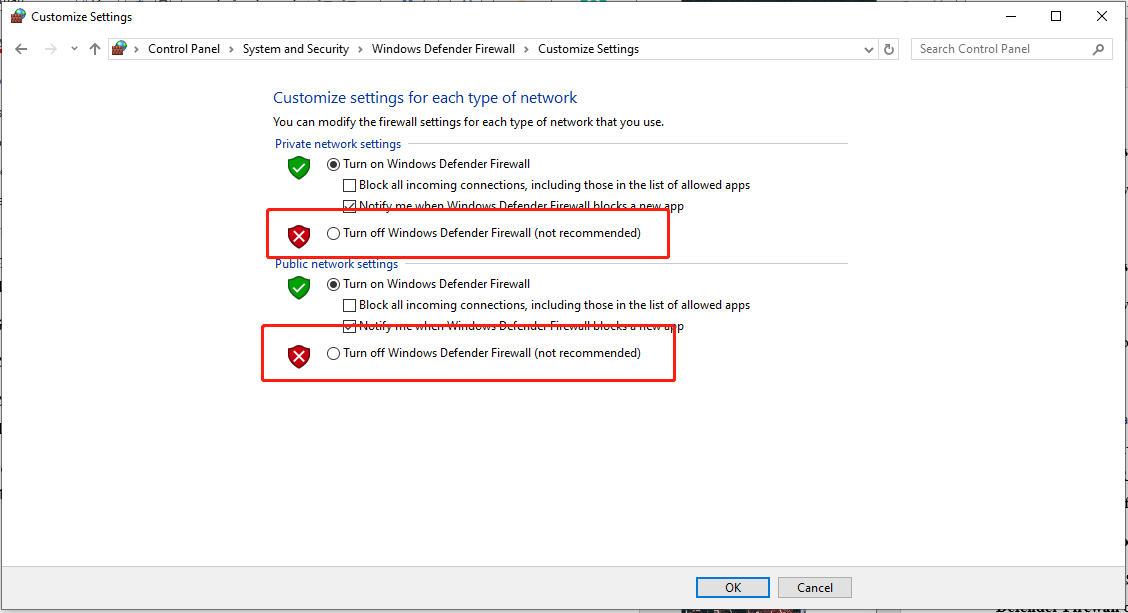
Your firewall or antivirus software may block access to Sims 3, thus leading to serious error. Disable them temporarily to see if the error is fixed. Here’s how to disable firewall:
Step 1. Type Control Panel in the search box and hit Enter.
Step 2. In the Control Panel window, select System and Security > Windows Defender Firewall > Turn Windows Defender Firewall on or off.
Step 3. Check Turn off Windows Defender Firewall (not recommended) for both Private and Public network settings. Then click on OK and restart your computer to apply the changes.
After finishing your work, remember to re-enable them.
Solution 3. Clear EA App’s Cache
Should you encounter issues with playing your games, one solution is to clear your device’s cache. Here are the steps to do so:
Step 1. Open the EA app and click on the hamburger menu in the top-left corner.
Step 2. Hover over Help > select App Recovery > CLEAR CACHE.
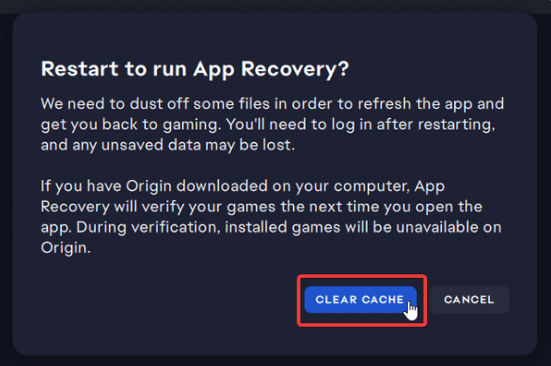
Step 3. Then the EA app will now clear cache and restart.
Restart your game to see if it works fine.
Solution 4. Offline Document in OneDrive
Sims 3 serious error while loading save would happen when you had OneDrive enabled. If you have OneDrive on, go to your main folder and find the one labeled Documents then right-click it to choose make offline.

Solution 5. Restore Sims 3 Back-up Saves (If You Have)
Some users report that they had fixed Sims 3 serious error while loading save by reverting to the backup saves in their Sims 3 save files. In this case, you can try to recover your game save if you have one.
Bonus Tip: Back up Game Save with MiniTool ShadowMaker
To be honest, MiniTool ShadowMaker is your optimal choice as it allows you to backup files & folders, partitions & disks, systems, sync files, and clone disks for free in your first 30 days. Other than game saves, no matter what you need to protect, the freeware can provide data protection and disaster recovery solutions for you.
Step 1. Click on the download button below to install this 30-day free trial and then launch it by hitting Keep Trial.
MiniTool ShadowMaker TrialClick to Download100%Clean & Safe
Step 2. Navigate to the Backup page > choose SOURCE to pick out the game saves you plan to back up > turn to DESTINATION to select a storage path for the backup task.
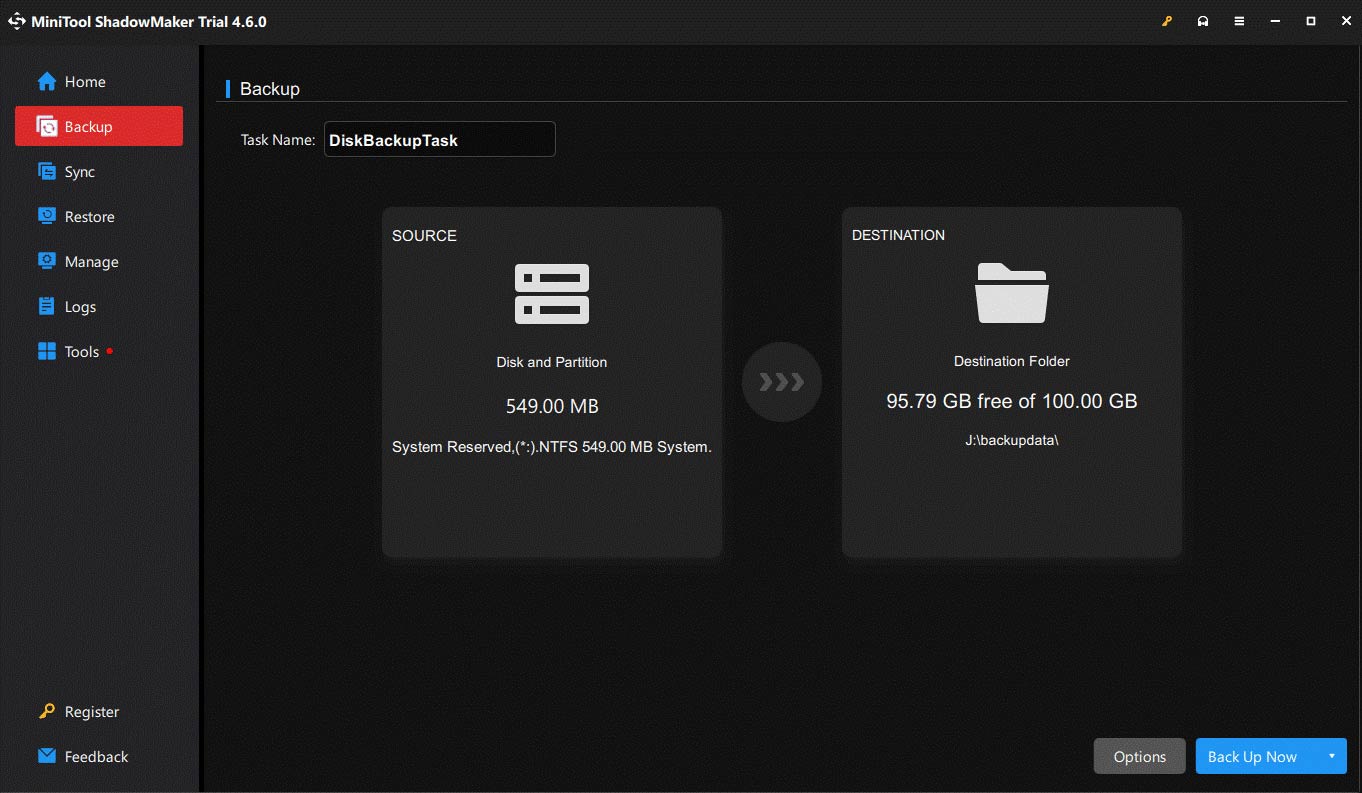
Step 3. Click on Back Up Now to start.
Bottom Line
This post refers to a sea of the same cases to Sims 3 serious error while loading save and shares well-chosen solutions for you. Besides, with game save backup, you are able to retrieve your gaming or transfer the saves to another PC without Steam Cloud if there are any issues within the game or system.
User Comments :