
Some of you may meet the Error Code 0x0001 when trying to launch Nvidia Experience software. Check what causes this error and how to fix GeForce Experience error code 0x0001 error in Windows 10 with 6 solutions. MiniTool software provides you data recovery, system backup and restore, hard drive partition managing solutions.
If you can’t open Nvidia Experience on your Windows 10 computer, and see an error message like “Something went wrong. Try rebooting your PC and then launch GeForce Experience. ERROR CODE: 0x0001”, check the possible reasons and solutions below.
How to Fix GeForce Experience Error Code 0x0001 in Windows 10
You can try the 6 methods below to fix GeForce Experience error code 0x0001 error.
Method 1. Relaunch GeForce Experience
- You can press Ctrl + Shift + Esc to open Task Manager.
- And find all running Nvidia tasks in Task Manager, right-click them one by one and click End Task to close all running Nvidia tasks incl. Nvidia GeForce Experience Service.
- Then you can right-click GeForce Experience app and choose Run as administrator.
Method 2. Check Nvidia Telemetry Container Settings
You can follow the steps below to check if all the GeForce Experience services are working properly.
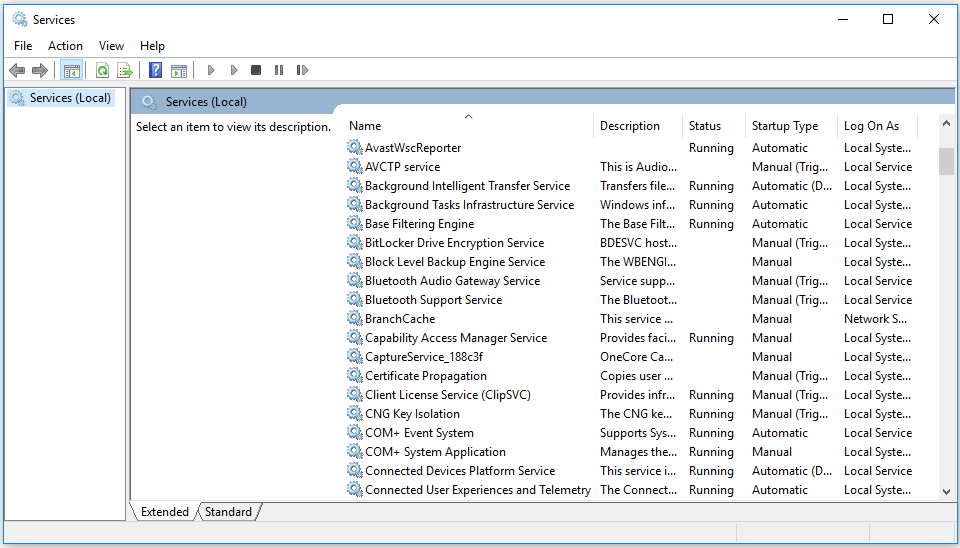
- Press Windows + R key simultaneously, type msc in Windows Run dialog to open Services application.
- Scroll down to find NVIDIA Telemetry Container in the list. Right-click it and click Properties.
- Tap Log On tab and check Allow service to interact with desktop if it is not checked.
- Click Apply button and then click OK button to make the changes take effect.
- Still, you can also check if the Status of NVIDIA Telemetry Container to see if it is Running, if not, you can right-click it and click Start to run it.
- Then you can check if GeForce Experience can work normally, if not, continue to check the Status of other NVIDIA services like NVIDA LocalSystem Container, NVIDIA NetworkService Container, etc. in Services Check if they are running, if not, right-click them one by one and click Start to run them. You can also right-click them to select Restart to restart those NVIDIA services.
Method 3. Update Nvidia Graphics Driver
Another way you can try to fix GeForce Experience error code 0x0001 error is to update the graphics driver.
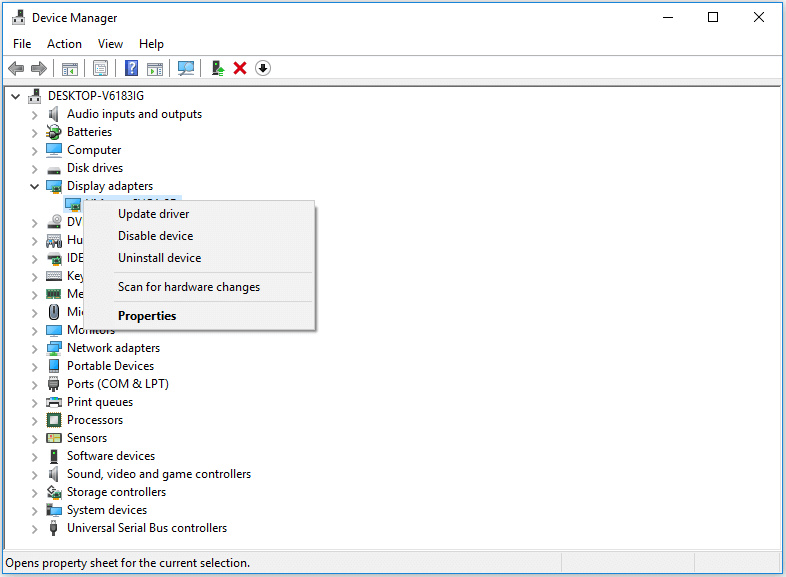
- You can open Device Manager on Windows 10.
- Expand Display adapters Right-click your NVIDIA graphics card and choose Update driver.
Method 4. Reinstall GeForce Experience
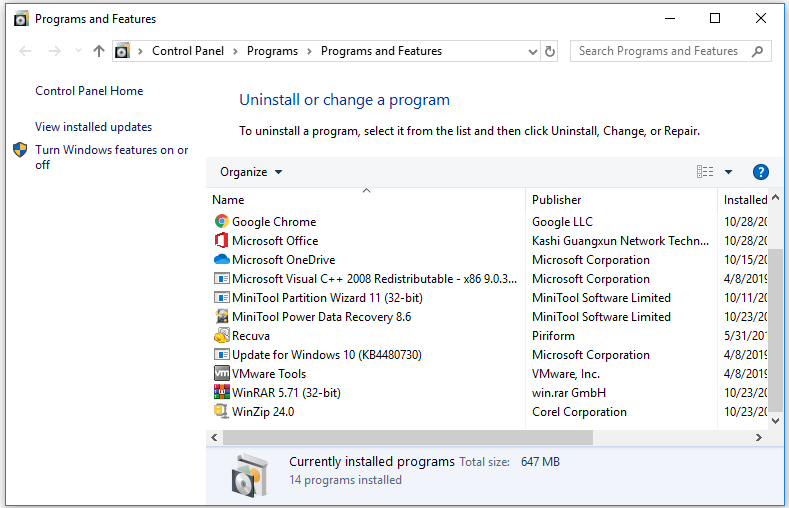
- Open control panel Windows 10, and click Programs.
- Click Uninstall a program under Program and features.
- Find GeForce Experience application, right-click it and click Uninstall to uninstall it.
- Then you can go to GeForce Experience official download site to download GeForce Experience latest version. After that, try to open it again to see if GeForce Experience error code 0x0001 error has been solved.
Method 5. Perform a Clean Installation of Nvidia Graphics Driver
If the above measures don’t work, you can uninstall all NVIDIA programs by following the guide in Method 4.
- Then you can download the latest NVIDIA graphics drivers from its official download site.
- Choose Custom (Advanced) in installation process, and remember to tick Perform a clean installation.
- After the installation is completed, you can restart your Windows 10 computer to see if it solves GeForce Experience error code 0x0001 in Windows 10.
Method 6. Update Windows 10
Sometime the conflict between NVIDIA services and Windows 10 system may cause this issue. You can try to update your Windows 10 system to the latest version to see if it works.
- You press Windows + I to open Windows Settings.
- Choose Update & Security, and click Check for updates button to automatically download and install the latest update of Windows 10 OS.
- Restart your Windows 10 computer and open GeForce Experience again to check if the error code 0x0001 disappears.
Verdict
By trying the 6 methods in this tutorial, hope there is one way to help you fix GeForce Experience error code 0x0001 on Windows 10.
User Comments :