
Twitter is one of the most popular social media platforms all over the world. However, it is so vigilant that you may receive a message that shows some of your media failed to upload when you update a post on it. In this tutorial on MiniTool Website, we’ll find effective and easy solutions for you at all costs.
Some of Your Media Failed to Upload in Twitter
It is reported that you may encounter an error message – Some of your media failed to upload when you try to upload some pictures on Twitter. This error is closely connected with your account security but luckily, it is not so hard to handle.
How to Fix Some of Your Media Failed to Upload Twitter?
Fix 1: Check ReCAPTCHA
To avoid robots and spam, Twitter requires you to pass a not-a-bot test. The “some of your media failed to upload” error will disappear after passing it.
Step 1. Create a tweet which only contains text and Publish it.
Step 2. If you see a “Pass Google reCAPTCHA test” request, click on Start.
Step 3. Then, you’ll be asked, “Are you a robot?”. Just check the box to prove that you are not a robot and tap on Continue & Continue to Twitter.
Fix 2: Clear the Browsing Data of the Browser
As soon as the browser’s cookies are corrupt, you’ll run into the some of your media failed to upload issue because Twitter cannot authenticate the media that you upload. In this case, clearing the browsing data is a good option to get rid of the Twitter some of your media failed to upload message.
For Google Chrome:
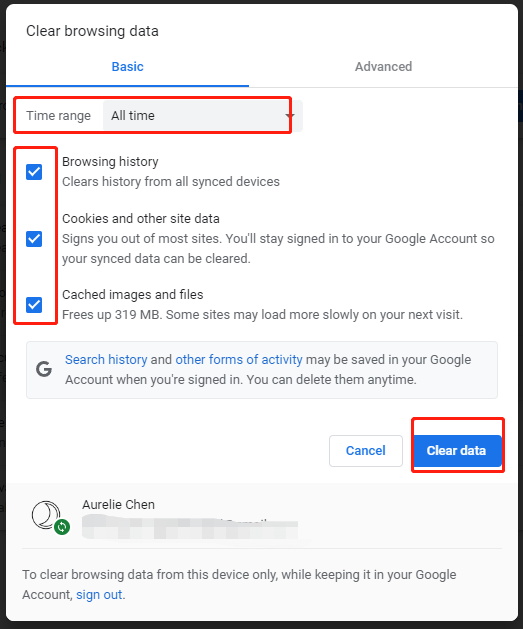
Step 1. Launch the browser and click on the three-dot icon in the top-right corner of the home page to choose More tools > Clear browsing data.
Step 2. Set Time range to All time and click on Clear data.
For Microsoft Edge:
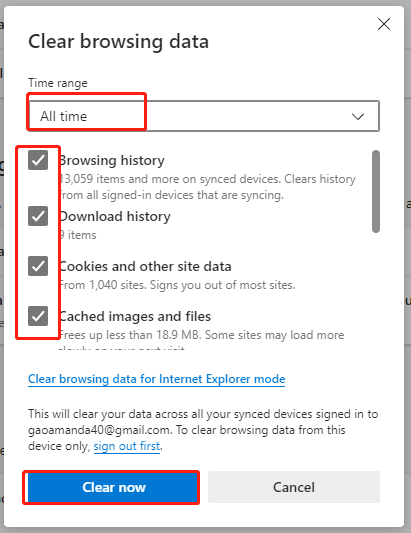
Step 1. Open the browser and hit the three-dot icon to choose Settings.
Step 2. In Privacy, search, and services, hit Choose what to clear under Clearing browsing data.
Step 3. Set Time range to All time and hit Clear now.
Fix 3: Disable VPN
Disabling VPN is also proved fruitful for other users. To solve the some of your media failed to upload issue in this method, you should disable your VPN when trying to post a tweet with media. Once the uploading process is done, you can enable it again.
Wrapping Things up
By now, I believe you must solve the “some of your media failed to upload” issue. Please feel free to share your joy with us in the comment area below and we also welcome any useful IT ideas. Hope this article is helpful to you!
User Comments :