
Is System Guard enabled but not running on Windows 11? Many users have reported that they encountered the issue. How to fix it? This post from MiniTool offers some feasible and useful methods.
System Guard is a Windows security feature that protects the system’s integrity from the start of the boot process by using hardware-rooted technologies like Secure Boot, TPM 2.0, and Virtualization-Based Security (VBS). When you try to turn on Virtualization Based Security in Group Policy, however, Windows Security says that System Guard is off.
How to remove the “System Guard enabled but not running” issue? Continue to read.
Fix 1: Verify Hardware Compatibility
Before proceeding, confirm that your server meets the necessary hardware specifications for Secured Core. To enable features like System Guard, your processor must belong to one of the following supported families:
- Intel: vPro CPUs from Coffee Lake (8th Gen), Whiskey Lake, or later
- AMD: Zen 2 or newer architectures (e.g., Ryzen 3000 series, EPYC 7002 series)
- Qualcomm: Snapdragon SD850 or later
Additionally, your system must support:
- UEFI firmware with Secure Boot enabled
- TPM 2.0
- Hardware virtualization
Fix 2: Configure System Guard
To fix the “System Guard enabled but not running on Windows 11” issue, you should make sure System Guard is enabled. Here is how to check it.
1. Open the Run box by pressing Windows + R together and type regedit in it.
2. After opening Registry Editor, go to the following path:
HKEY_LOCAL_MACHINE\SYSTEM\CurrentControlSet\Control\DeviceGuard\Scenarios\SystemGuard
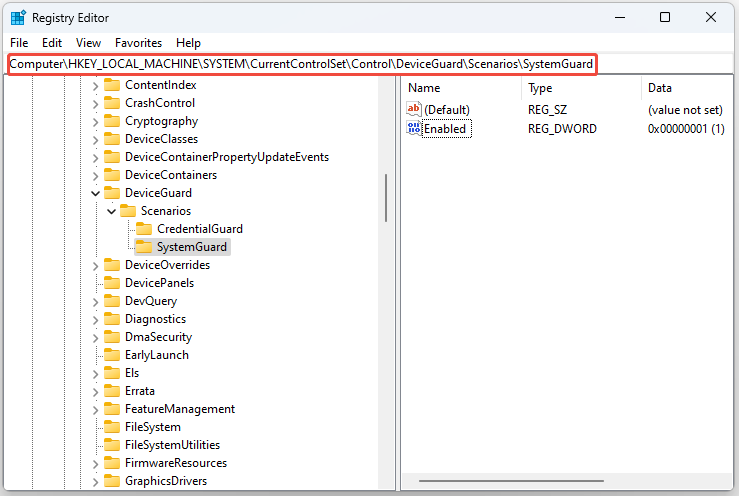
3. Find the Enabled value and double-click it to check if its value is 1.
Fix 3: Check If Virtualization-Based Security Is Enabled
System Guard relies on VBS, so if VBS is disabled, Windows Defender System Guard doesn’t work. Here is how to check if Virtualization-Based Security is enabled.
1. Press Win + R to open the Run box. Type gpedit.msc and press Enter.
2. Go to the following path:
Local Computer Policy\Computer Configuration\Administrative Templates\System\Device Guard
3. From the right-side pane, double-click Turn on Virtualization Based Security.
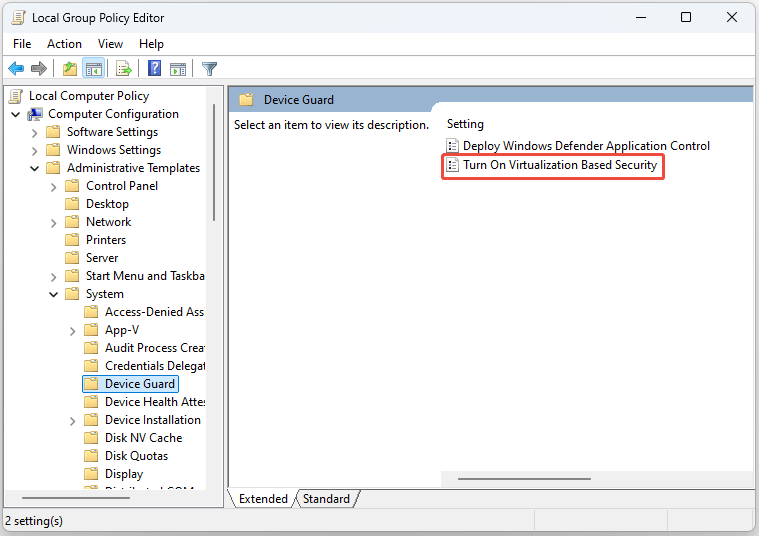
4. Check if the Enabled button is turned on and click Apply > OK.
Fix 4: Enable Required UEFI/BIOS Feature
You can enable UEFI mode in Windows to fix the “System Guard enabled but not running” issue. Follow the steps below:
1. First, you need to shut down your computer.
2. Turn on the computer and immediately press a certain key to enter BIOS.
3. Go to the Boot tab by pressing the right arrow key.
4. Select the UEFI/BIOS Boot Mode, and hit the Enter key.
5. In the new pop-up window, select the UEFI Boot Mode by pressing the up-arrow key, and then press Enter.
6. Press the F10 key to save the change and exit the window.
Final Words
How to fix the “system guard enabled but not running” issue on Windows 11? Now, I believe the above 5 methods have helped you get rid of the error.
User Comments :