
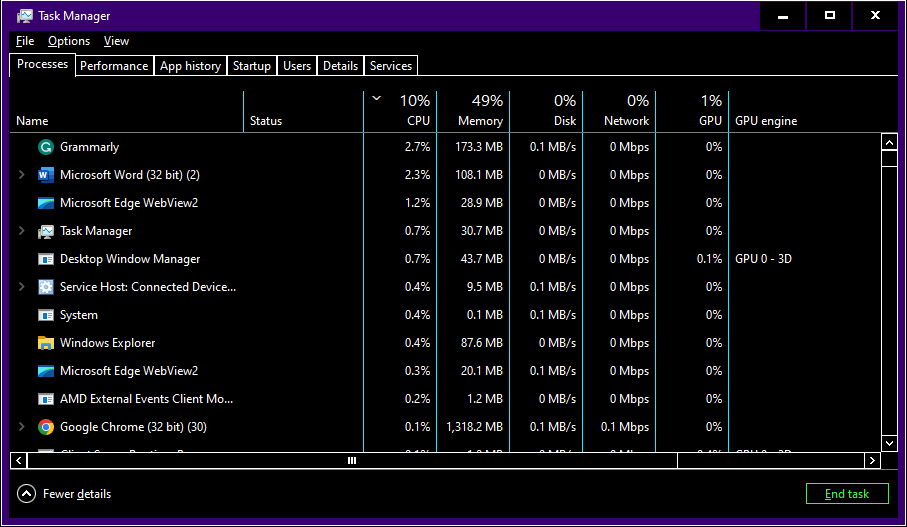
Some Windows users reported that some apps on their computers don’t use the dark mode, including the Task Manager. This article shares three methods for you to resolve the Task Manager dark mode not working problem.
MiniTool Power Data Recovery FreeClick to Download100%Clean & Safe
Fix 1: Run the SFC & DISM Command Lines
When you find the Task Manager doesn’t change to the dark mode after you modify settings, you can run the SFC and DISM command lines to check if this problem is caused by corrupted system files.
Step 1: Type Command Prompt into the Windows search bar.
Step 2: Right-click on the best-matched result and choose Run as administrator.
Step 3: Type sfc /scannow and hit Enter to execute this command line.

Step 4: After this command, you can type the following command lines and press Enter at the end of each one.
- DISM /Online /Cleanup-Image /Checkhealth
- DISM /Online /Cleanup-Image /Scanhealth
- DISM /Online /Cleanup-Image /Restorehealth
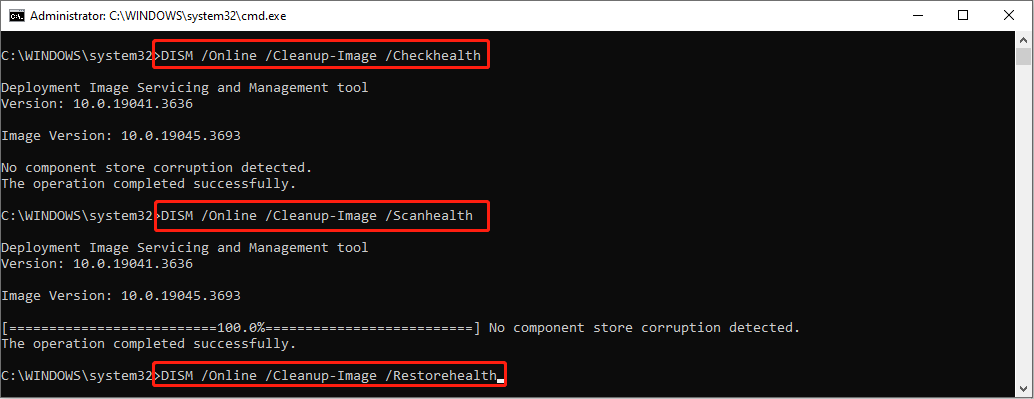
When the process ends, you can check if Task Manager applies the dark mode.
Fix 2: Check for Windows Updates
This problem is probably a bug of Windows 11 KB5020044, which doesn’t allow users to set the Task Manager. This problem is fixed by Microsoft. You can update your computer to the latest version and try to set dark mode again.
Step 1: Press Win + I to open Windows Settings.
Step 2: Go to the Windows Update section and click Check for updates.
Step 3: Wait for the detecting process. You can go to Advanced options and install optional updates.
After all these steps, restart your computer to fully apply the updates.
Fix 3: Set the Windows System Theme to Dark
You can reset the Windows system theme to dark mode and check if this glitch is repaired. You can work with the following steps.
Step 1: Press Win + I to open the Settings window.
Step 2: Navigate to Personalization > Colors.
Step 3: Choose Dark from the menu of Choose your mode.
How to Turn On/Off Dark Mode in Task Manager
If you are using Windows 10, this section will show you how to use dark mode in Task Manager.
Step 1: Open Windows Settings.
Step 2: Choose Ease of Access > High contrast.
Step 3: On the right pane, you need to toggle the switch of Turn on high contrast to On.
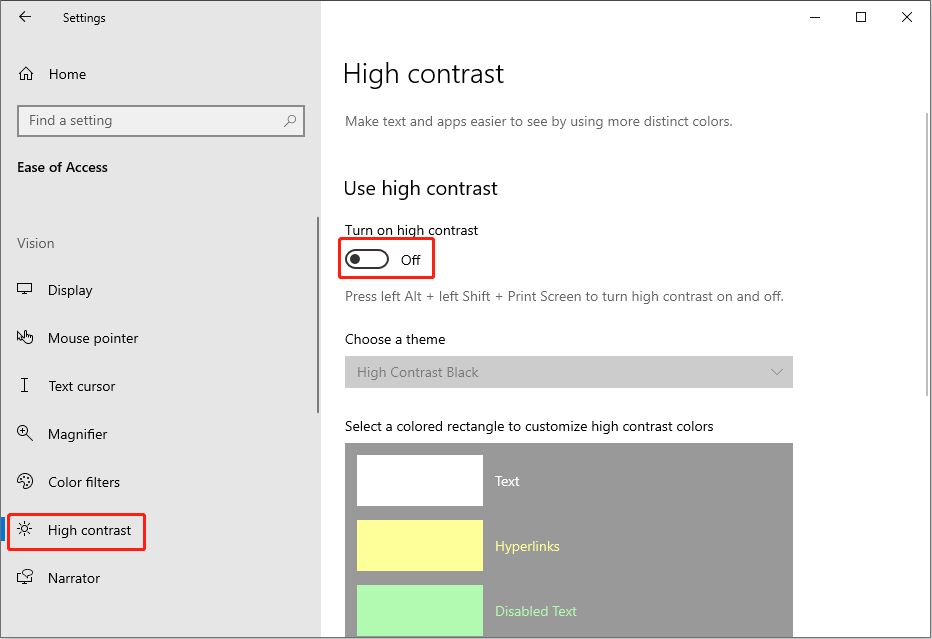
Wait for the computer to apply the change. You can open the Task Manager now.
If you have updated to the latest version of Windows 11, you can turn on the dark mode of Task Manager within it.
Bottom Line
This is all about how to fix Task Manager dark mode not working problem and how to turn on dark mode in Task Manager in Windows 10.
MiniTool Power Data Recovery FreeClick to Download100%Clean & Safe
If you’re looking for a reliable helper to recover lost files, MiniTool Power Data Recovery is worth a try.
User Comments :