
Tempest Rising Crashing/Not Launching
Tempest Rising is a real-time strategy game released on April 17. The game is set in a future world of constant war. Players can choose different factions to fight, each with unique units and tactics. The exciting game mode makes this game very popular.
However, some players said that they encountered the problem of Tempest Rising crashing. This will prevent you from playing it. This game may crash for a variety of reasons including hardware compatibility issues, outdated drivers, corrupted game files, or software conflicts. Don’t worry. The following methods can help you fix it.

How to Fix Tempest Rising Crashes at Startup
Fix 1: Check the System Requirements
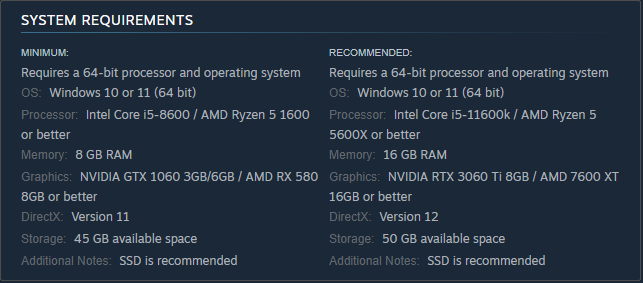
If your computer hardware is below the minimum requirements for the game, the game may crash. Checking the system requirements is a critical step to ensure that the game will run properly on your computer. The system requirements for Tempest Rising are as follows. If your device does not meet the system requirements, you may need to upgrade your hardware or find ways to optimize it.
Fix 2: Verify Integrity of Game Files
Missing game files may cause the game to crash. Verifying the integrity of game files is a simple and effective way to solve problems like Tempest Rising not launching. If game files are damaged due to a bad download, incomplete update, or other issues, verifying files can automatically detect and repair missing or damaged parts.
Step 1: Open Steam and go to the Library tab.
Step 2: Find Tempest Rising, right-click on it, and choose Properties.
Step 3: Switch to the Installed Files tab and click on Verify integrity of game files.
Once you have completed these operations, open the game to see if this issue is fixed.

Fix 3: Update Graphics Driver Card
An outdated graphics card may be incompatible with the game and cause crashes. Updating the graphics driver can give your computer the best performance, compatibility, and stability. This update usually contains fixes for known bugs to avoid crashes, black screens, or other display issues.
Step 1: Right-click on the Start button and choose Device Manager.
Step 2: Click on the small arrow in front of Display adapters to expand it.
Step 3: Right-click on your card and choose Update driver.
Step 4: In the pop-up window, select Search automatically for drivers.
When the new update shows up, follow the on-screen instructions to complete the whole process.
Fix 4: Repair Corrupted System Files
Corrupted system files may cause blue screen (BSOD), program failure, or frequent system crashes. Repairing corrupted system files is essential to maintaining the stability and performance of your computer. Intact files allow games to run normally.
Step 1: Type Command Prompt in the Windows search box, right-click on the best match, and choose Run as administrator.
Step 2: When the UAC window prompts, click on Yes to continue.
Step 3: In the window, type DISM.exe /Online /Cleanup-Image /Restorehealth and press Enter.
Step 4: When the process ends, type sfc /scannow and press Enter.

Fix 5: Disable the Firewall
Sometimes the game crashes because the firewall is blocking the communication between the game and the server or other necessary online services. The firewall is designed to protect your device from network attacks, but it may also misjudge the network requests of certain games, causing the connection to fail or the game to run improperly. At this time, you can temporarily turn off the firewall.
Step 1: Type Control Panel in the Windows search box and press Enter.
Step 2: Change the view to Large icons or Small icons from the View by drop-down menu.
Step 3: Select Windows Defender Firewall > Turn Windows Defender Firewall on or off.
Step 4: Click on Turn off Windows Defender Firewall (not recommended) under both Private and Public network settings.
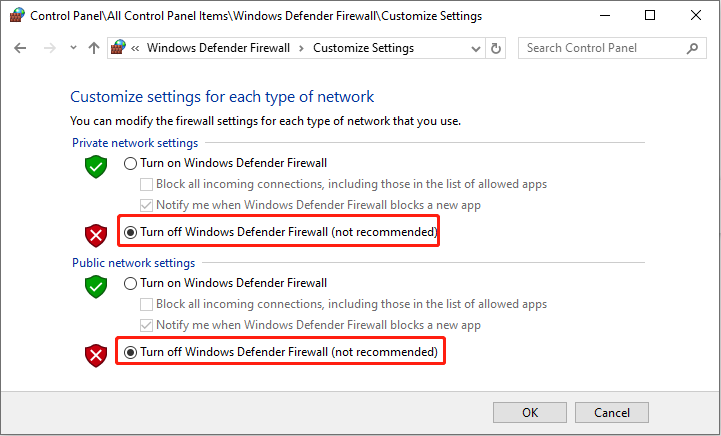
Step 5: Finally, click on OK to confirm the change.
After that, you can open the game to see if it can be played properly.
MiniTool Power Data Recovery FreeClick to Download100%Clean & Safe
Final Thoughts
When you encounter the problem of Tempest Rising crashing on Steam PC, you can try the methods listed above to get rid of it. Hope you have an enjoyable gaming experience.
User Comments :