
The Alters Not Launching/ Crashing /Stuttering
The Alters is a fresh science fiction game that includes engaging base-building, survival, and narrative elements. Although it offers great gameplay and graphics, you may encounter some performance problems occasionally while playing it on a PC, such as The Alters crashing/not launching/stuttering.
If you’re facing these problems, there’s no need to panic. Here are some simple methods you can try to resolve the issue on your PC.
How to Fix The Alters Crashing/Not Launching/Stuttering
Fix 1. Verify the Game Files
When a game is downloaded and installed, the game files can become corrupted or damaged in some manner. This can result in problems like The Alters crashing at startup or stuttering. To resolve such issues, follow these instructions:
- Open Steam on your computer.
- Navigate to your Library.
- Right-click on The Alters and select Properties.
- Access the Installed Files tab.
- Select Verify Integrity of Game Files and allow Steam to check everything.
Fix 2. Update Graphics Card Drivers
Even with the top-tier graphics card, you may still experience performance drops in The Alters if your GPU drivers aren’t current. Therefore, consider updating your graphics driver to solve the The Alters stuttering/crashing/not launching issue.
>> For Nvidia users:
- Launch the Nvidia App or visit the NVIDIA driver official website.
- Select the Drivers section.
- If there’s a new update ready, click Download.
- After downloading, opt for Express Installation to easily update your driver.
>> For AMD users:
- Download and open the AMD Adrenalin Edition software.
- The application will automatically check for driver updates.
- If one is found, click Download Now.
- Allow it to install automatically once the download is complete.
>> In Device Manager:
- Right-click the Windows icon on the desktop to open the WinX menu.
- Click Device Manager from the list.
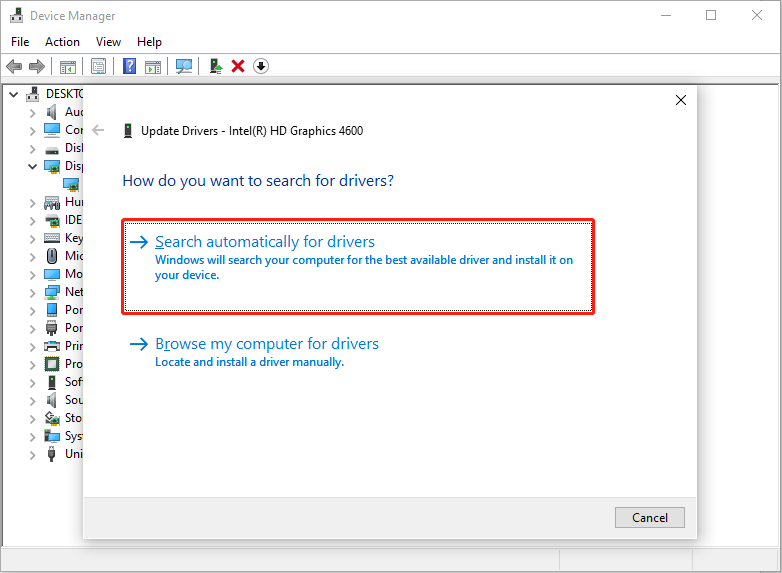
- Double-click to expand the Display adapters category. Right-click the graphics driver listed under the category and choose Update driver.
- In the pop-up update window, click Search automatically for drivers.
Fix 3. Modify Registry Entries
If your The Alters keeps crashing with the DXGI error or not launching, you can try this method to change the registry entries.
MiniTool ShadowMaker TrialClick to Download100%Clean & Safe
- Open your start menu and type regedit, then click on Registry Editor.
- Copy the following text and paste it into the address bar at the top: Computer\HKEY_LOCAL_MACHINE\SYSTEM\CurrentControlSet\Control\GraphicsDrivers.
- In the right-hand pane, right-click on the empty space and choose New > DWORD (32-bit) Value.
- A new item named “New Value #1” will appear—rename it to TdrDdiDelay and press Enter.
- Double-click the new entry, ensure Hexadecimal is chosen for Base, and set the Value data: field to 3c.
- Repeat Step 3 – Step 5, but this time rename the entry to TdrDelay and use the same values; only the name should differ.
- Confirm that your window resembles the one shown in the screenshot above.
- Restart your computer and check if The Alters performs better.
Fix 4. Run the Game as an Administrator
Executing any software or title as an administrator provides a simple solution for dealing with frame rate issues. This guarantees that adequate resources are designated for the game’s .exe file, which can fix the The Alters crashing/not launching/stuttering issue. To do this, follow these steps:
- Go to your Steam Library.
- Right-click The Alters and then choose Manage > Browse game files.
- Right-click on The Alters.exe and choose Properties.
- In the Compatibility tab, check the option to Run this program as an administrator.
- Next, select Run this program in compatibility mode for and pick Windows 8 or Windows 7.
Fix 5. Set Your GPU Manually
If you have an Nvidia Graphics card, you can manually set your GPU using the Nvidia Control Panel. Follow these steps:
- Click on the Start button and type Nvidia Control Panel, then open the application.
- Navigate to Manage 3D settings under the 3D Settings section.
- In the Program Settings tab, select The Alters from the drop-down list.
- In the Specify the settings for this program section, locate OpenGL Rendering GPU.
- Change it from Auto-select to your dedicated Nvidia GPU using the drop-down menu.
- Finally, click Apply in the lower-right corner. Now, start the game and check.
![Elden Ring: Nightreign White Screen [Troubleshooting Guide]](https://images.minitool.com/minitool.com/images/uploads/2025/06/elden-ring-nightreign-white-screen-thumbnail.png)
Final Words
That’s all the information about how to fix the The Alters crashing, not launching, or stuttering issue on PC. Hope these methods can help you.
User Comments :