
About Google AI Features
Since the release of ChatGPT, most companies have started adding AI features to its products, and Google is no exception.
Google Chrome is one of the most widely used web browsers globally, and Google has integrated AI features into it. The most obvious phenomenon is that when you search for questions using this browser, an AI-generated summary will appear at the top of the search results.
Additionally, Google has added other AI features, which utilize advanced models like Gemini to enhance various products. Here are the key Google AI features:
In Google Search:
- AI Overviews: This feature offers concise summaries for complex subjects. For further exploration, you can click the provided links.
- AI Mode/Deep Search: This feature is designed for comprehensive research and is only accessible to signed-in users. It employs multiple searches to produce detailed reports, utilizing advanced models like Gemini 2.5 Pro.
In Google Workspace:
- Gemini: It assists with drafting emails in Gmail, summarizing threads, taking notes in Meet, and facilitating creative tasks in Docs.
- Vids: It is a user-friendly tool designed for collaborative video creation.
In Chrome:
Gemini in Chrome: It clarifies information, manages tasks across tabs, and provides AI-powered search directly from the address bar.
For Research & Writing:
NotebookLM: It is an AI research assistant that generates personalized summaries, reports, and study guides from your uploaded documents, which can include text, audio, and video.
The basic AI features in Google search and some limited Google Cloud AI services (Translation, Speech-to-Text) are free to use. Additionally, it’s free to use NotebookLM during testing.
If you want to use NotebookLM without limit or other advanced models, you need to pay for Google AI Pro/Ultra.
However, some people don’t like Google AI features, such as AI Overview, and think its summaries are wrong most of the time and disturb their thoughts. If you are one of them and want to know how to disable these features, continue reading.
How to Turn Off Google AI Features on PC
To disable Google AI, try using Chrome flags, settings, extensions, URL parameters, or editing the Registry. Here is the detailed breakdown:
Method 1. Use URL Parameters
The easiest method to disable AI overview Google is using the -ai parameter at the end of every search query.
For example, if you want to search for best computer SSDs and don’t want the AI summary, just search for best computer SSDs -ai. Then, you will see the search results without an AI summary.
Method 2. Use a Chrome Extension
A web browser extension is a small software module that adds features or customizes functionality. It is also possible to install a browser extension to disable the Google AI overview.
Here’s how to do that:
Step 1. Open Google Chrome, click the three dots, and then select Extensions > Visit Chrome Web Store.
Step 2. Type hide google ai overviews in the search box and press Enter. Then, all the related results are listed here.
Step 3. Select the one you want to try and click Add to Chrome > Add extension.
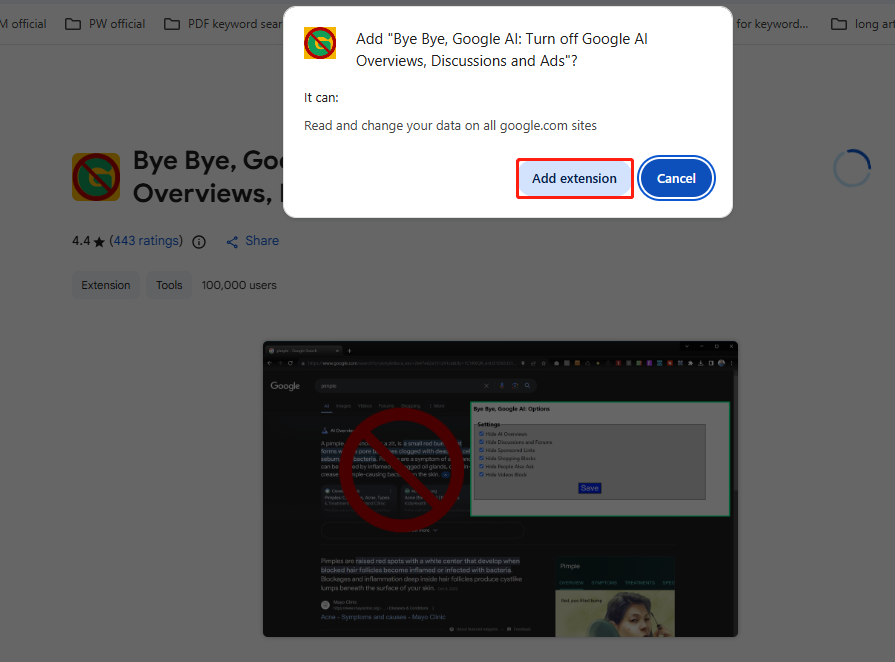
Now, this open-source extension automatically eliminates AI-generated summaries from Google search results.
Method 3. Set Up a Custom Google Search Shortcut
Additionally, you can modify Chrome settings to display only results from the web, not AI overviews, images, videos, and answer boxes. Here are the detailed steps:
Step 1. Navigate to chrome://settings/searchEngines.
Step 2. Click the Add button next to Site search.
Step 3. A dialog box appears. Then, fill in the fields as follows and then click the Add button.
- Name: Google (Web Only)
- Shortcut: @google.com
- URL: {google:baseURL}/search?udm=14&q=%s
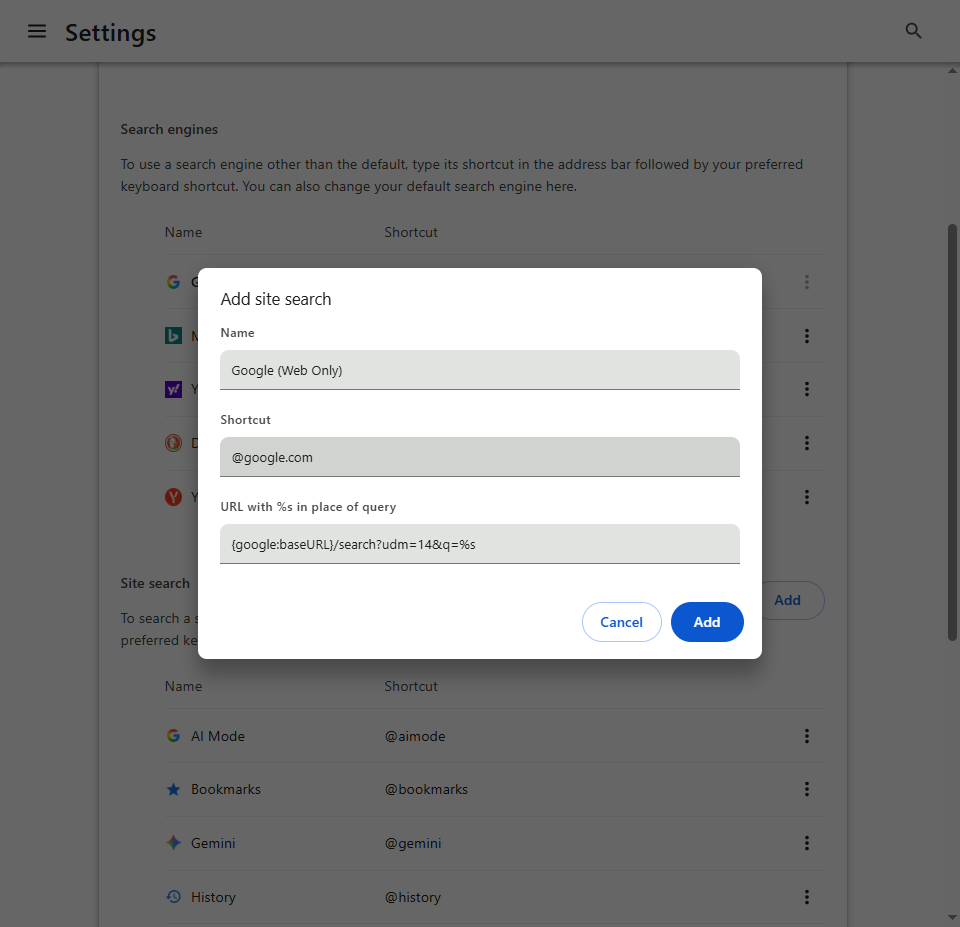
Step 4. Click the three dots next to Google (Web Only) and select Make default.
Step 5. Type @google.com in the address bar and press Space. Then, type the content you want to search in the address bar and press Enter. From now on, when you search in Google Chrome, you will get web pages without an AI Overview on the top.
Method 4. Use Chrome Flags
To disable Google AI overview and other AI features, try using Chrome flags. It can help you to customize all AI-based tools and services in Chrome.
Here’s how to do that:
Step 1. Open Google Chrome, type chrome://flags in your address bar, and press Enter.
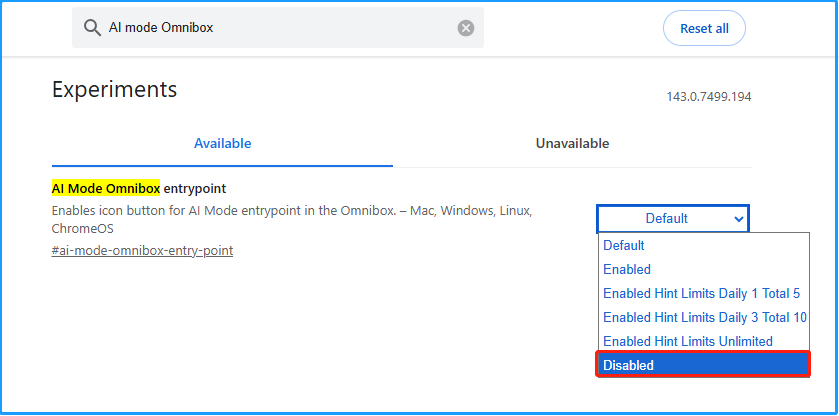
Step 2. Search for the following flags and set them to Disabled one by one:
- AI Mode Omnibox entrypoint
- AI Entrypoint Disabled on User Input
- Omnibox Allow AI Mode Matches
- NTP Compose Entrypoint
Method 5. Use Chrome Settings
In addition to using Chrome flags, Chrome Settings can also help you to remove AI from Google search. Here are the detailed steps:
Step 1. Open Google Chrome and go to Settings > System >AI innovations.
Step 2. Click Help me write.
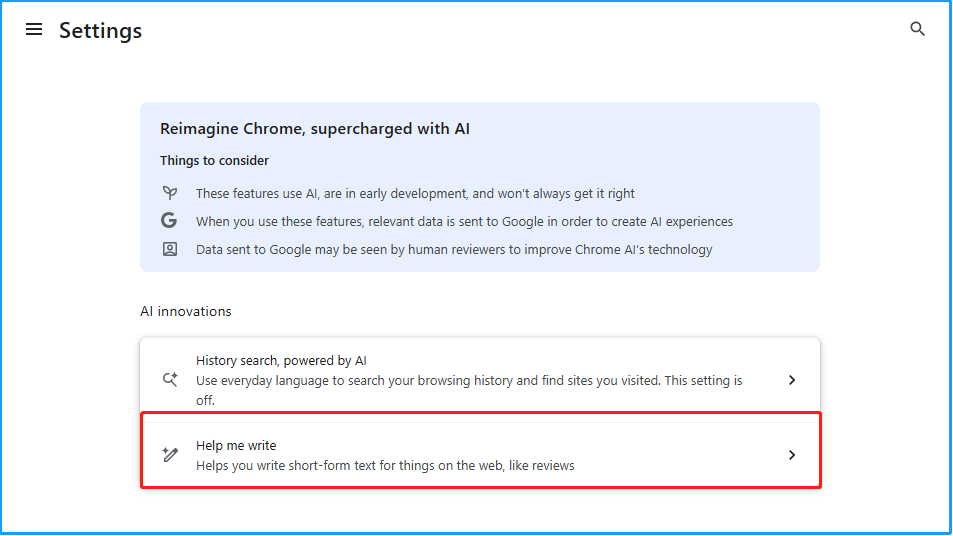
Step 3. Switch the toggle of Offer writing help to Off.
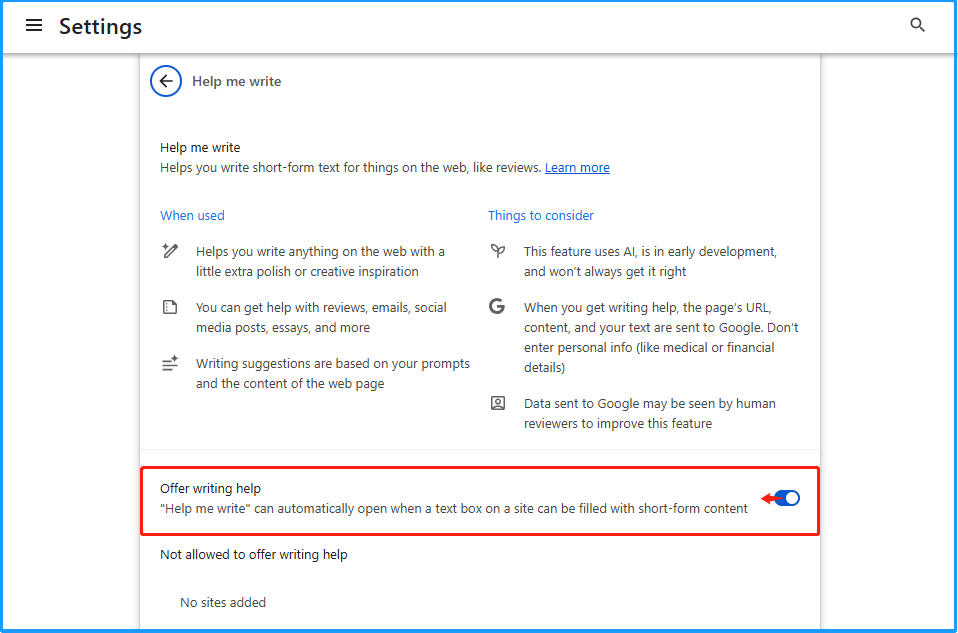
Step 4. Go to chrome://flags/ and search for AI. Locate the AI features highlighted and choose Disabled from the dropdown menu.
Step 5. Once you disable all the AI features on the Chrome flags page, restart your browser for the changes to take effect.
Most AI features will be disabled at this point. To enable them again, simply return to the Chrome flags page and select Enabled in the same manner.
Method 5. Edit Registry
To permanently disable AI in Google Chrome, modify the Registry. Google officially supports policies for managing Chrome features at scale, including the latest AI capabilities.
Here’s the guide:
Step 1. Press Win + R to open Run, type regedit, and press Enter. If the User Account Control window pops up, click Yes to proceed.
Step 2. In the Registry Editor window, navigate to this path:
HKEY_LOCAL_MACHINE\SOFTWARE\Policies
Step 3. Right-click Policies and select New > Key.
Step 4. Name the key Google and press Enter.
Step 5. Then, right-click it and create a new Key and name it Chrome.
Step 6. Right-click the Chrome key, select New, and DWORD (32-bit) Value.
Step 7. Name it AIModeSettings. Double-click on it and set its Value data to2, and click OK to disable AI Mode completely in Chrome.
Step 8. Repeat steps 6-7 to create DWORD (32-bit) Value keys with the following names and set their value data to 2, and click OK.
- HelpMeWriteSettings (It is used to disable the “Help me write” AI feature.)
- CreateThemesSettings (Its function is to disable the Create themes with AI feature that allows users to create custom themes and wallpapers.)
- HistorySearchSettings (It is used to disable AI History Search, which allows you to search browsing history for generated answers based on content.)
- TabCompareSettings (The aim is to disable the AI tool that compares information across your tabs.)
- AutofillPredictionSettings (It helps to disable Chrome’s AI-powered form understanding and auto-fill.)
- DevToolsGenAiSettings (It serves the purpose of disabling the use of generative AI models in Chrome DevTools for adding extra debugging information.)
- TabOrganizerSettings (It is used to disable the Tab Organizer, an AI-based tool that automatically creates tab groups based on your open tabs.)
Step 9. Create some more DWORD keys, name them as follows, set their value data to 1, and click OK.
- GeminiSetting (It is used to disable the Gemini integration in Chrome.)
- SearchContentSharingSettings (It helps to disable Chrome’s sharing controls for page and file content with Google AI Mode via the side panel or tabs.)
- GeminiActOnWebSettings (The aim is to prevent Gemini from acting on web content.)
- GenAILocalFoundationalModelSettings (It helps to stop Chrome from using the local AI models.)
Step 10. Once completed, restart your PC to apply the changes. Now, you can use Google Chrome without any AI features.
Method 6. Disable AI Features in Chrome with Commands
Alternatively, executing commands in the Command Prompt window can help you turn off AI search in Google. Here’s how to perform that:
Step 1. Press Win + S to open Search and type cmd.
Step 2. Under Best match, right-click Command Prompt and select Run as administrator.
Step 3. Execute the following commands to disable Google AI:
(
reg add “HKLM\SOFTWARE\Policies\Google\Chrome” /f
reg add “HKLM\SOFTWARE\Policies\Google\Chrome” /v AIModeSettings /t REG_DWORD /d 2 /f
reg add “HKLM\SOFTWARE\Policies\Google\Chrome” /v GeminiSettings /t REG_DWORD /d 1 /f
reg add “HKLM\SOFTWARE\Policies\Google\Chrome” /v HelpMeWriteSettings /t REG_DWORD /d 2 /f
reg add “HKLM\SOFTWARE\Policies\Google\Chrome” /v CreateThemesSettings /t REG_DWORD /d 2 /f
reg add “HKLM\SOFTWARE\Policies\Google\Chrome” /v HistorySearchSettings /t REG_DWORD /d 2 /f
reg add “HKLM\SOFTWARE\Policies\Google\Chrome” /v TabCompareSettings /t REG_DWORD /d 2 /f
reg add “HKLM\SOFTWARE\Policies\Google\Chrome” /v AutofillPredictionSettings /t REG_DWORD /d 2 /f
reg add “HKLM\SOFTWARE\Policies\Google\Chrome” /v DevToolsGenAiSettings /t REG_DWORD /d 2 /f
reg add “HKLM\SOFTWARE\Policies\Google\Chrome” /v SearchContentSharingSettings /t REG_DWORD /d 1 /f
reg add “HKLM\SOFTWARE\Policies\Google\Chrome” /v TabOrganizerSettings /t REG_DWORD /d 2 /f
reg add “HKLM\SOFTWARE\Policies\Google\Chrome” /v GeminiActOnWebSettings /t REG_DWORD /d 1 /f
reg add “HKLM\SOFTWARE\Policies\Google\Chrome” /v GenAILocalFoundationalModelSettings /t REG_DWORD /d 1 /f
)
Step 4. Once finished, restart your PC. Now, Google Chrome will open without AI features.
If you want to revert the changes, execute the following command:
reg delete “HKLM\SOFTWARE\Policies\Google\Chrome” /f
If you also want to remove all the created Google keys (only if unused), run:
reg delete “HKLM\SOFTWARE\Policies\Google” /f
Recommended: Back Up Important Data
Backing up data regularly is a good habit for avoiding data loss. To do that, it is highly recommended to use MiniTool ShadowMaker. It offers the Backup feature that can help you to perform a data backup and system backup with ease.
Here’s the guide:
Step 1. Download and install MiniTool ShadowMaker on your PC. Then, launch this app to its main interface.
MiniTool ShadowMaker TrialClick to Download100%Clean & Safe
Step 2. Select Backup from the left panel. Then, go to SOURCE and choose Folders and Files.

Step 3. Choose the files that you want to back up and click OK.
Step 4. Access DESTINATION, select the target location to store the backup files, and click OK to proceed.
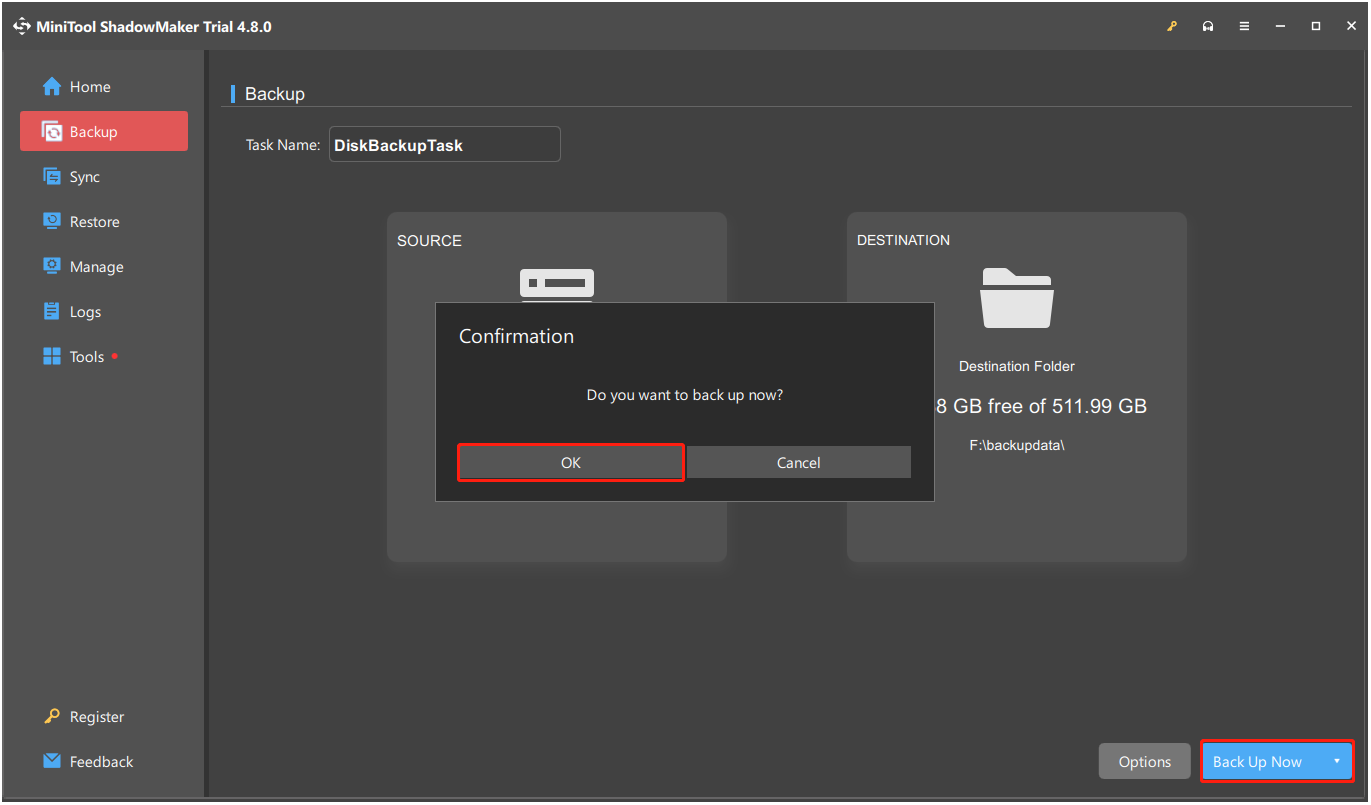
Step 5. Click Back Up Now and OK to confirm.
In Conclusion
This post introduces a comprehensive guide on disabling Google AI features on PC. If you also want to remove AI from Google search, try the mentioned methods.
Moreover, backing up your important data regularly with MiniTool ShadowMaker to secure the data. When you encounter issues while using this software, contact us by sending emails to [email protected].
Turn Off Google AI FAQ
1. Open Gmail, click the Gear icon, select See all settings > General.
2. Find and locate Smart features.
3. Uncheck the box of Turn on smart features in Gmail, Chat, and Meet.
4. Select Turn off and reload.
5. Scroll to Google Workspace smart features and click Manage Workspace smart feature settings.
6. Disable them in the pop-up window and click Save.
Unusual account activity or security warnings from your browser or antivirus software are also indicators of a compromised browser.
About The Author

Position: Columnist
Charlotte is a technology columnist with a strong focus on the Windows operating system, specializing in disk management, backup, and data recovery. She is passionate about analyzing computer errors, identifying root causes, and delivering practical solutions. In her free time, she stays updated on the latest developments in computer systems and hardware while continuously learning new technologies to broaden her expertise. Her writing style is clear and easy to understand, making complex technical topics accessible even to users with limited computer knowledge.
User Comments :