
Detailed guide for how to use File Explorer without a mouse on Windows 10. For other issues like recovering lost data, managing hard disk partitions, backing up data and Windows system, editing and converting videos, etc. you can turn to MiniTool software.
You can use File Explorer without a mouse on Windows 10. Windows 10’s file manager is packed with many useful keyboard shortcuts. You can just use the keyboard shortcuts to use Windows 10 File Explorer.
How to Use File Explorer without a Mouse on Windows 10
To run Windows 10 file explorer:
You can open File Explorer on Windows 10 by pressing Windows + E whenever you want. If the File Explorer is pinned to the taskbar, you can check where it is located. If the File Explorer is the third icon at your Windows taskbar, you can also press Windows + 3 to launch it.
How to navigate folders in File Explorer without a mouse:
- After you open File Explorer, you can use the arrow keys on the keyboard to select files and folders, and press Enter to open the target files or folders.
- If you want to expand a collapsed section like ‘Devices and drives’, you can use arrow keys to select it and press the Right arrow to expand it.
- To choose a folder or file in a directory, you can just type its name to select it.
- If you want to go to the Up directory, you can press Alt + Up keys on the keyboard at the same time.
- To go back or forward a directory, you can press Alt + Left, Alt + Right arrow.
- To refresh a folder, you can press F5.
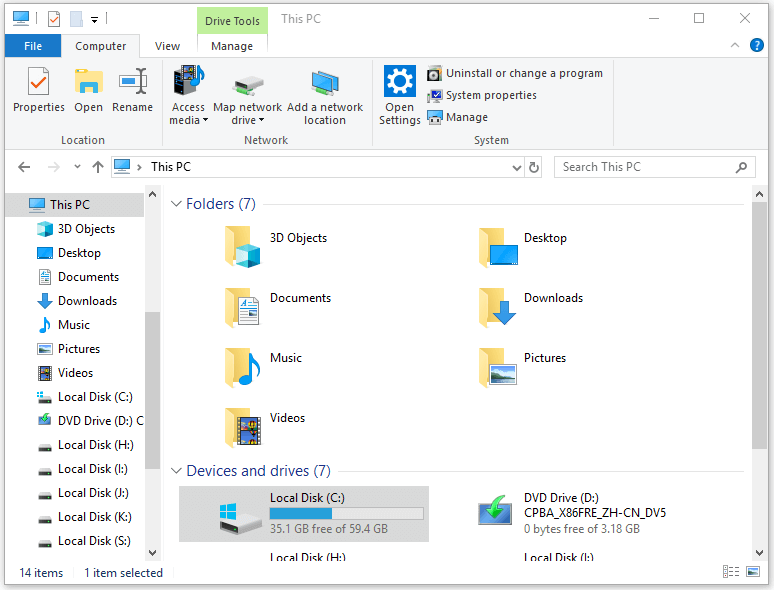
How to type directories or search phrase:
- To locate the directory bar, you can press Ctrl + L or Alt + D, and then you can type the target directory.
- If you want to type some keywords in the search bar of File Explorer, you can press Ctrl + E or Ctrl + F to locate the search box and type phrase.
How to select multiple files in File Explorer without a mouse:
You can hold on the Shift key and use the arrow keys to select multiple files in File Explorer.
To select all files in the current folder in File Explorer, you can press Ctrl + A.

How to create a new folder in File Explorer without a mouse:
You can press Ctrl + Shift + N to create a new folder in the current directory and enter a name for it.
How to rename a file:
You can select the target file with the arrow key and press F2. It can automatically highlight the file name except the file extension. Then you can rename the file and press Enter. You can press Left or Right arrow key to navigate the words in the file name.
How to copy/paste/delete files without a mouse in File Explorer:
You can select a file and press Ctrl + C to copy a file, press Ctrl + X to cut a file, and press Ctrl + V to paste the file to another location.
If you want to delete a file, you can select it and press Delete key. If you want to delete the file permanently and don’t allow it to pass the Recycle Bin, you can press Shift + Delete keys.
If you mistakenly deleted a file, you can use MiniTool Power Data Recovery to easily recover the deleted files for free.
How to open or close a file explorer window:
- You can press Ctrl + N to open a new File Explorer window.
- You can press Ctrl + W to close the current File Explorer window.
How to open the context menu of select items:
- You can select the items and press Shift + F10 to open the Context menu. Then you can use the Up and Down arrow keys to choose the option and press Enter to select the option.
- To open the Properties window of select item, you can select the item and press Alt + Enter.
Bottom Line
You can use File Explorer without a mouse on Windows 10 and use the useful keyboard shortcuts above to easily select/open file or directory, etc.
User Comments :