
What are flash drives used for? They are popular portable storage devices for storing, transferring, and backing up digital files between devices without an internet connection. Here, MiniTool offers a complete guide on that.
What Is a Flash Drive
A flash drive is a small and portable external storage device that can also be called a thumb drive, memory stick, or pen drive.
It utilizes flash memory to store and transfer digital files, such as documents, photos, and videos, between computers or other compatible devices.
What Are Flash Drives Used For
Flash drives have many uses, including data backup, data storage, data transport, system security tool, OS installation/boot media, and others. Here are the detailed breakdown of USB flash drive uses:
# 1. Data Backup
A flash drive can be used for storing your backup files, acting as a secondary storage solution. To do that, there are two options:
- Copy and paste files to a flash drive.
- Use a backup tool to back up your PC to a flash drive.
Option 1. Copy and Paste
The first option to perform data backup in a flash drive is just to copy and paste the files that you want to store. Note that this option is not the best choice for large files or system backup. Here’s how to do that:
Step 1. Connect the flash drive to your PC.
Step 2. Open the folder that contains the files that you want to back up in File Explorer.
Step 3. Copy all the files.
Step 4. Access the flash drive and paste all the copied files here.
Once the process is complete, all copied files are backed up to the flash drive.
Option 2. Use MiniTool Shadow Maker
If you want to use a third-party tool to help you back up your data or system to a flash drive, MiniTool ShadowMaker is a good choice. Here’s how to use the powerful PC backup software to back up your data:
Step 1. Download and install this software on your PC. Then, launch it to access its main interface.
MiniTool ShadowMaker TrialClick to Download100%Clean & Safe
Step 2. Select Backup from the left panel, go to SOURCE, and choose Folders and Files.
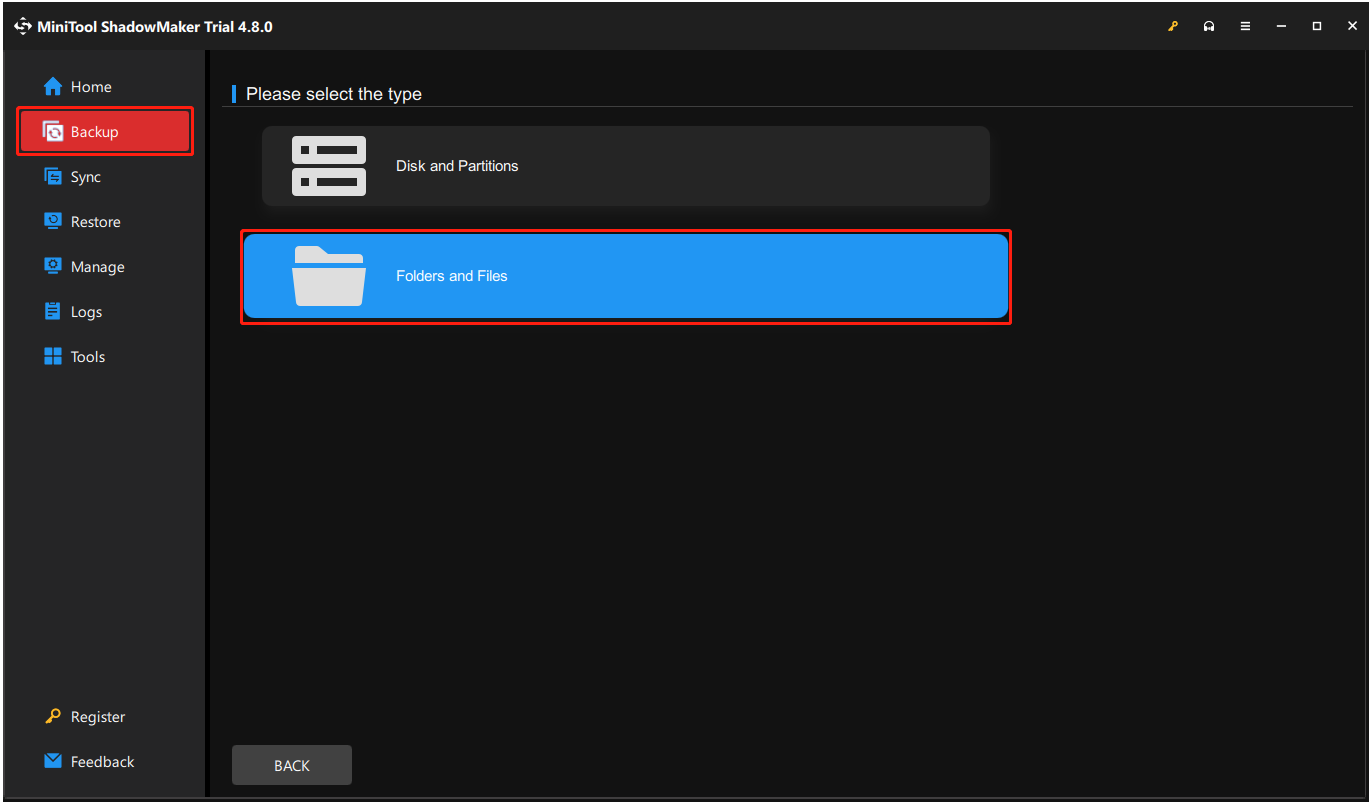
Step 3. Check the boxes of files that you want to back up to the flash drive and click OK.
Step 4. Go to DESTINATION, select your flash drive and click OK.
Step 5. Click Back Up Now and OK sequentially to confirm the operation.
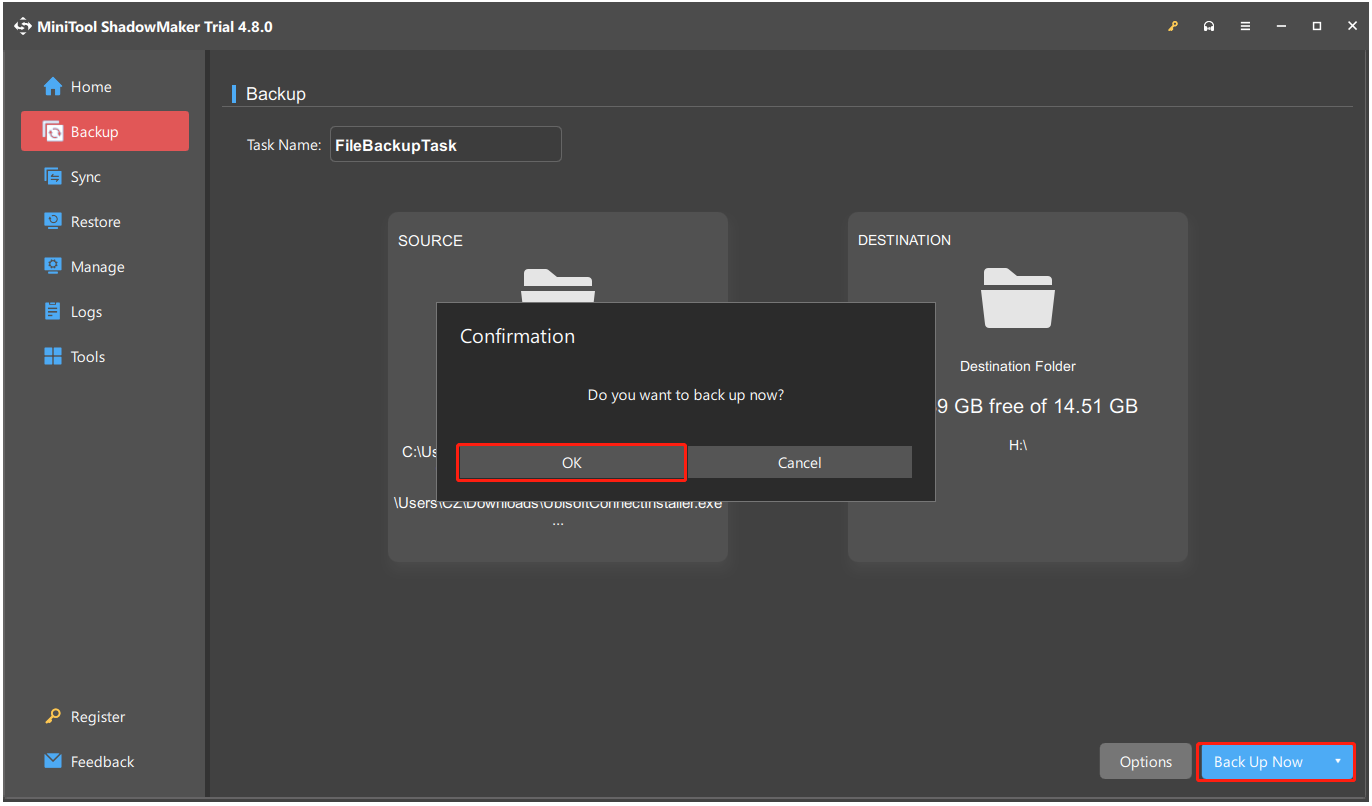
Step 6. Once the process is completed, all the selected files are backed up to the flash drive successfully.
# 2. Data Storage
A flash drive can be used as a data storage tool for active use and short-to-medium-term storage. For instance, users can store their frequently used personal files, such as photos, documents, and videos, or documents, on a flash drive.
If you want to use a flash drive for very long-term archiving, you need to refresh the data periodically, as electrical charges in the flash memory can dissipate over years.
# 3. Data Transport/Sharing
Additionally, a flash drive is a useful tool for data transport or sharing. It can quickly move files between a desktop and a laptop.
Here’s how to use a flash drive for transport/sharing:
- Connect the flash drive to one computer.
- Open File Explorer, find and copy the files that you want to transfer or share.
- Open the flash drive and paste the copied files here.
- Safely eject the flash drive from the first computer.
- Connect the flash drive to the second computer.
- Copy and paste the files to this computer.
# 4. System Security Tools
With the help of some third-party software, a flash drive can be used as a system security tool. For example, Predator is such an app that can turn a flash drive into a physical access key for your PC. Here’s how to set and use it:
Step 1. Download and install Predator on your PC.
Step 2. Insert the USB flash drive that you want to use as a key.
Step 3. Use Predator to create a key with the USB flash drive.
- Open Predator.
- Set a strong password and select the USB flash drive.
- Click Create Key.
- In Preferences, set it to auto-start with Windows and adjust the time delay before locking.
Step 4. Once you’ve configured settings, protect the computer by plugging in the USB drive to unlock it.
If you remove the USB drive when this software is running, your screen will black out after a set interval, and your keyboard and mouse will be disabled. To regain access, re-insert the USB flash drive into your PC’s USB port.
# 5. Operating System Installation/Boot Media
Furthermore, the flash drive can also be used as an operating system installation/boot drive. If you want to do that, use Media Creation Tool or Rufus. Here are the key steps to create a bootable USB:
Step 1. Download the disk image file (.iso) for the operating system (Windows, Linux, macOS) from its official source.
Step 2. Get a Tool.
- Microsoft Media Creation Tool: For Windows (official method).
- Rufus: For Windows/Linux (more advanced, versatile).
- Etcher: For Linux/macOS.
Step 3. Connect a USB flash drive to your PC, which should meet the following requirements:
- USB 3.0 drive
- At least 8GB (16GB+ recommended)
- No important data
Step 4. Write the Image to the USB flash drive.
- Open the tool.
- Select the ISO file and your USB drive.
- Follow the on-screen guide to complete the process.
Step 5. Boot from the flash drive.
- Plug the bootable USB drive into the target computer.
- Access Boot Menu/BIOS.
- Choose the USB drive as the boot device, save the changes, and boot the system.
- Follow the on-screen prompts to install the OS or do other repairs.
# 6. Media and Entertainment
Flash drives are perfect for media and entertainment. To do that, load movies, music, photos, and presentations onto a flash drive, then plug it into a TV, car stereo, or computer to play content without internet.
# 5. Running Portable Applications
A flash drive can also be used as a medium to run software directly without installation. To do that, use a platform such as PortableApps.com or manually unzip individual portable applications to a flash drive.
This allows you to utilize familiar software on any PC without the need for installation. Additionally, it makes sure that no traces are left behind and also preserves settings on your drive for a uniform experience.
Advantages of Flash Drives
After understanding what flash drives are used for in a computer, it is necessary to learn their advantages. Flash drives are recommended for their portability, durability, affordability, and ease of use. Here are the advantages:
- Portability: Flash drives are tiny, lightweight, and pocket-sized, and easy to carry.
- Ease of Use: Flash drives have a plug-and-play feature with no extra software or Internet required.
- Speed: Flash drives’ data transfer speed is faster than older media like CDs or floppy disks.
- Durability: Flash drives have no moving parts, which makes them more resistant to shocks and drops than traditional hard drives.
- Compatibility: Flash drives work with most computers, TVs, car systems, and gaming consoles.
- Affordability: Flash drives are generally inexpensive, with various storage capacities available.
- High Capacity: Flash drives are available in sizes from gigabytes to terabytes, suitable for many needs.
- Versatility: Flash drives can be used for many things, such as storing backups, running portable apps, and transferring files across different computers.
- Security: Some flash drive models offer encryption and password protection for sensitive data.
Limitations and Risks of Flash Drives
However, a flash drive also has some limitations and risks. They are:
- Limited lifespan: Its flash memory wears out after a certain number of write cycles.
- Data corruption: Improperly ejecting or power issues can damage stored data.
- Malware transmission: It can carry viruses and malware between devices.
- Slower speed: It is generally slower than SSDs and high-speed cloud transfers.
- Easy loss/theft: Its small size makes it easy to lose or steal.
- Limited storage capacity: It has less storage space compared to external hard drives or cloud storage.
Final Words
Now, you may already know all possible USB flash drive uses. Additionally, this post offers a step-by-step guide on using MiniTool ShadowMaker to back up your data to a flash drive. If you meet any issues while using this software, contact us at [email protected].
What Are Flash Drives Used For FAQ
The term “flash drive” is the technical term, while “USB stick” is a casual name that reflects its common stick-like shape and USB connection.
Normally, the average flash drive lifespan is around 10 years for unpowered storage. Note that refreshing data regularly if there are critical data.
To do that, find the “Safely Remove Hardware and Eject Media” icon (Windows) or eject option (Mac/Linux), click it, and wait for confirmation before physically pulling it out.
About The Author

Position: Columnist
Charlotte is a technology columnist with a strong focus on the Windows operating system, specializing in disk management, backup, and data recovery. She is passionate about analyzing computer errors, identifying root causes, and delivering practical solutions. In her free time, she stays updated on the latest developments in computer systems and hardware while continuously learning new technologies to broaden her expertise. Her writing style is clear and easy to understand, making complex technical topics accessible even to users with limited computer knowledge.
User Comments :