
PUA:Win32/Puamson.A!ac
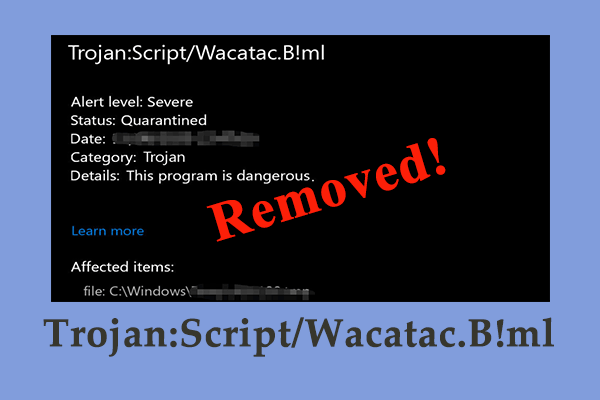
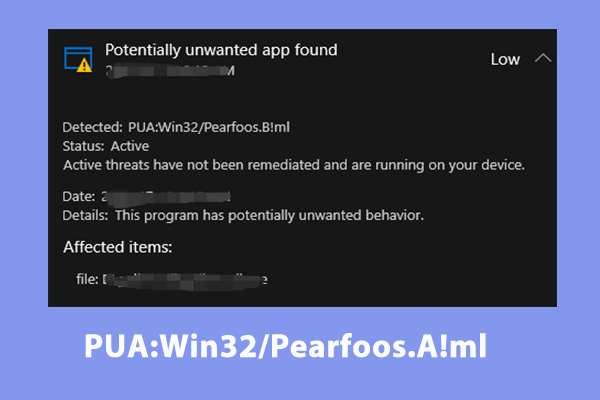
PUA:Win32/Puamson.A!ac is a type of Trojan infection that can be distributed by spams, free applications and more. You may not notice its presence until you perform a deep scan of your system with Windows Defender. What’s worse, it is so stubborn that common antivirus software cannot delete it effectively. If you are one of the victims of Win32/Puamson.A!ac at the moment, the solutions below might do the trick for you!
How to Remove Win32/Puamson.A!ac on Windows 10/11?
Fix 1: End Malicious Programs
At first, you should close all the programs related to Win32/Puamson.A!ac. To do so:
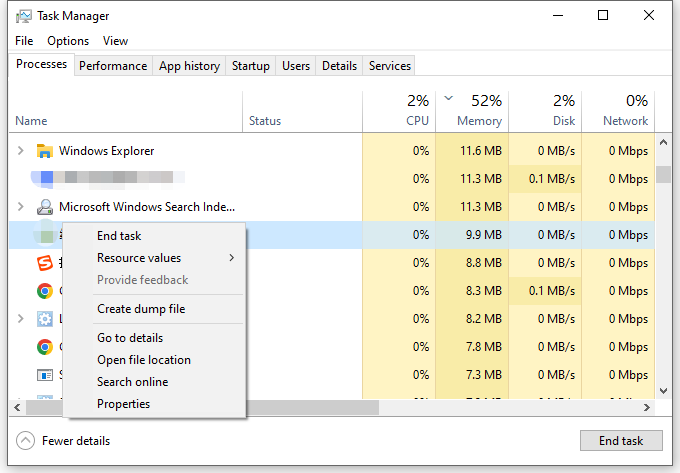
Step 1. Right-click on the taskbar and select Task Manager from the drop-down menu.
Step 2. Under the Processes tab, scroll down in the list to find suspicious programs and right-click on it to choose End task.
Fix 2: Uninstall Suspicious Applications
If you have installed some applications or extensions on your computer before Win32/Puamson.A!ac appears, try installing them with the steps below:
Step 1. Press Win + R to open the Run dialog.
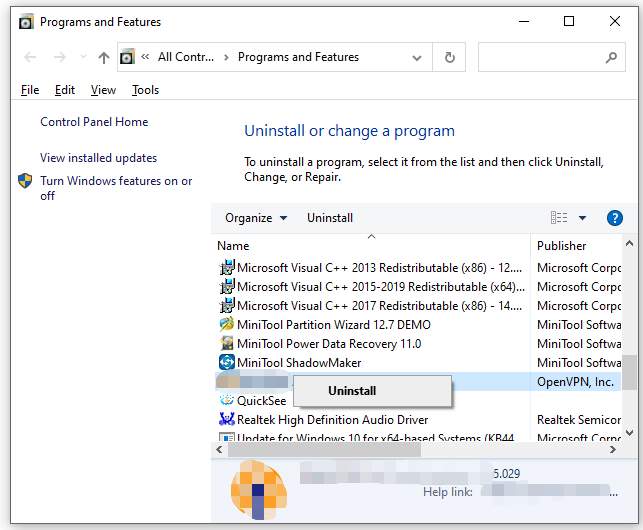
Step 2. Type appwiz.cpl and hit Enter to open Programs and Features.
Step 3. In the program list, find the malicious program and hit Uninstall.
If you find some extensions are installed tehmselves on your browser, you need to remove them. Here, we take removing extensions on Google Chrome as an example: Launch Google Chrome > click on the three-dot icon > More tools > Extensions > toggle off the extensions > hit Remove.
Fix 3: Scan Your Computer with Antivirus Software
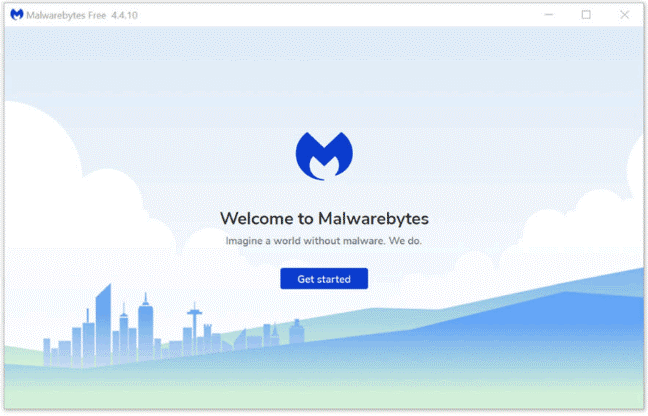
If Win32/Puamson.A!ac prevents you from uninstalling the program or extension, you need to perform a deep scan with a third-party software. Here’s how to do it with Malwarebytes:
Step 1. Go to Malwarebytes official website to download Malwarebytes for free.
Step 2. Double-click on the setup file to install it and hit Yes if prompted by User Account Control.
Step 3. Launch it and perform a scan with this tool. If Malwarebytes detects Win32/Puamson.A!ac and other threats, click on Quarantine.
Fix 4: Reset Your PC
The resetting process can restore your device to the previous state hence solving many problems including Win32/puamson.a ac removal. Since this operation will wipe all the data and installed programs on your device, it’s better to make a copy of important files before proceeding.
To back up your data, a piece of PC backup software – MiniTool ShadowMaker is worth a try. This tool is free, professional and friendly to users. It allows you to back up & restore files, folders, drives, systems and partitions on Windows machines.
Move 1: Back Up Your Data with MiniTool ShadowMaker
Step 1. Run MiniTool ShadowMaker and hit Keep Trial.
MiniTool ShadowMaker TrialClick to Download100%Clean & Safe
Step 2. In the Backup page, go to SOURCE > Folders and Files to choose the files you want to protect. In DESTINATION, you can select an external drive or USB flash drive as a storage path for the backup.
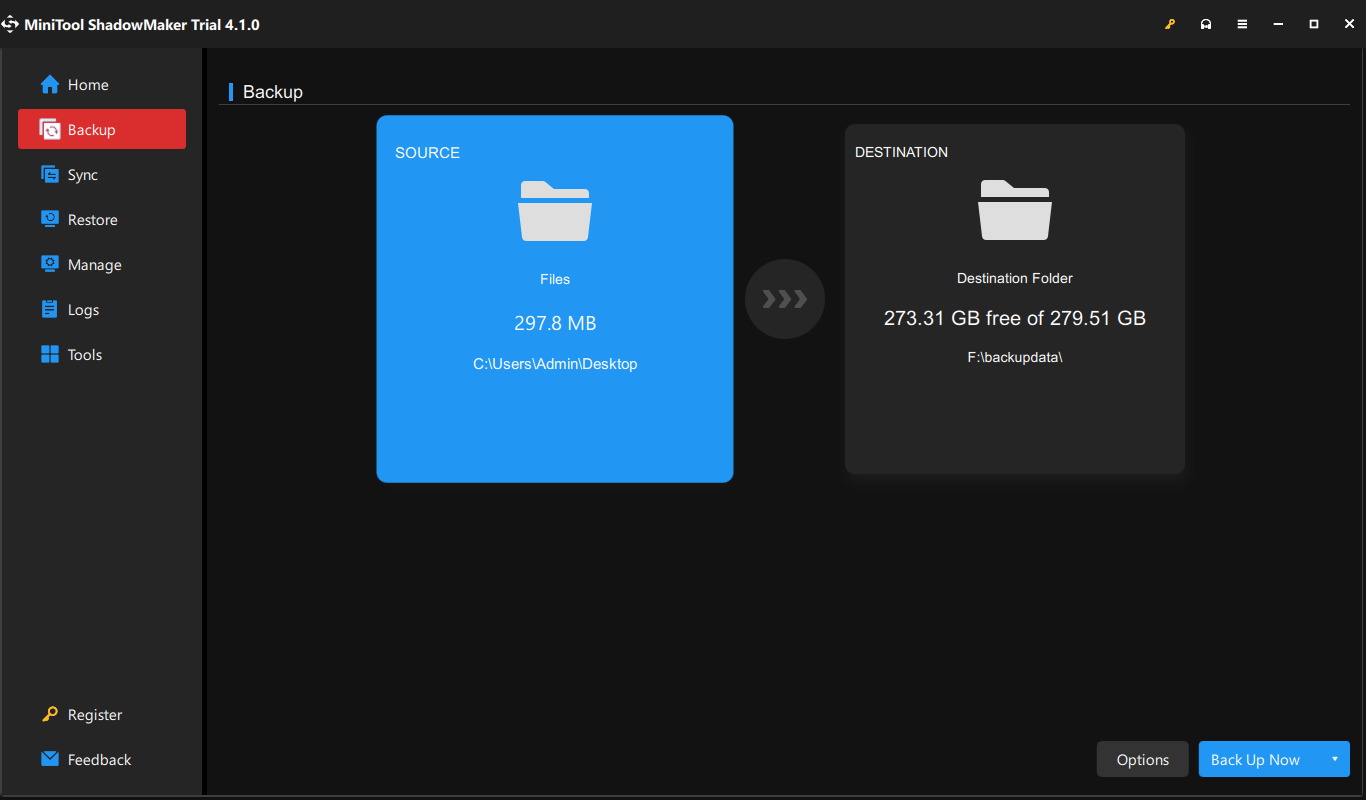
Step 3. Click on Back Up Now to start the process at once.
Move 2: Reset this PC
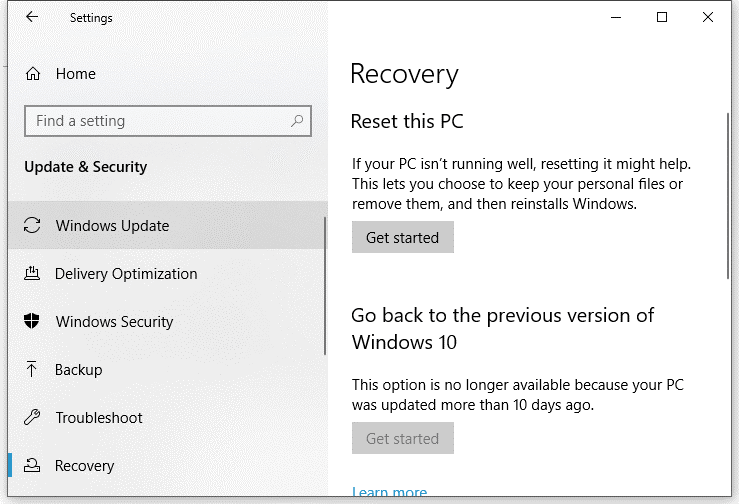
Step 1. Click on Start and hit the gear icon to open Settings.
Step 2. In the settings menu, press Update & Security.
Step 3. Under the Recovery tab, hit Get started under Reset this PC and then follow the instructions on the screen to finish the process.
User Comments :