
What Is Windows 11 In-Place Upgrade
Windows 11 in-place upgrade is a reliable method for updating the current operating system to the latest Windows 11 version. It preserves your personal files, applications, and system settings by default.
This method is particularly useful in the following scenarios:
- Updating Windows 11 versions: Update the current Windows 11 version to the latest version, such as upgrading from Windows 11 24H2 to 25H2. This is especially helpful if Windows Update fails.
- Upgrading from Windows 10 to Windows 11: Upgrade from Windows 10, which is no longer supported by Microsoft, to the more modern Windows 11 while preserving your data and apps.
- Repairing a malfunctioning system: Reinstall Windows while keeping your personal data intact when the system encounters corrupted files or damaged components.
MiniTool Power Data Recovery FreeClick to Download100%Clean & Safe
Next, we will introduce the requirements for performing a Windows 11 in-place upgrade.
Windows 11 In-Place Upgrade Requirements
For a successful Windows 11 in-place upgrade, make sure you complete the following preparations thoroughly:
- Ensure the computer has a stable Internet connection.
- Make sure you sign in with an administrator account.
- Disconnect all external peripherals except essential ones, such as the keyboard, mouse, and Ethernet cable.
- Disable or uninstall any third-party antivirus programs.
- Back up your system and important files to an external drive. MiniTool ShadowMaker can help you back up files, folders, partitions, disks, or systems for free for 30 days.
MiniTool ShadowMaker TrialClick to Download100%Clean & Safe
These measures help maintain system compatibility, prevent software conflicts, and protect your data.
Once all preparations are complete, proceed to the methods for carrying out a Windows 11 in-place upgrade.
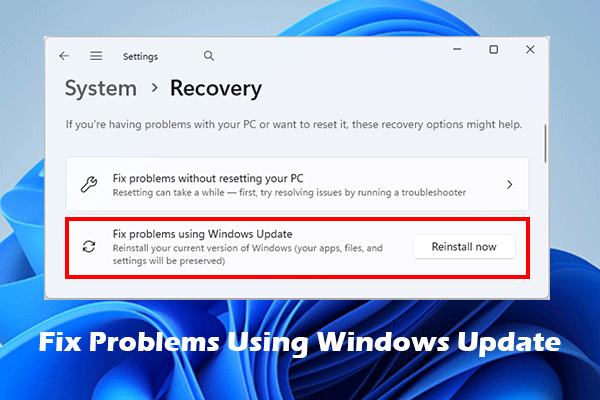
How to Perform a Windows 11 In-Place Upgrade
This section explains how to perform a Windows 11 in-place upgrade from a USB drive or an ISO file.
The USB method requires a blank USB drive of at least 8 GB, while the ISO method does not require any external drive.
Check the detailed instructions for each option and choose the one that best suits your situation.
Method 1. Use a Windows 11 ISO File
Follow the steps below to download the Windows 11 ISO file and use it to upgrade the current operating system.
Step 1. Visit the Windows 11 download page.
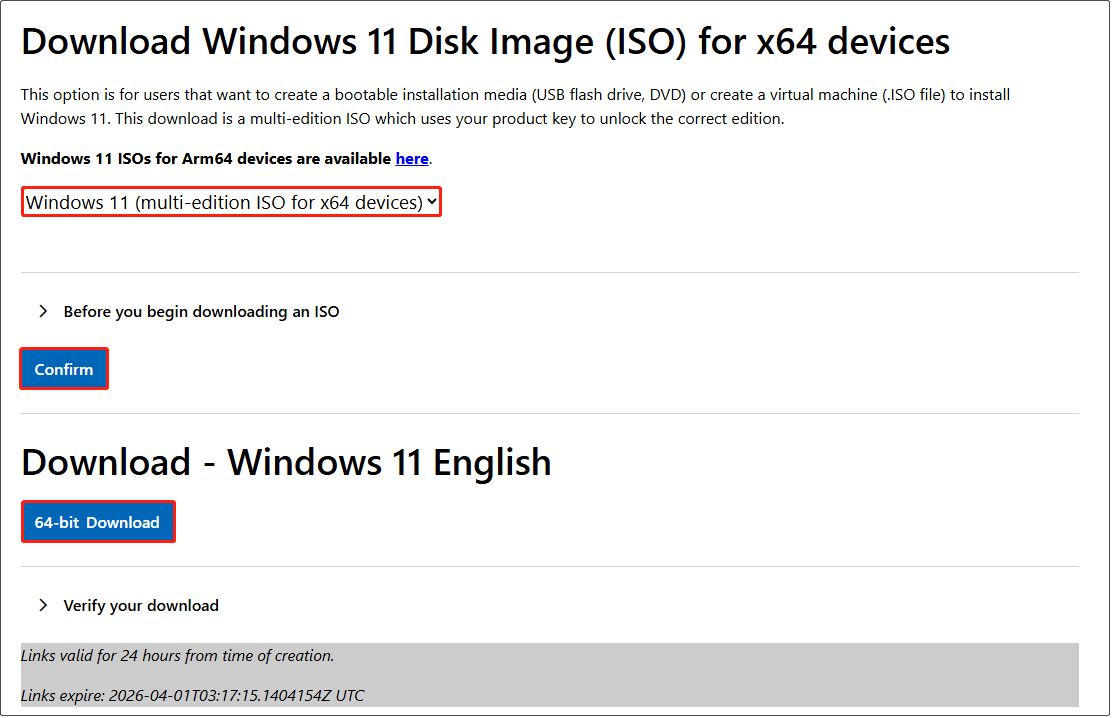
Step 2. Under Download Windows 11 Disk Image (ISO) for x64 devices, expand the Select Download drop-down menu and select Windows 11 (multi-edition ISO) for x64 devices.
Step 3. Click Confirm under the Before you begin downloading an ISO section.
Step 4. Expand the drop-down menu and select the product language that matches your Windows language. After that, click Confirm.
Step 5. Click the 64-bit Download button to begin downloading the Windows 11 ISO file.
Step 6. Once the ISO file is downloaded, go to the Downloads folder to open it.
Step 7. Double-click the setup.exe file, and click Run > Yes to confirm.
Step 8. In the Windows 11 Setup interface, click Next. The tool will start checking for updates.
Step 9. Click Accept to accept the license terms.
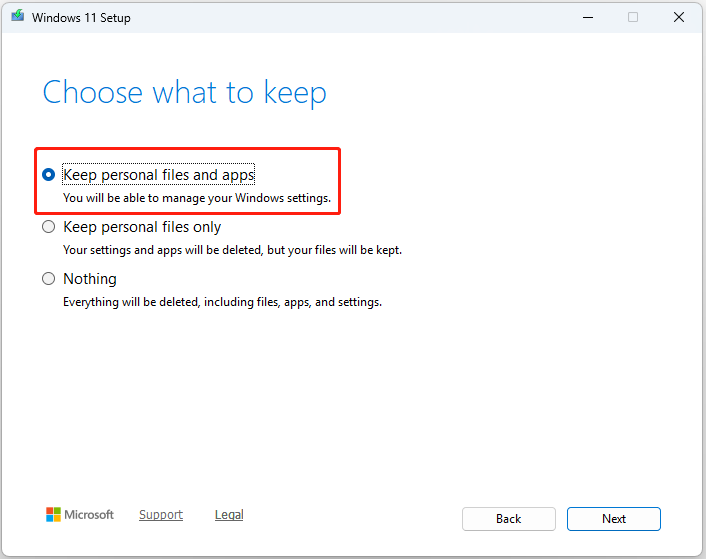
Step 10. To perform a Windows 11 in-place upgrade, click Change what to keep and make sure the Keep personal files and apps option is selected.
Step 11. Follow the on-screen prompts to complete the system installation.
Method 2. Use Windows 11 Installation Media
Windows installation media is usually used for installing the operating system on computers without an existing OS.
However, it can also be utilized to carry out an in-place upgrade from Windows 10 to Windows 11.
Follow the step-by-step instructions below.
Step 1. Insert the blank USB drive into your computer.
Step 2. Visit the Windows 11 download page to download the media creation tool. Then use it to create a bootable installation USB drive.
Note that the Windows 11 media creation tool can only create media for x64 processors.
Step 3. In File Explorer, open the ESD-USB drive and double-click the setup.exe file.
Step 4. Follow the on-screen instructions to check for updates and accept the license terms.
Step 5. Make sure to select the option to keep your files and applications, and proceed with the installation.
Windows 11 In-Place Upgrade vs Reset This PC vs Clean Install
In Microsoft forums, many users express confusion about the available system reinstallation options. In this section, we compare an in-place upgrade, the “Reset this PC” feature, and a clean installation for your reference.
| In-place upgrade | Reset this PC | Clean installation | |
| Definition | Upgrades the current OS version | Resets the PC to its factory state | Installs Windows from scratch |
| Personal files | Preserved | Preserved | Removed |
| Applications | Preserved | Removed | Removed |
| System settings | Preserved | Resets to default | Removed |
| System boot required | Yes | Yes (or if you can enter WinRE) | No |
| Driver reinstallation | Not required | Required for non-default drivers | Required |
| Use cases | To upgrade the system or fix minor system issues | To address performance issues, software problems, or to clean the PC | To resolve severe system issues or start with a fresh computer |
Overall, an in-place upgrade is suitable if you want to upgrade or reinstall the system without losing applications. Reset this PC is suitable when you need to fix system issues or refresh the system.
A clean installation is the most thorough option and is typically used to resolve serious issues or prepare the computer for resale.
Bottom Line
To sum up, both the Windows ISO file and installation media can be used to perform an in-place upgrade.
During the process, make sure to select the option to keep your personal files and applications to avoid data loss. If, unfortunately, your files are deleted, launch MiniTool Power Data Recovery immediately to recover your files.
If you have any questions regarding MiniTool products, please contact the support team at [email protected].
Windows 11 In-Place Upgrade FAQ
However, it is always recommended to back up important files before performing any system installation.
An in-place upgrade is ideal for system updates or minor issue repair, with your files, applications, and settings preserved.
A clean installation is suitable if your computer has severe performance or stability issues, but your files and programs will be removed.
About The Author

Position: Columnist
Shirley holds a bachelor’s degree in English and has been an editor at the MiniTool Team for many years. She specializes in IT-related content, with a focus on data recovery, file backup, disk management, and other technical topics. She is committed to delivering clear, accurate, and practical solutions to help users resolve common computer issues.
User Comments :