
Chrome users often complain about the “Windows PC restarts after selecting shutdown” message. After clicking the Shutdown button, their PCs restart. This post from helps fix the annoying issue.
Is your Windows computer restarting when you try to shut it down? This frustrating issue can waste time and energy while potentially causing data loss. In this guide, we’ll explore the most effective solutions to fix the “Windows PC restarts after selecting shutdown” issue.
When your computer restarts instead of shutting down, it’s typically caused by:
- Misconfigured power settings
- Fast Startup conflicts
- Outdated or corrupted drivers
- Windows update issues
- Hardware problems
It’s recommended to back up your system before troubleshooting since your PC may shut down without reason and your data may get lost if your don’t save it timley. You can use MiniTool ShadowMaker, free backup software, to back up files, folders, partitions, disks, and your system. Besides, you can set up a time point to start automatic backups.
MiniTool ShadowMaker TrialClick to Download100%Clean & Safe
Now, you can start to fix the “Windows PC restarts after selecting shutdown” issue.
Fix 1. Disable Fast Startup
Step 1: Press the Windows key and R key at the same time to open the Run dialog, type powercfg.cpl and click OK.
Step 2: Click Choose what the power button does from the left pane
Step 3: Then choose Change settings that are currently unavailable. When the User Account Control warning appears, you should click Yes.
Step 4: Uncheck Turn on fast startup (recommended) and click the Save changes button.
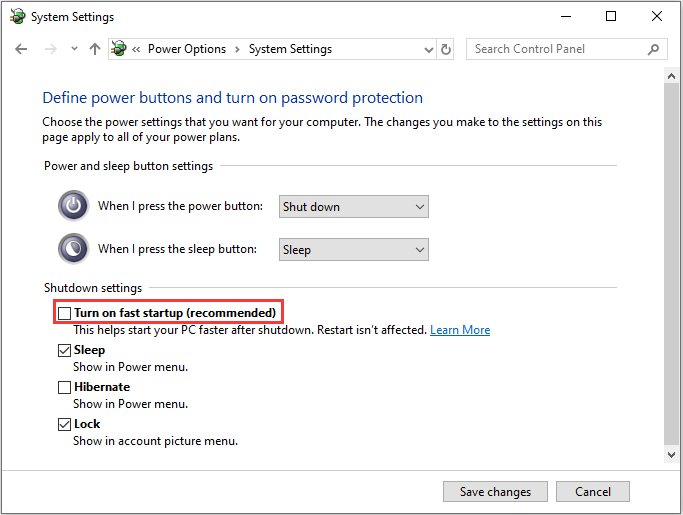
Now restart your system and check if the “Windows PC restarts after selecting shutdown” issue is resolved. If not, you can try the second solution.
Fix 2. Run the Power Troubleshooter
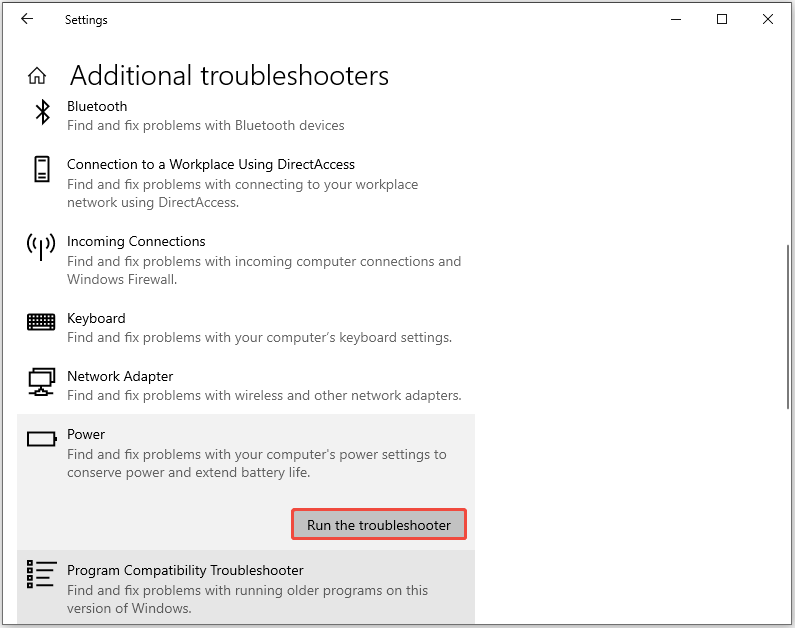
Step 1: Open Setting by pressing the Windows key and the I key at the same time.
Step 2: In the setting page, please choose Update & Security.
Step 3: Select Troubleshoot from the left panel > click Additional troubleshooter.
Step 4: Click the Power option > Run the troubleshooter.
Fix 3. Update or Roll Back Drivers
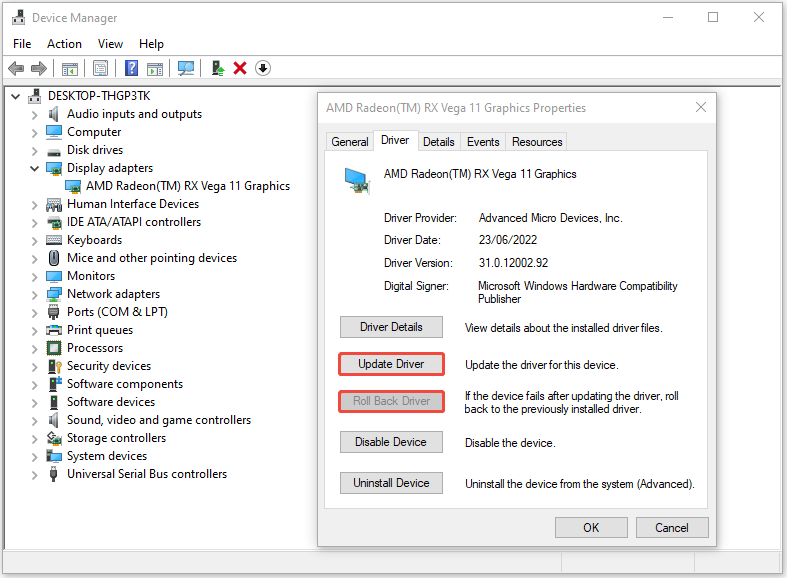
Step 1: Search for Device Manager in the search bar and open it.
Step 2: Right-click the AMD driver and choose Properties.
Step 3: Click the Update Driver or Roll Back Driver option under the Driver tab and follow the on-screen instructions to switch to the previously installed driver.
Fix 4. Use System File Checker
Step 1: Type cmd in the search box, and then right-click Command Prompt to select Run as administrator.
Step 2: Type sfc /scannow and press Enter. This process may take you much time to scan, please wait patiently.
Fix 5. Check for Windows Updates
To check if there are any updates you can do, please follow these steps:
Step 1: Open Settings and click Updates & Security.
Step 2: Choose Windows Upgrade from the left panel and click Check for updates button, and then your computer will check for, download and install any updates found.
Final Words
By following these solutions and maintaining proper backups, you can resolve the shutdown-restart issue while protecting your important data. If problems persist after trying all solutions, consider consulting a professional or performing a Windows repair installation.
User Comments :