
It can be quite easy to repair Windows 11/10 using Command Prompt by running tools like DISM, SFC, CHKDSK, and Bootrec. These Windows repair commands can help fix system files, disk errors, and boot problems without reinstalling the system.
Quick Fixes: 4 Effective Windows Repair Commands
Try the following commands in sequence:
- DISM /Online /Cleanup-Image /RestoreHealth
- sfc /scannow
- chkdsk c: /f /r
- bootrec /fixmbr
When to Repair Windows with CMD
If the system is unstable or fails to start, it is recommended to use Command Prompt (CMD) to repair Windows 11/10. The following are common situations:
- Corrupted system files: Random errors or system crashes may indicate corrupted system files. To repair these issues, run sfc /scannow.
- Windows update issues: If system updates get stuck or fail to install, the system image may be damaged. Use DISM to repair the Windows image and restore update functionality.
- Windows not booting: The computer may be stuck in a boot loop or on a black screen, or Windows displays BCD errors. The command-line tool Bootrec is useful to rebuild boot files to fix these issues.
- Blue screen of death (BSOD): Frequent blue screen errors often occur due to disk problems or system file corruption. To repair Windows using Command Prompt, the SFC/DISM/CHKDSK tools can help.
- Slow or freezing system: Disk errors or bad sectors can result in system freezing or unusual slowness/lag. In this case, run the chkdsk /f /r command.
How to Open Command Prompt
You can start Command Prompt in different ways depending on whether you can start Windows 11.
Option 1: From Windows (System Can Boot Normally)
Step 1: Type Command Prompt in the Search box.
Step 2: In the right panel, choose the Run as administrator option.
Option 2: From Recovery Mode (System Cannot Start up)
Step 1: Boot your computer from Windows installation media.
Step 2: Select Repair your computer.
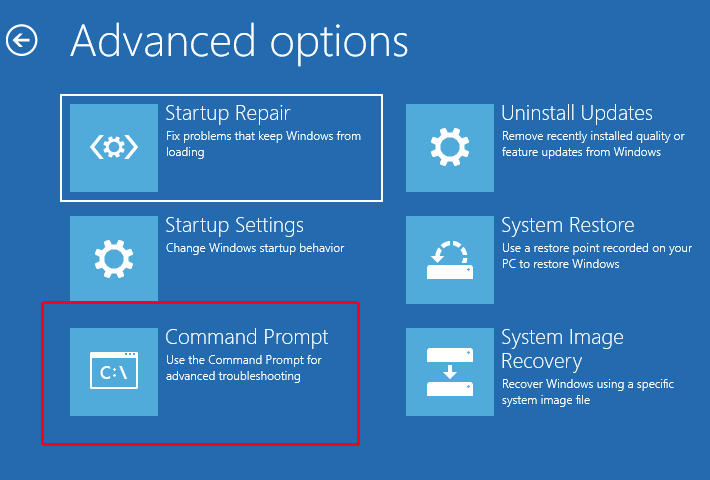
Step 3: Choose Troubleshoot > Advanced options > Command Prompt.
How to Repair Windows 11/10 Using Command Prompt
Method 1: Run DISM (Repair Windows Image)
Windows 10/11 has a command-line utility called DISM (Deployment Image Servicing and Management). DISM command can be used to repair and prepare Windows images, including, Windows Setup, Windows Recovery Environment, and Windows PE.
Step 1: Launch Command Prompt as administrator.
Step 2: Type the following command and press Enter after each one.
- Dism /Online /Cleanup-Image /CheckHealth
- Dism /Online /Cleanup-Image /ScanHealth
- Dism /Online /Cleanup-Image /RestoreHealth
When to use:
- Windows update errors
- System image corruption
Method 2: Run SFC (Fix Corrupted System Files)
SFC (System File Checker) checks the integrity of protected system files. If some of them are corrupted or missing, SFC will replace them with the correct versions located in C:\Windows. Follow the steps below to run SFC commands:
Step 1: Launch Command Prompt as administrator.
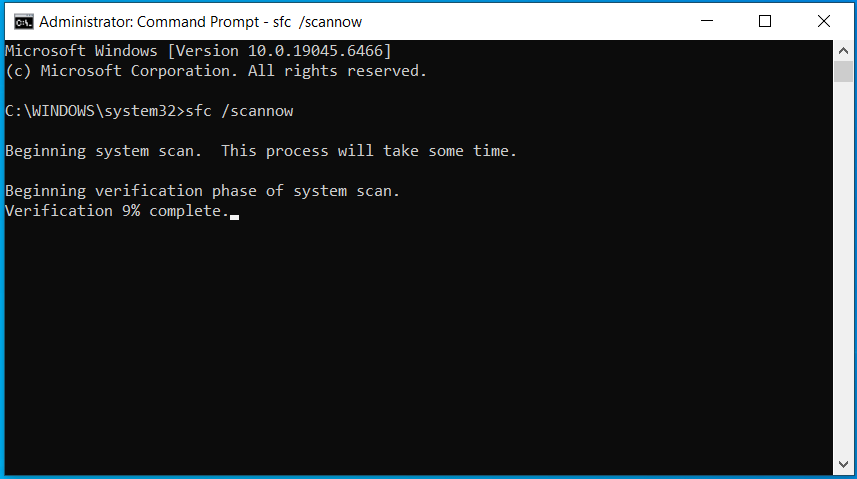
Step 2: Type sfc /scannow and press Enter. This process may take you much time to scan, and you just need to wait patiently.
When to use:
- Frequent blue screen errors caused by corrupted system files
- System crashes or unexpected shutdowns
- Missing or malfunctioning Windows features
- Error messages related to system files
Method 3: Run CHKDSK (Fix Disk Errors)
ScanDisk Repair (commonly known as CHKDSK) is an essential tool for monitoring the health of your disk drives with Windows. This tool is mainly used to speed up the Windows operating system and repair hard disks. Here is how to repair Windows 11 with it.
Step 1: Launch Command Prompt as administrator.
Step 2: Type chkdsk f: /f /x and press Enter (f: refer to drive f and you can replace it based on your needs). Then, it will start to scan for errors and repair them.
When to use:
- The system is slow
- Disk errors appear
- Files become inaccessible
Method 4: Use Bootrec (Fix Boot Issues)
If you are having boot issues with Windows 11/10, the bootrec.exe tool can help you fix them in most cases. Windows will perform an automatic scan and try to rebuild the BCD file.
Step 1: Open Command Prompt as administrator.
Step 2: Type the following commands in order and press Enter after each.
- bootrec.exe
- BOOTREC /FIXMBR
- BOOTREC /FIXBOOT
- BOOTREC /RebuildBcd
When to use:
- Boot loop
- Missing boot files
- BCD corruption
SFC vs DISM vs CHKDSK vs Bootrec: Comparison Table
| Tool | What It Fixes | When to Use |
| SFC | System files | When you suspect corrupted or missing system files (crashes, error messages, BSOD) |
| DISM | Windows image | When SFC fails, or Windows image issues cause update errors. |
| CHKDSK | Disk errors | When disk-related problems occur, such as file access errors or bad sectors. |
| Bootrec | Boot issues | When Windows 11/10 won’t boot, such as a boot loop or BCD errors. |
What to Do if CMD Repair Doesn’t Work
Sometimes, the above Windows repair commands fail to fix your issues.
Try these methods:
- Perform a system restore
- Reset your PC
- Clean install Windows
Method 1: Run System Restore
The Windows built-in tool, System Restore, can help revert your PC to a previous working state.
It restores system files, settings, and installed applications without affecting your personal files, making it a useful option when recent changes cause system issues.
Follow these steps:
Step 1: Launch Command Prompt as administrator.
Step 2: Type rstrui.exe and press the Enter key.
Step 3: Then, you can choose to use the recommended restore point or choose another restore point.
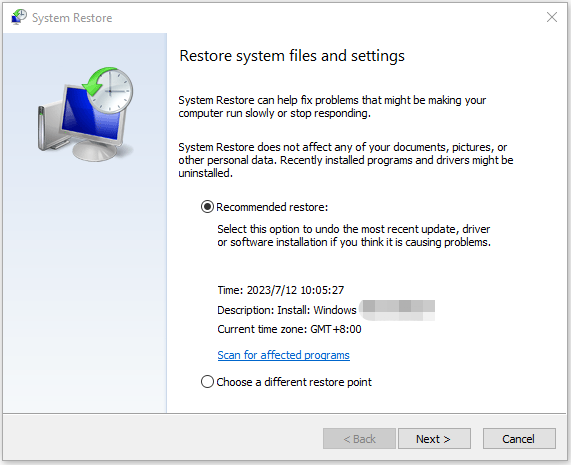
Step 4: Follow the on-screen instructions to finish the steps.
Method 2: Reset Your PC
In Windows 11/10, there is a feature called Reset this PC, which allows you to reinstall Windows while keeping your files.
You can choose between Keep my files and Remove everything, depending on whether you want to preserve your data or start fresh.
Follow these instructions:
Step 1: Run Command Prompt as an administrator.
Step 2: Type systemreset -factoryreset, then press Enter.
Step 3: Choose Keep my files to proceed.
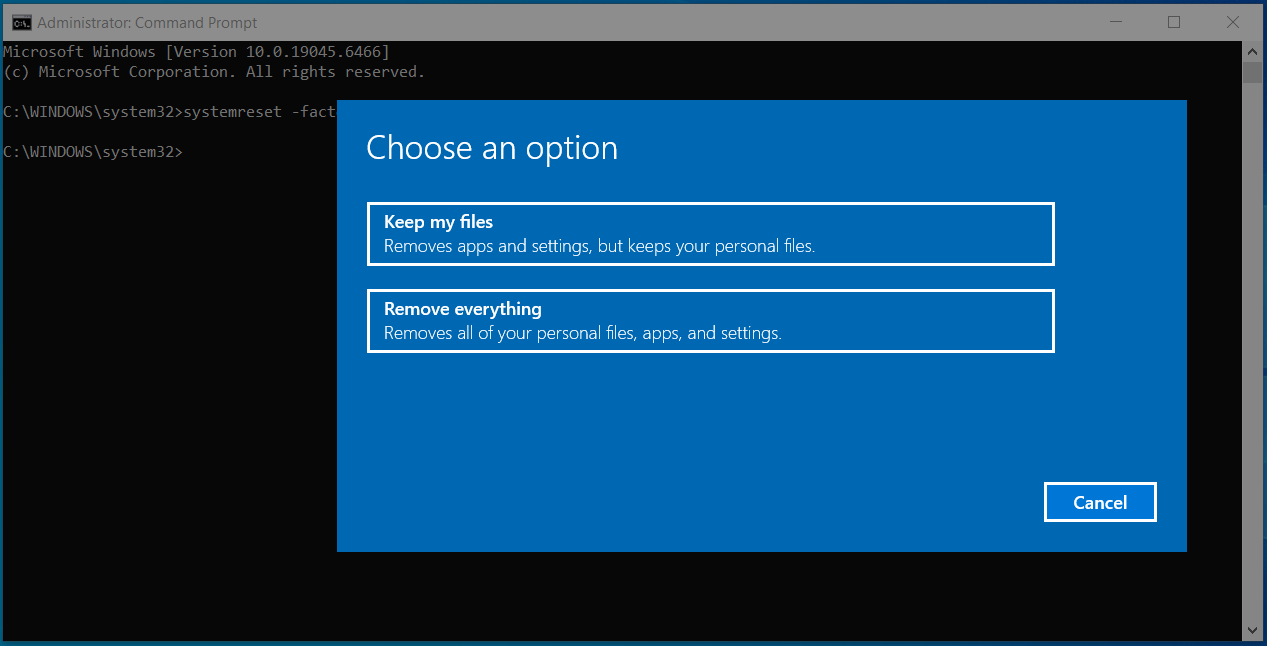
Step 4: Follow the on-screen prompts to finish the resetting task.
Method 3: Clean Install Windows
If none of the methods work, it is recommended to clean install Windows 11/10 to repair severe issues.
Step 1: Download a Windows ISO file and create a bootable USB drive.
Step 2: Insert the drive into the problematic PC, enter the BIOS menu, and configure the boot drive to run the system from that drive.
Step 3: On the Windows Setup interface, customize your preferences such as language, time format, and input method.
Step 4: Choose Install now or Install Windows 11.
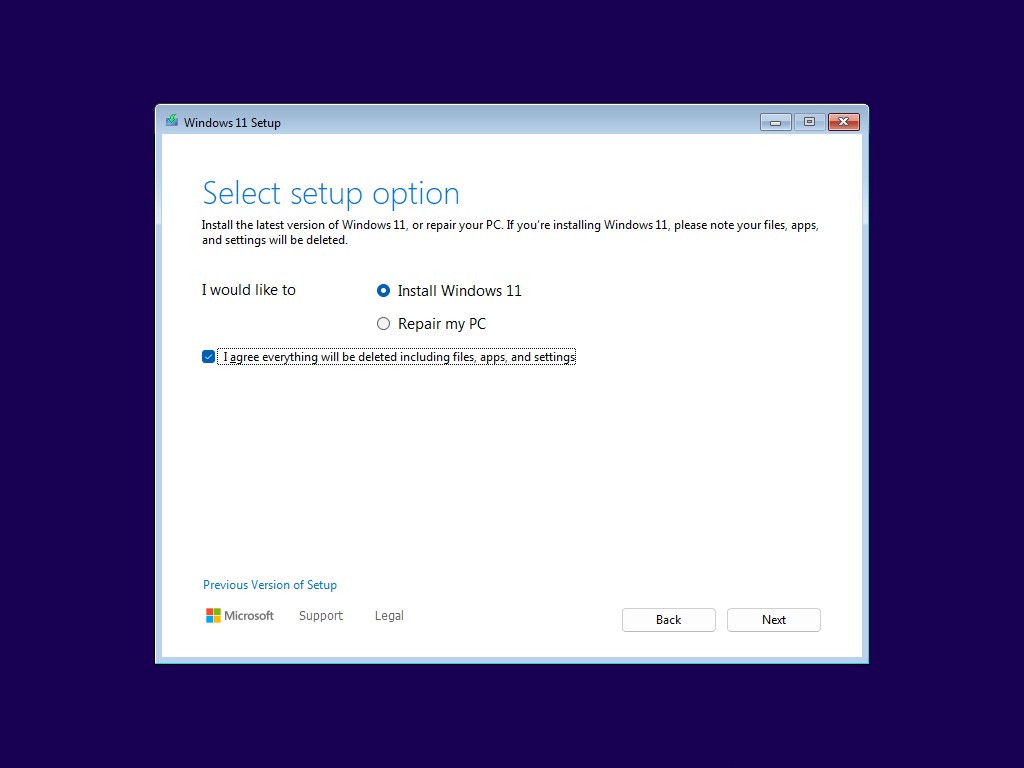
Step 5: Complete the installation by following the instructions on the screen.
What to Do After Repairing Windows 11/10
After repairing Windows 11/10, what to do? It is strongly recommended to create a system image because it is a good way to safeguard your PC and it enables you to repair Windows 11/10.
So, to create a system image, the professional Windows backup software – MiniTool ShadowMaker is a good choice. It can back up the operating system, disks, partitions, files, and folders. Besides, it can also restore the computer to an earlier state with the system image created before, or clone the OS to SSD without data loss.
MiniTool ShadowMaker TrialClick to Download100%Clean & Safe
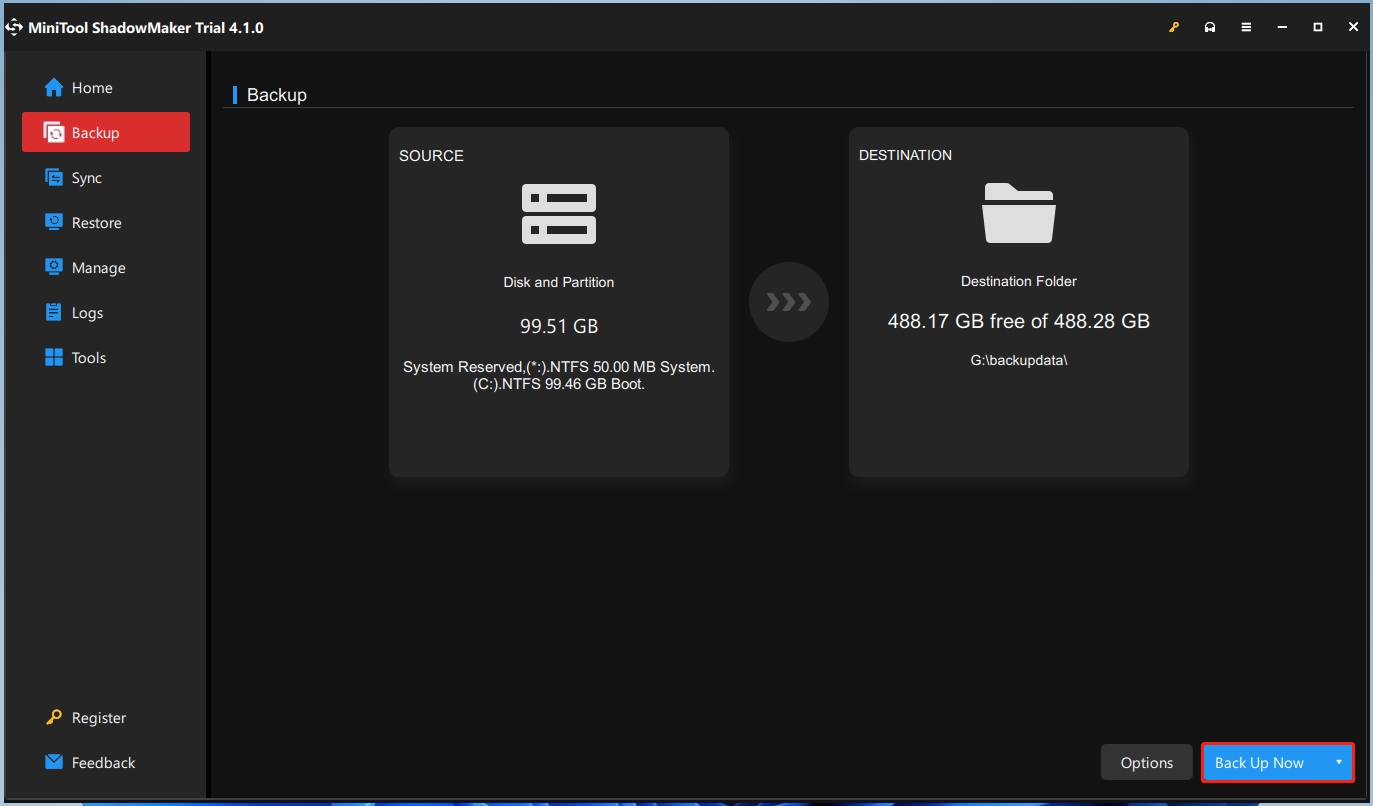
Step 1: Launch MiniTool ShadowMaker after installing it.
Step 2: Go to the Backup tab and you don’t need to choose anything since the system partitions are selected by default.
Step 3: Then, click the DESTINATION part to choose a location to store the system image file.
Step 4: At last, click the Back Up Now button to start the backup task right now.
Bottom Line
To sum up, this post has walked you through how to repair Windows 11/10 using Command Prompt. After repairing Windows 11/10, you had better create a system image to safeguard your computer.
On the other hand, if you have any problem with MiniTool ShadowMaker, please feel free to contact us via the email [email protected] and we will reply to you as soon as possible.
Repair Windows Using Command Prompt FAQ
To access Startup Repair, go to WinRE (Windows Recovery Environment), and choose Troubleshoot > Advanced Options > Startup Repair.
1. Run SFC & DISM
2. Use Startup Repair
3. Perform a system restore
4. Run an in-place upgrade
5. Reset this PC
6. Reinstall Windows 11/10
If you run SFC first, and the component store is corrupted, SFC may not work properly.
About The Author

Position: Columnist
Vera has been working at the MiniTool Team for over 10 years as a technical editor and content writer. She mainly focuses on disk and partition management, data recovery, Windows backup and restore, and PC troubleshooting. Through in-depth software testing and hands-on experience, she has helped users solve a wide range of computer problems and better protect their data on Windows devices.
User Comments :