
Windows Update in Settings plays an important role in updating Windows. What if you discover it is missing? How can you get it back? Don’t worry. This MiniTool article teaches you to fix the “Windows Update tab is missing from Settings” issue.
I noticed a few days ago that the “Windows Update” Tab in the “Update & Security” section of the Settings App had disappeared. I’ve done all the basic troubleshooting steps, sfc, etc, and nothing is reporting any errors or issues. I would prefer not to just reinstall the OS to fix a bug with the settings app. If anyone has any ideas, please let me know.answers.microsoft.com
Windows Update is a service provided by Microsoft for the Windows 9x and Windows NT families of Microsoft Windows operating systems. It can automatically download and install Microsoft Windows software updates through the Internet.
However, some people encounter that Windows Update is missing in Windows 10 Settings, which will prevent you from updating your Windows. Many reasons can cause this issue. Don’t panic. The following content explains some solutions to get this tab restored. Keep reading.
Method 1: Reset Windows Update Service
If there is a problem with the Windows Update service in service.msc, the problem of Windows update missing from settings may occur. In this case, you are expected to reset the Windows Update service to see if the Windows Update tab can be restored. Here is how you can do it.
Step 1: Type Command Prompt in the Windows search box, right-click on the best match, and choose Run as administrator.
Step 2: When prompted by the UAC window, click on the Yes button to continue.
Step 3: In the Command Prompt window, type the following commands one by one and press Enter each time:
- net stop wuauserv
- net stop cryptSvc
- net stop bits
- net stop msiserver
- Ren C:\Windows\SoftwareDistribution SoftwareDistribution.old
- Ren C:\Windows\System32\catroot2 Catroot2.old
- net start wuauserv
- net start cryptSvc
- net start bits
- net start msiserver
This process will take some time. You should wait patiently for it to be completed.
Method 2: Re-register the Settings App
This Windows Update tab exists in the Settings app. If there is something wrong with the settings app, it may also be affected, causing the problem of the Windows Update tab missing under Update & Security. So, you are supposed to re-register the Settings app to see if this issue can be fixed. Here are the steps.
Step 1: Right-click on the Start button and choose Windows PowerShell (Admin).
Step 2: In the PowerShell window, type the following cmdlet and press Enter:
Get-AppXPackage -AllUsers -Name windows.immersivecontrolpanel | Foreach {Add-AppxPackage -DisableDevelopmentMode -Register “$($_.InstallLocation)\AppXManifest.xml” -Verbose}
Now Wait for the process to be completed.
See Also: How to Reset the Settings App in Windows 10/11
Method 3: Disable the Block of Settings Page Visibility
The Settings Page Visibility policy determines whether a page is visible or hidden to you. If you hide a settings page, you will not be able to see or access it. If you enable this feature, you will discover the Windows Update tab is missing from Settings. To fix it, you need to disable the block of Settings Page Visibility. To do so.
Step 1: Type Edit group policy in the Windows search box and press Enter.
Step 2: Double-click on Computer Configuration > Administrative Templates > Control Panel.
Step 3: In the right pane, right-click on Settings Page Visibility to choose Edit.
Step 4: In the top left corner, click on the Disabled option.
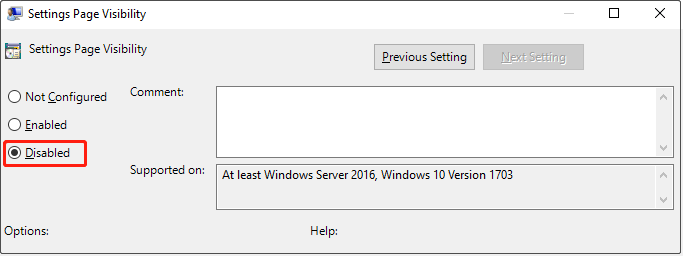
Step 5: Finally, click on Apply > OK.
Method 4: Show Only Specified Control Panel Items
Items in the Control Panel can be customized for standard users. If you hide an item in the Control Panel, you will not be able to see or modify it. Likewise, you will find the Windows Update tab is missing from Settings if you hide it. Refer to the operations below to show it.
Step 1: Open the Local Group Policy Editor and go to User Configuration > Administrative Templates > Control Panel.
Step 2: Double-click on Show only specified Control Panel items.
Step 3: Change the toggle from Not Configured to Enabled.
Step 4: Click on the Show button and add the items that you want to show in Control Panel.
Step 5: Finally, click on Apply > OK.
MiniTool Power Data Recovery FreeClick to Download100%Clean & Safe
Wrapping Things Up
Now that you know how to fix the “Windows Update tab is missing from Settings” issue. You can deal with it now. Hope it can be restored.
User Comments :